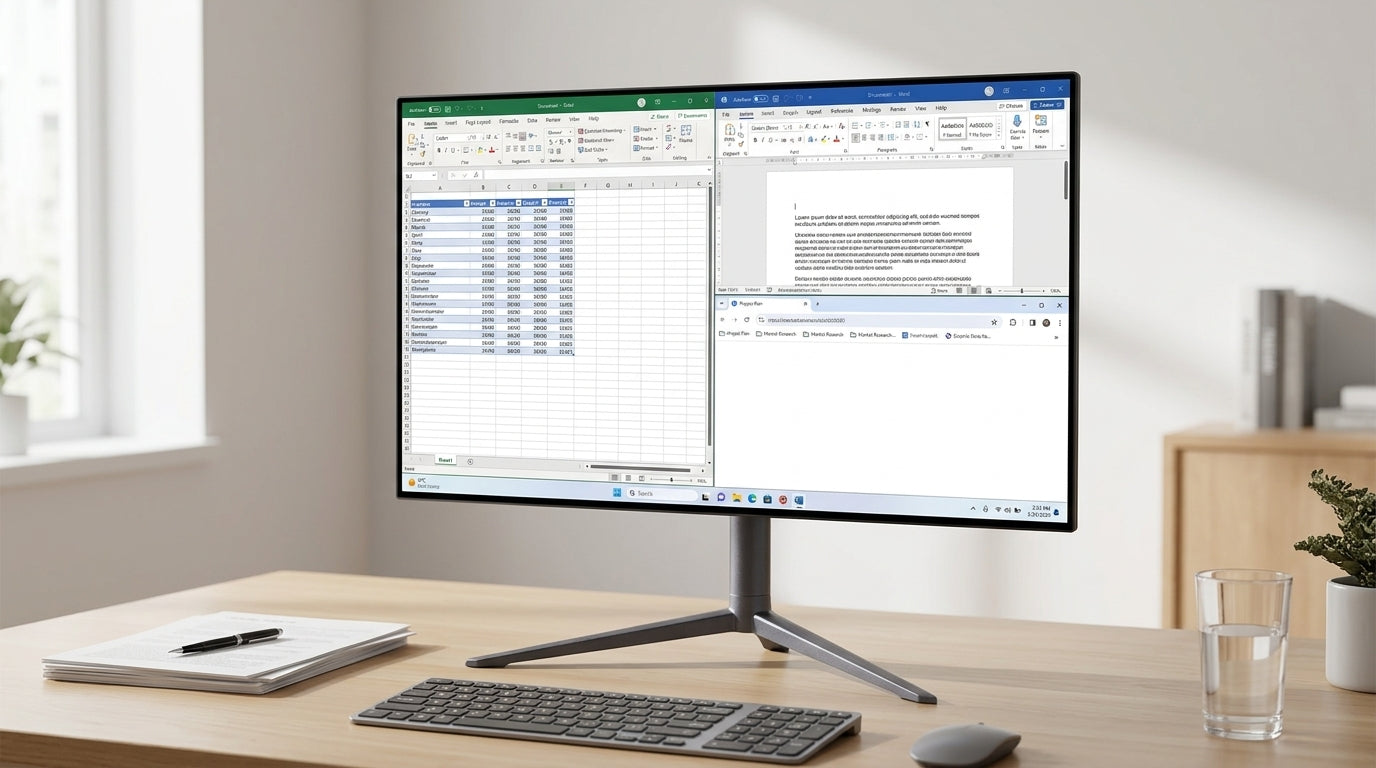
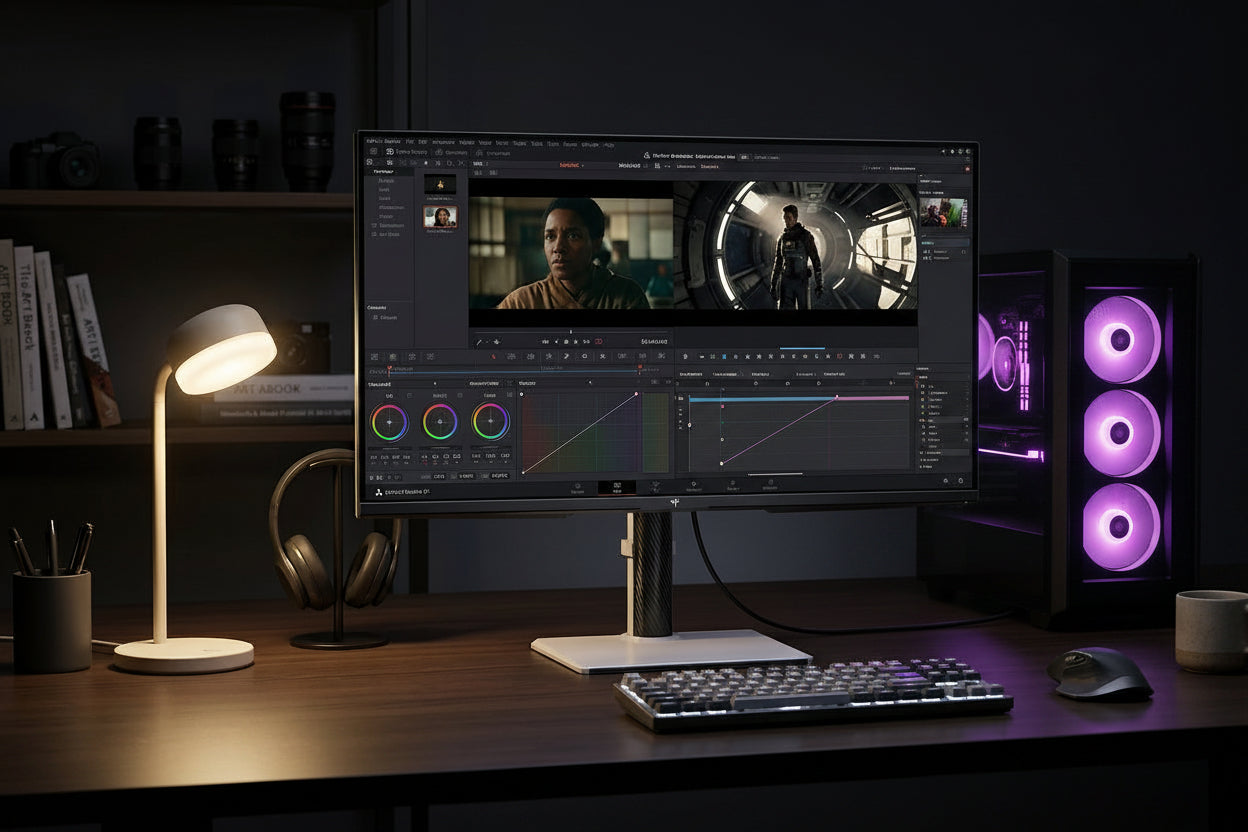
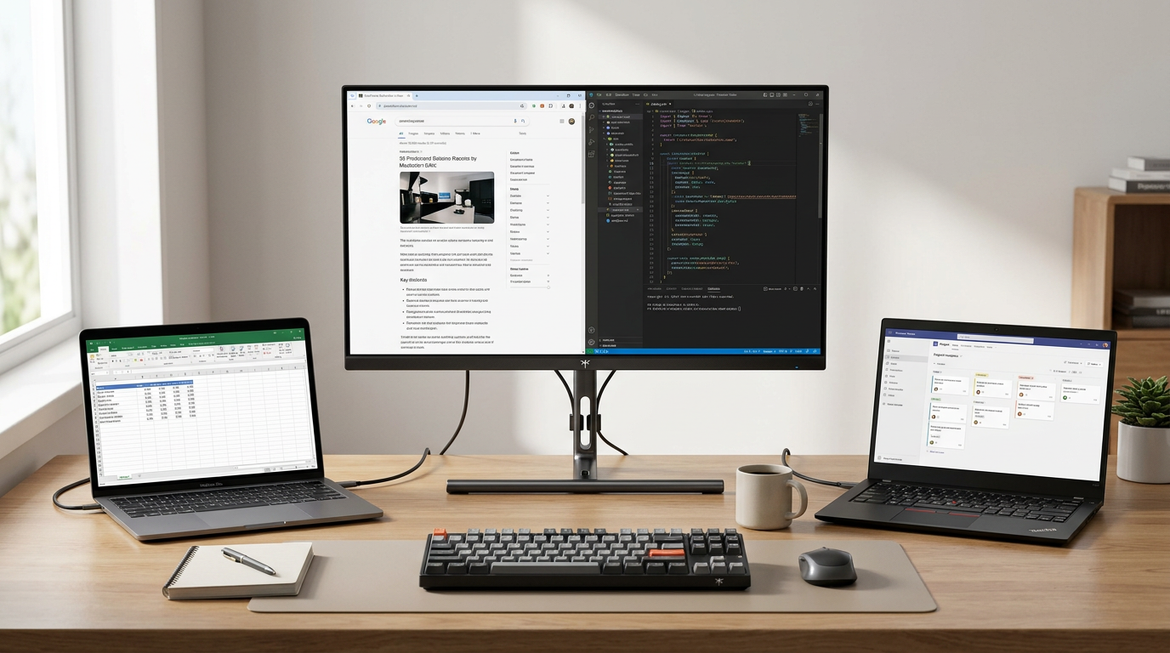
A good USB-C KVM monitor for a MacBook and gaming PC comes down to three checks first: verified USB-C video, enough power delivery, and controls you can reach quickly. If any one of those is weak, the setup usually stops feeling like a one-cable desk and starts feeling like a troubleshooting project.

What Matters First
For most hybrid desks, the first question is not resolution or refresh rate. It is whether the monitor can carry video over USB-C, power the laptop well enough, and switch input and USB control without extra steps. A dock can hide some of that complexity, but a monitor with built-in KVM should still make the handoff simpler, not harder.
USB-C monitor setup pitfalls are worth checking early if you use a MacBook with other high-performance gear on the same desk, because the connection path matters as much as the panel itself. In practice, charging alone is not enough. You want a verified video path, usually USB-C DisplayPort Alt Mode or another confirmed video mode, plus a clear upstream USB link for the keyboard and mouse.
Decision sentence: If the monitor only advertises USB-C charging, it is not a fit for a single-cable MacBook setup until you confirm video support and KVM routing.
Why Power Delivery Changes the Experience
Power delivery affects whether the MacBook stays comfortably charged during long work sessions, or slowly slides toward battery drain once the display, peripherals, and apps are all active. For many hybrid desks, 90W is the safer starting point because it leaves more headroom. 65W can still work, but it is more likely to feel tight when the laptop is doing more than light browsing or document work.

Apple's charging guidance for laptops is useful here because it reinforces a simple rule: laptop power needs are workload-dependent, so a monitor that looks adequate on paper may still feel marginal in real use. That is why the better choice is often the monitor with the larger PD cushion, not just the one that technically charges.
The KTC H27P6 is the stronger fit when you want 90W USB-C PD and a more productivity-friendly 4K-class workspace. The G27P6 is the more gaming-forward option, but its 65W PD makes it a better match for lighter MacBook workflows rather than the heaviest all-day setups.
Decision sentence: If your MacBook stays plugged in for long sessions and you do not want to think about battery drift, choose 90W or higher; if your use is lighter, 65W may be enough.
KVM Controls That Prevent Friction
A monitor can have KVM support and still feel annoying if the controls are hidden or slow to reach. The details that matter most are simple: a physical button or obvious on-screen shortcut, a clear USB upstream path, and a control layout that does not make you dig through menus every time you switch between the MacBook and the gaming PC.
If you want a good reference point for why this friction matters, KVM switching on shared desks is mostly about reducing repeated setup steps. In daily use, the goal is not just switching video. It is keeping keyboard, mouse, and audio behavior predictable when you move from work to play.
Manuals for KVM-capable monitors commonly require the upstream USB or Type-C link before the USB devices will follow the selected source, and the KVM menu is often accessed through the joystick or a right-side shortcut. That sounds minor, but it determines whether switching feels instant or fussy.
Decision sentence: If the KVM control is buried in menus and the upstream path is unclear, the monitor may still work, but it is a poor fit for a desk you switch on every day.
Mac and PC Compatibility Checks
This is where many "universal compatibility" claims break down. Mac users should verify that the USB-C port on the monitor accepts video from their MacBook model, while PC users should verify the high-bandwidth input path separately. A monitor can support both devices and still behave differently depending on the cable, port, and selected mode.
Why your monitor goes black for a second when switching between apps or games is a useful reminder that a short blackout on source change is often normal. What is not normal is repeated failure to wake, repeated resolution resets, or a connection that only works after several tries. That usually points to a cable issue, a handshake problem, or a mismatch in the selected input path.
If you are using adapters or docks, treat them as troubleshooting tools unless the setup has been explicitly verified. A direct cable is the cleanest test, especially when you are checking EDID behavior, wake-from-sleep reliability, and whether the MacBook and gaming PC both hold their expected settings after switching. See also how to prevent a USB-C monitor from interfering with a laptop’s discrete GPU.
| Check | Why It Matters | What To Look For |
|---|---|---|
| USB-C video from the MacBook | Charging alone does not prove display support | Confirm DisplayPort Alt Mode or another verified video path |
| High-bandwidth PC input | Gaming refresh depends on the full signal chain | Confirm the correct port, cable, and refresh mode |
| Cable certification or quality | Weak cables often look like monitor problems | Use a full-function cable with the needed bandwidth |
| EDID stability | Bad handoffs can reset resolution or refresh rate | Look for stable wake behavior and consistent source switching |
| USB upstream path | KVM depends on the monitor knowing which device owns the peripherals | Confirm USB or Type-C upstream is connected |
| PD wattage headroom | Low wattage can mean slow charging or battery drift | Match wattage to your MacBook's real workload |
| Wake-from-sleep behavior | Sleep transitions are where many hybrid setups fail | Check reviews or manuals for repeat black-screen reports |
Which KTC Models Fit Each Workflow
The right KTC monitor depends on which part of the setup matters most. If you want sharper work output and stronger USB-C headroom, the H27P6 is the best match among the listed options. It fits a hybrid desk where MacBook productivity matters, but gaming still needs high refresh and a clean USB-C path.
If gaming is the priority and the MacBook is used more lightly, the G27P6 is the more aggressive performance choice. Its 65W PD is fine for some lighter laptop workflows, but it is not the first pick if you want the most charging headroom.
If you want a larger all-in-one desk layout, the KTC 49" DQHD 180Hz 1000R Curved Gaming monitor丨H49S66 fits better. It is most useful when screen space, multitasking, and ultrawide immersion matter more than compactness.
Gaming monitors are the right browsing path when your desk leans toward high refresh, while the Office Monitor collection is the better place to check if your MacBook workflow is more text-heavy and productivity-first. For mixed home setups that also include entertainment, explore the Smart Monitor collection.
Decision sentence: If you split time evenly between Mac work and gaming, the H27P6 is usually the safer balance; if gaming dominates, the G27P6 is easier to justify.
Final Setup Checklist
- Confirm the USB-C port supports video, not just charging.
- Confirm the PD wattage matches your MacBook's real workload.
- Confirm the KVM control is easy to reach without menu hunting.
- Confirm the PC input can deliver the refresh rate you expect.
- Confirm wake-from-sleep and EDID behavior in reviews or manuals.
- Confirm the cable is full-function and rated for the mode you want.
- Confirm the return window and warranty before checkout.
If you pass those checks, the monitor is much more likely to feel like a true hybrid desk upgrade instead of a compromise.
FAQs
Q1. How Much USB-C Power Delivery Do I Need for a MacBook Monitor?
For many hybrid desks, 90W is the safer target because it leaves more room for heavier work sessions. 65W can still be fine for lighter use, but it is more likely to feel borderline if the laptop is driving the monitor and running more demanding apps at the same time.
Q2. What Does EDID Do in a KVM Monitor?
EDID is the monitor's identity data. It helps the source device choose resolution, refresh rate, and other display settings. If EDID handling is weak, the result can be a black screen, a resolution reset, or a source switch that does not feel stable. EDID handshake mechanics explain the underlying process.
Q3. Can One USB-C Cable Handle Video, Charging, and KVM?
Yes, but only if the monitor and the device both support the needed video path, power delivery, and upstream USB routing. If any one of those pieces is missing, you may still get charging, but not a clean single-cable desk.
Q4. Why Does My MacBook Charge but Not Display Video?
That usually means the connection is delivering power but not a usable video signal. The most common causes are a non-video USB-C port, the wrong input selected on the monitor, or a cable that is not full-function.
Q5. Do I Need Thunderbolt for USB-C KVM Switching?
Usually no. What matters more is verified USB-C video support and enough power delivery for the laptop. Thunderbolt can help in some setups, but it is not the default requirement for a working USB-C KVM desk.
Hybrid Desk Priority Guide For USB-C KVM Monitors
Choose the model profile that matches your main constraint: charging headroom, gaming speed, or desk space.
Show model comparison
| Model | Best fit | Main advantage | Main trade-off |
|---|---|---|---|
| H27P6 | MacBook plus gaming PC balance | 90W USB-C PD and 4K-class workspace | Less specialized for pure gaming than the OLED option |
| G27P6 | Gaming-first hybrid desk | 240Hz OLED motion and snappier feel | 65W PD leaves less charging headroom |
| H49S66 | Large ultrawide multitasking setup | 49-inch super ultrawide workspace | Needs more desk space and is less compact |
Related Resources
KVM Monitor Setup: Share One Display Between MacBook and Gaming PC covers single-cable desk builds in detail. Why Ports on the Same Monitor Can Have Different Bandwidth and Features explains port differences that affect refresh and HDR. What Happens If You Connect a USB-C Monitor to a Laptop with Insufficient Power Output? walks through power-related flicker and black-screen fixes. KVM Switching for Separate AI Test and Build Workstations shows advanced multi-workstation routing. These resources together give practical next steps for testing cables, verifying EDID stability, and scaling a hybrid setup beyond the initial monitor choice.