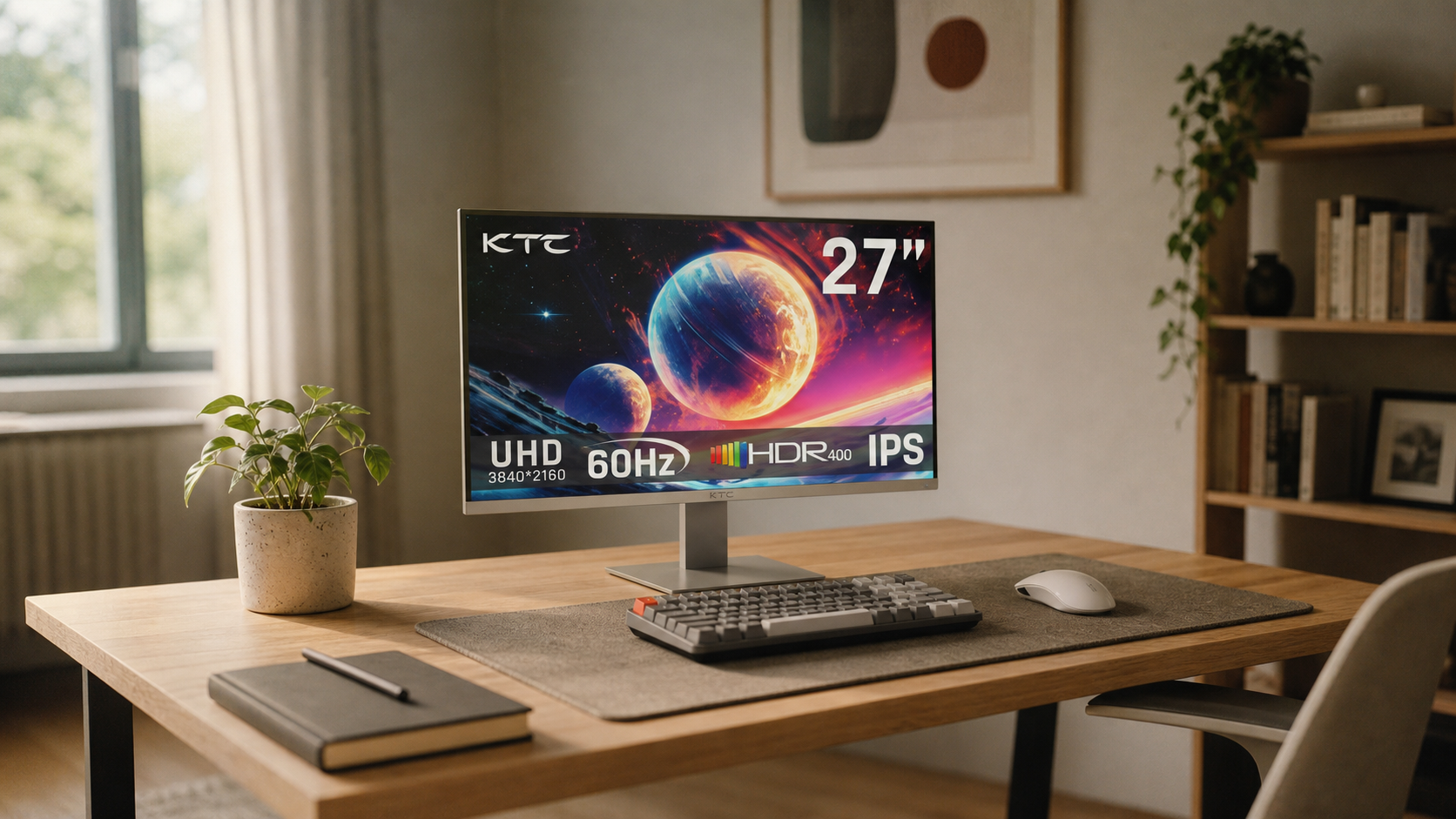
You can run three monitors from a two-output graphics card by adding a supported dock, hub, USB display adapter, or daisy-chain-capable DisplayPort setup. The right choice depends on resolution, refresh rate, operating system, and whether the third screen is for gaming or productivity.
Staring at two full monitors while your chat, spreadsheet, timeline, or reference window keeps hiding behind everything else? A properly planned third display can give you a dedicated command center without replacing your whole PC, as long as you confirm the hardware path before buying adapters. Here is the practical route to choosing the right connection method, wiring it cleanly, and configuring Windows or macOS so all three screens behave like one reliable workspace.
First, Know What Your GPU Is Actually Limiting
A graphics card with two physical outputs does not automatically mean your computer can only support two displays. It means that card only exposes two direct video ports. The total display limit can also depend on the GPU, integrated graphics, docking hardware, operating system, driver support, and the resolution and refresh rate you expect from each screen.
A graphics processing unit can be integrated into the main processor or installed as a separate card. Integrated graphics share system resources, while discrete graphics cards have their own processor and memory. For ordinary office work, modern integrated graphics can be enough, but discrete GPUs usually give more flexibility for multi-display setups and remain the better path for demanding 3D, CAD, color-critical, and high-refresh gaming work.
For a real-world example, a PC with two GPU ports can run a 27-inch 1440p main monitor and a 24-inch 1080p side monitor directly from the graphics card, then add a third 1080p office display through a compatible USB-C dock or USB display adapter. That is a very different workload from trying to run three high-refresh gaming monitors at once. The first setup is a productivity expansion; the second is a performance demand.
Your Best Options When You Only Have Two Outputs
The cleanest solution is usually to connect your highest-performance display directly to the graphics card, then use a dock, hub, adapter, or daisy chain for the less demanding third monitor. For a gaming or creator desk, the center monitor should get the strongest direct connection because it is most likely to need native resolution, high refresh rate, adaptive sync, and the lowest latency.

A multi-monitor setup separates tasks such as email, spreadsheets, browsing, design tools, video editing, gaming, and note-taking across more screen space. That is the key value of a third monitor: not just more pixels, but a more stable role for each screen. Keep the game, edit timeline, or main document in the center; place communications on one side; reserve the third display for monitoring, references, dashboards, or preview windows.
Method |
Best Use |
Pros |
Cons |
USB-C or Thunderbolt dock |
Laptops and modern desktops with compatible ports |
Clean cabling, charging support on some docks, often supports multiple displays |
Display limits vary by dock, host port, OS, and refresh rate |
USB video adapter |
Adding a low-demand third screen |
Useful when no native video port is left |
Not ideal for competitive gaming or color-critical motion work |
DisplayPort daisy chain |
Monitors that support it |
Fewer cables from the PC |
Requires compatible GPU, monitor, cable, and settings |
New GPU with more outputs |
Gaming, simulation, CAD, high-refresh triple displays |
Strongest performance path |
Higher cost and may require power supply or case clearance checks |
Motherboard display output |
Some desktops with integrated graphics |
Can work without buying a new GPU |
Requires supported integrated graphics and correct firmware settings |
Dock, Hub, or Adapter: Choose by Resolution and Refresh Rate
The safest buying rule is to match the adapter to the actual workload, not just the number of HDMI ports printed on the product page. A hub that supports two external displays at 1080p may not support the same layout at 1440p or 4K, and a dock that works well for office documents may not be the right tool for high-refresh gameplay.
For example, a USB-C hub may support dual displays up to 2K at 60 Hz with DisplayPort 1.4 laptops, while the same class of setup may fall back to 1080p at 60 Hz with DisplayPort 1.2 laptops. That detail matters because a third monitor is not just another screen; it is another stream of resolution and refresh data that has to fit through the available connection.
If your two GPU outputs are already driving a 1440p 165 Hz gaming monitor and a 4K office display, adding a third monitor through a modest adapter may work best if that third display is 1080p at 60 Hz. If you need all three monitors for fast motion, trading, simulation, or immersive racing, a graphics card with three or more native outputs is usually the more reliable investment.
Daisy Chaining Can Work, but Only With the Right Displays
DisplayPort daisy chaining lets one monitor connect to the computer and pass video onward to another monitor. It can reduce cable clutter and solve the “only two ports” problem, but it is not universal. The monitor, cable, GPU, and operating system support all have to line up.
The practical check is simple: look for DisplayPort input and DisplayPort output on the first monitor, then confirm that the monitor supports daisy chaining or MST. If the first screen only has HDMI input and no DisplayPort output, it cannot pass the signal to the next display. In that case, a dock, adapter, or GPU upgrade is the more realistic path.

For example, if your graphics card has one DisplayPort and one HDMI output, you might connect the center monitor through DisplayPort, daisy chain a side monitor from it, and connect the third display through HDMI. If the daisy chain fails or caps your refresh rate too low, move the performance-critical display back to a direct GPU connection.
Configure the Three Screens in Windows or macOS
After wiring the monitors, the software setup decides whether the desk feels smooth or frustrating. On Windows, open Display settings, use Identify to match the numbered boxes to the physical monitors, then drag those boxes into the same left-center-right arrangement you see on the desk. Choose Extend rather than Duplicate when you want each screen to hold different windows.

A dock setup workflow emphasizes the same practical foundation: confirm the computer supports multiple monitors, use updated graphics drivers, connect displays through the dock or direct ports, then arrange the layout in the operating system’s display settings. On macOS, use System Settings, open Displays, and make sure mirroring is disabled if you want a true extended workspace.
Do not skip resolution and scaling. Set each screen to its native resolution first, then adjust scaling so text looks balanced across all three. A 27-inch 1440p center monitor beside two 24-inch 1080p displays can work well, but cursor movement and window sizing will feel better after the display boxes are aligned by their top or center edges in settings.
Plan the Physical Layout Before You Buy
The third monitor should solve a workflow problem, not create a neck problem. A wide desk can support three landscape displays, but many productivity and coding setups work better with one side monitor rotated vertically for documents, chat, logs, or long web pages.

A multi-monitor calculator can model screen size, resolution, refresh rate, bezel width, physical width, height, and placement before you commit to the layout. For a simple estimate, three 27-inch monitors can consume roughly 6 ft of horizontal span once bezels and angled placement are included. If your desk is only 48 inches wide, one vertical side screen or a smaller portable display may be more comfortable than forcing three full-size panels into a shallow space.
Ergonomics also matter. The University of Wisconsin’s dual-monitor ergonomics material highlights monitor placement as part of reducing strain, especially when users look between screens for long sessions. Keep the primary display centered, place secondary displays close enough that you are not repeatedly twisting your neck, and align the top edges near or slightly below eye level.
Troubleshooting When the Third Monitor Is Not Detected
If the third display stays blank, start with the signal path. Confirm the monitor is powered on, the correct input is selected, and the cable is fully seated. Then swap cables or ports to isolate whether the issue follows the monitor, the adapter, or the computer output.
The multiple-displays setup process is also sensitive to display mode. If all screens show the same thing, switch from Duplicate to Extend. If one monitor appears but looks blurry or oversized, set native resolution and adjust scaling. If the third display appears only after a restart, update graphics drivers and dock firmware where available.
When bandwidth is the issue, reduce the least important monitor first. Dropping a side display from 1440p to 1080p or from a high refresh rate to 60 Hz may free enough capacity for the full three-screen layout. For performance work, keep the main gaming or editing monitor on the direct GPU output and make the adapter-driven screen the least demanding one.
FAQ
Can I game across three monitors if my GPU only has two outputs?
You can sometimes add the third display through a dock or adapter, but triple-screen gaming is much more demanding than running a side monitor for chat or system stats. For immersive racing, flight simulation, or surround gaming, a GPU with enough native outputs is the stronger choice.
Will a cheap HDMI splitter give me three independent monitors?
Usually no. A basic HDMI splitter mirrors the same image to multiple screens, which is Duplicate mode behavior. For three independent desktops, you need an actual additional display path such as a supported dock, USB video adapter, daisy chain, integrated graphics output, or graphics card upgrade.
Should all three monitors match?
Matching size, resolution, and refresh rate makes cursor movement, scaling, and color consistency easier. Mixed monitors can still work well, especially if the center screen is the highest-quality display and the side screens have clear, dedicated roles.
A three-monitor setup with a two-output GPU is workable when you treat the third screen as a system design choice, not a cable trick. Put performance where it matters, verify display limits before buying hardware, and configure the layout so the screens disappear into the workflow instead of fighting it.