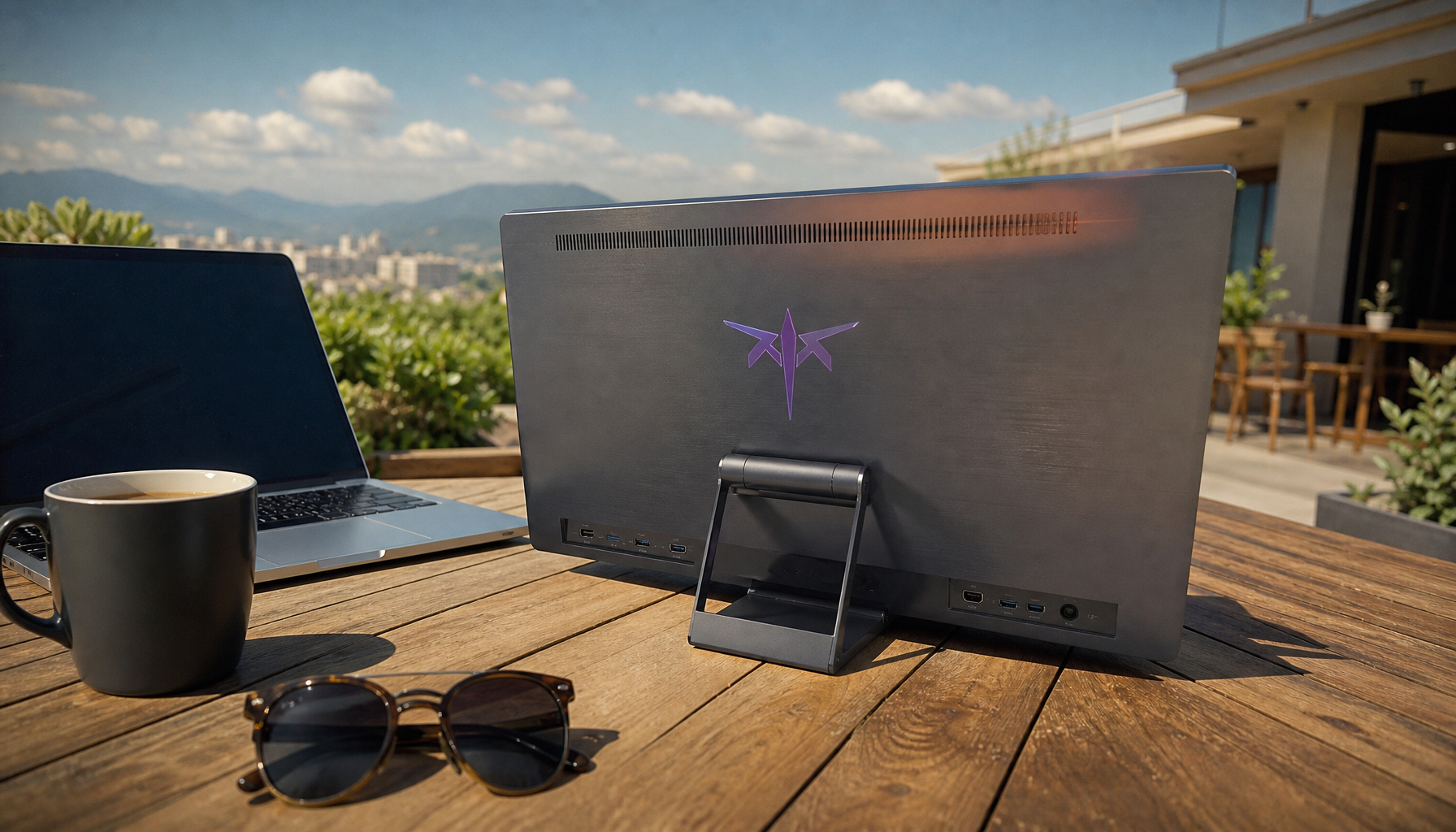
Yes. Adaptive Sync and frame rate limiters can work together, and the best setup is usually VRR enabled with an FPS cap slightly below the display’s maximum refresh rate.
Why the Combo Works
Adaptive Sync and VRR solve the same core problem: they let the monitor adjust its refresh timing to match the GPU’s frame output. That helps reduce tearing and stutter when FPS moves around instead of staying locked.
A frame rate limiter does something different. It sets a ceiling so the GPU does not render beyond a target FPS. When that ceiling sits inside the monitor’s VRR range, the display can keep syncing dynamically while the PC avoids slamming into the refresh-rate limit.
For example, on a 144 Hz gaming monitor, a 141 FPS cap keeps output just under the top of the VRR window. That helps prevent the system from bouncing into normal V-Sync behavior at 144 FPS while still preserving smooth motion.

The Best Practical Settings
For a responsive, tear-resistant setup, use this order:
- Enable Adaptive Sync or VRR in the monitor menu.
- Enable VRR in your GPU driver.
- Set the monitor to its highest real refresh rate.
- Cap FPS 2-3 frames below max refresh.
- Test each game for frame pacing and input feel.
You can enable VRR through the graphics driver, and DisplayPort remains the most reliable connection for many setups. If your monitor is VRR-compatible rather than hardware-native, also check the monitor’s on-screen menu for a VRR or Adaptive Sync toggle.

Typical caps are simple: 117 FPS for 120 Hz, 141 FPS for 144 Hz, 162 FPS for 165 Hz, and 237 FPS for 240 Hz. A small cap below the ceiling keeps gameplay inside the smooth zone without wasting GPU power on frames the display cannot use cleanly.
Should V-Sync Be On Too?
For many modern VRR setups, yes: use driver-level V-Sync as a ceiling guard, then use the FPS limiter to avoid actually hitting that ceiling. This gives Adaptive Sync room to work while reducing the risk of tearing if FPS briefly exceeds the monitor’s range.
That said, behavior can vary by game engine, driver, and display. Some players prefer V-Sync off for the lowest possible latency, but that can allow tearing above the VRR range. Others use V-Sync on without a cap, but that can feel less responsive when the frame rate hits the refresh ceiling.
A practical middle ground is VRR on, V-Sync on in the driver, V-Sync off in-game unless required, and a frame cap just below max refresh.

When a Limiter Helps Most
Frame limiters are especially useful when your GPU can exceed the monitor’s refresh rate. A 240 Hz panel does not benefit much from wild swings between 230 and 300 FPS if those swings create inconsistent frame pacing, heat, fan noise, or tearing.
They also help with demanding single-player games, where scenes may jump from 160 FPS indoors to 95 FPS outdoors. In those cases, a frame cap just below the refresh ceiling can make camera movement feel more coherent than fully unlocked FPS.

A nuance worth knowing: if you want a strict cinematic 60 FPS lock on a high-refresh monitor, VRR can still work, but the value drops unless the game fluctuates around that target.
What to Watch For
If you see flicker, black screens, or odd brightness shifts, the issue may be VRR range behavior, cable bandwidth, or panel compatibility rather than the limiter itself. Try a certified DisplayPort cable, confirm the refresh rate in Windows, and reduce the FPS cap by another frame or two.

On some systems, Adaptive Sync is mainly intended for gaming and may cause flicker on unverified displays, especially outside games.
Bottom line: Adaptive Sync plus a frame limiter is not only usable; it is often the cleanest balance of smoothness, latency, thermals, and visual stability.