For most home offices, calibrate your monitor around 100–150 nits, with 120 nits as a practical starting point. Raise it only when room light or glare requires it.
Start With 120 Nits, Then Match the Room
A calibrated display is not supposed to look dazzling. It should look stable, readable, and believable for the lighting you actually use.
For a typical home office with moderate ambient light, 120 nits is a strong SDR target, especially for documents, spreadsheets, web apps, coding, and photo review. This sits inside the commonly recommended office range of about 100–150 nits, which is bright enough for clarity without making white pages feel like a lamp.
If your office is dim in the evening, 80–110 nits may feel better. If your desk sits near a bright window, 150–200 nits can be more realistic, but fix glare first before simply pushing brightness higher.
Use the Paper Test for Fast Calibration
The easiest home-office check is low-tech and surprisingly effective: compare your screen to white paper under your normal room light.
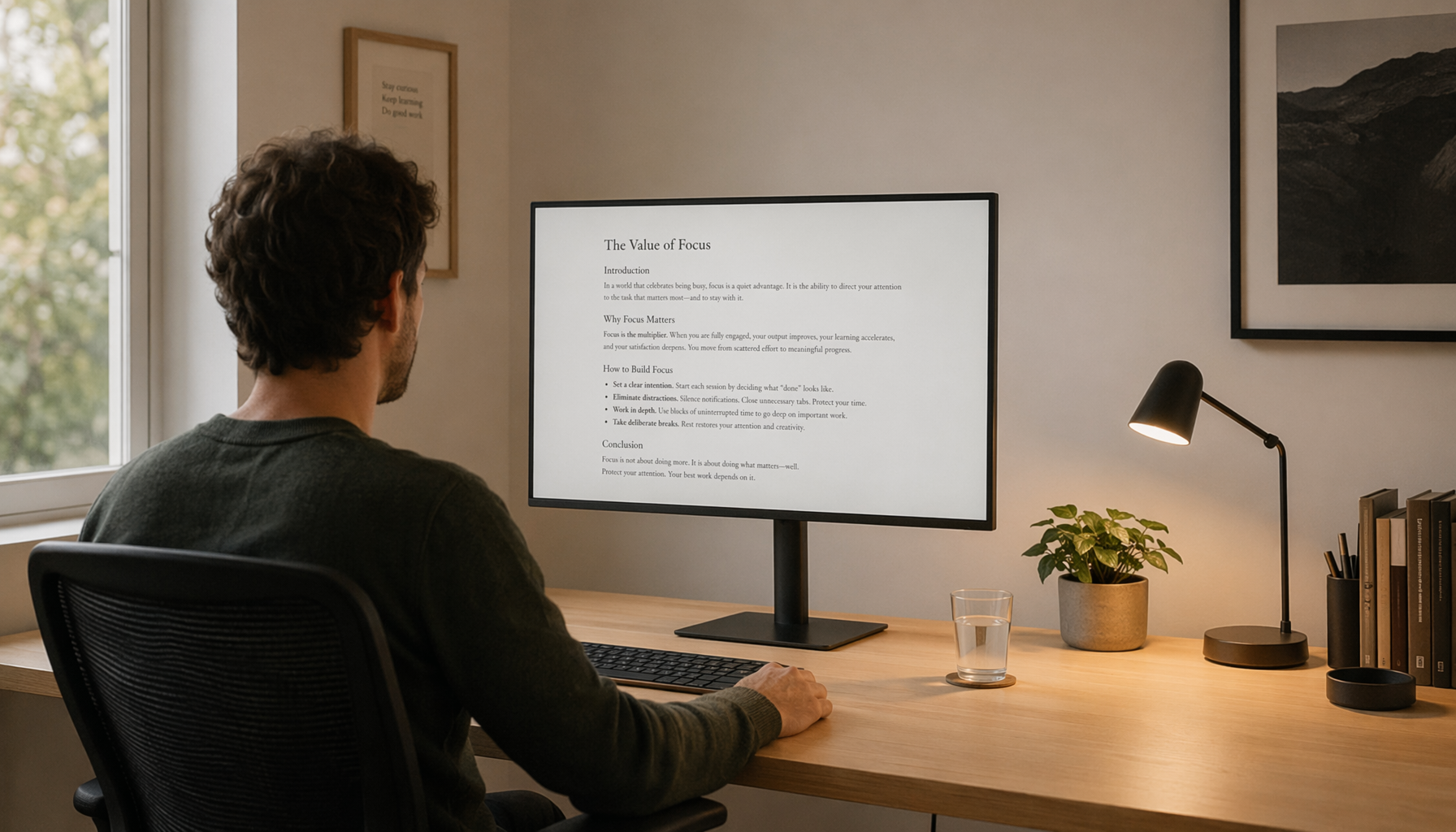
Open a blank white document, place a white sheet of paper beside the screen, and adjust brightness until the display is close to the paper’s brightness. A good home-office screen should not look dramatically brighter than the paper, especially during long writing or reading sessions.

Quick setup:
- Set the monitor to Standard, Custom, or sRGB mode.
- Turn off vivid, dynamic contrast, and retail-style presets.
- Adjust room lighting before changing monitor brightness.
- Match a white document to paper beside the display.
- Recheck morning, afternoon, and evening conditions.
This method supports what calibration tools do more precisely: align screen luminance with the viewing environment, not with the monitor’s maximum spec.
Brightness Is Not the Same as Better Image Quality
A 350-nit or 600-nit monitor is not meant to run at full brightness all day. High peak brightness helps with glare resistance, HDR highlights, and portable screens near windows, but sustained desktop work needs comfort and consistency.
Brightness is measured in nits, meaning the light emitted by the screen surface; for indoor monitors, 250–350 nits is a common capability range, not a calibration target. Think of that as available headroom, like horsepower you do not use at every stoplight.
Contrast matters too. If contrast is too high, light grays can clip into white; if brightness is too low, dark grays can collapse into black. Calibration should preserve both shadow detail and highlight detail, not just make the display look punchy.
HDR gaming and movie brightness targets are different from SDR home-office calibration.
Control Light Before You Chase Numbers
If 120 nits looks too dark, the room may be the problem. Direct sunlight, glossy reflections, and a lamp aimed at the panel can destroy perceived contrast, forcing you into brightness levels that feel harsh later.
Place windows to the side of the monitor, use blinds or curtains, and favor soft ambient light over a bare bulb behind you. Ambient light should rise and fall with screen brightness, because reliable color and tone judgment depend on a stable environment, not a single magic number.

For color-sensitive work, this matters even more. Calibration discussions often note that luminance should increase as ambient light increases, but controlled lighting is better than compensating with brightness alone; even a standard target like 120 nits can look wrong in uncontrolled daylight.
Recommended Home-Office Settings
For everyday productivity, use 80–110 nits in a dim evening room, 100–150 nits in a normal home office, and 150–200 nits in a bright room without direct glare. Near-window or portable screen use may require more than 200 nits, but only as needed.
Then keep gamma at 2.2, white point around 6500K for general digital work, and avoid copying another user’s monitor percentage. A “35% brightness” setting on one display can produce a completely different luminance on another.
The correct brightness level is the one that makes white feel natural, text stay crisp, and your eyes stop adapting every few minutes. For most calibrated home offices, that lands close to 120 nits.