A KVM switch helps prevent resolution changes by keeping each computer aware of the same display, even when you switch control to another system. Strong models do this with EDID emulation, which stores monitor capability data and presents it consistently to every connected computer.
Why EDID Matters in a KVM Setup
EDID, or Extended Display Identification Data, is the information your monitor sends to a computer so the GPU knows its supported resolutions, refresh rates, color formats, and audio modes. In a direct connection, that handshake is simple. In a KVM setup, the switch sits between the source and the display, so the handshake can break during switching.
When EDID drops, the computer may think the monitor was unplugged. That is when you see a desktop snap from 4K to 1080p, windows move around, icons rearrange, or a high-refresh monitor fall back to a safer mode.

A reliable KVM uses EDID emulation to make the computer believe a stable display is always connected. For a 4K 144Hz desk, that stability keeps your workspace and display settings intact.
How EDID Emulation Prevents Resolution Resets
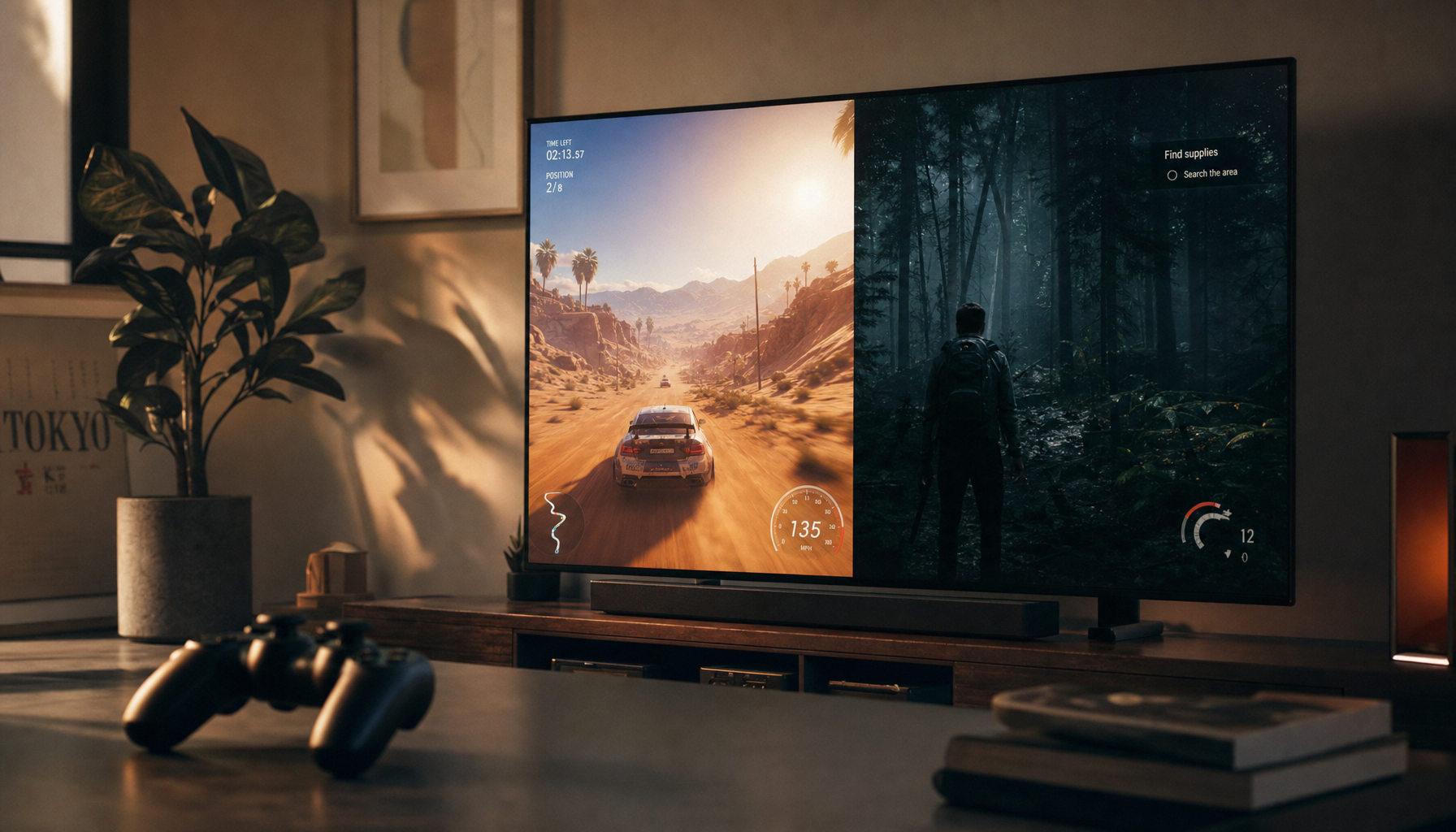
With EDID emulation, the KVM reads the monitor’s display profile, stores it, and serves that same profile to each connected computer. When you switch from a work laptop to a gaming PC, the inactive system still sees a valid monitor instead of a disconnected output.

That matters because modern operating systems react quickly to display changes. If the system detects a lost display, it may recalculate scaling, refresh rate, HDR state, and multi-monitor layout.
Better KVMs maintain a persistent video relationship so the GPU keeps outputting the expected signal. This is especially useful for ultrawide panels, dual-monitor desks, and high-performance modes like 4K 120Hz, 144Hz, or 240Hz, where weak negotiation can trigger black screens or fallback resolutions.
What Can Still Break the Signal
EDID is only one part of the chain. A KVM can emulate the monitor correctly and still struggle if the cables, adapters, ports, or bandwidth are mismatched.
A direct computer-to-monitor cable is a short path. A KVM path adds more connection points, and cable quality becomes more important because each segment must carry the full signal cleanly.

Check these first:
- Use certified video cables rated for your target mode.
- Avoid passive adapters for demanding 4K or high-refresh setups.
- Match the KVM’s port standard to the monitor, such as HDMI 2.1 or DisplayPort 1.4.
- Confirm each computer can output the same resolution and refresh rate.
- Keep cable runs short when pushing high bandwidth.
Some monitor, dock, laptop, and GPU combinations remain sensitive even with correct EDID, so test one display path at a time before blaming the KVM.
Choosing a KVM That Holds Resolution Reliably
For office productivity, look for a KVM with explicit EDID support, native-resolution compatibility, and stable USB switching. For gaming or creator work, go further: verify the exact resolution and refresh-rate combination, not just the biggest number on the product page.
A KVM that says “8K” may not automatically mean 4K at 144Hz with HDR, VRR, and dual displays active. High-refresh setups need the right bandwidth, cable spec, and GPU output mode working together.
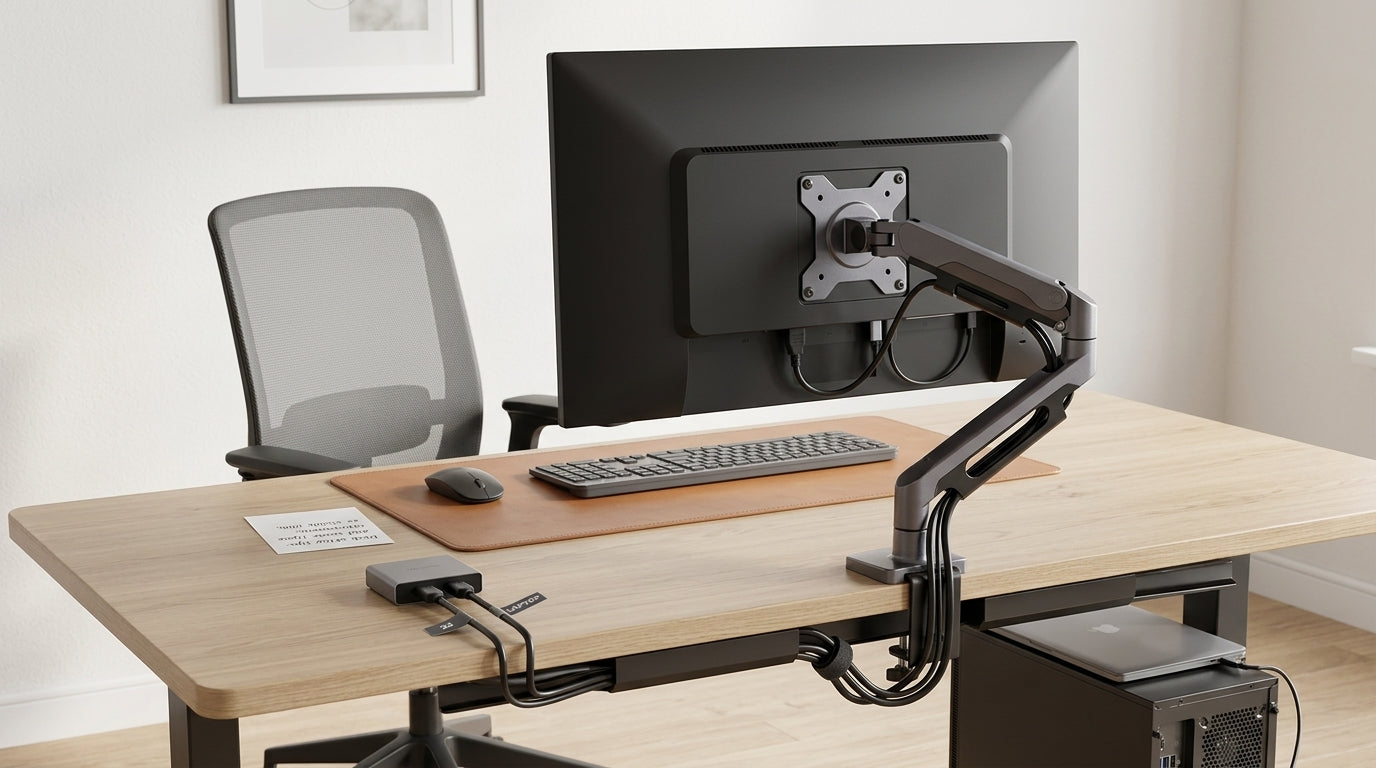
For multi-computer desks, a KVM switch can reduce hardware clutter by letting users control multiple systems from one console. For display stability, the deciding feature is simple: the switch must keep the monitor identity alive while you move between machines.

Choose EDID emulation first, bandwidth second, and convenience features third. That order protects the thing users actually feel every day: a display that stays sharp, fast, and exactly where they left it.