A second monitor usually stays black because the KVM, cable path, graphics driver, or display-detection handshake is failing on that specific video lane while the primary monitor still negotiates successfully.
Does your main screen wake instantly after a KVM switch while the side display stays black, as if the computer forgot it exists? In real-world KVM troubleshooting, the fastest win is often isolating the second display path with shorter certified cables, correct refresh-rate settings, and a full KVM power reset. The goal is to identify whether the failure is the KVM, the cable, the monitor, or the computer.
The Core Reason: Dual Displays Mean Two Separate Video Handshakes

A dual-monitor KVM is not simply one display signal doubled. It is two separate video paths switching at the same time. Your primary display may reconnect cleanly because its cable, port, EDID data, resolution, or refresh rate is easier for the KVM to preserve. The second monitor can fail independently if its signal path is weaker, its mode is less common, or the computer does not re-detect it after the switch.
A KVM switch routes keyboard, video, and mouse signals between systems, and modern setups often add USB hubs, DisplayPort, HDMI, USB-C, audio, and power behavior into the same chain. That extra complexity is why connector compatibility matters before you blame the monitor itself. A setup that works with one display can still fail when the second display asks for 2560 x 1440 at 100 Hz, 4K at 60 Hz, HDR, or a high-refresh DisplayPort mode.
The practical example is simple: if Monitor 1 runs 1080p at 60 Hz and Monitor 2 runs 1440p at 144 Hz, the second path demands far more bandwidth and cleaner timing. The KVM may pass the first signal cleanly while the second drops to black after switching.
Why the Primary Works but the Second Monitor Does Not
The most common cause is bandwidth mismatch. A KVM advertised as 4K may still have limits around refresh rate, color depth, HDR, or dual-monitor output. A single 4K at 60 Hz path is not the same as two high-resolution monitors running at performance settings. For gaming and creator desks, the KVM path must match the actual monitor target, especially when using DisplayPort 1.4 or HDMI 2.1-class expectations.
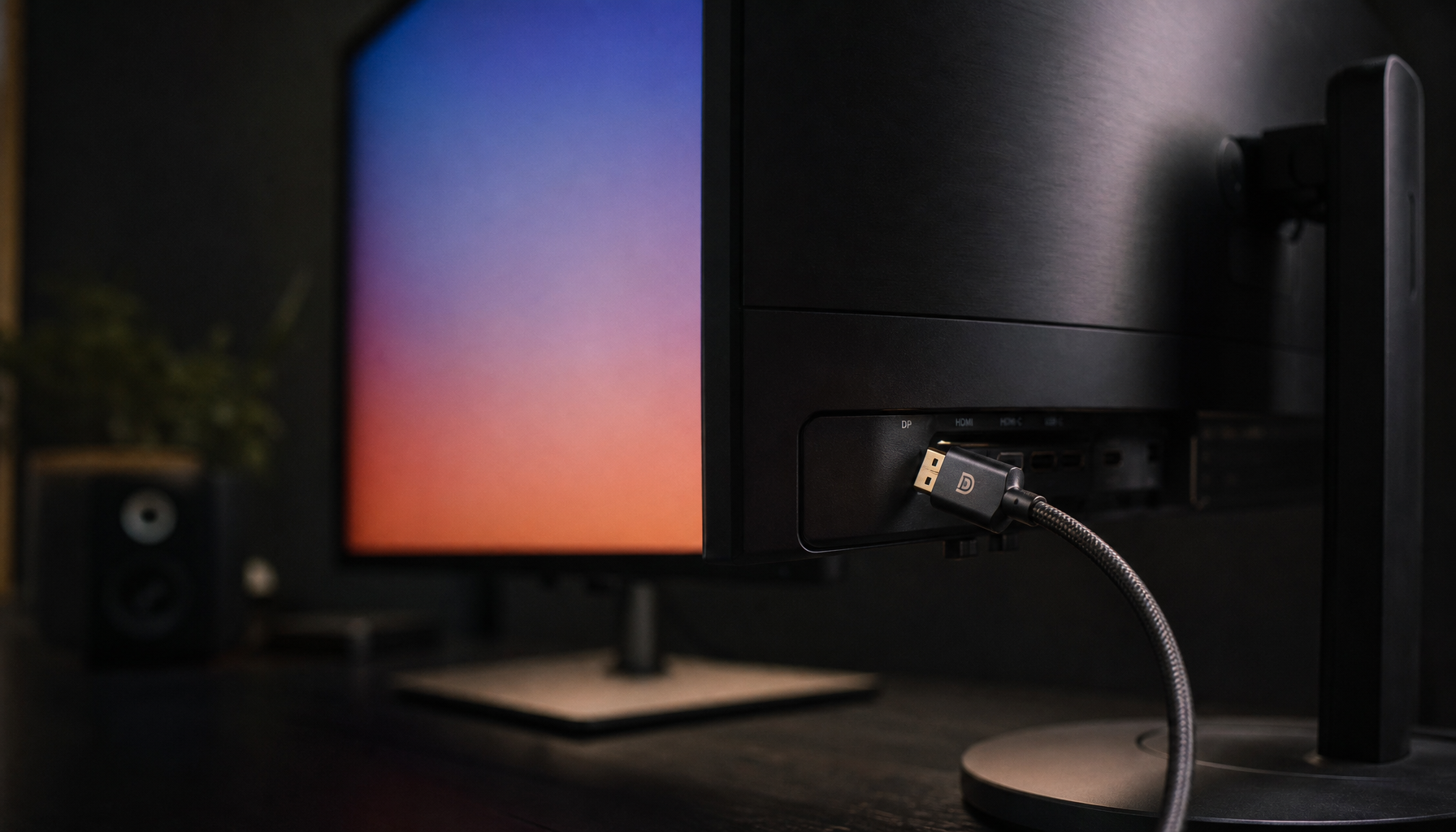
Cable length and cable quality are another frequent trigger. In one troubleshooting case, a display went dark after a KVM was added, and the DisplayPort path was nearly 10 ft across multiple cables. After changing to shorter 3-ft DisplayPort cables, the screen stopped going dark during the observed period, which makes the DisplayPort path a high-priority suspect. That does not prove every black second monitor is caused by cables, but it shows how a KVM can expose signal weakness that direct computer-to-monitor wiring hides.
The second major cause is EDID handling. EDID is the monitor identification data the computer uses to learn supported resolutions, refresh rates, and audio/display capabilities. If the KVM does not preserve or emulate EDID reliably, the operating system may think the second display disappeared during the switch. That explains the pattern where the primary remains active while the secondary monitor becomes black, undetected, or stuck at “no signal.”
Start With the Physical Path, Not Software

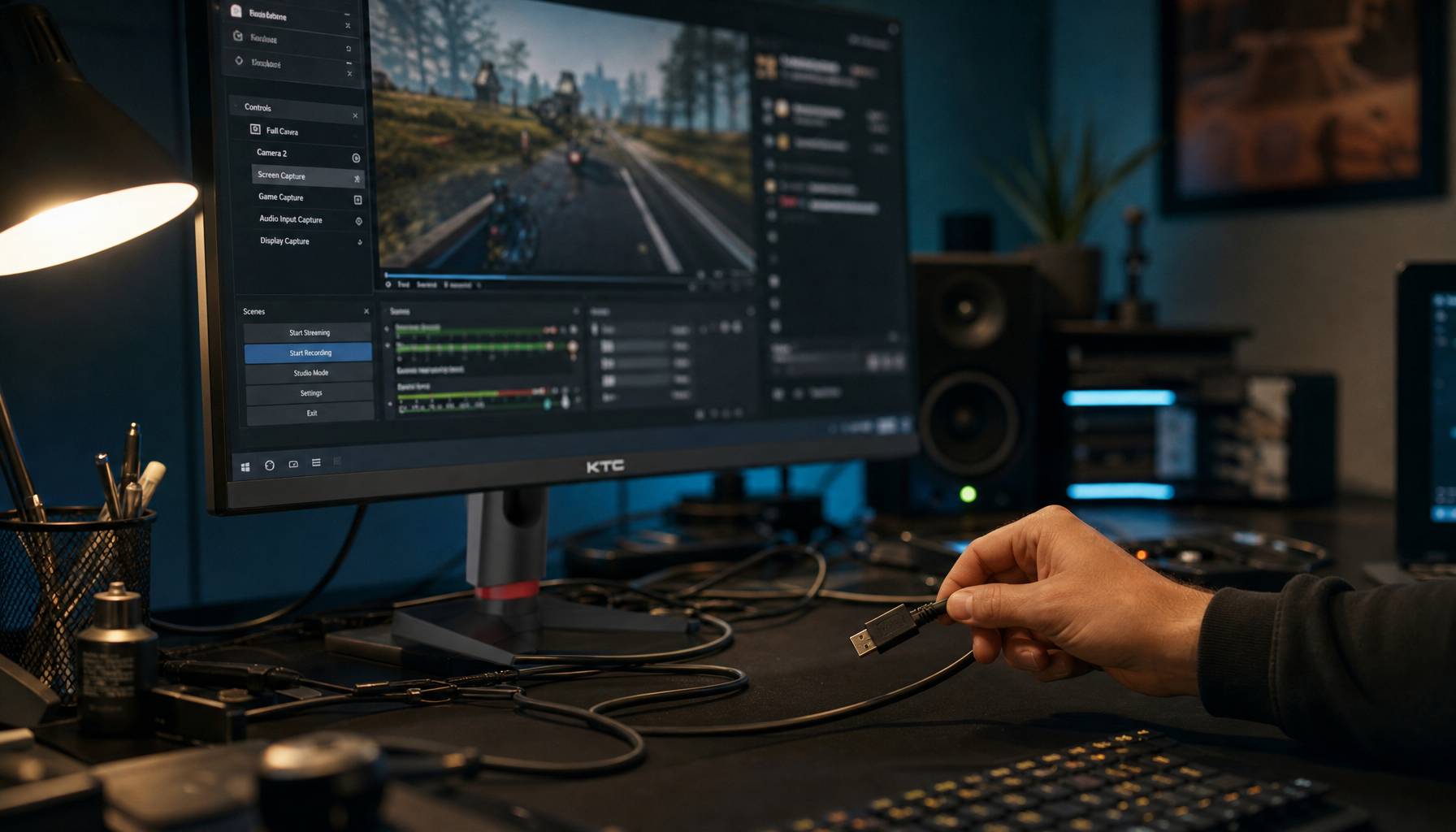
The cleanest diagnostic move is to test the second monitor as a standalone display. Connect it directly to Computer A with the same resolution and refresh rate you normally use. Then connect it directly to Computer B. If it works on both systems, put the KVM back in the path using the shortest possible video cables. Direct source-to-display testing, port swaps, reboots, and shorter cables such as 3-ft runs are useful when flickering or instability appears, because weak transmission capacity can look exactly like a bad monitor.
Do not test by changing five things at once. If the second monitor uses a 6-ft cable from computer to KVM and another 6-ft cable from KVM to display, replace only that lane with shorter certified cables first. If the problem moves when you swap KVM ports, the KVM port is suspect. If the problem stays with the same monitor, focus on that display’s input, cable, resolution, or wake behavior.
A good performance-desk rule is to treat each monitor lane like its own system. A working primary DisplayPort lane does not mean the secondary DisplayPort lane works. A working primary HDMI lane does not prove the second HDMI lane can hold the same timing.
Match Resolution, Refresh Rate, and KVM Specs

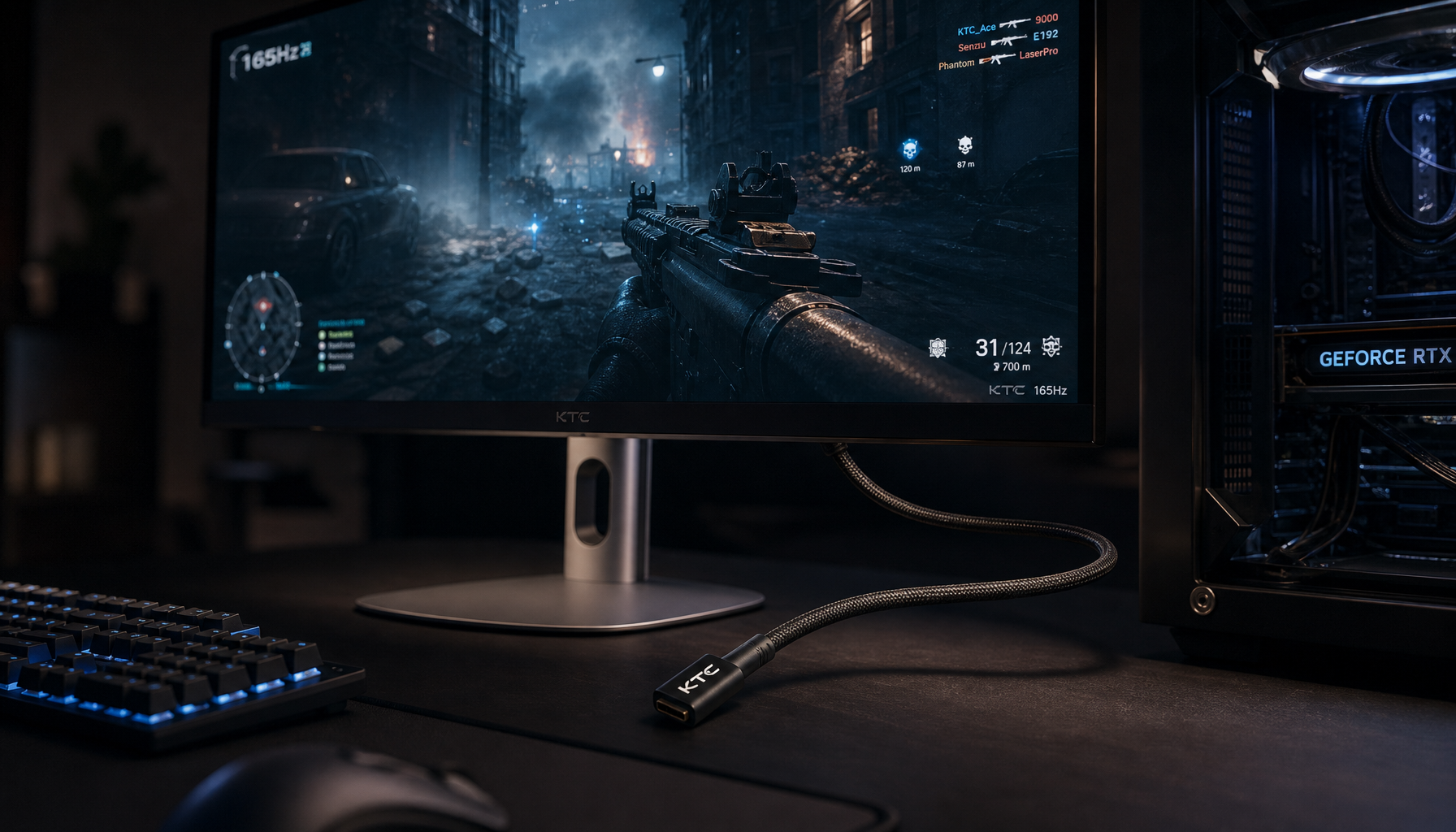
High-refresh monitors are less forgiving than office displays. Monitor guidance often separates common resolution classes such as Full HD, WQHD, and 4K/UHD, and it notes that DisplayPort remains important for high-refresh and high-bandwidth use. That makes high-refresh and high-bandwidth use a tougher KVM scenario than basic document work.
If your second monitor is 144 Hz or 240 Hz, temporarily lower it to 60 Hz on both computers. If the black screen disappears, the KVM or cable chain is not sustaining the original mode. You can then step back up gradually: 120 Hz, then 144 Hz, then HDR or higher color depth if needed. This is not giving up performance; it is finding the exact point where the signal path fails.
Setup Detail |
Likely Impact on Second Monitor |
Practical Move |
1080p at 60 Hz |
Usually low risk |
Confirm input source and cable seating |
1440p at 100 Hz or higher |
Moderate bandwidth risk |
Verify KVM rating and shorten cables |
4K at 60 Hz with HDR |
Higher timing and bandwidth demand |
Disable HDR during testing |
Dual 144 Hz monitors |
High KVM stress |
Use DP 1.4 or HDMI 2.1-rated hardware |
Mixed HDMI and DisplayPort adapters |
Adapter direction and mode risk |
Test without adapters first |
Adapters deserve special suspicion. HDMI splitters often mirror instead of extending displays, and many adapters are directional. A chain that goes from graphics card to adapter to KVM to adapter to monitor gives you several places where the second display can fail while the primary still works.
Reset the KVM the Right Way

A quick unplug is not always enough. In one support case about a display disappearing after switching computers, the recommended reset was to shut down the connected computers and displays, disconnect video, power, and USB from the KVM, leave it fully disconnected for 30 minutes, then reconnect in a controlled order. The important part is that the recommended reset drains residual power and lets the KVM rebuild its default state.
For a dual-monitor setup, reconnect the console monitor outputs first, power the monitors, wait briefly, then add the keyboard and mouse to the correct KVM ports. Reconnect one computer at a time, selecting that port before powering the system on. This forces each computer to see the KVM and monitors during startup rather than inheriting a confused hot-switch state.
This reset is especially useful when the second monitor worked yesterday, failed after a sleep cycle, or only blacks out after switching back from one specific computer.
Check OS Display Detection and Driver Behavior
If the hardware path tests clean, move to the operating system. Display settings can silently switch to “show only” behavior, forget an extended desktop layout, or fail to detect a second external monitor after a KVM switch. Open display settings after switching, identify the monitors, and confirm the second display is set to Extend rather than being disabled.
Desktop environments can behave similarly. In one forum case, switching back through a KVM produced a blank or no-signal issue, and the user found that presentation mode and display-connection behavior changed the outcome. The key lesson is that display-connection behavior can decide whether the OS restores the monitor after the KVM interrupts the signal.
Drivers and firmware matter because a KVM switch looks like display hardware changing state repeatedly. Update the graphics driver from the computer or GPU maker, then check chipset and BIOS/UEFI updates if the issue is tied to a newer laptop, dock, or USB-C display path. If the second display is only black on one computer, that computer’s driver stack is more likely than the monitor.
Headless and Sleep States Can Break Detection
A black second monitor after switching is sometimes a wake or headless-display problem rather than a dead signal. In one software-KVM discussion, disconnecting HDMI reproduced a black-screen condition, supporting the idea that a system without a physical display can fail to provide usable video. That makes a physical display relevant when a computer is asleep, lid-closed, docked, or not seeing the second monitor during boot.
For laptops, test with the lid open, sleep disabled temporarily, and external displays connected before startup. For desktops, boot both machines with the KVM already selected to each port once, so each system learns the monitor topology. If the second monitor appears only after restarting the target computer, you are dealing with detection timing, not panel failure.
External KVM vs. Built-In Monitor KVM
A built-in KVM monitor can reduce desk clutter because the display switching and USB hub live inside the monitor. That works well for a two-device desk, especially one laptop over USB-C and one desktop over HDMI or DisplayPort plus USB-B. KTC’s KVM overview notes that hardware or monitor-integrated KVM is useful when you need OS-independent switching, BIOS access, or a true one-screen dual-computer workflow, while keyboard-and-mouse sharing does not switch the video signal.
External powered KVMs still make sense when you use three or more computers, high-power RGB peripherals, DACs, webcams, or frequent switching. The downside is more cables and more signal junctions. For a dual-monitor gaming station, the advantage goes to whichever solution clearly supports your exact resolution, refresh rate, USB load, and wake behavior.
Creative and office users should also consider workflow features, not just switching. Design-monitor guidance highlights connectivity such as USB-C, Thunderbolt 3, HDMI, DisplayPort, and a USB hub on creator displays, showing why connectivity such as USB-C matters when one screen needs to serve multiple systems reliably.
A Practical Fix Path That Usually Works
Start by lowering the second monitor to 60 Hz with HDR off on both computers, then switch through the KVM. If the display returns, raise the refresh rate step by step until the failure comes back. Replace the second display’s cables with short, certified cables and remove adapters. Then perform a full KVM power reset and reconnect one computer at a time.
If the issue remains, swap the primary and secondary monitor ports on the KVM. When the black screen moves to the other monitor, the KVM lane or cable path is at fault. When it stays with the same physical display, test that monitor’s input source, OSD reset, and direct computer connection. When it happens only on one computer, update graphics, chipset, BIOS/UEFI, and USB drivers, then review display settings after switching.
The strongest fix is rarely exotic. It is usually a cleaner video path, a KVM rated for the exact dual-monitor mode, stable EDID behavior, and an operating system that is not allowed to sleep or disable the second display during switching.
FAQ
Can a KVM support one monitor but fail with two?
Yes. Dual-monitor output doubles the number of video paths that must negotiate correctly. A KVM can pass the primary display while the secondary fails because of bandwidth, cable quality, EDID, port limits, or the computer’s maximum external-display support.
Should I use HDMI or DisplayPort for a dual-monitor KVM?
Use the connection that matches your performance target. DisplayPort is often preferred for high-refresh PC gaming, while HDMI is common and convenient for office monitors, consoles, and mainstream displays. The deciding factor is not the connector name alone; it is the KVM’s rated resolution, refresh rate, and cable quality across both display lanes.
Why does rebooting fix the second monitor temporarily?
Rebooting forces the computer, GPU, KVM, and monitor to renegotiate display detection from a clean state. If the problem returns after switching or sleep, the root cause is likely handshake timing, EDID preservation, driver behavior, or wake-state detection.
A black second monitor is a failed negotiation somewhere in the second video lane. Treat that lane like a performance path, validate each link, and your dual-computer setup can feel instant, stable, and worth the desk space it saves.