A 1440p ultrawide can have lower PPI than a 16:9 1440p monitor when it spreads a similar vertical pixel count across a larger physical screen. You gain horizontal workspace and immersion, but not always the same pixel tightness as a smaller 27-inch QHD panel.
Does your new 34-inch ultrawide look slightly softer than the 27-inch 1440p monitor it replaced, even though both say “1440p” on the spec sheet? A quick calculator check can explain the sharpness difference in under a minute and help you choose the right scaling, viewing distance, or screen size before you buy. Here’s the practical way to read PPI so the monitor feels powerful, not disappointing.
The Core Reason: 1440p Describes Height, Not Density
Pixel density measures how many pixels fit into one physical inch of a display, so it depends on both resolution and screen size. Resolution tells you the pixel grid. PPI tells you how tightly that grid is packed into the panel in front of your eyes.
That distinction matters because “1440p” usually refers to a vertical resolution of 1,440 pixels. A standard 16:9 QHD monitor is commonly 2,560 x 1,440, while a common 21:9 ultrawide is 3,440 x 1,440. The ultrawide has more total pixels, but it is also physically wider and usually sold at a larger diagonal size, often around 34 inches instead of 27 inches.
The result is simple: the ultrawide gives you more canvas, not automatically more sharpness. It is like stretching your desk wider without making the printed text on each sheet finer.
The Simple Math Behind the PPI Gap

A monitor’s PPI can be calculated from its diagonal pixel count divided by its diagonal size, and PPI calculators use that relationship to compare displays quickly. You do not need to memorize the math to make a buying decision, but you should understand what it rewards: more pixels in less physical space.
Monitor type |
Common resolution |
Common size |
Approximate PPI |
What it feels like |
16:9 QHD |
2,560 x 1,440 |
27 inches |
108.8 PPI |
Crisp desktop text, strong all-around sharpness |
21:9 UWQHD |
3,440 x 1,440 |
34 inches |
About 110 PPI |
Similar sharpness to 27-inch QHD, much wider workspace |
21:9 UWQHD |
3,440 x 1,440 |
40 inches |
About 93 PPI |
Bigger image, softer text and UI edges |
32:9 dual-QHD |
5,120 x 1,440 |
49 inches |
About 109 PPI |
Similar density to 27-inch QHD, massive width |
The surprise is that a 34-inch 3,440 x 1,440 ultrawide is not dramatically lower in PPI than a 27-inch 2,560 x 1,440 monitor. They are often very close. The “lower PPI” complaint usually appears when buyers compare a larger ultrawide, such as a 40-inch or 45-inch 3,440 x 1,440 model, against a smaller 27-inch QHD screen.
Why Wider Does Not Always Mean Sharper
More Horizontal Pixels Are Used for Width
Ultrawide 1440p monitors add pixels mainly across the horizontal axis. A 3,440 x 1,440 panel gives you about 34% more horizontal pixels than 2,560 x 1,440, which is why timelines, spreadsheets, code editors, and game worlds feel more expansive.
But the vertical pixel count remains 1,440. If the screen’s height grows or the diagonal expands too much, each pixel occupies more physical space. That lowers PPI and can make small text look less refined.

Diagonal Size Can Mislead Buyers
The diagonal measurement does not tell you how tall or wide a screen is by itself. A 34-inch ultrawide sounds much larger than a 27-inch 16:9 monitor, but much of that increase is width. That is why 34-inch UWQHD can feel like a natural upgrade from 27-inch QHD: the height is comfortable, the workspace is wider, and the density remains in the same practical class.
A 45-inch 3,440 x 1,440 ultrawide is different. It uses the same pixel grid as many 34-inch ultrawides but spreads it across a much larger panel. The image becomes more cinematic, yet desktop text and fine UI details lose bite.
PPI Is Not the Whole Image Quality Story
PPI is different from resolution, and both are only part of perceived clarity. Panel type, subpixel layout, coating, contrast, brightness, scaling, viewing distance, and operating system text rendering all affect how sharp a monitor feels in daily use.
Lab-focused display testing emphasizes measured display performance, including color accuracy, reflectance, viewing angles, artifacts, and real-world picture quality, rather than relying only on marketing specifications. A higher-PPI monitor with poor coating, weak contrast, or uneven brightness can still look less pleasing than a lower-PPI screen with stronger tuning.
For gaming, the tradeoff is even more nuanced. A 34-inch 3,440 x 1,440 ultrawide gives a wider field of view in supported titles and is easier to drive than a 4K ultrawide-class panel. For competitive esports, many players still prefer smaller 16:9 displays because they keep key action centered and match common tournament formats.
When Lower PPI Is Actually Worth It
Gaming Immersion
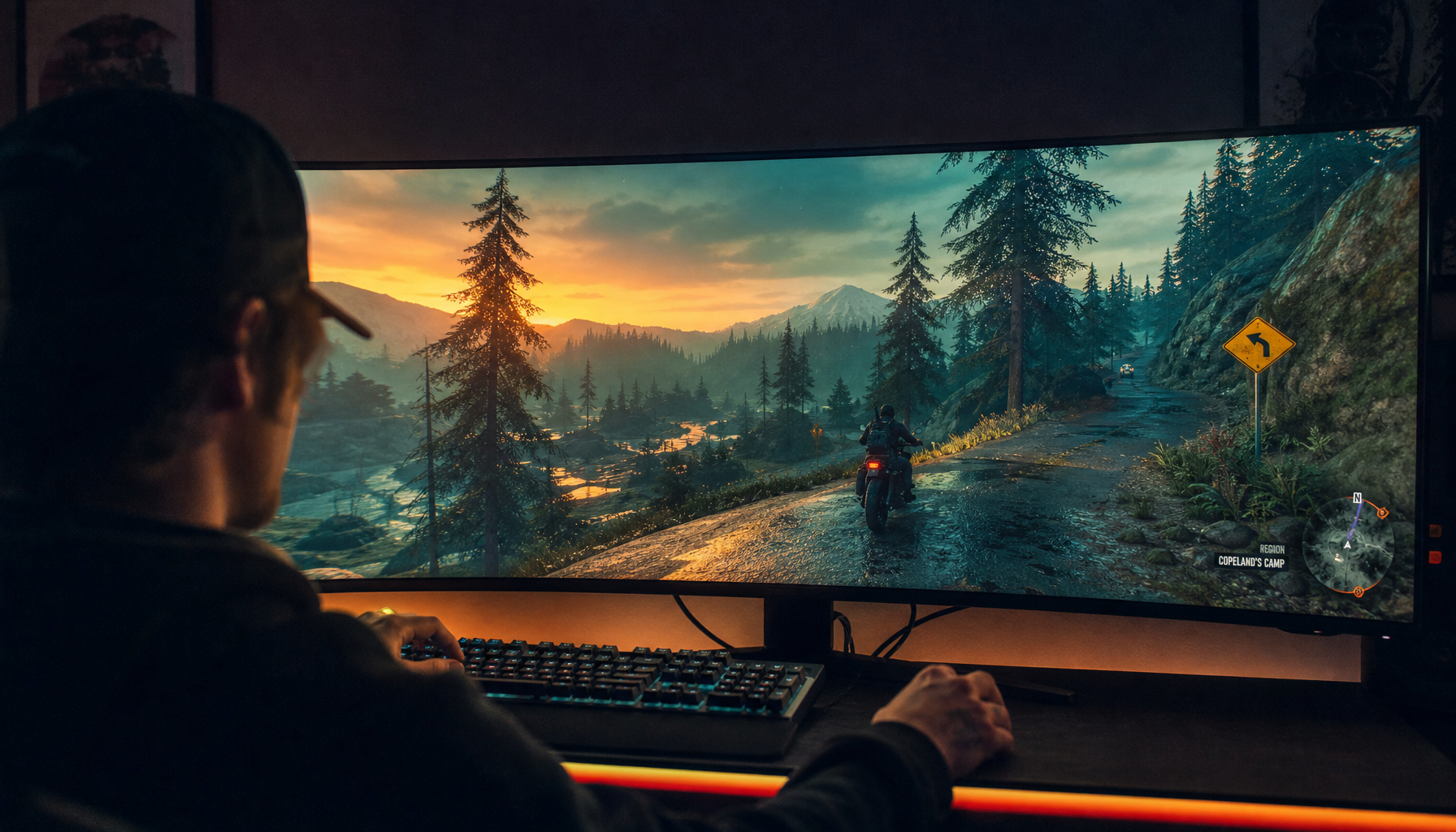
A 1440p ultrawide makes the most sense when you want more peripheral vision without jumping to the GPU load of 4K. In racing, flight simulation, open-world games, and atmospheric single-player titles, the wider frame can feel more valuable than a small gain in pixel density.

Tested ultrawide monitor coverage shows how the category now spans productivity panels, OLED gaming displays, and super-ultrawide models, with extra horizontal screen space serving different goals depending on refresh rate, panel technology, and size. That is the key buying lens: choose the display for the workload, not just the resolution badge.
Office Productivity
For office work, ultrawide value comes from reducing window switching. A 34-inch UWQHD monitor can keep a browser, spreadsheet, chat app, and document visible without a center bezel. The PPI may not beat a smaller 4K display, but the layout efficiency can be better for real work.

A practical test is to open your three most-used apps side by side. If you constantly alt-tab on a 27-inch monitor, a 34-inch ultrawide may improve focus even if the pixel density is merely similar. If you work with dense text, finance tables, or code at small font sizes, avoid oversized 3,440 x 1,440 panels that dip too far below the 100 PPI range.
Portable and Secondary Screens
Portable smart screens change the equation again. A smaller portable display can have high PPI at modest resolution because the panel is physically compact. That is why a 15-inch 1080p portable monitor can look sharper than a large 1080p desktop display. Physical size is doing the work.
How to Choose the Right 1440p Ultrawide
If you want the best balance, a 34-inch 3,440 x 1,440 ultrawide is the reliable sweet spot. It keeps density close to a 27-inch QHD monitor while adding a meaningful horizontal workspace. It also avoids the extreme desk depth and head movement issues that can show up with larger 40-inch and 49-inch formats.
If you want a super-ultrawide, 5,120 x 1,440 at 49 inches is more defensible than simply scaling 3,440 x 1,440 up to a huge panel. It preserves a density close to the 27-inch QHD class while giving you the width of a dual-monitor setup. Tools such as a multi-monitor calculator are useful here because they show physical width, height, bezel assumptions, screen area, and PPI in one planning view.
If you want sharper text above all, look beyond 1440p ultrawide. A 4K 27-inch monitor or a 5K/2K ultrawide-class panel will deliver finer rendering, though you may need scaling and a stronger graphics connection. The right move depends on whether your priority is text precision, frame rate, workspace width, or immersive presence.
Pros and Cons of 1440p Ultrawide PPI
Advantage |
Tradeoff |
Wider workspace for multitasking, timelines, dashboards, and supported games |
Same 1,440-pixel height limits vertical detail |
34-inch UWQHD can feel close to 27-inch QHD sharpness |
Larger UWQHD panels can look visibly softer |
Easier to drive than many 4K or 5K displays |
Not as crisp as high-density 4K productivity monitors |
More immersive than 16:9 for many games and media workflows |
Some games, apps, and video formats handle ultrawide imperfectly |
Can replace dual monitors without a center bezel |
Requires more desk width and careful viewing distance |
FAQ
Is 3440 x 1440 lower quality than 2560 x 1440?
No. It has more total pixels and more horizontal workspace. It only has lower or similar PPI depending on screen size. A 34-inch 3,440 x 1,440 monitor is roughly in the same sharpness class as a 27-inch 2,560 x 1,440 monitor, while a much larger 3,440 x 1,440 panel will look softer.
Why does my ultrawide text look blurry?
The cause is often size, scaling, viewing distance, subpixel rendering, panel coating, or a non-native resolution setting. First confirm the monitor is running at its native resolution and refresh rate. Then adjust OS scaling, font smoothing, and viewing distance before blaming the panel.
Is 1440p ultrawide enough for professional work?
Yes, for many productivity, development, trading, editing, and gaming setups. For print design, high-end photo work, or dense text editing where fine detail matters most, a higher-PPI 4K or 5K display may be the better primary screen.
A 1440p ultrawide is not a failed 1440p monitor. It is a different performance choice: more horizontal command space and stronger immersion, with pixel density governed by physical size. Choose 34-inch UWQHD for the cleanest balance, go larger only when the workspace matters more than text sharpness, and treat PPI as a practical fit metric rather than a spec-sheet trophy.