A 32-inch 1440p monitor starts to reveal its pixel structure for many 20/20 viewers at less than 3 ft, especially on text, bright edges, and high-contrast interface lines. For most gaming and office setups, the practical sweet spot is about 32–42 inches from your eyes.

The Pixel Visibility Line
A 32-inch QHD monitor has a resolution of 2,560 by 1,440, which works out to about 92 pixels per inch. That is usable, spacious, and budget-efficient, but it is not ultra-sharp at a typical desk distance.
Pixel density matters because higher PPI packs more pixels into the same physical space, making edges and text appear smoother; LCD sharpness is commonly discussed through pixel density, while larger-format LED displays often use pixel pitch.
In real terms, if you sit around 28 inches away, you may notice stair-stepping on small fonts or game HUD elements. Around 36–40 inches, those pixels blend more naturally for most people.
Best Distance for Gaming
For immersive gaming, a 32-inch 1440p monitor works best when it fills your view without forcing constant head movement. A monitor-size reference places 32-inch displays at about 28–42 inches, which lines up well with how QHD looks in practice.
For competitive FPS games, sit closer to the low end only if you value fast target reading over pristine sharpness. Around 30–34 inches gives strong presence, but the pixel grid can show on menus, crosshairs, and thin outlines.

For RPGs, racing, strategy, and cinematic games, 36–42 inches is usually stronger. You keep the big-screen feel, reduce eye scanning, and make the 92 PPI panel look cleaner.
- 28–32 inches: maximum immersion, more visible pixels
- 33–36 inches: balanced gaming distance
- 37–42 inches: cleaner image, easier full-screen viewing
- Over 42 inches: less pixel visibility, reduced QHD detail impact
Best Distance for Office Work
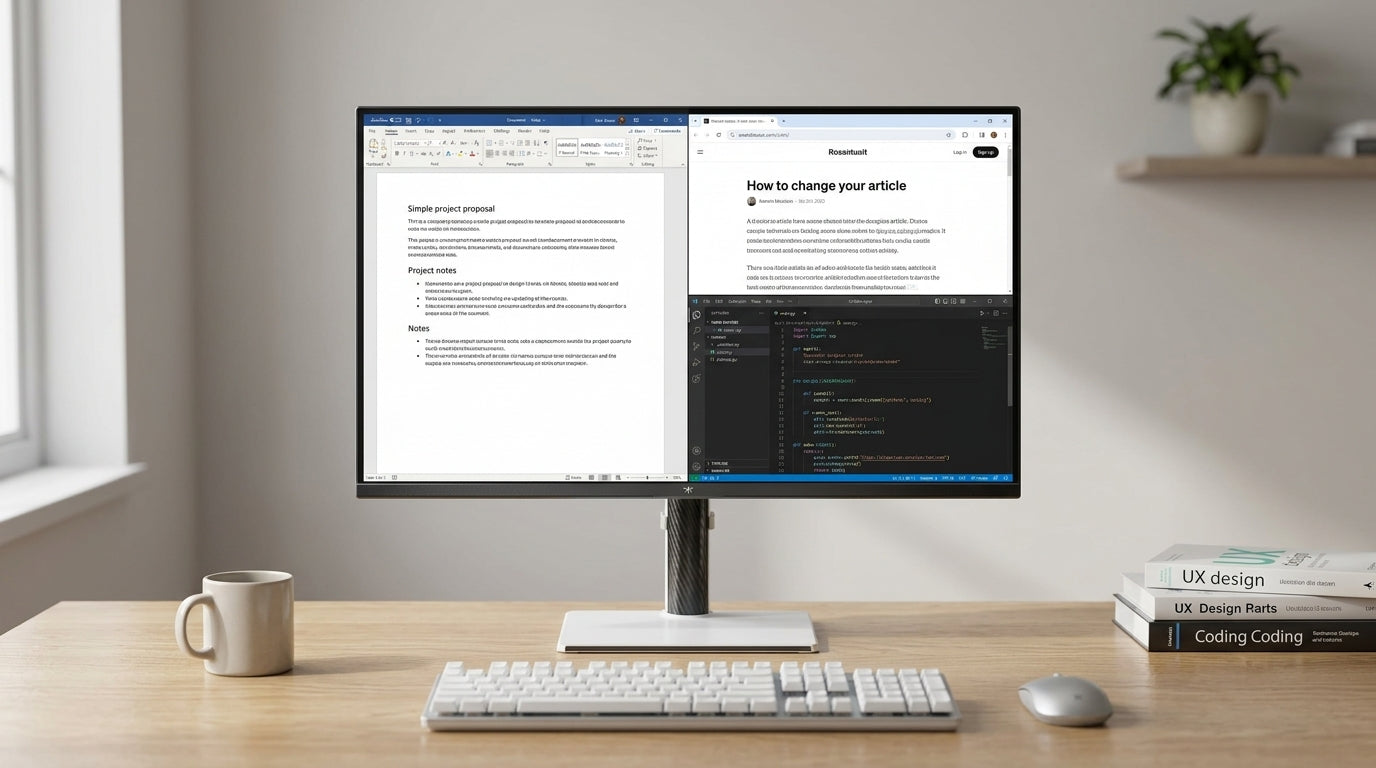
Office use is less forgiving than gaming because text exposes pixel density quickly. On a 32-inch 1440p screen, spreadsheets and browser windows feel roomy, but small fonts can look coarse if you sit too close.
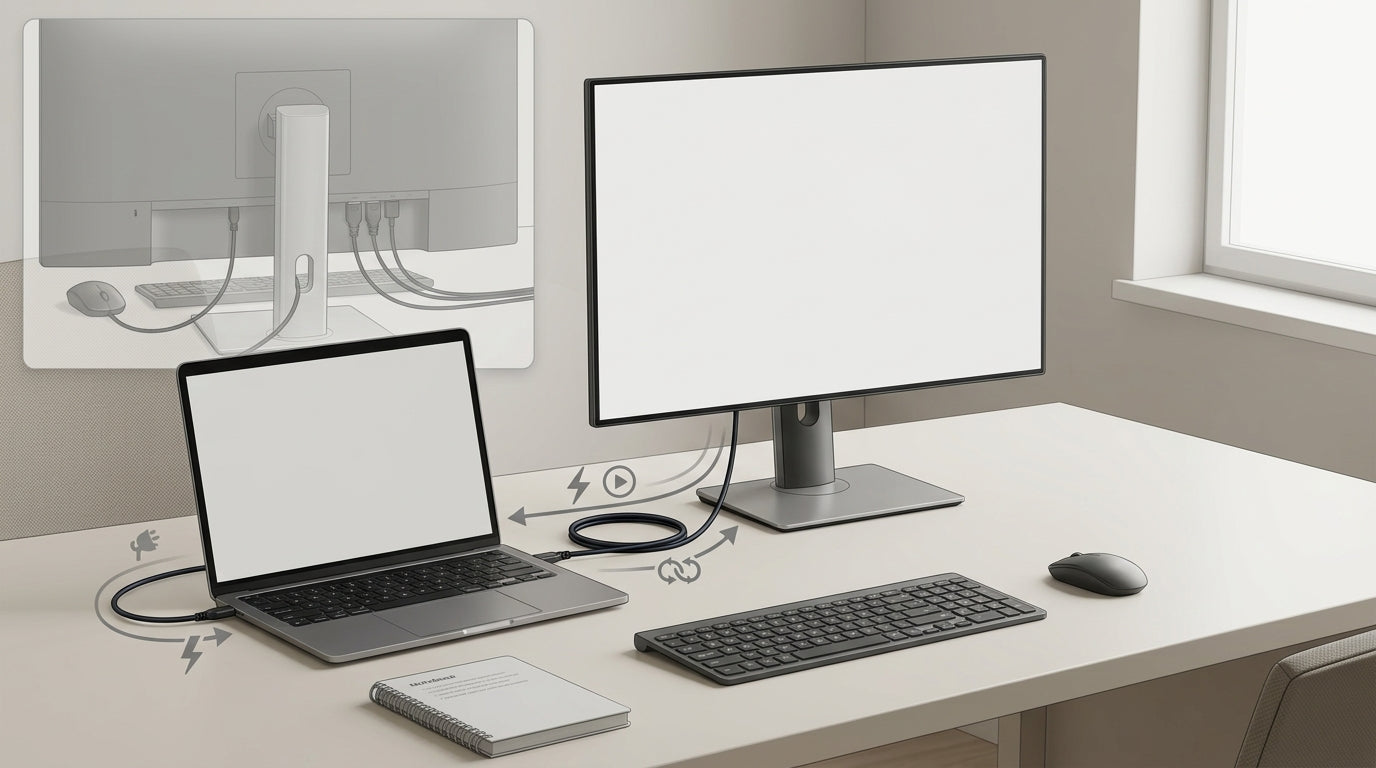
The classic monitor comfort range is roughly arm’s length, and one practical viewing-distance reference describes the ideal monitor distance as 20 to 30 inches. For this specific size and resolution, though, sit slightly farther back when desk depth allows.
For productivity, start at 36 inches. Use the native 2,560 by 1,440 resolution, avoid blurry non-native scaling, and increase app zoom before lowering resolution. If text still looks jagged, the issue is not your chair position; it is the panel’s modest pixel density.

When 1440p Is Enough, and When It Isn’t
A 32-inch 1440p monitor is a value play: big workspace, easier graphics load, high refresh rates at reasonable prices, and excellent game immersion. It is a strong choice if you sit about 3 ft back and prioritize performance per dollar.
It is weaker for close-up text work, design review, photo editing, and anyone sensitive to jagged edges. If you want the same 32-inch size but plan to sit less than 32 inches away, 4K is the sharper long-term buy.
Eyesight varies, so better-than-20/20 users may see pixels farther away, while users with softer vision may find 32-inch 1440p perfectly smooth at closer distances.
Bottom Line
Sit about 3 ft from a 32-inch 1440p monitor if you want pixels to mostly disappear. Move closer for competitive intensity, or move farther back for cleaner text and easier full-screen comfort.
For the best balance, set the display 36–40 inches from your eyes, keep the top edge near eye level, and let the large QHD canvas work without crowding your vision.