Yes. Screen tearing can happen when your monitor’s refresh cycle and the frame output from your PC, console, or media device are not synchronized, even when the numbers look close on paper.
Does the image split across the middle of the screen right as you flick your aim, scroll a large spreadsheet, or drag a window between displays? In practical display tuning, the most reliable first step is simple: confirm that the monitor is running at its intended refresh rate, then choose the right sync mode for your use case. This guide explains what causes tearing, when mismatch matters, and how to fix it without sacrificing more responsiveness than necessary.
What Screen Tearing Actually Looks Like
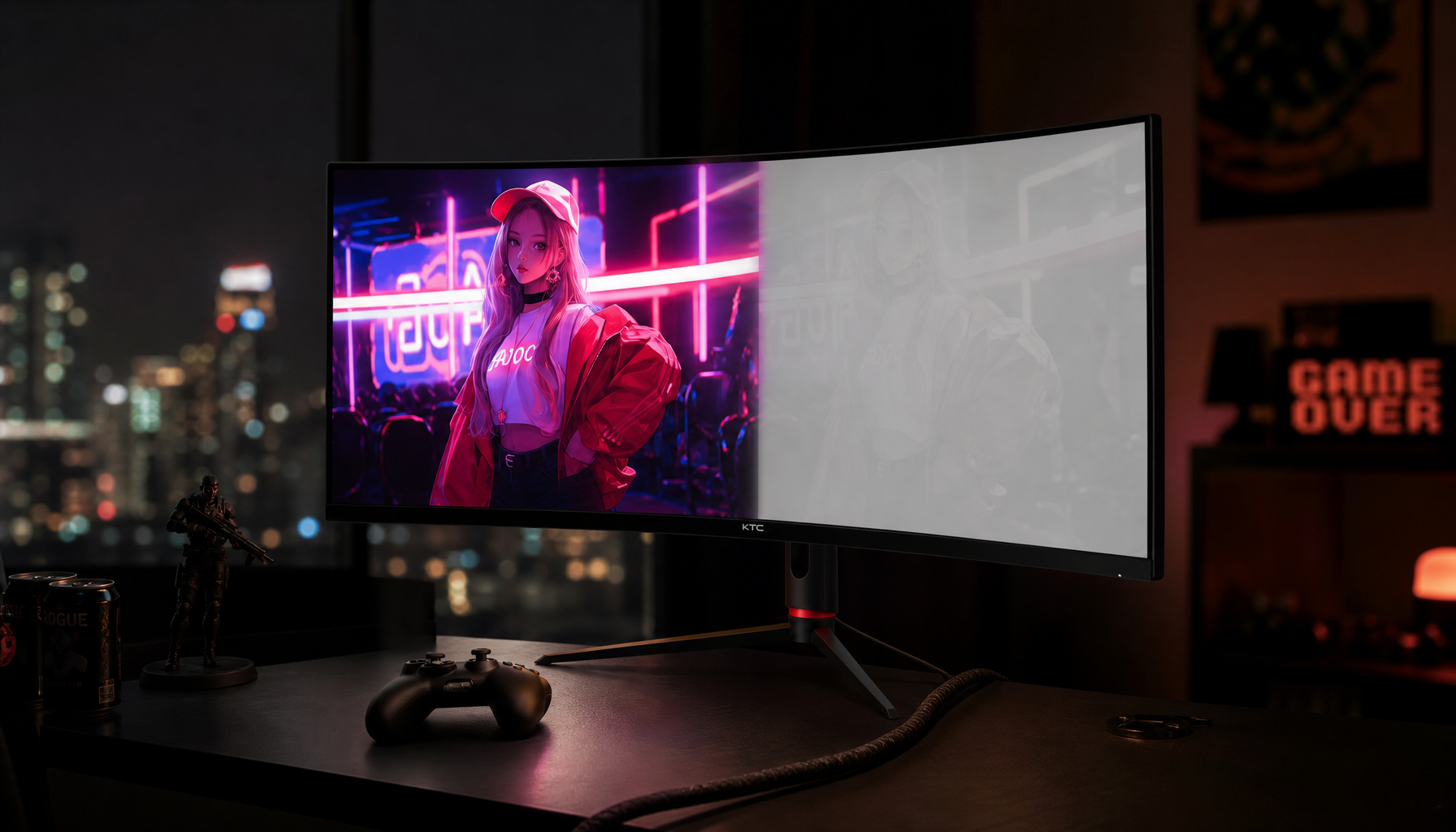
Screen tearing is the visible horizontal break you see when one part of the screen shows a newer frame while another part still shows an older one. It is most obvious during sideways motion: a fast camera pan in a shooter, a racing game turn, a scrolling web page, or a video timeline scrub.
The key detail is timing. A 60 Hz monitor refreshes 60 times per second, while a 144 Hz monitor refreshes 144 times per second. Your graphics processor, meanwhile, may be producing frames at 52 fps, 87 fps, 144 fps, or 230 fps depending on the workload. If the display scans out while the graphics processor is changing frames, the monitor can show pieces of both frames at once.
Refresh Rate vs. Frame Rate
Refresh rate is the monitor’s update capacity, while frame rate is how many frames the source device produces. A 144 Hz monitor can refresh every 6.94 ms, but that does not mean your game is always producing a fresh frame every 6.94 ms.
This is why a high-refresh monitor improves motion but does not automatically eliminate tearing. A 240 Hz display refreshes far more often than a 60 Hz display, so tearing may be less noticeable because each tear exists for a shorter time. Without synchronization, however, a mismatch can still create visible splits.
Display Mode |
Time Between Refreshes |
Practical Meaning |
60 Hz |
16.67 ms |
More visible tearing and blur during fast motion |
120 Hz |
8.33 ms |
Smoother motion and better game support |
144 Hz |
6.94 ms |
Strong value point for PC gaming |
240 Hz |
4.17 ms |
Lower motion persistence and less obvious tearing |
360 Hz |
2.78 ms |
Competitive edge only if the system can feed it |

Can Matching FPS to Hz Still Tear?
A nominal match can still tear because synchronization is not just about equal numbers. If a game is capped at 60 fps on a 60 Hz screen but each frame is not delivered at the exact moment the monitor starts a refresh, the tear line can become stationary or drift slowly, which may make it more noticeable.
This is the frustrating part for players who say, “I capped the game to 60, so why is it still tearing?” The answer is that the frame limiter and the display refresh are not necessarily locked to the same clock. A frame cap controls output rate, while VSync or VRR controls presentation timing.
Why VSync Fixes Tearing, and Why Gamers Sometimes Avoid It
VSync reduces tearing by making the graphics processor wait for the monitor’s refresh cycle before presenting a complete frame. For story games, cinematic titles, office video playback, and general desktop use, that tradeoff is often worth it because the image becomes clean and stable.
The downside is latency. If your graphics processor finishes a frame early, VSync may hold it until the next refresh. On a 60 Hz monitor, that wait can feel heavy in competitive shooters or rhythm-sensitive games. On a 144 Hz or 240 Hz monitor, the delay window is shorter, but serious esports players may still prefer lower-latency sync options.
Why VRR Is Usually the Best Modern Fix
Variable refresh rate technology solves the problem more elegantly. Instead of forcing the graphics processor to match a fixed display rhythm, the monitor adjusts its refresh timing to the frame as it arrives, within its supported range.

A practical example is a 144 Hz VRR monitor with a 48–144 Hz range. If a game is running at 73 fps during a demanding scene, the monitor can refresh around 73 Hz rather than forcing the game into a rigid 144 Hz or 60 Hz cadence. That is why VRR is the strongest answer for gaming monitors: it reduces tearing and stutter while usually adding less latency than traditional VSync.
Higher Refresh Rate Helps, but It Is Not a Cure
Higher refresh rates reduce scanout time, perceived blur, and potential input lag, but they do not guarantee clean motion by themselves. A poorly configured 240 Hz monitor can still tear, ghost, or stutter if the graphics output, driver settings, cable bandwidth, and monitor mode are not aligned.
This matters when buying. A 144 Hz monitor with good VRR behavior and solid pixel response can feel better than a cheap 240 Hz panel with unstable overdrive or weak adaptive sync. For fast FPS games, prioritize refresh rate, VRR range, measured response time, and input lag together rather than treating the biggest Hz number as the whole story.
Multi-Monitor Mismatch: The Desk Setup Trap
Mixed-refresh setups can expose timing problems. A 144 Hz gaming display beside a 60 Hz productivity monitor may work perfectly for static apps, but simultaneous animated content on both screens can create frame-pacing issues in some configurations. A forum user reported that a 144 Hz display and a 60 Hz display each performed normally alone, but both showed lower apparent frame rates when running motion tests at the same time on the two screens in a mixed-refresh setup.

That single report is not universal proof that mixed refresh rates always cause tearing, but it points to a real diagnostic path. Test the primary monitor alone, test the second monitor alone, then test both together with the same animation or game workload. If the issue appears only with both active, check the operating system’s display settings, graphics driver settings, browser hardware acceleration, cable type, and which display is set as primary.
Portable Screens and Cable Limits
Portable monitors add another layer because video adapters, power delivery, and controller boards all affect stability. A portable 144 Hz screen may fall back, flicker, or tear if the cable does not support enough bandwidth or the laptop port cannot provide stable video and power.
For high-refresh portable use, older video adapters are generally not the right path beyond basic modes, while newer high-bandwidth video connections are more appropriate depending on resolution and refresh target. If a portable display tears or stutters, do not start by replacing the monitor. Start by checking the cable spec, power source, native resolution, selected refresh rate, graphics driver, and whether the monitor is overheating during extended gaming or editing.
Response Time, Ghosting, and Tearing Are Different Problems
Monitor responsiveness is not only refresh rate. Pixel response time affects ghosting and smearing, while synchronization affects tearing. A monitor can have no tearing but still look blurry if pixels transition too slowly for the refresh window.
At 144 Hz, each refresh arrives about every 6.94 ms. At 240 Hz, each arrives about every 4.17 ms. If the panel’s pixel transitions cannot keep up, moving objects may leave trails even when VSync or VRR is working correctly. That is why overdrive settings matter. Normal or medium overdrive often looks cleaner than the maximum setting, which can create bright inverse ghosting around moving objects.
Best Settings by Use Case
For competitive gaming, use the monitor’s highest stable refresh rate, enable VRR if available, and keep frame rate inside the VRR range. If the game frequently exceeds the monitor’s maximum refresh, use a frame cap slightly below the ceiling or a low-latency sync option supported by your graphics hardware. Traditional VSync is usually the last resort for esports because it can add input lag.
For single-player games, VSync is often acceptable if tearing bothers you more than a little added latency. VRR is still better when available, especially for demanding games where frame rate swings between scenes.
For office productivity, the stakes are different. A 60 Hz display is workable for documents, spreadsheets, email, and dashboards, but 120 Hz or higher makes scrolling, cursor movement, and window dragging feel cleaner. For large workstations, a single ultrawide can also avoid the bezel and timing complications of dual displays, especially when the goal is a seamless canvas for timelines, code, or financial sheets.
For video and media, match the display behavior to the content. Many films are 24 fps, and 120 Hz panels handle 24 fps content evenly because 24 divides cleanly into 120. A 60 Hz display can still work, but motion cadence may be less refined depending on the playback chain.
Quick Troubleshooting Path
Start with the basics because they solve more cases than exotic tweaks. Confirm that the monitor is set to its intended refresh rate in your operating system or graphics control panel, then make sure the game is using fullscreen or borderless mode as intended. Update graphics drivers, use a certified cable, and set the display to native resolution.
Next, test sync behavior. Turn VRR on if your monitor and graphics hardware support it. If not, try VSync for visual smoothness, then compare it against VSync off for latency. If tearing appears only when your frame rate is close to the refresh rate, test a different frame cap. If tearing appears only on a second display, isolate each monitor and then retest both together.
Finally, separate tearing from blur. A horizontal split is a sync issue. A smeared trail behind objects is usually response time, overdrive, or motion blur. A hitch or uneven cadence is often frame pacing or system load. Treating the right symptom saves time and money.
Buying Advice for a Tear-Free Experience
A gaming monitor choice should match resolution, size, refresh rate, response behavior, and desk use. For value-focused gaming, 1440p at 144 Hz to 180 Hz with strong VRR is a reliable sweet spot. For competitive FPS, 1080p or 1440p at 240 Hz or higher can make sense if your graphics hardware can sustain high frame rates. For office-first setups, prioritize sharpness, ergonomics, modern video connectivity, and enough refresh rate to make long sessions comfortable.
The most dependable display is not the one with the loudest spec sheet. It is the one whose panel speed, sync range, cable path, graphics output, and real workload all line up. When those pieces are aligned, the screen stops fighting the content and starts disappearing into the experience.