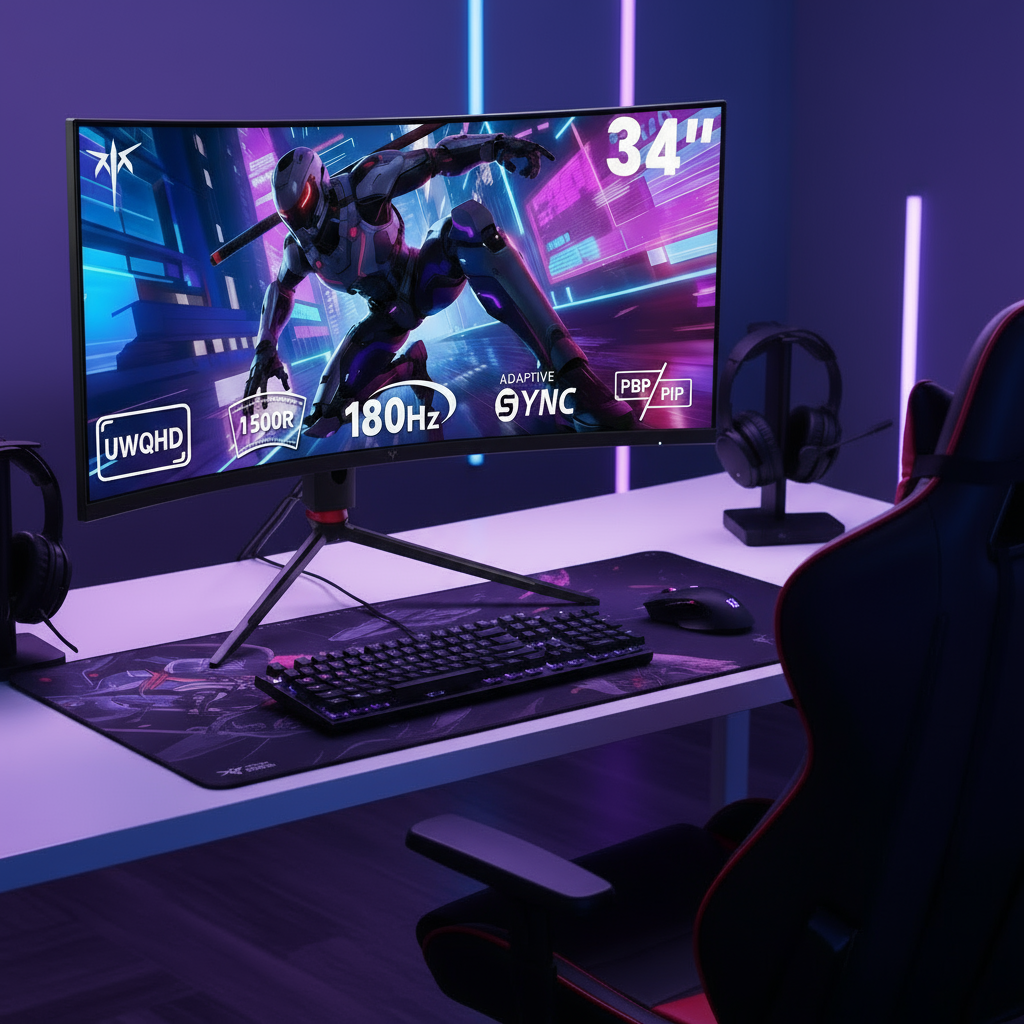


Competitive performance in CS2, Valorant, and Apex Legends depends as much on precise monitor calibration as on GPU power. The right settings reduce motion blur, cut input lag, and improve enemy visibility without introducing artifacts that hurt tracking.

Why Monitor Settings are the Foundation of Competitive Performance
A fast GPU cannot overcome blur or added latency introduced by default display settings. In fast-paced shooters, even small motion artifacts make flick shots and tracking harder. CS2, Valorant, and Apex Legends all reward the same core traits: clear motion, stable frame pacing, and quick target acquisition.
Maximizing Refresh Rate and Windows Optimization
Set your monitor to its maximum native refresh rate in both Windows Display settings and the NVIDIA Control Panel. This single change delivers the largest single reduction in perceived input lag and motion blur.
Disable Fullscreen Optimizations on each game executable to let the title take direct control of the display buffer. Use a DisplayPort 1.4 or HDMI 2.1 cable rated for the target refresh rate to avoid fallback to lower modes.
Reducing Input Lag with NVIDIA Reflex and G-Sync
For the lowest system latency with G-Sync, enable G-Sync and V-Sync in the NVIDIA Control Panel, then cap your frame rate 3 FPS below the maximum refresh rate. NVIDIA Reflex set to On + Boost in CS2, Valorant, and Apex Legends further reduces latency by synchronizing CPU and GPU while preventing downclocking in CPU-bound scenes.
As this G-SYNC 101 guide explains, pairing G-Sync with a frame-rate cap eliminates tearing without the added lag of traditional V-Sync. Reflex On + Boost keeps GPU clocks stable during intense firefights.
Input Lag vs Refresh Rate in Competitive FPS
Higher refresh rates reduce input lag, with the largest gains between 144 Hz and 240 Hz and continued benefits at 360 Hz and above.
Show Data Table
| Refresh Rate | Typical Input Lag (ms) |
|---|---|
| 144 Hz | 6.9 |
| 240 Hz | 4.2 |
| 360 Hz | 2.8 |
| 400 Hz | 2.5 |
Tuning Response Time: The KTC 'Level 2' Overdrive Rule
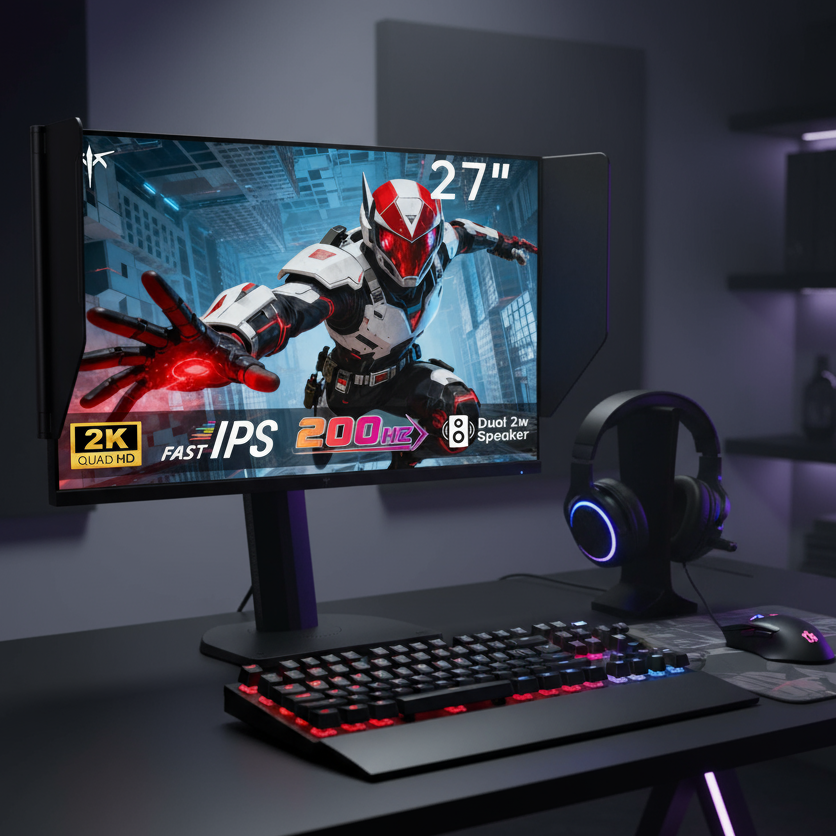
Marketing labels like Ultra Fast often produce inverse ghosting that creates bright halos behind moving targets. On KTC panels such as the H25X7 and H27E6, the Level 2 or Fast overdrive setting delivers the best balance of motion clarity and minimal artifacts.
If your frame rate frequently drops below 200 FPS in Apex Legends, drop to Level 1 to avoid overshoot that becomes more visible at lower refresh rates. Test changes with the UFO Motion Test to confirm clean trails.

Game-Specific Visibility: CS2, Valorant, and Apex Legends
CS2 benefits from a Gamma setting of 1.8–2.0 to brighten shadows without crushing mid-tones. Valorant players often raise Digital Vibrance or Saturation so enemy models stand out against busy backgrounds. In Apex Legends, Black Equalizer or Shadow Boost helps reveal players in dark interiors while preserving overall image balance.
A neutral or slightly cooler color temperature around 6500–9300 K improves perceived clarity during long sessions. If your monitor lacks a dedicated Black Equalizer, adjust Gamma in the NVIDIA Control Panel for similar results.
Optimizing Dual-Mode Monitors for Zero-Lag 1080p
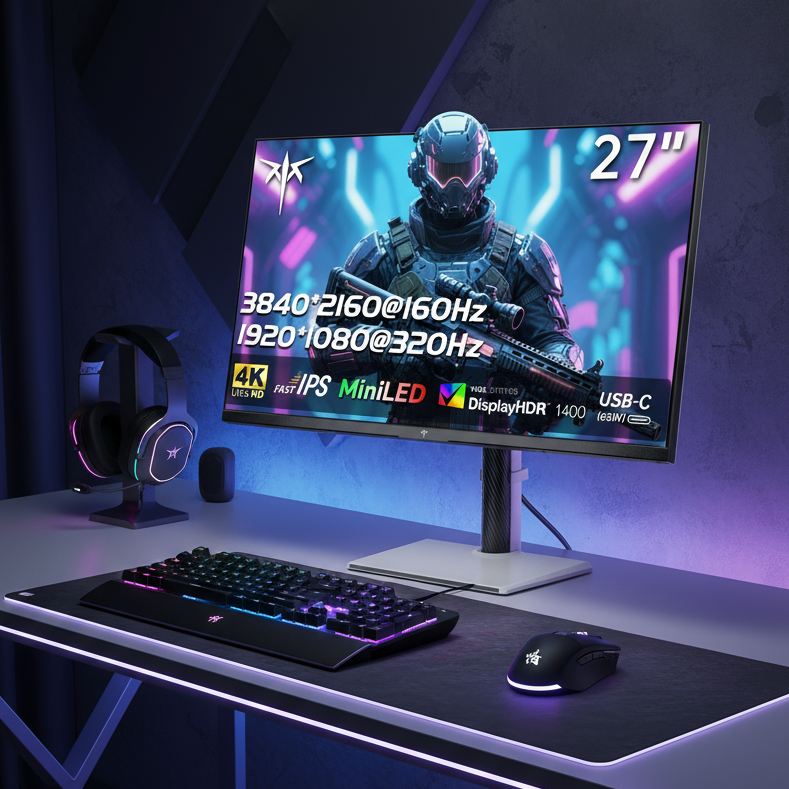
On dual-mode panels such as the H27P6, force scaling to occur on the Display rather than the GPU. Select No Scaling and enable integer scaling when available so the monitor receives a native-timed 1080p signal at 320 Hz. This approach avoids the extra frame-buffer latency that GPU scaling introduces.
Override the scaling mode set by games in the NVIDIA Control Panel to prevent titles from reverting to lower-performance stretching.
The 2026 Competitive Monitor Setup Checklist
Run through this order before ranked play: set maximum native refresh rate, disable Fullscreen Optimizations, enable G-Sync with a frame-rate cap or Reflex On + Boost, choose Level 2 overdrive, then apply game-specific visibility tweaks. Verify motion clarity on the UFO Test after each change.
Pair these settings with a high-refresh KTC model such as the H25X7 or H27E6 for the cleanest motion and lowest latency in 2026 esports titles.
Common Questions About Monitor Settings for Competitive FPS Games
Do the Same Monitor Settings Work for CS2, Valorant, and Apex Legends?
Core settings for refresh rate, overdrive, and NVIDIA Reflex remain consistent across all three titles. Only the visibility layer—Gamma, Digital Vibrance, or Black Equalizer—needs light per-game adjustment based on map lighting and enemy contrast.
How Can I Verify My Monitor Refresh Rate and Motion Clarity After Changing Settings?
Use the Windows Display settings panel to confirm the active refresh rate, then run the Blur Busters UFO Test at the matching frame rate. Look for clean motion without bright overshoot trails or noticeable blur behind moving squares.
Should I Use the Highest Overdrive Setting Available on My KTC Monitor?
No. The highest setting frequently creates inverse ghosting that makes tracking harder than slight motion blur. Level 2 or Fast provides the best compromise for 300 Hz and higher panels.
Does Lowering Resolution to 1080p on a 4K Monitor Add Input Lag?
GPU-based scaling can add latency. Switching scaling to the Display and using integer scaling keeps the signal path short and preserves the full benefit of the monitor’s 320 Hz mode.
Can These Settings Improve My Rank in CS2, Valorant, or Apex Legends?
Monitor calibration removes visual obstacles and reduces latency, but rank gains also depend on aim practice, game sense, and hardware limits. Treat the settings as a way to remove disadvantages rather than a guaranteed ranking boost.