







144Hz-185Hz Monitors
KTC Multiple Display for Diverse Scenarios

KTC Multiple Display for Diverse Scenarios
Filters
19 products
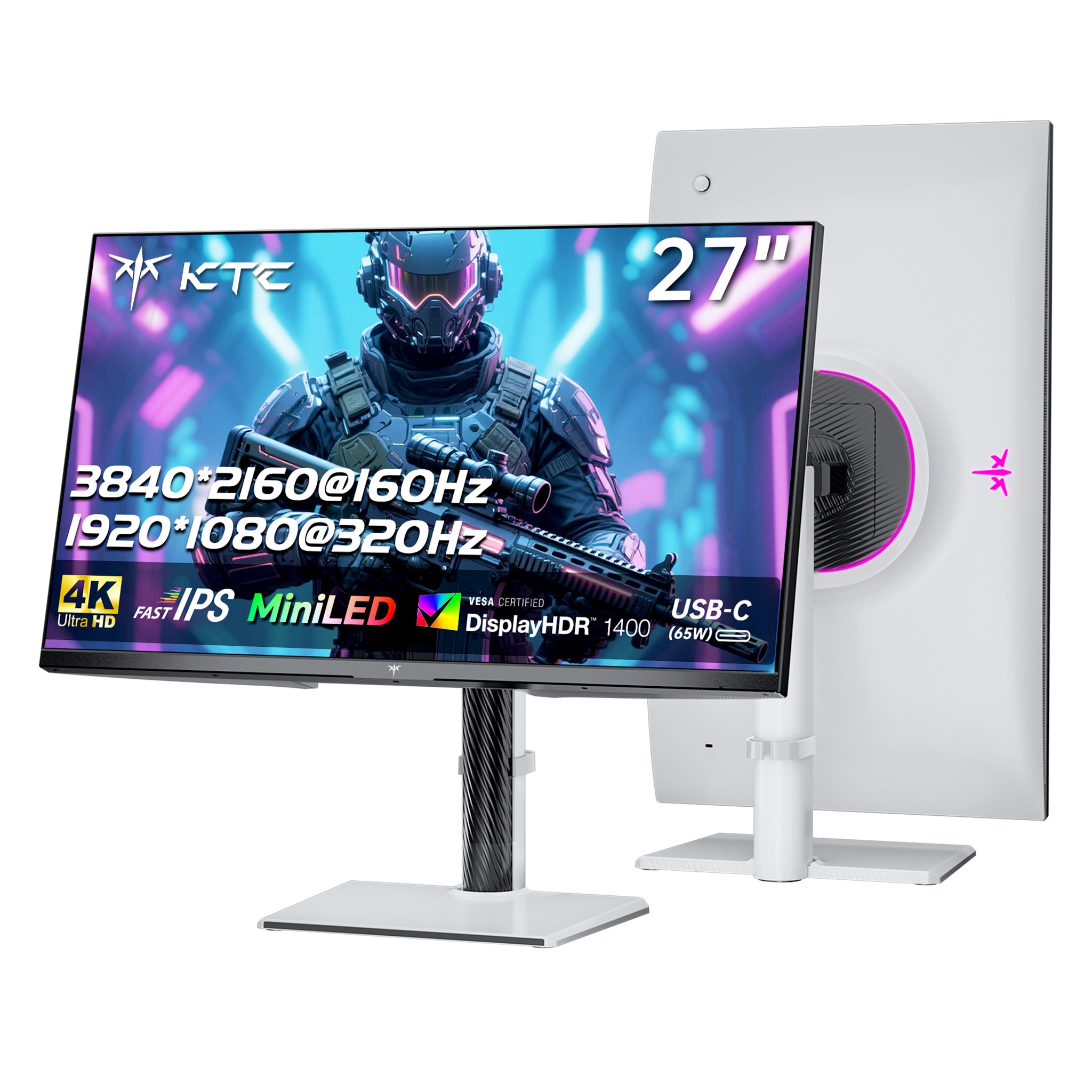
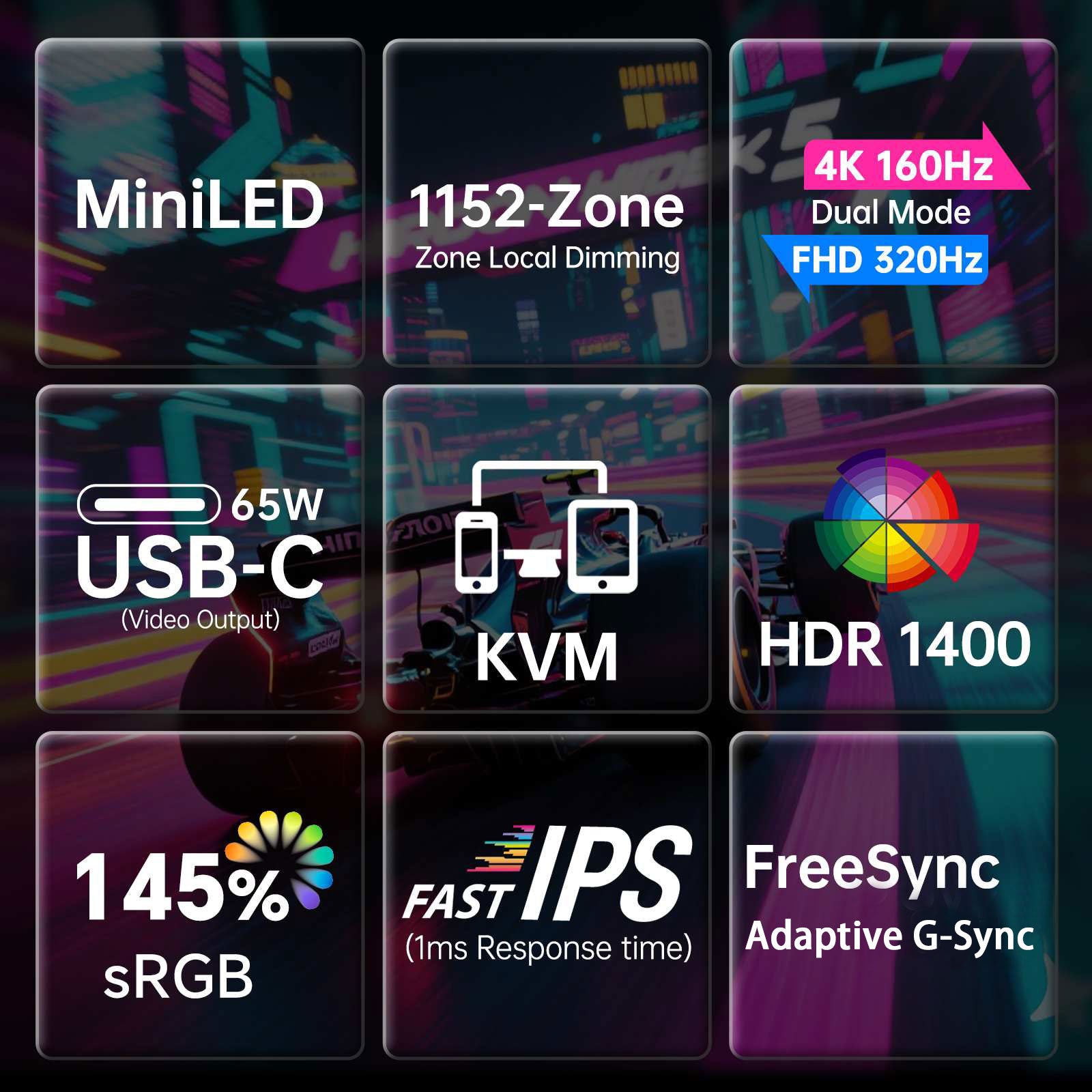
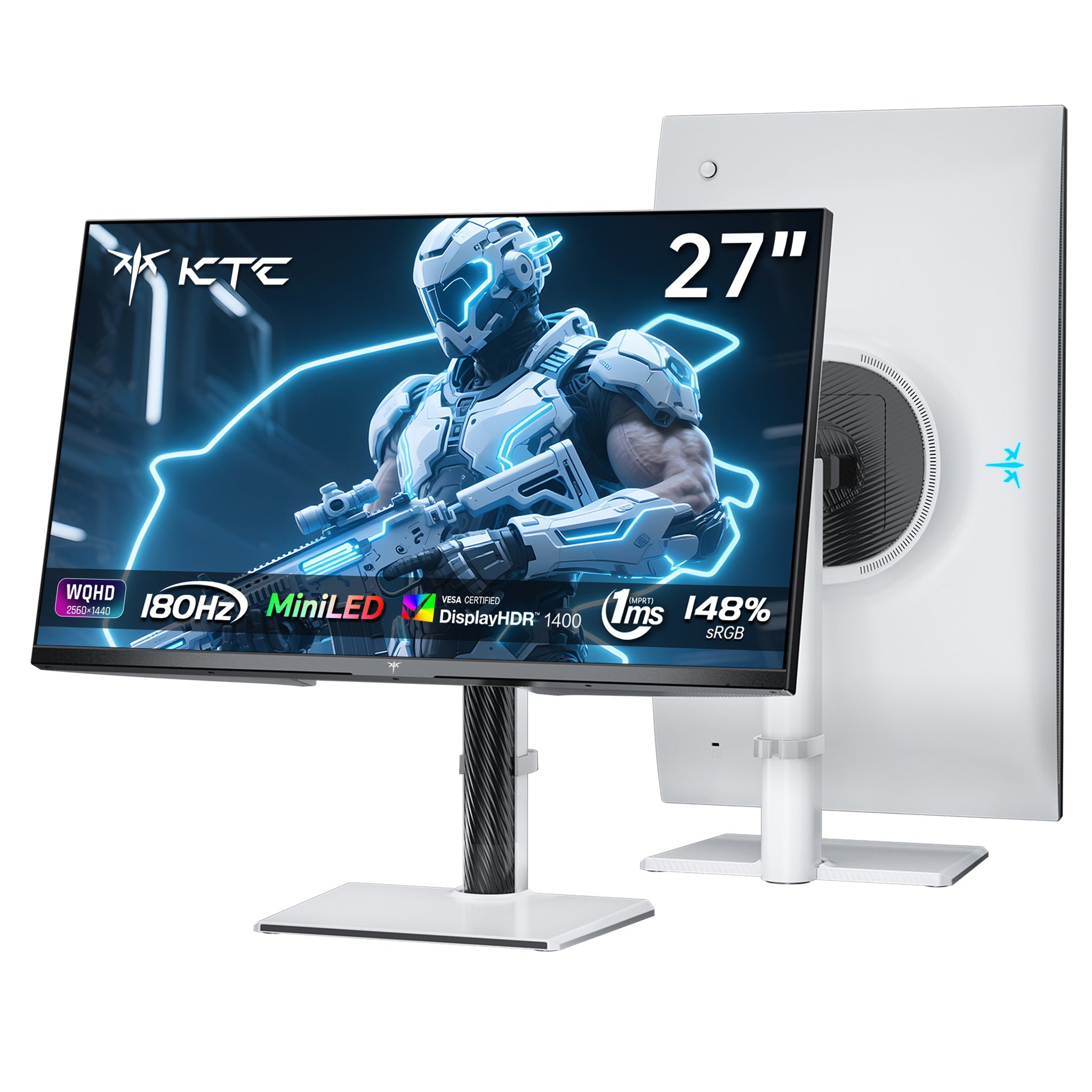
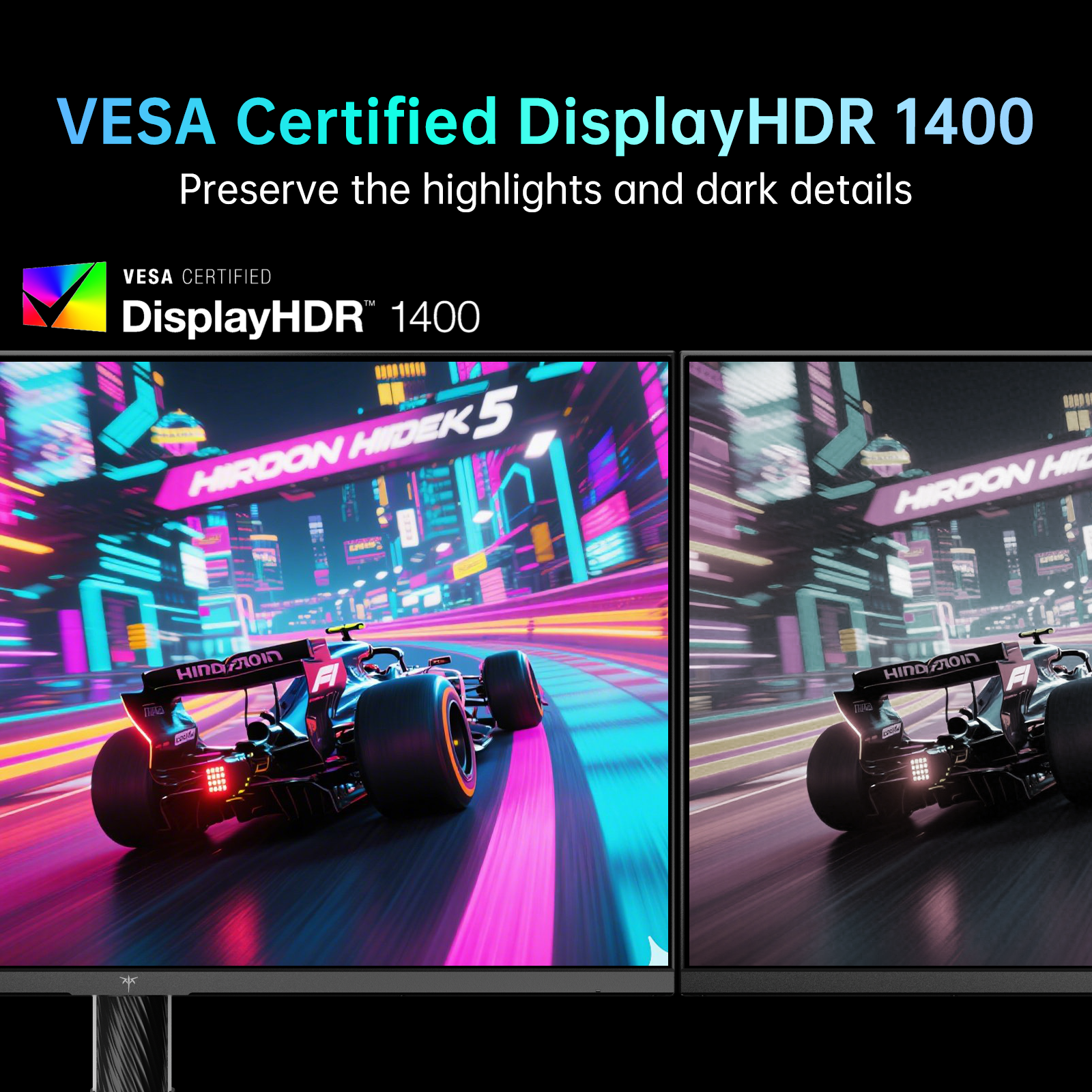


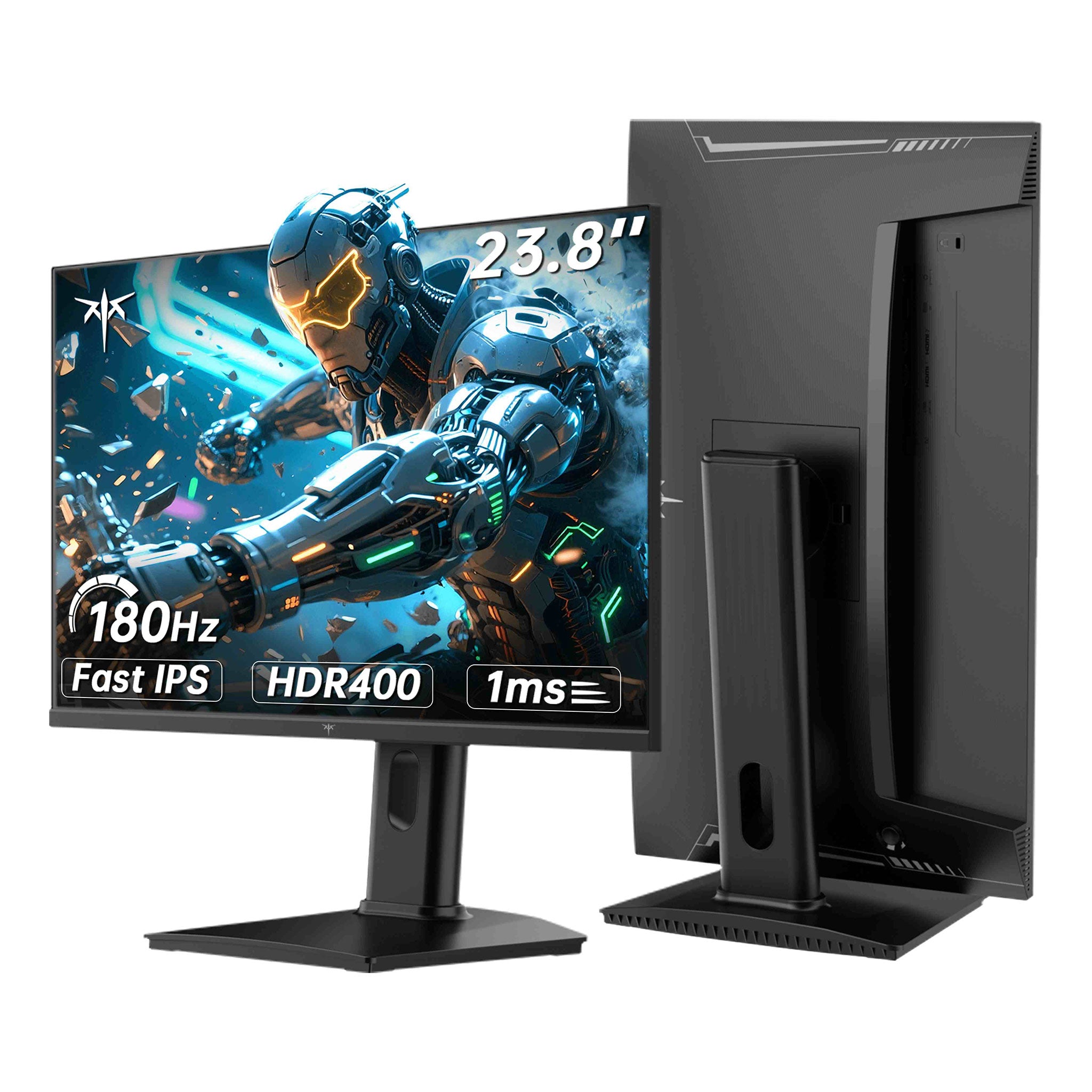
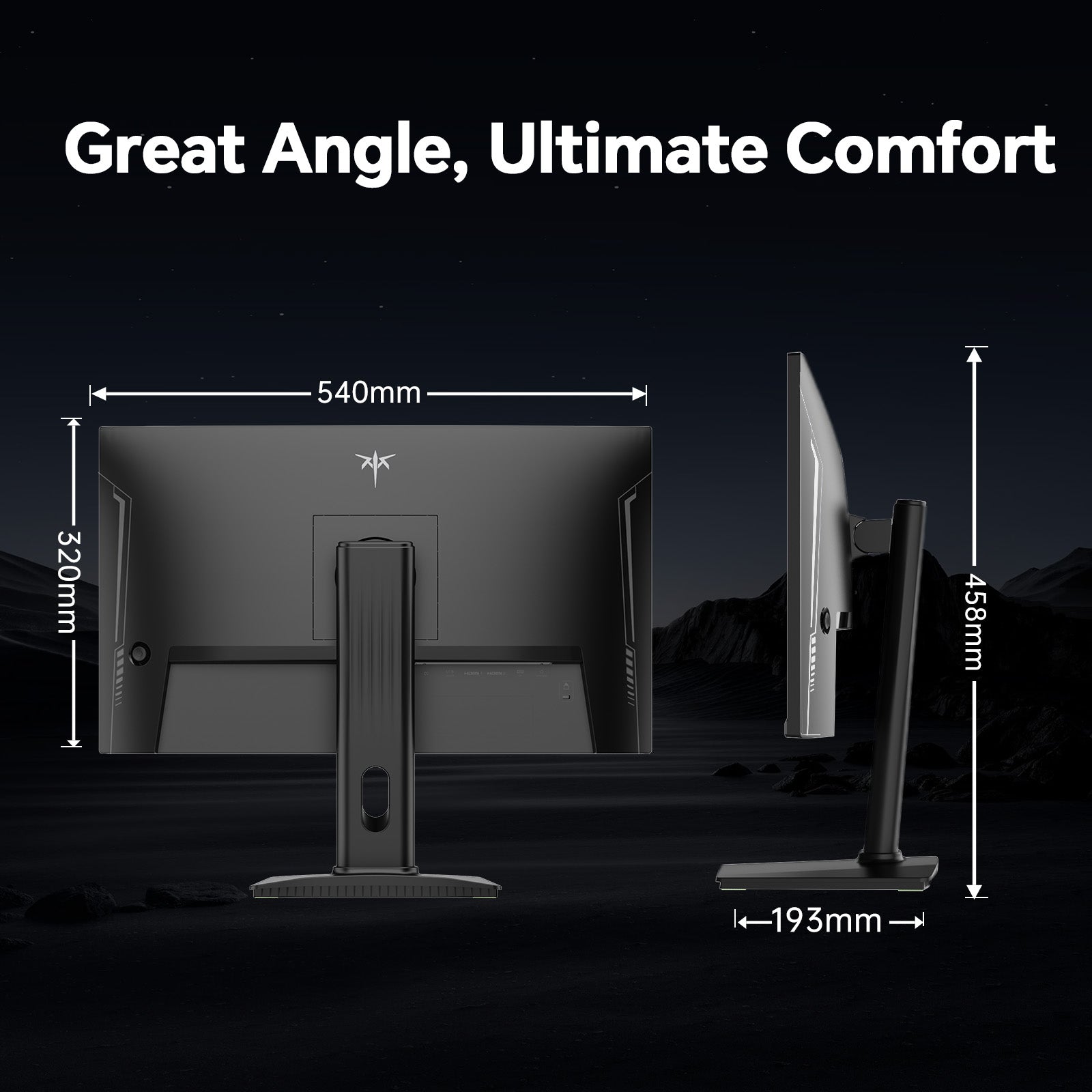
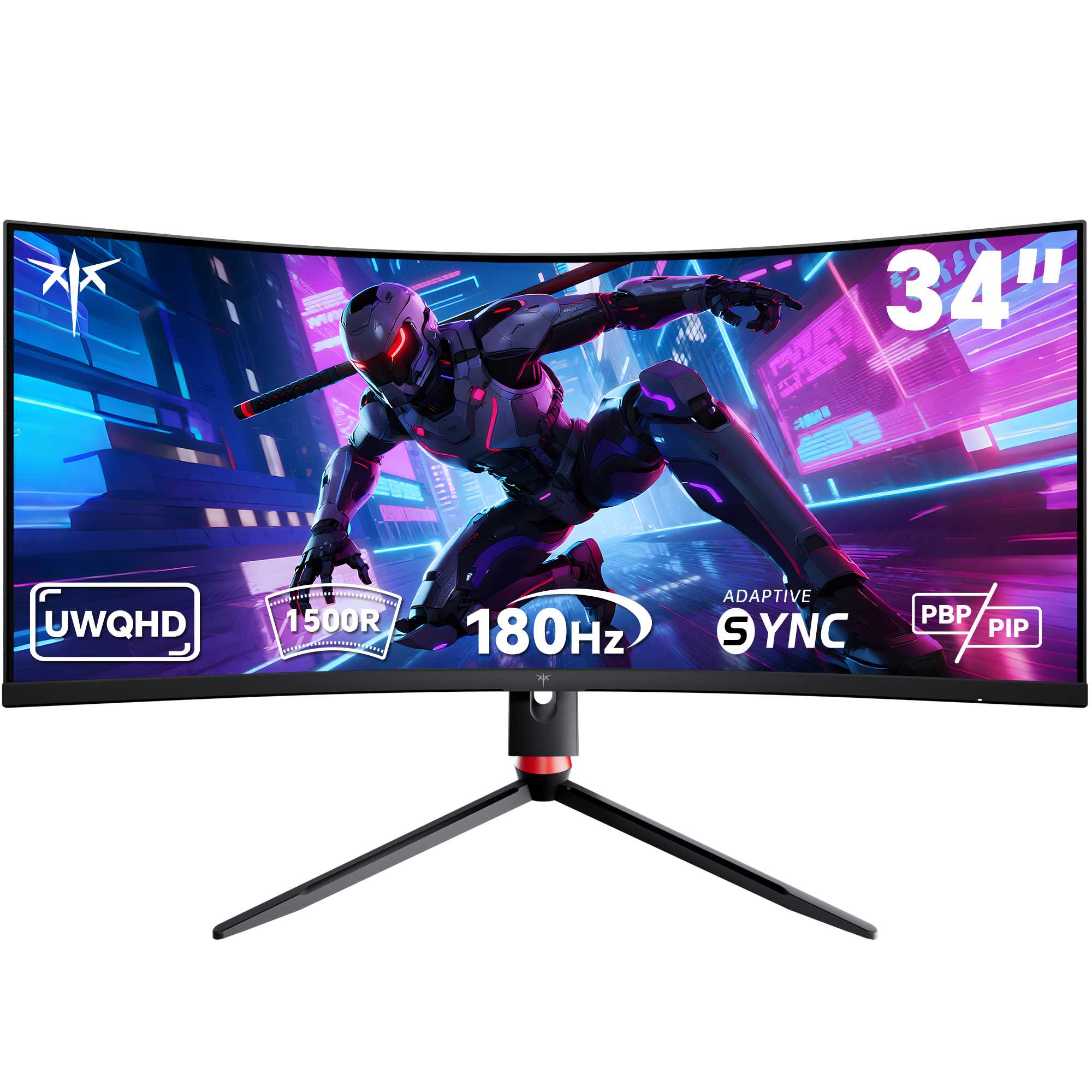
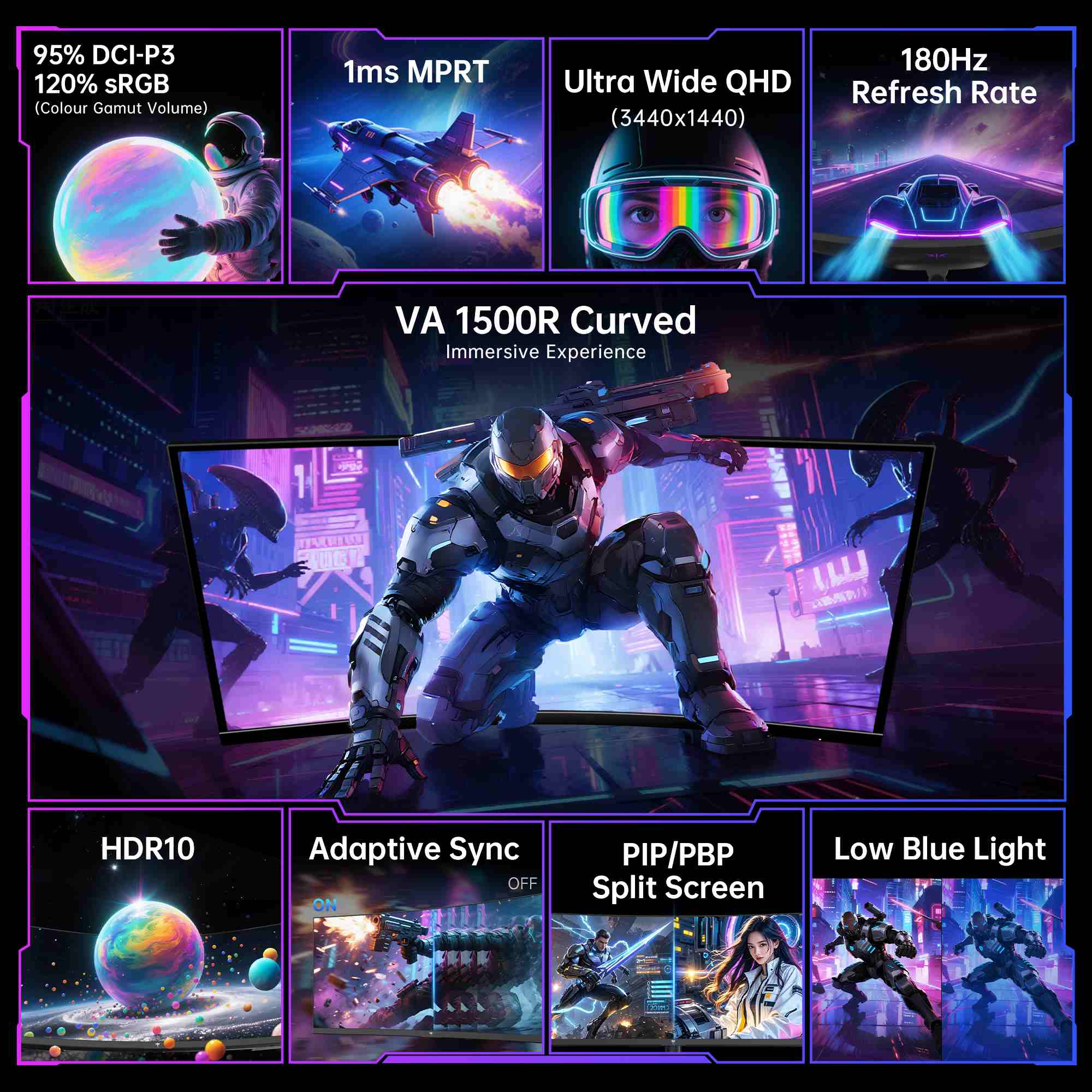
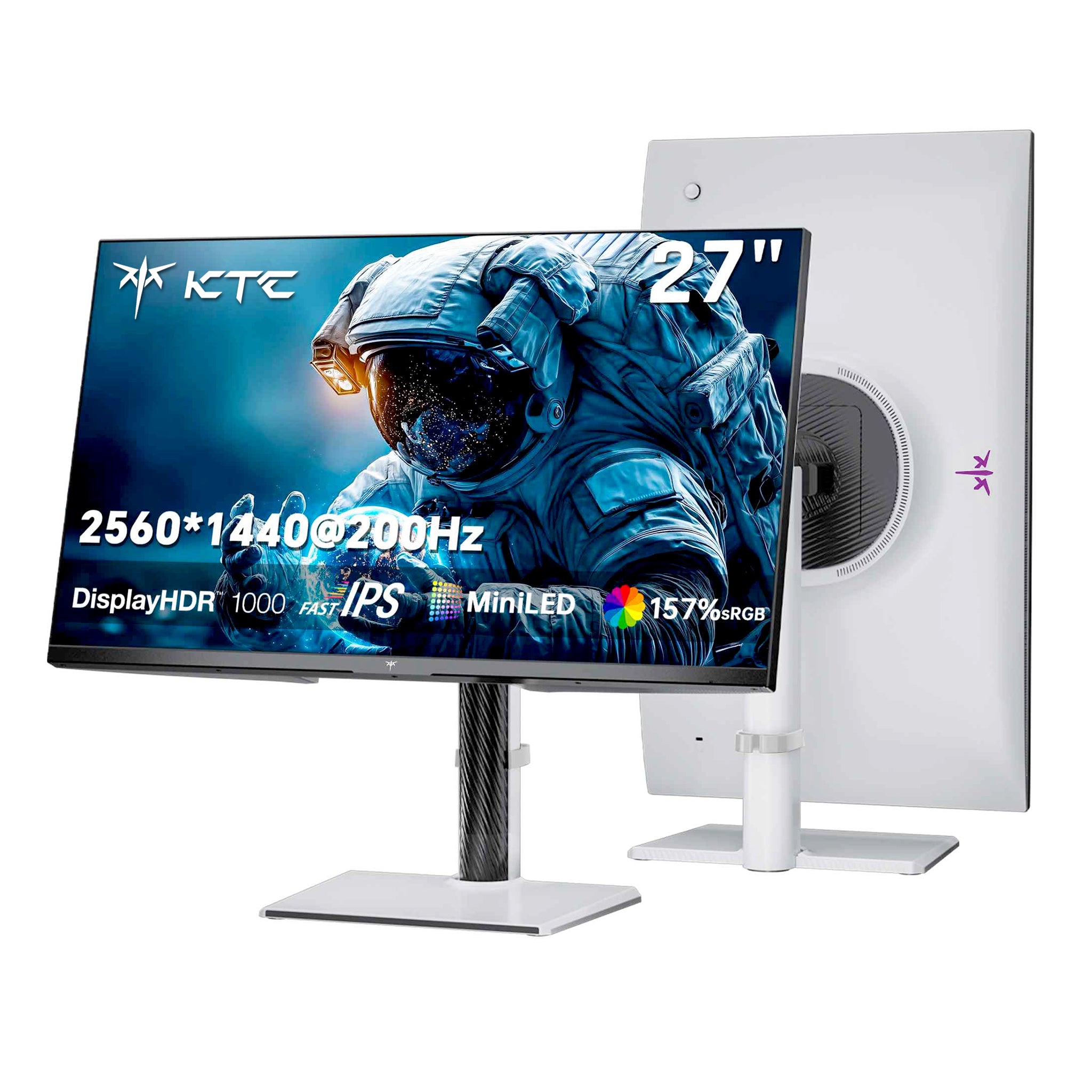

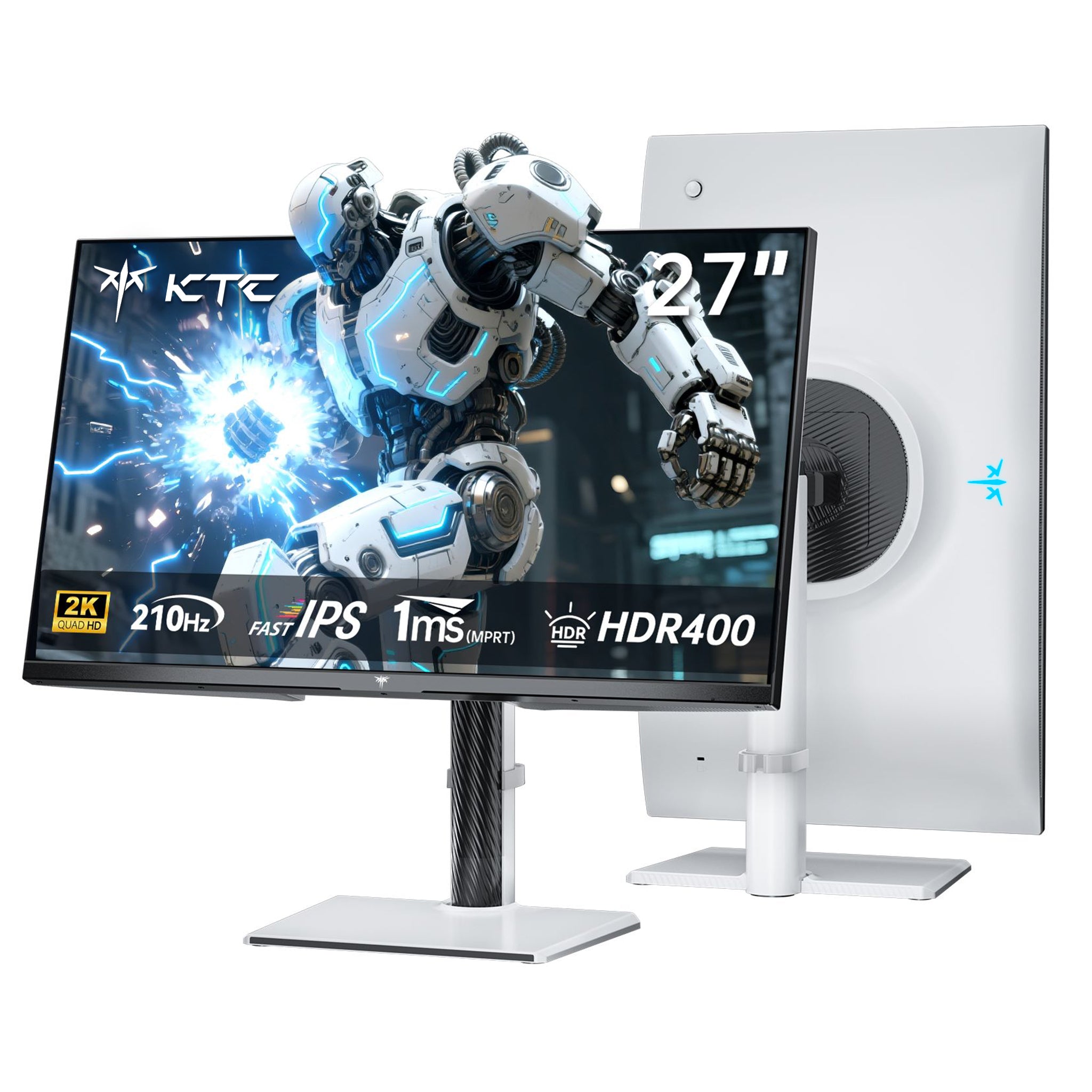
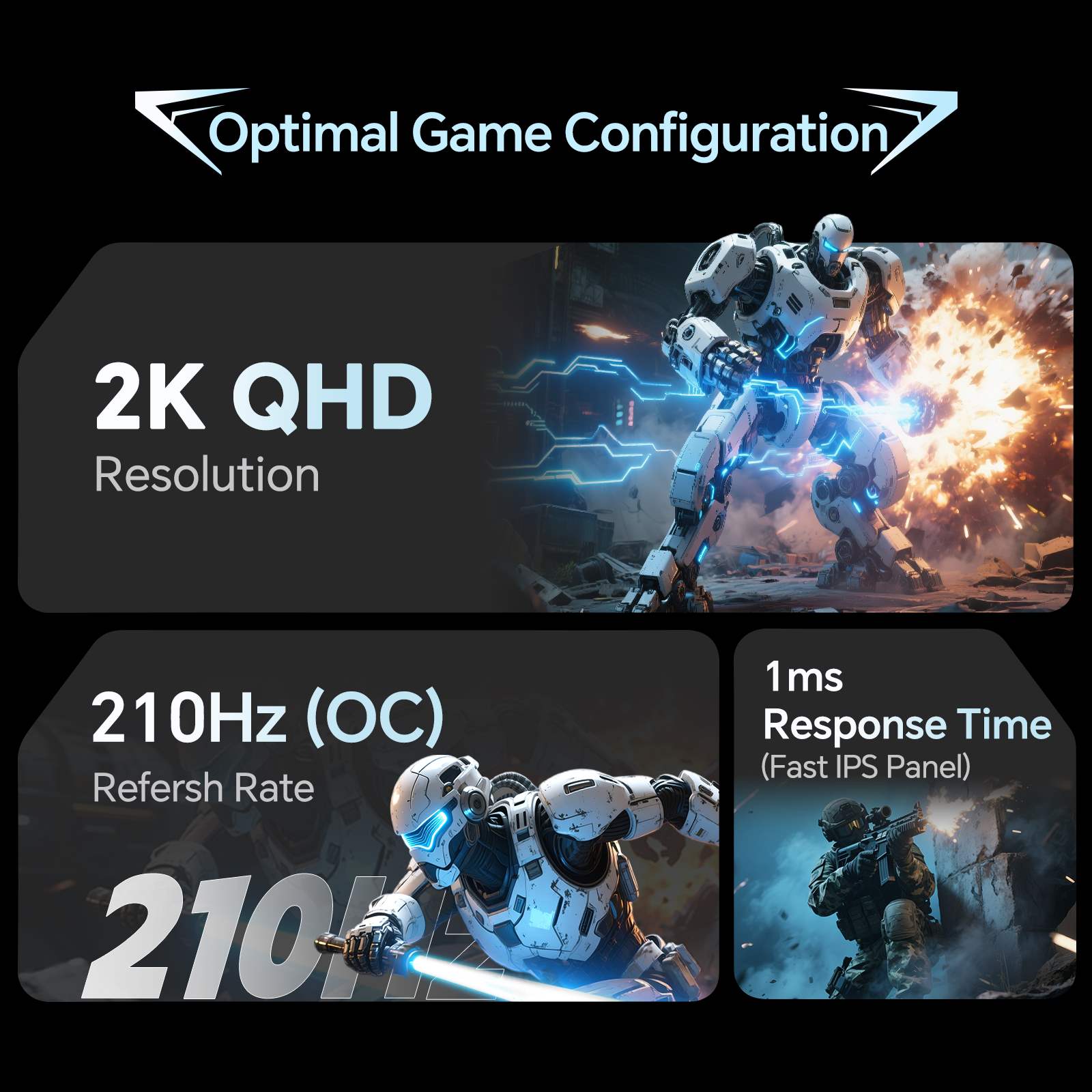
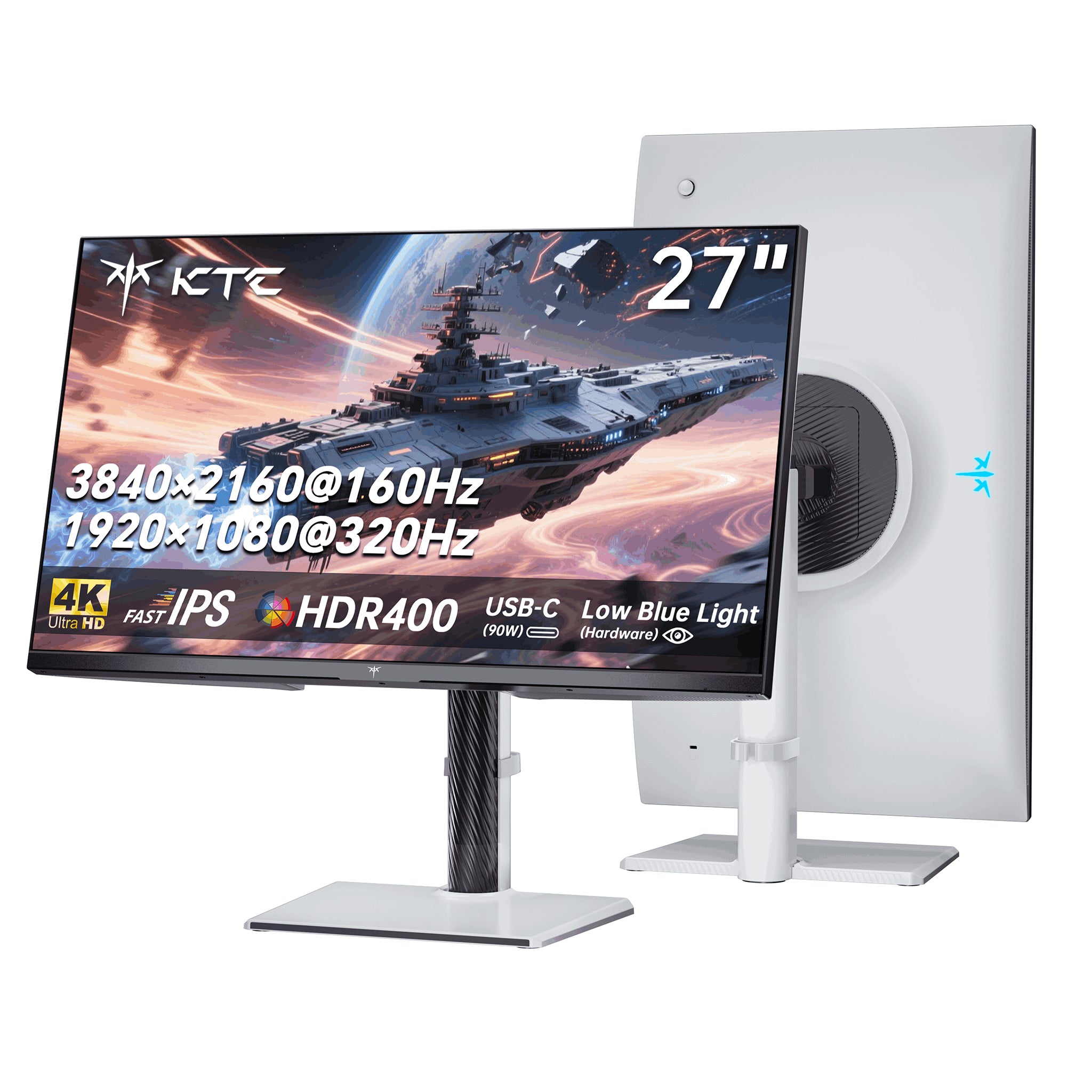
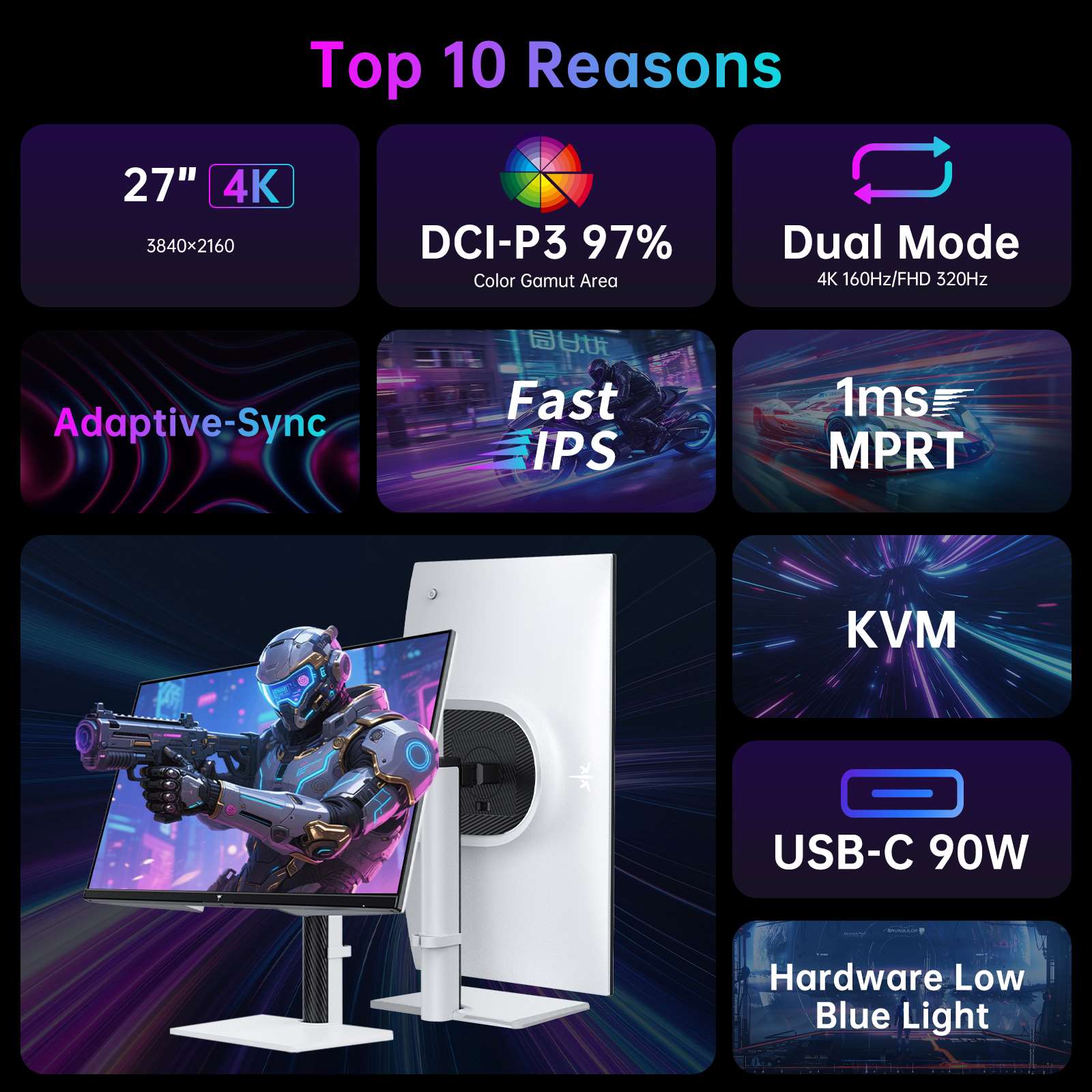
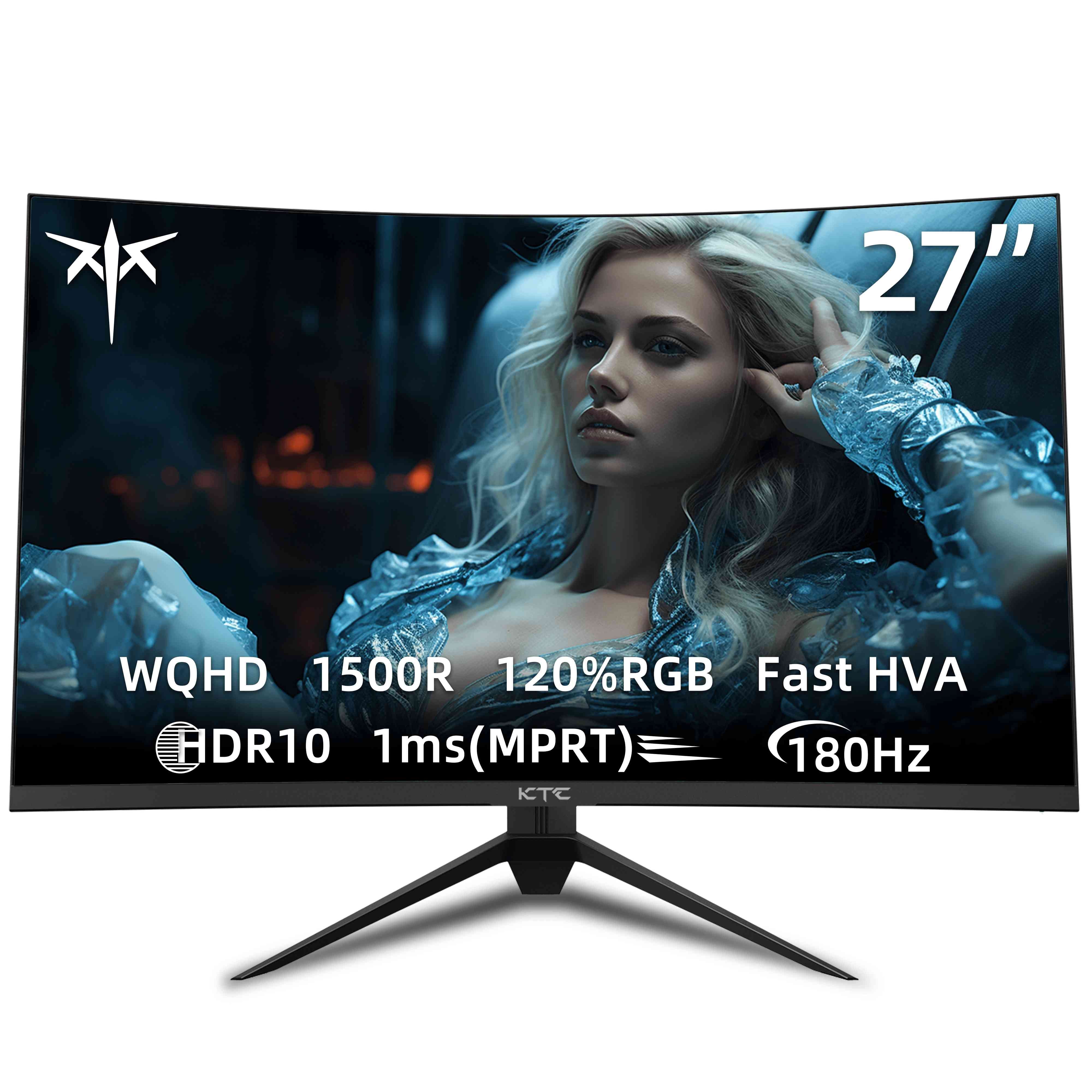

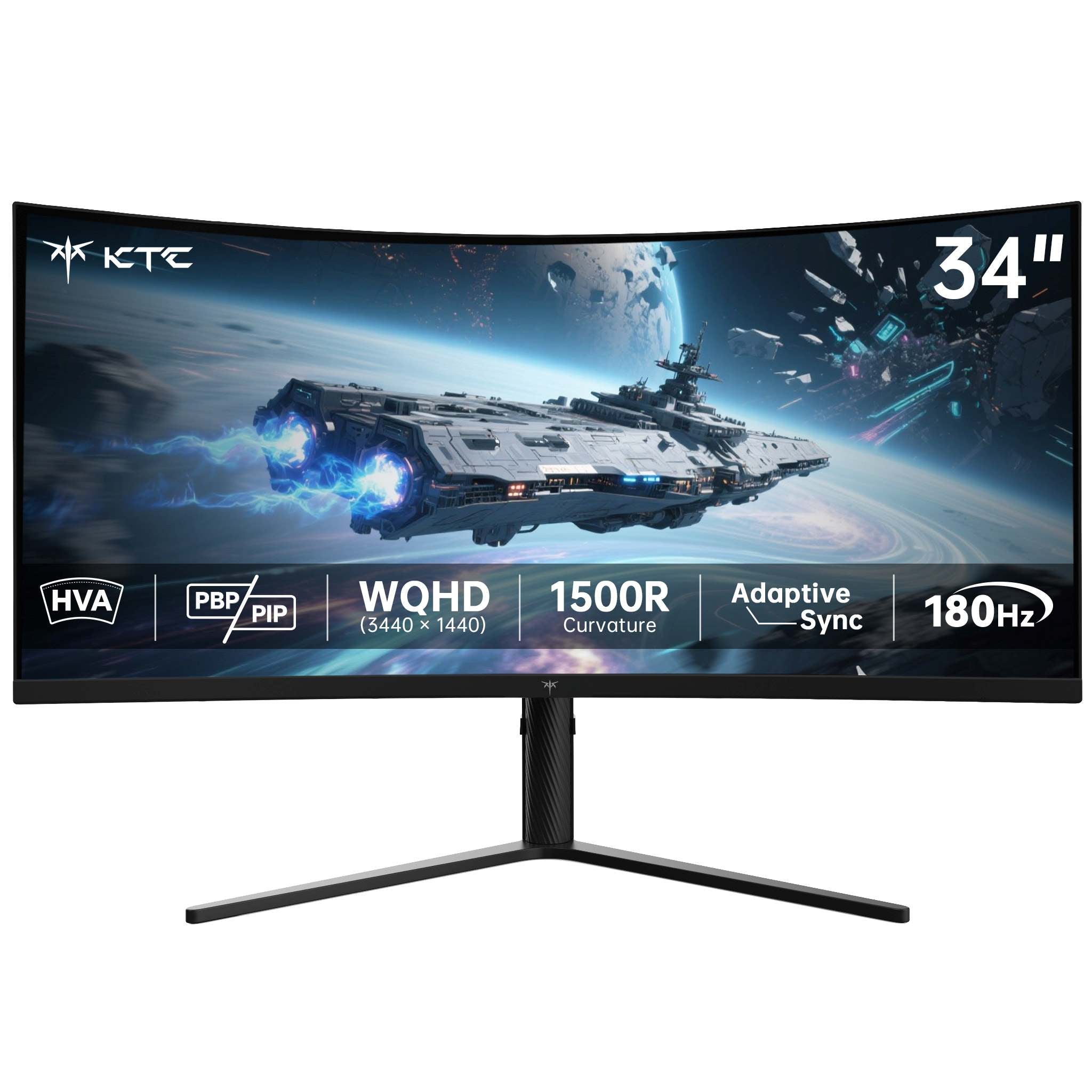
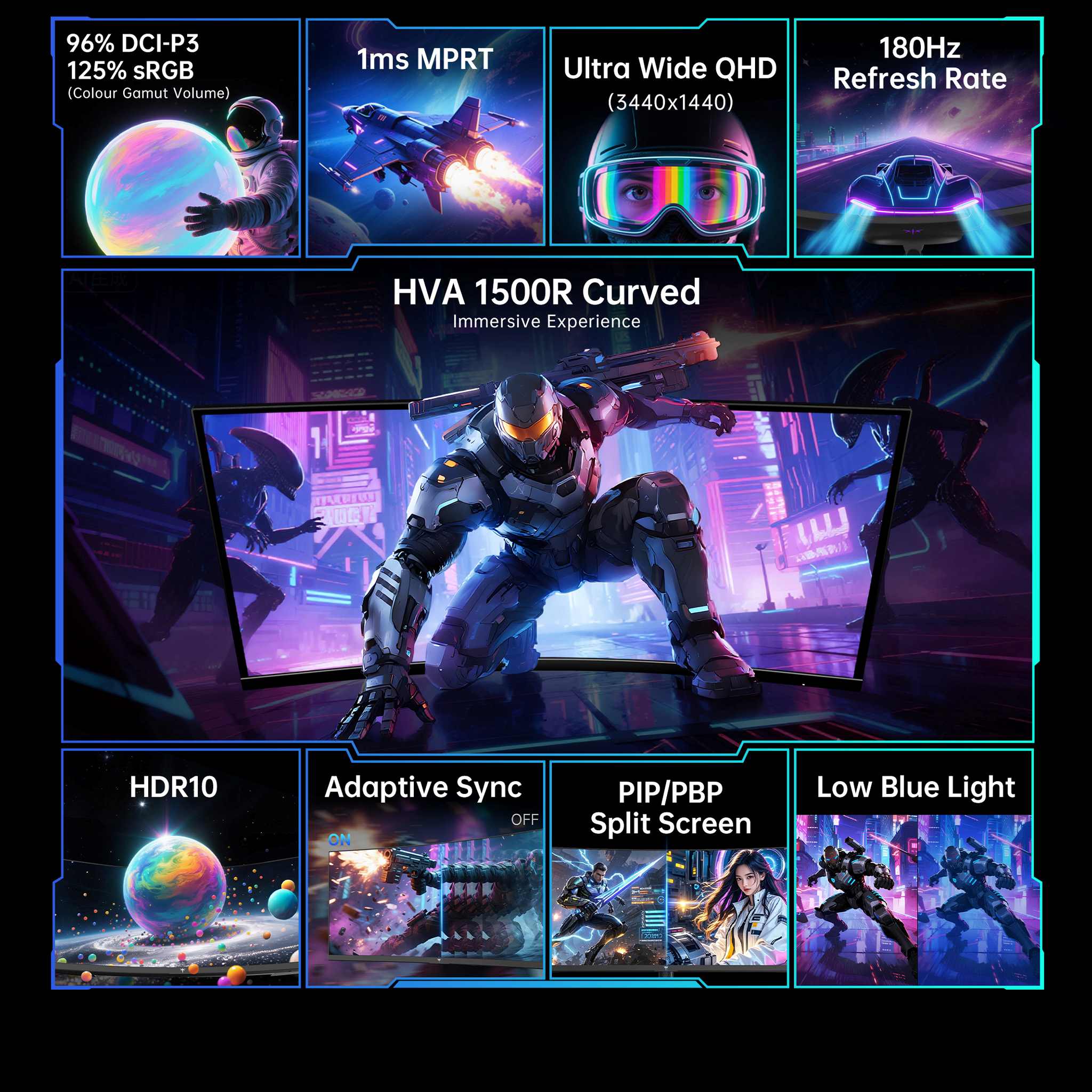
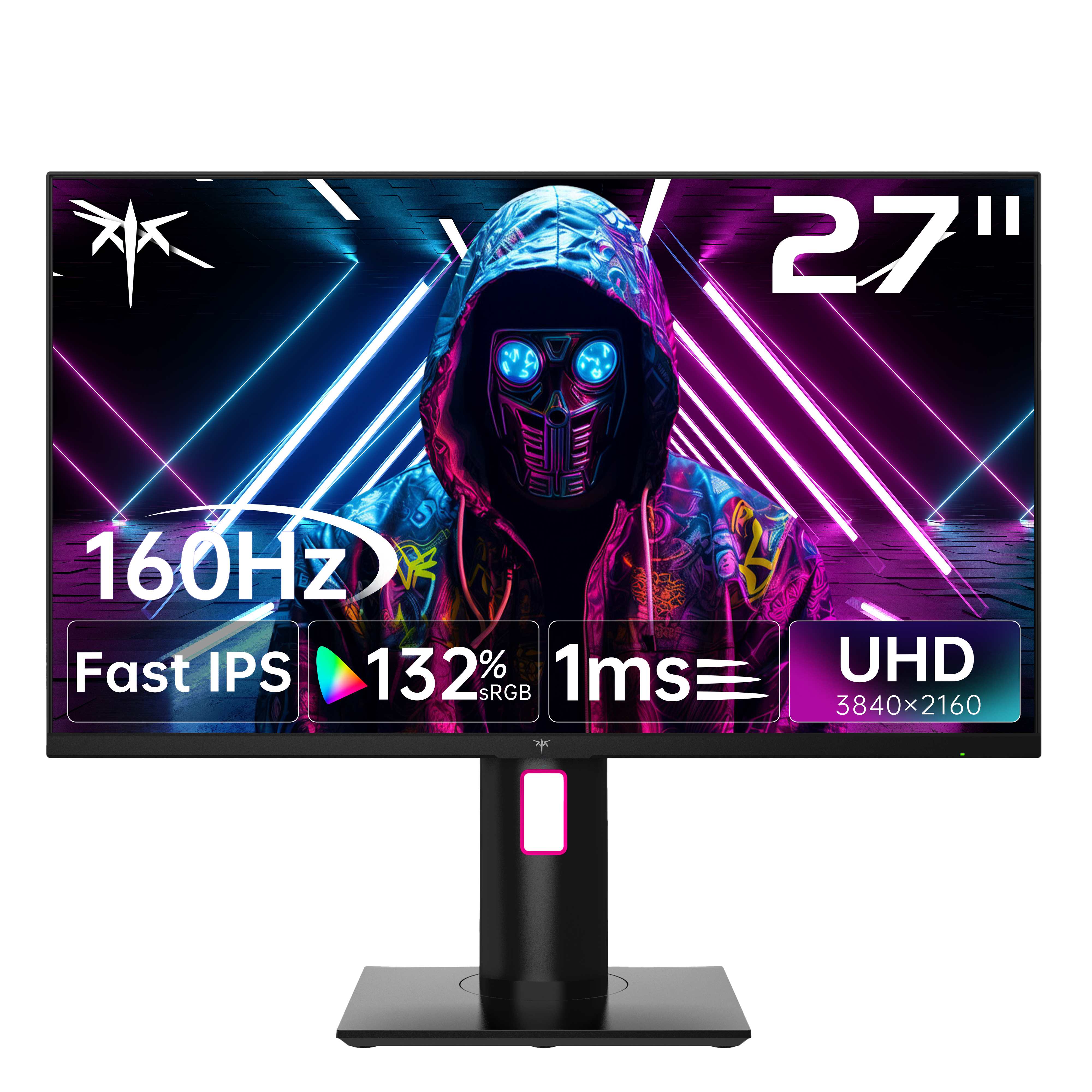
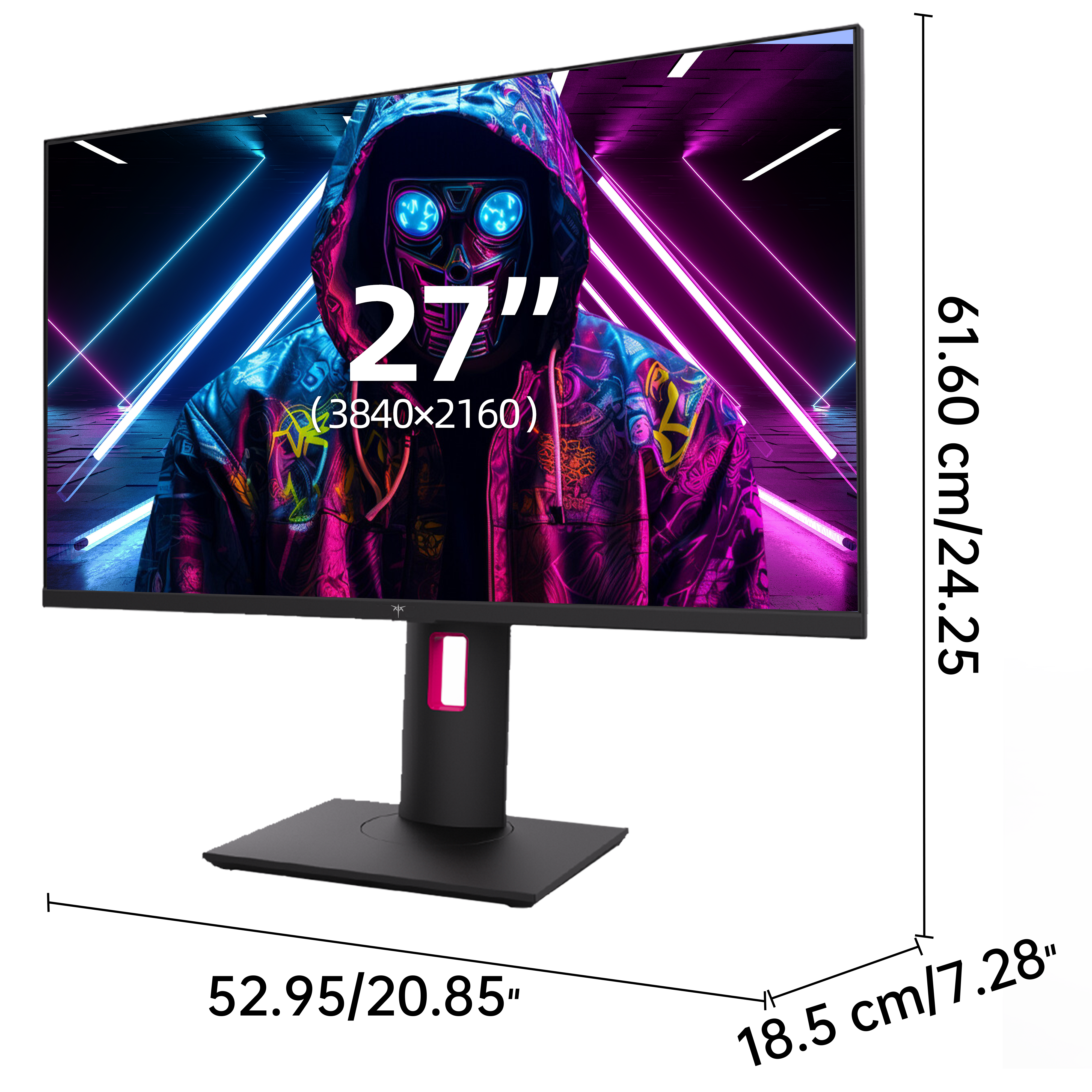
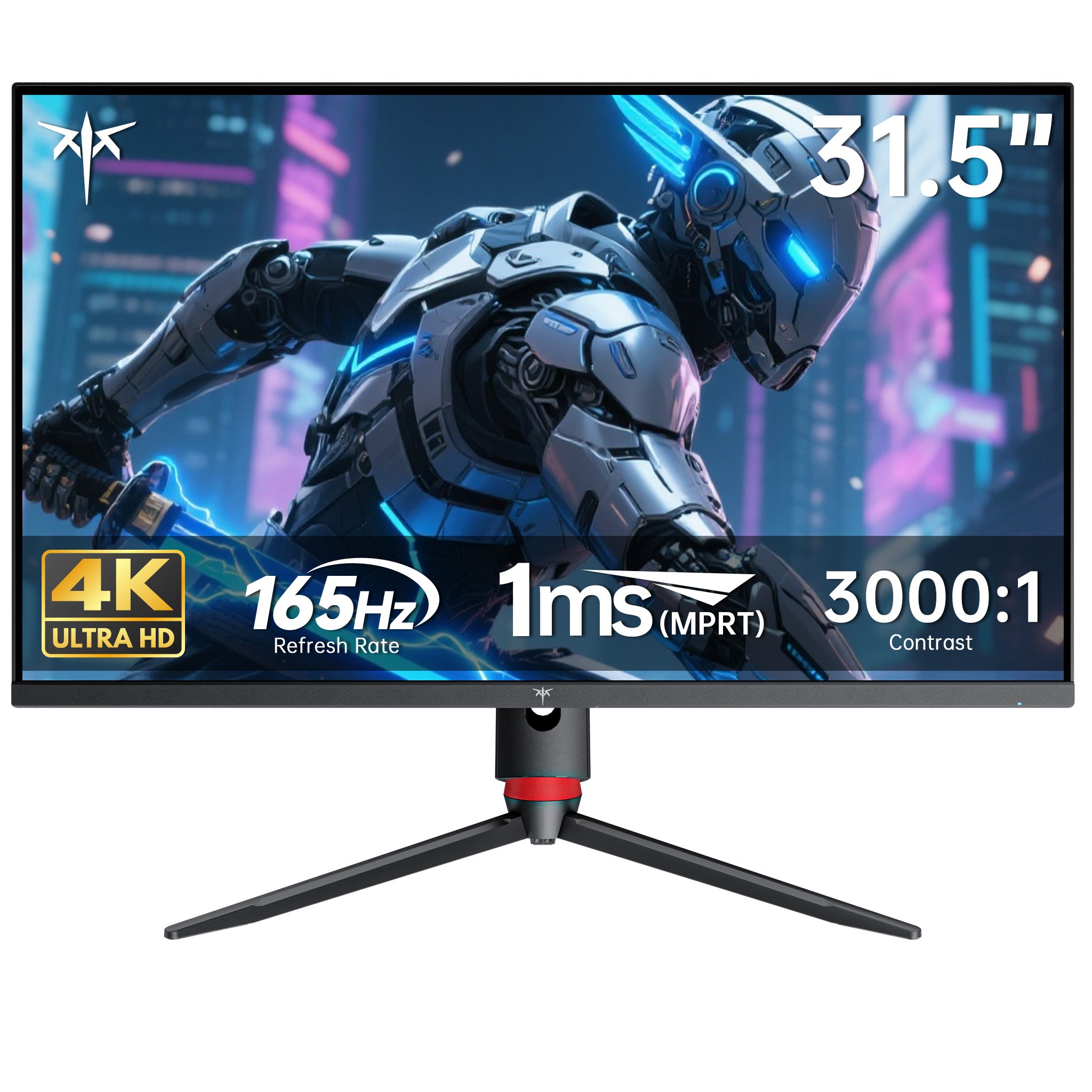
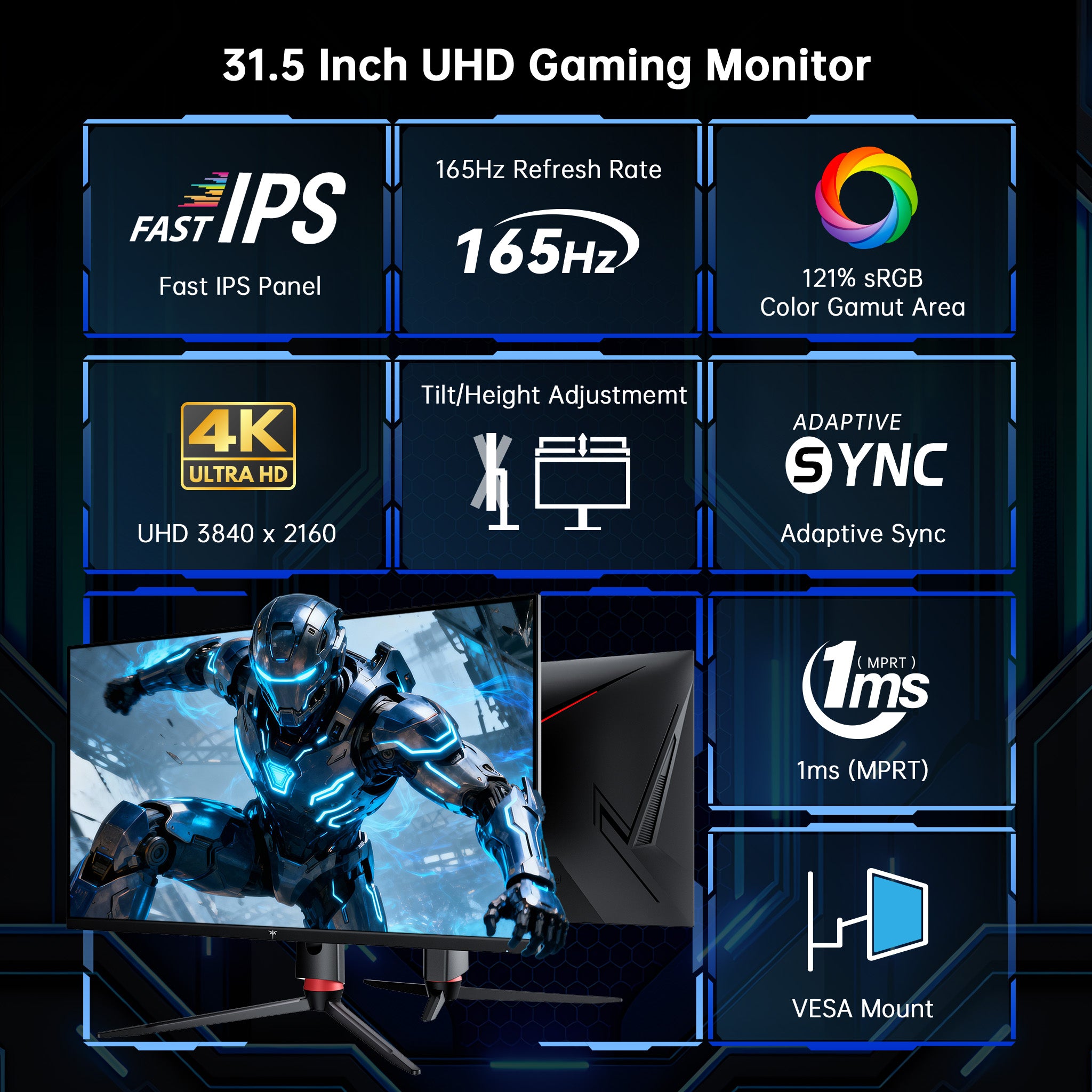
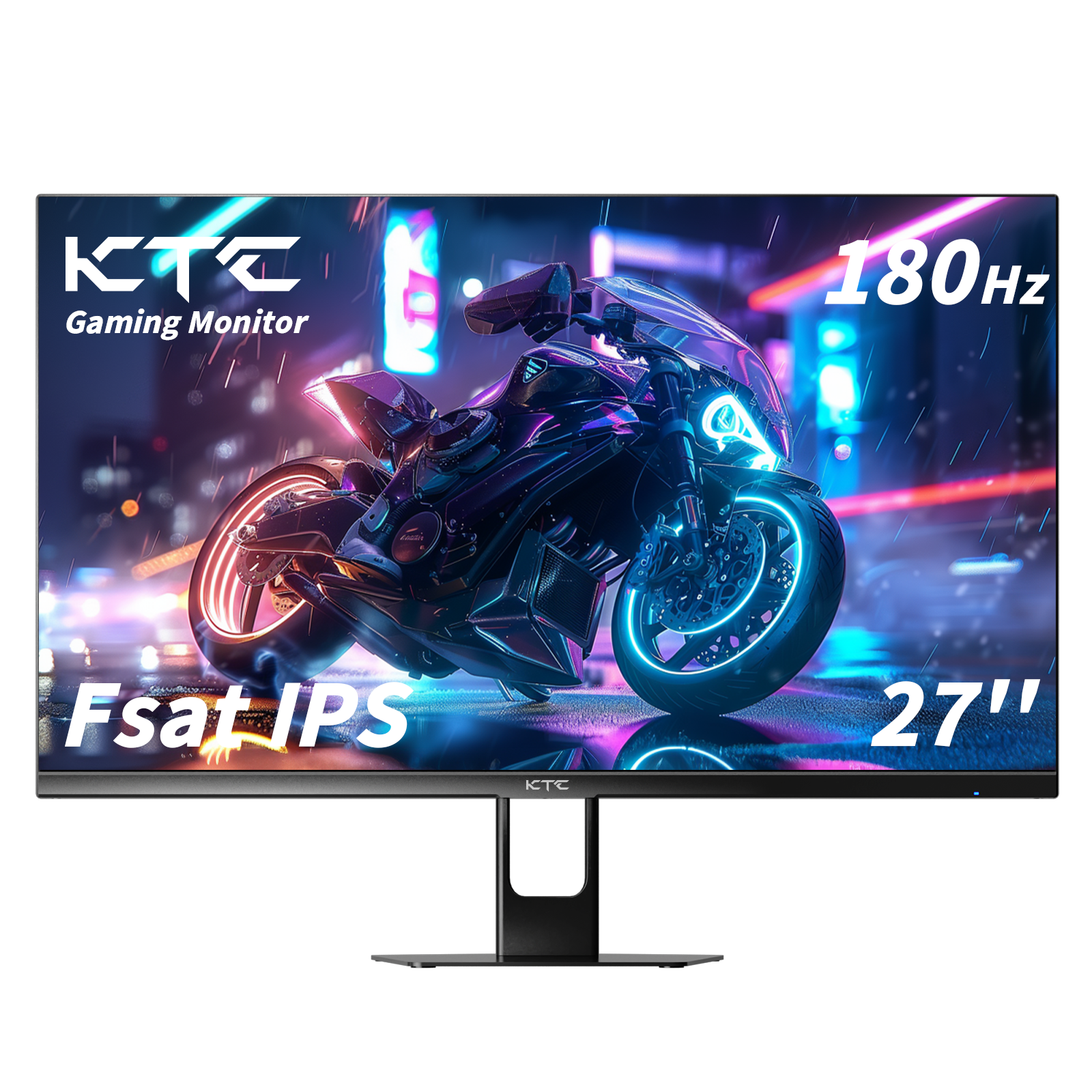
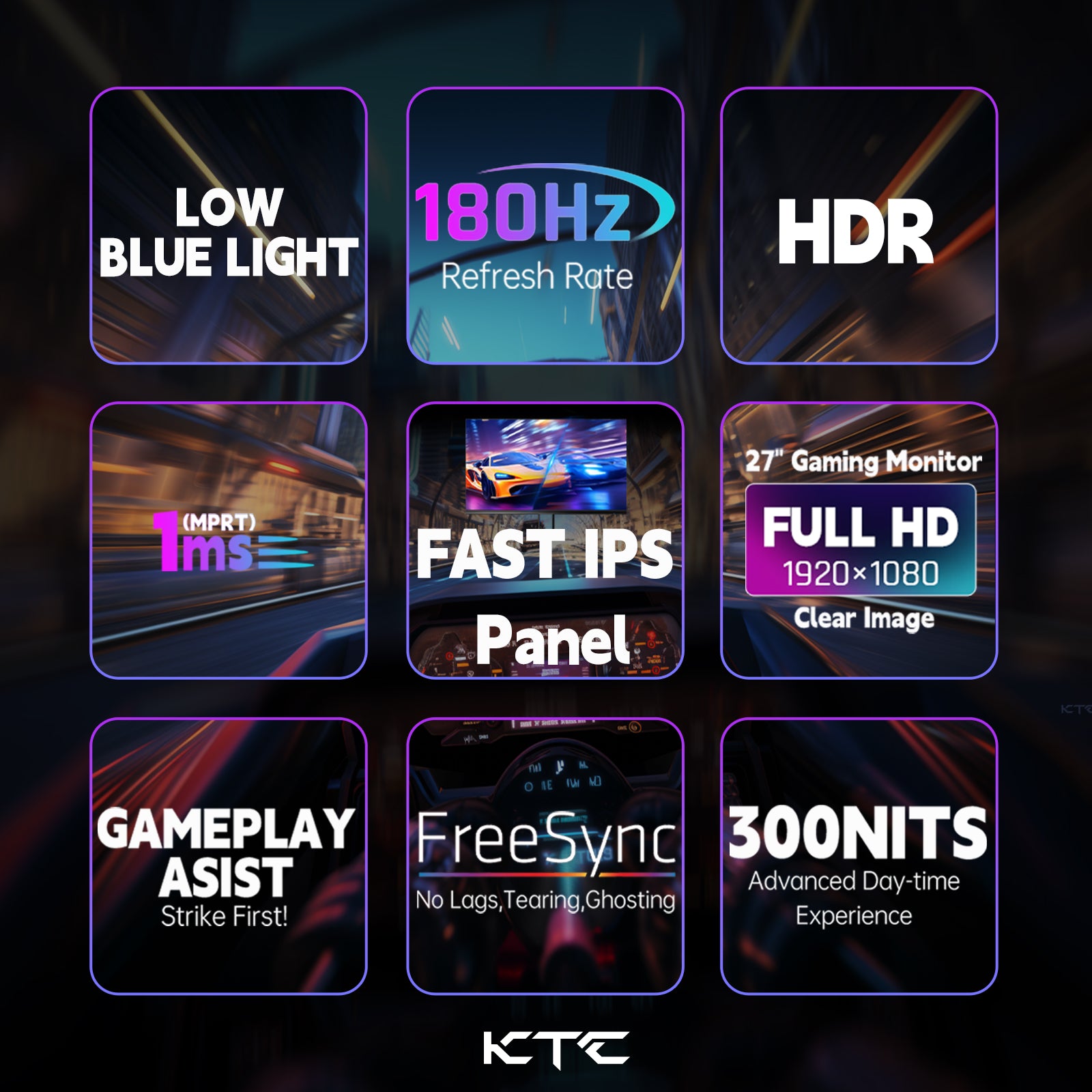
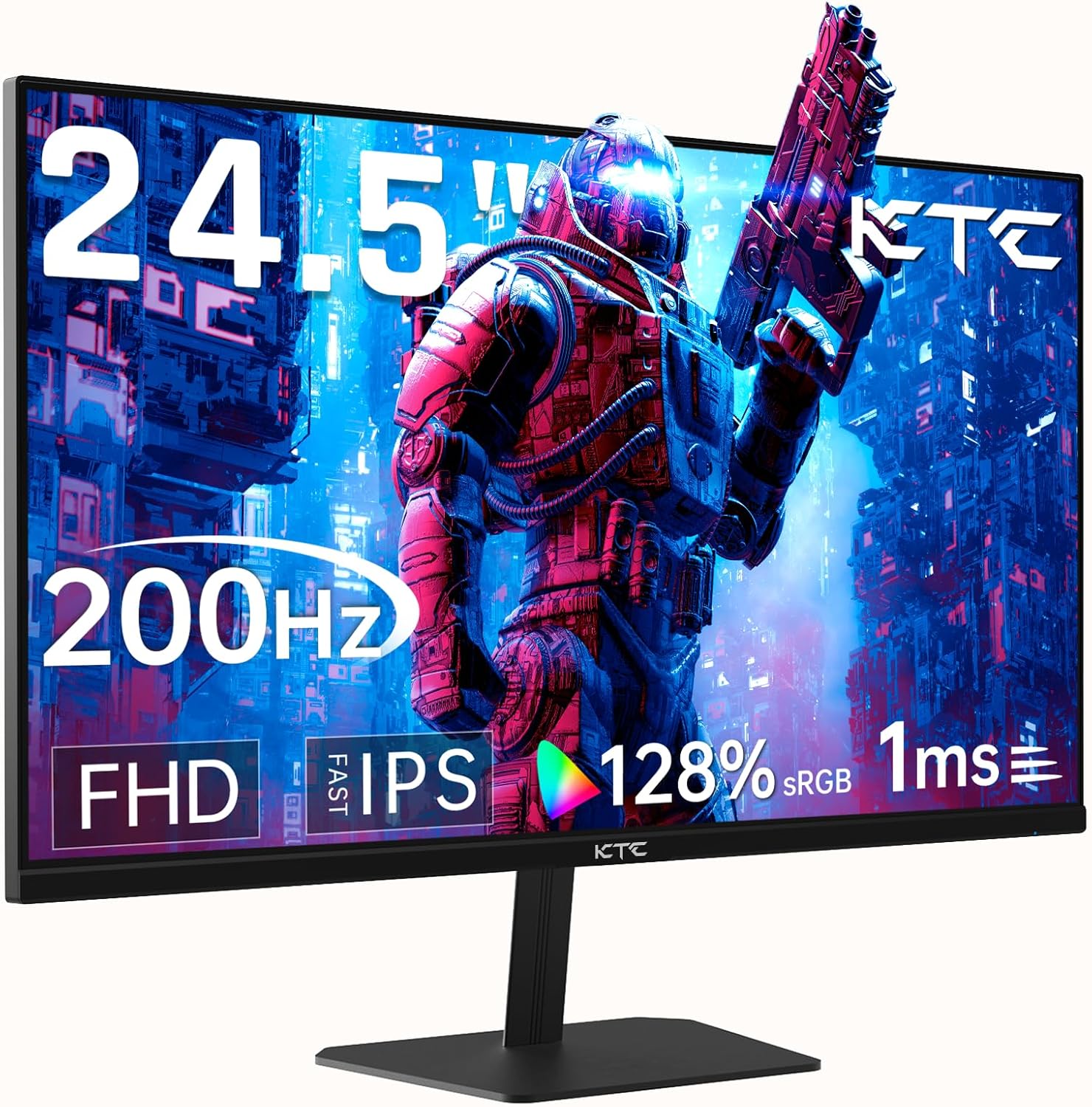
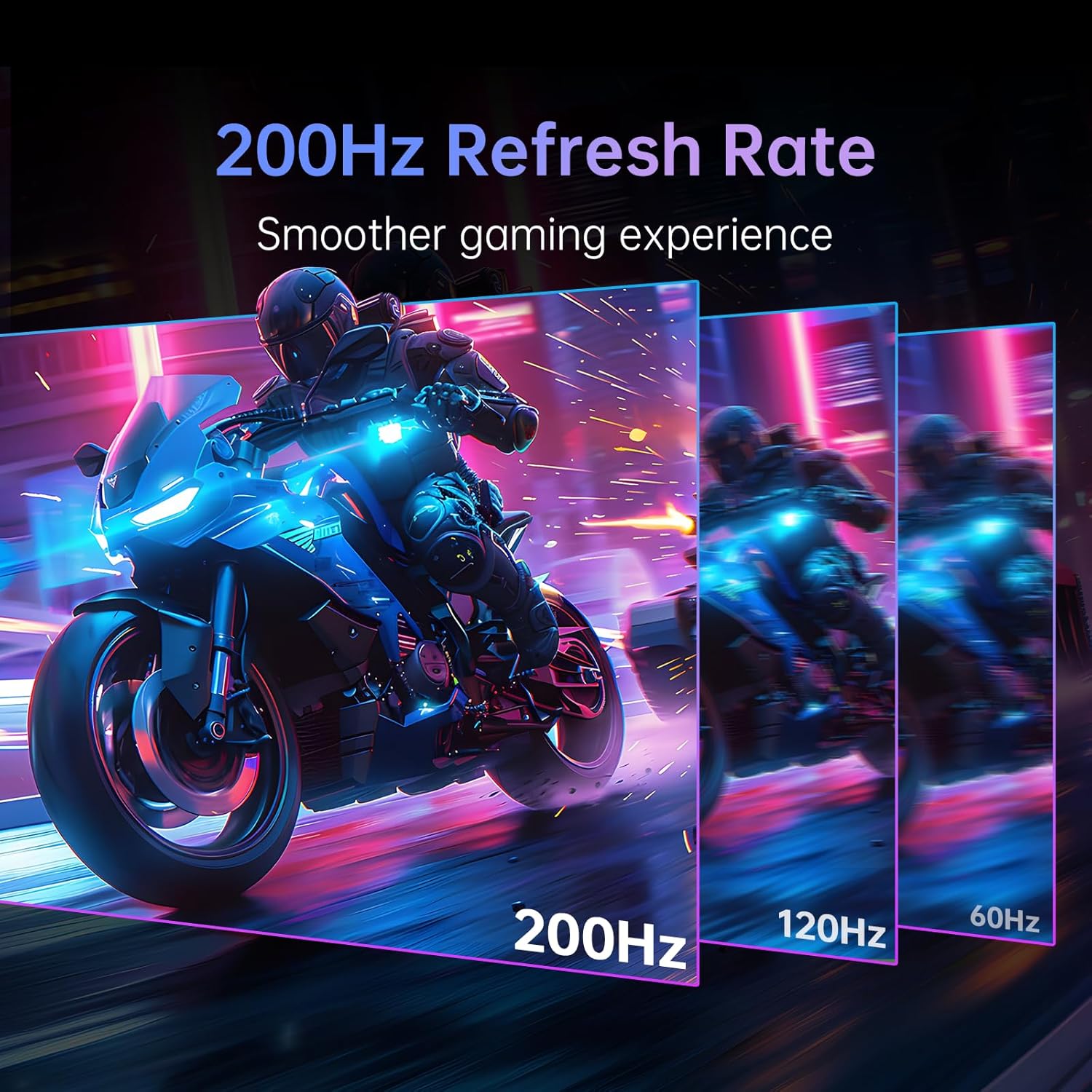
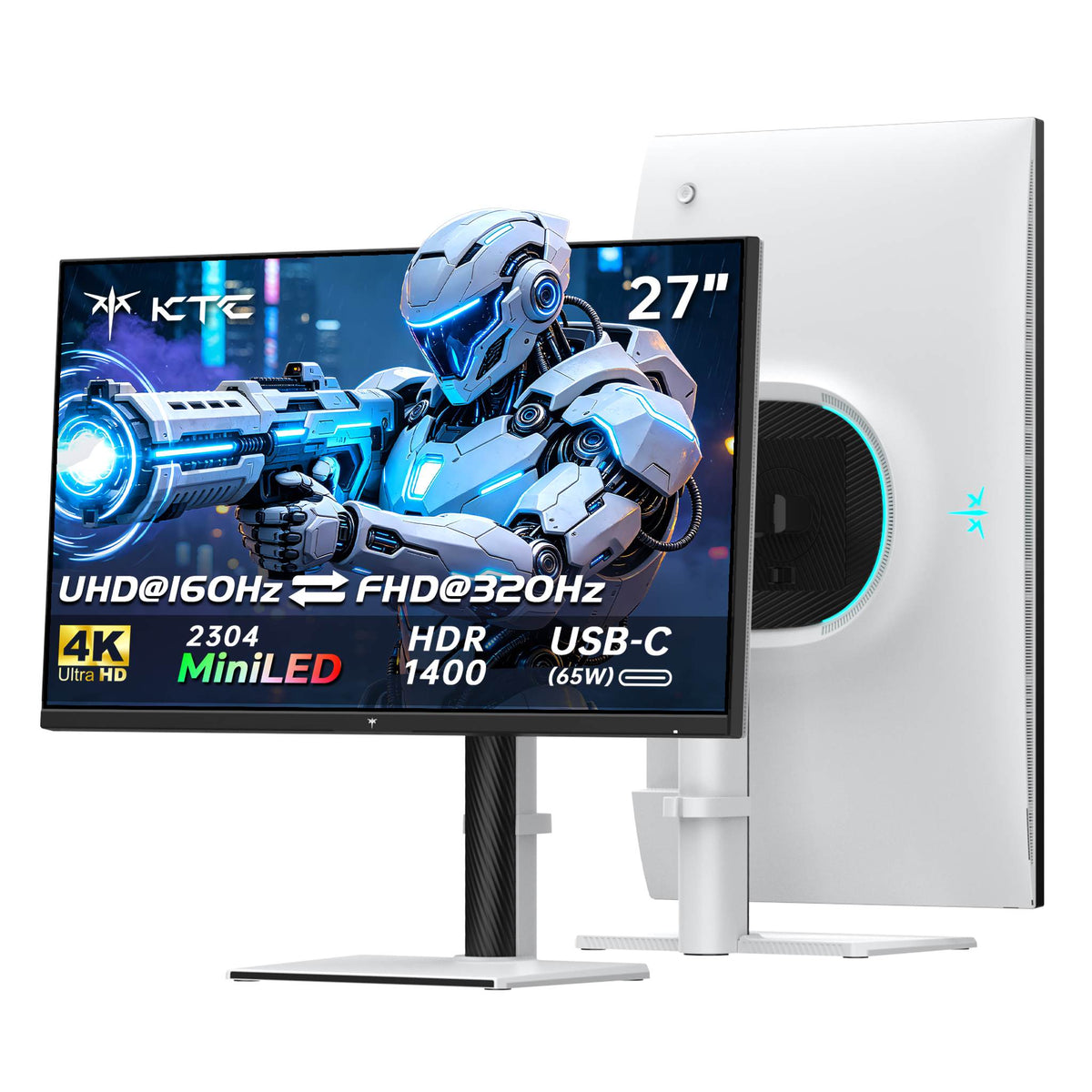
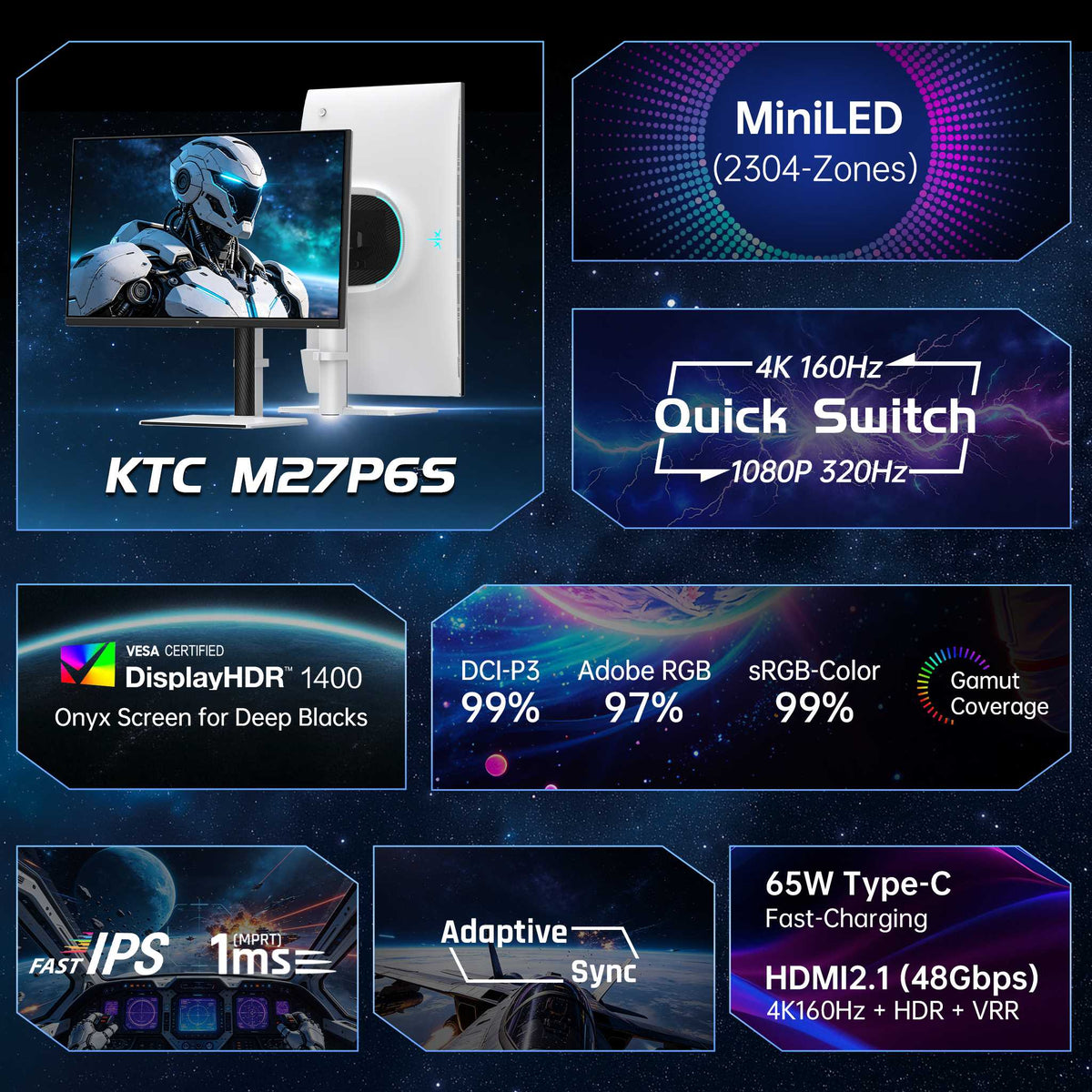


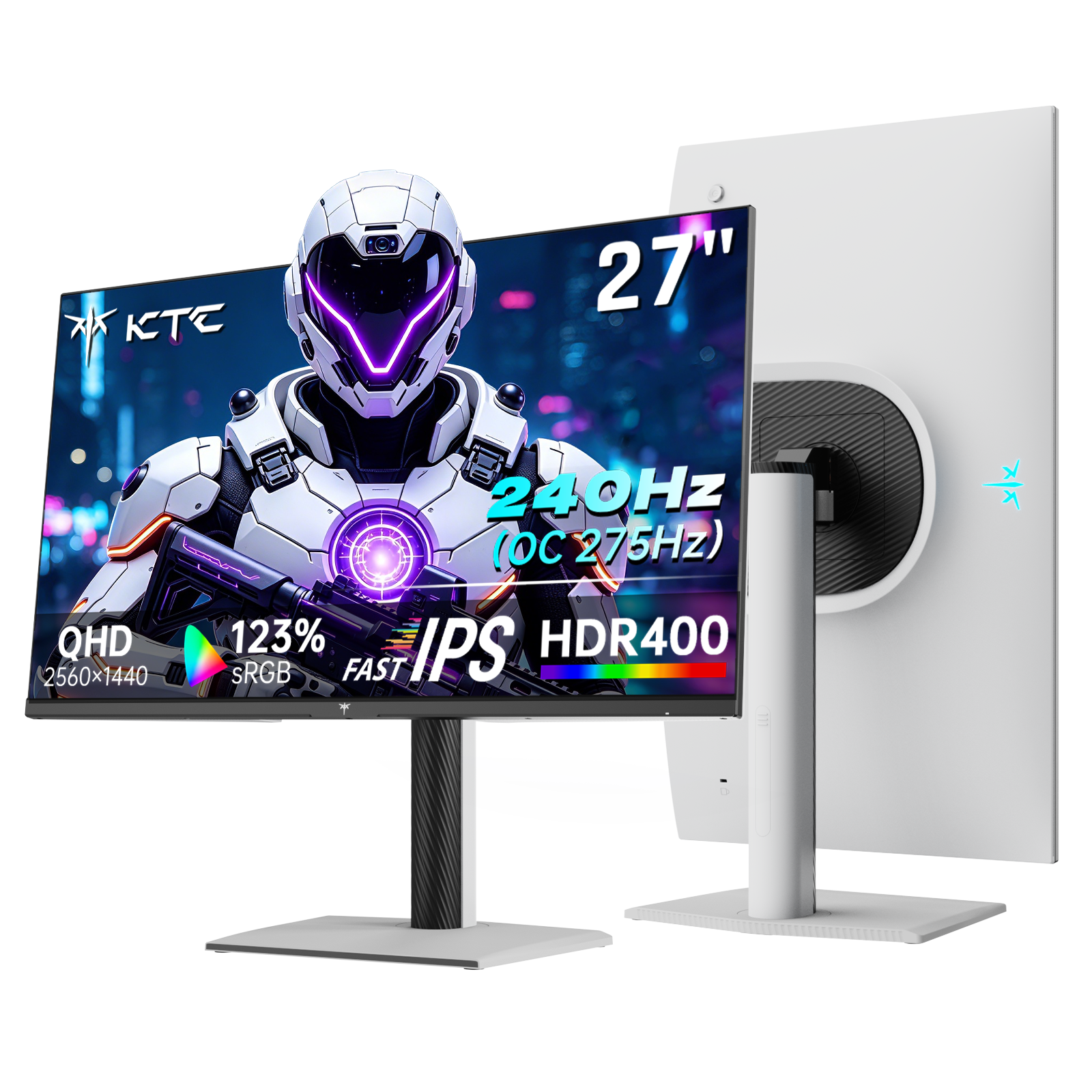
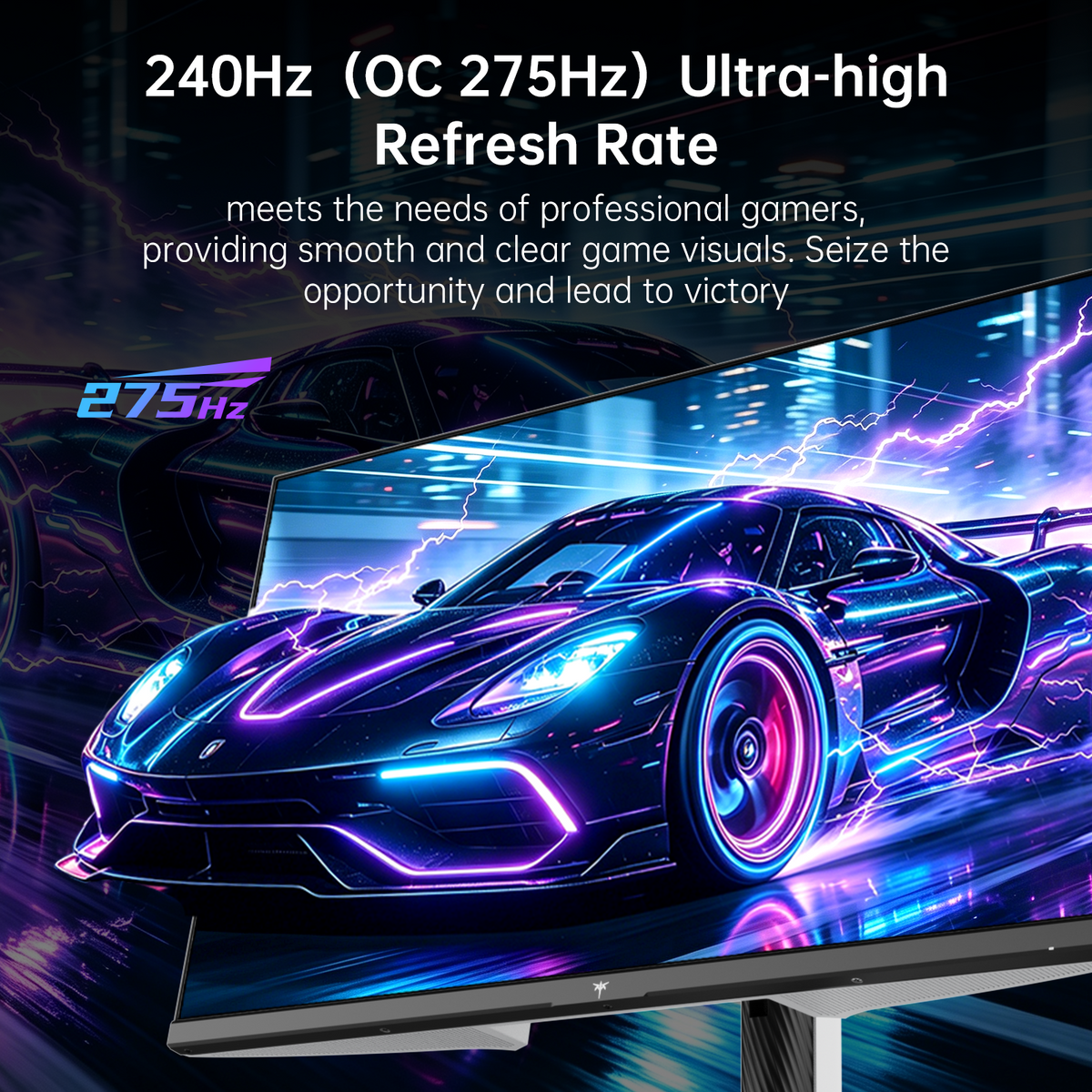
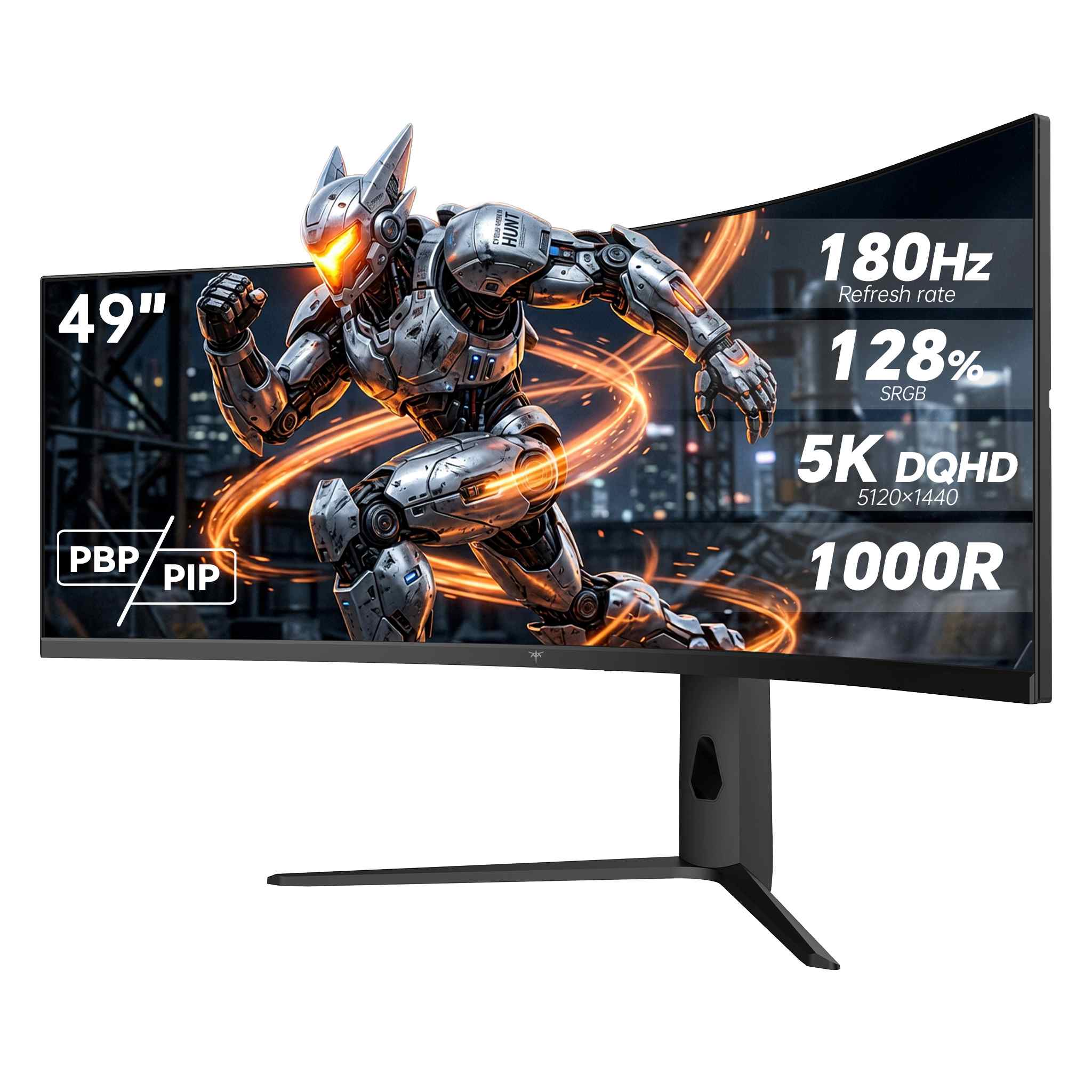


This band is where smooth motion stops requiring a top tier graphics card. Going from 60Hz to 144Hz is the single largest visible jump in refresh rate, as frame intervals drop from 16.7ms to 6.9ms and cursor movement, scrolling and camera pans all change character. Pushing to 165Hz, 180Hz or 185Hz shortens the interval further to about 5.4ms.
Beyond this range the returns narrow while hardware demands keep climbing, which is why this band suits most single player and mixed use setups. It delivers the smoothness you notice every day without asking your system to sustain rates that only competitive titles can reach.
Buying a high refresh panel is only half of it. Displays frequently default to 60Hz when first connected, and many people run for months without noticing. Checking your true refresh rate and fixing a monitor stuck at a lower rate should be the first steps on day one.
The other half is whether your system can fill the rate. A 180Hz panel fed 70 frames per second does not look like a 180Hz panel, it looks like uneven motion. Adaptive sync is what smooths that mismatch and also removes the tearing that comes from frames arriving out of step, and our screen tearing guide covers G Sync, FreeSync and frame rate capping so you can tune stability. It is worth rechecking your cable and driver after any GPU update, since both can reset the effective rate.
Pick the rate your card can sustain, then decide if you need more sharpness, more contrast or more width. The choices below group by what each panel trades beyond pure speed.
Explore KTC 144Hz to 185Hz monitors to match size, resolution and contrast to your daily mix. With choices from 24 inch 1440p at 180Hz to 32 inch 4K at 165Hz and Mini LED HDR plus 34 inch ultrawide, you can hold smooth motion without overbuying refresh your system cannot fill. Start from the frame rate you actually reach, confirm the real output, and let adaptive sync keep motion even across gaming and scrolling.
It is also worth matching your cable to the mode on day one, as an older DisplayPort or HDMI revision can cap the rate without any on screen warning. A short verification with the on screen display confirms the panel is actually running where you set it.
The frame interval shortens from about 6.9ms to 5.4ms, a real but modest difference. Most people notice it in fast camera movement rather than general use. If your card comfortably exceeds 144 frames per second, the extra headroom is worth having.
It helps. Adaptive sync matches the display to your actual frame rate, which removes tearing when frames arrive irregularly. The higher your refresh ceiling, the more often your frame rate will sit below it, so the feature stays useful across the whole range.
For ranked play in most titles yes. Dedicated esports players who want the shortest possible frame latency generally move to the 240Hz and above range which offers further reductions in waiting time.
Yes, though it can cause stutter on some systems when the rates do not divide evenly. Check your operating system display settings and graphics driver, and test for smoothness with motion on both screens.