

The best four-monitor layout uses a centered primary screen, two angled side screens, and one upper or vertical reference screen so your head stays mostly forward and your eyes angle slightly downward. Use four displays only when each screen has a clear purpose; otherwise, extra width can turn productivity into neck rotation.
Does your four-monitor setup feel powerful for the first hour, then punishing by lunch? A strong layout can keep your main work centered, reduce window switching, and make four displays useful without forcing constant head turns. Here is how to build a quad-screen workstation that feels fast, stable, and physically sustainable.
Start With the Rule That Matters Most: Center the Work, Not the Screens
A four-monitor setup should not be treated as one giant wall. The ergonomic priority is to place the work you use most directly in front of your body, then arrange the other displays around that anchor. Neutral body positioning means your head stays level, forward-facing, and aligned with your torso, with relaxed shoulders and elbows close to the body.
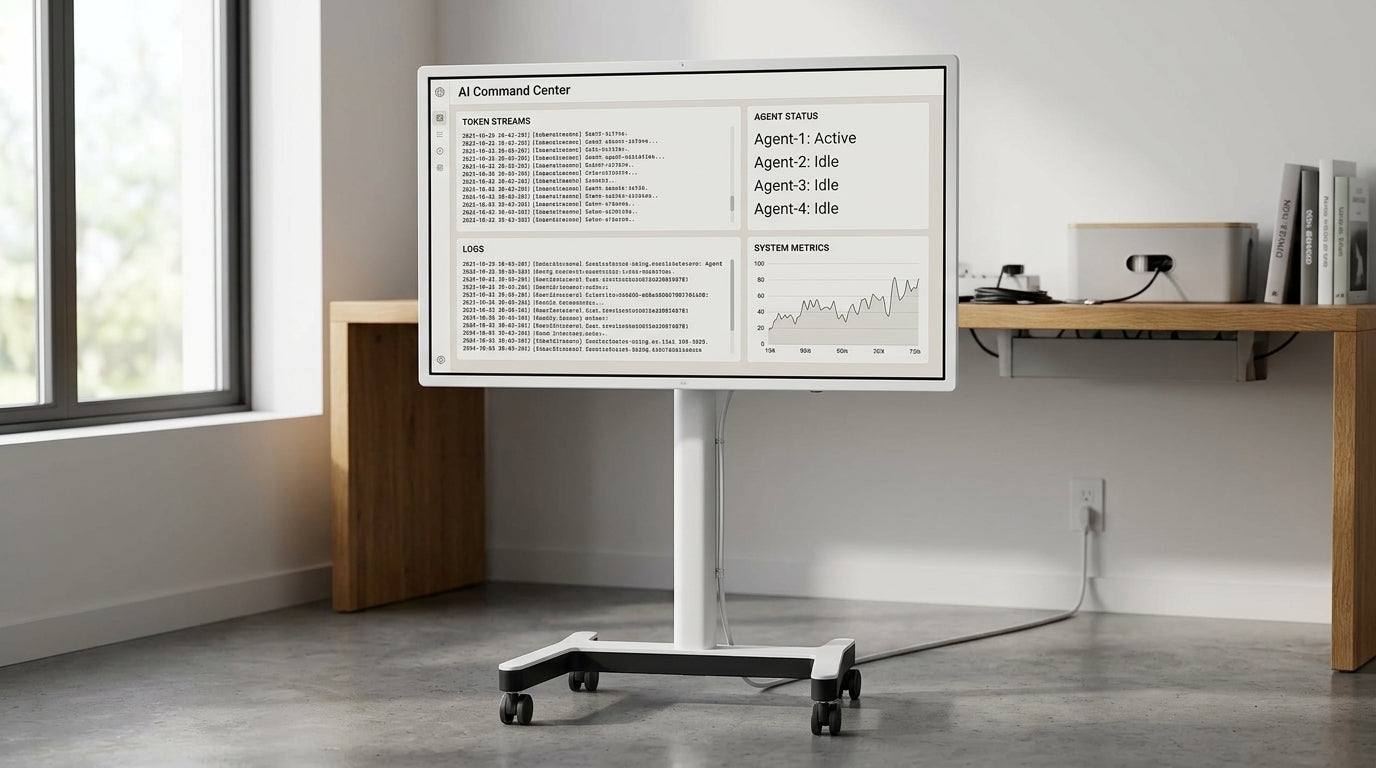
For most office, trading, coding, and streaming workflows, the best setup is one primary monitor centered in front of you, one secondary monitor angled on each side, and a fourth display either above the center monitor or in portrait orientation on the less-used side. The center screen should hold the task that requires typing, reading, editing, aiming, or decision-making. The side screens should hold reference material, dashboards, chat, preview windows, notes, timelines, or status panels.
Here is the practical test: if you spend more than half your day looking at a screen that is not centered, the layout is backward. Move that screen to the middle before buying another mount, another desk, or another monitor.
The Best Four-Monitor Layout for Most People
The most reliable arrangement is a three-plus-one layout. Put the primary display in the center at eye-level height, place the left and right displays close to it with their inner edges nearly touching, and angle both side screens inward so the setup forms a shallow curve. The fourth display should sit above the center screen only if it is used for glanceable content, or it should stand vertically on one side if it is used for documents, code review, chat, email, logs, or long web pages.

This layout works because it protects your central field of view. Ergonomic guidance for multiple monitors highlights a common problem with large dual displays: two big screens placed straight ahead can create excessive neck rotation, especially when the user has to scan across the full width. With four monitors, that problem gets worse unless the side displays are deliberately assigned as support zones rather than active work zones.
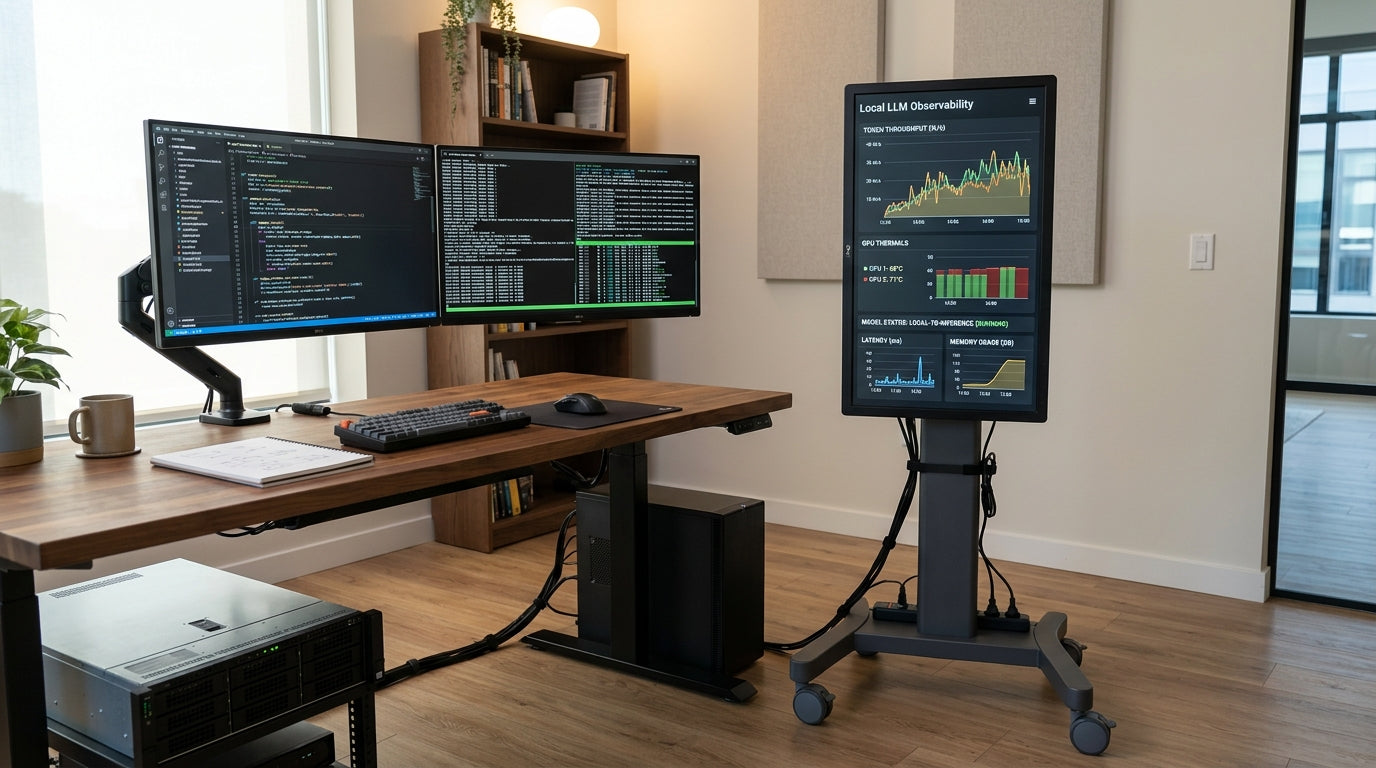
A real-world example makes this clear. A financial analyst might keep the live model on the center screen, source documents on the left, communication and calendar on the right, and a market dashboard on the upper display. A developer might place the editor in the center, documentation on the left, app preview on the right, and logs or monitoring above. A streamer might use the center for the game or production tool, side screens for chat and controls, and the upper display for stream health.
Layout |
Best Use |
Neck-Strain Risk |
Practical Verdict |
Four across in one row |
Surveillance walls, passive dashboards |
High |
Avoid for daily interactive work |
Two over two grid |
Dense monitoring, trading, operations |
Medium to high |
Good only with careful height control |
Three across plus one above |
Coding, analysis, streaming, mixed productivity |
Medium |
Best all-around quad layout |
Center ultrawide plus side portrait |
Writing, research, creative work |
Low to medium |
Excellent if one display can replace two |
Monitor Height: Keep the Top Edge at or Slightly Below Eye Level
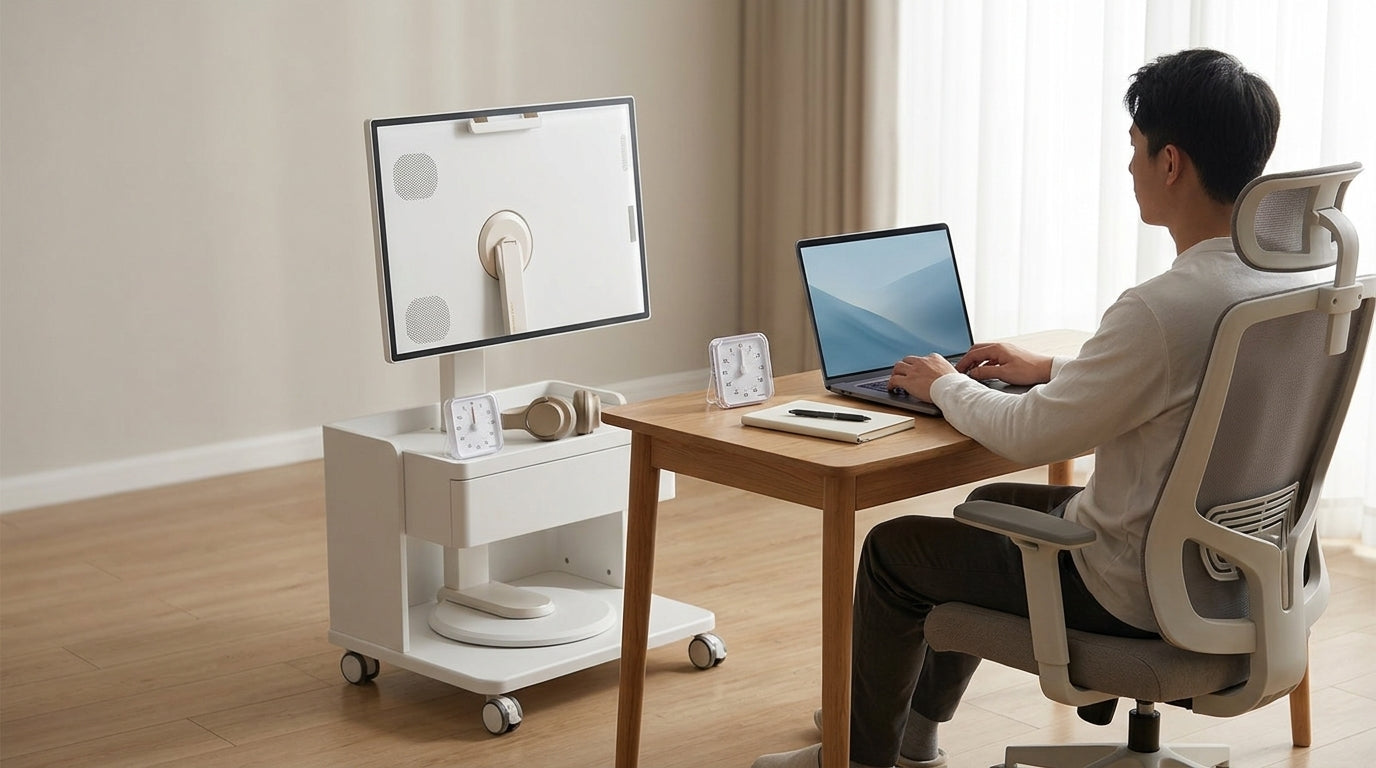
The top of your primary monitor should sit at or slightly below eye level, with your gaze dropping slightly toward the center of the screen. Posture guidance generally recommends placing monitors around arm’s length away with the top approximately at eye level, while also lowering the screen slightly for progressive lenses to prevent neck craning.

For a four-monitor setup, the height rule becomes stricter. Your main monitor gets the ergonomic priority. Side monitors should match its height as closely as possible, especially if you read from them often. If you use an upper monitor, it should not hold anything that requires long reading or precise visual work, because looking upward is more tiring for the neck than looking slightly downward.
The upper display is best for low-frequency, high-visibility information: meeting status, render progress, system monitoring, music controls, security camera feeds, or a calendar. If you catch yourself reading long documents on the top screen, move that content to a side portrait display or to the center monitor.
Viewing Distance: Four Screens Need More Depth Than One Screen
Arm’s length is a starting point, not a law. With multiple large displays, distance becomes the key to reducing head movement. Ergonomic guidance notes that a standard 20- to 24-inch viewing distance can be insufficient for two large 30-inch monitors, because the user must rotate the head and neck repeatedly across the full screen area.
For four monitors, start with the center screen about 24 to 36 inches from your eyes for common 24- to 27-inch displays. If you use 32-inch screens or large 4K panels, push the array farther back and increase text size instead of leaning forward. Larger screens may require more distance, and the display should still allow your eyes to look slightly downward when viewing the middle of the screen.
A simple check works better than a tape measure. Sit in your normal working posture, open a document with typical text, and read from the center, left, right, and fourth screen. If you lean forward, squint, lift your chin, or twist your torso, the setup is not tuned yet. Increase font size, bring the relevant screen closer, move the whole array back, or reduce the role of that monitor.
Screen Size and Resolution: Bigger Is Not Automatically More Productive
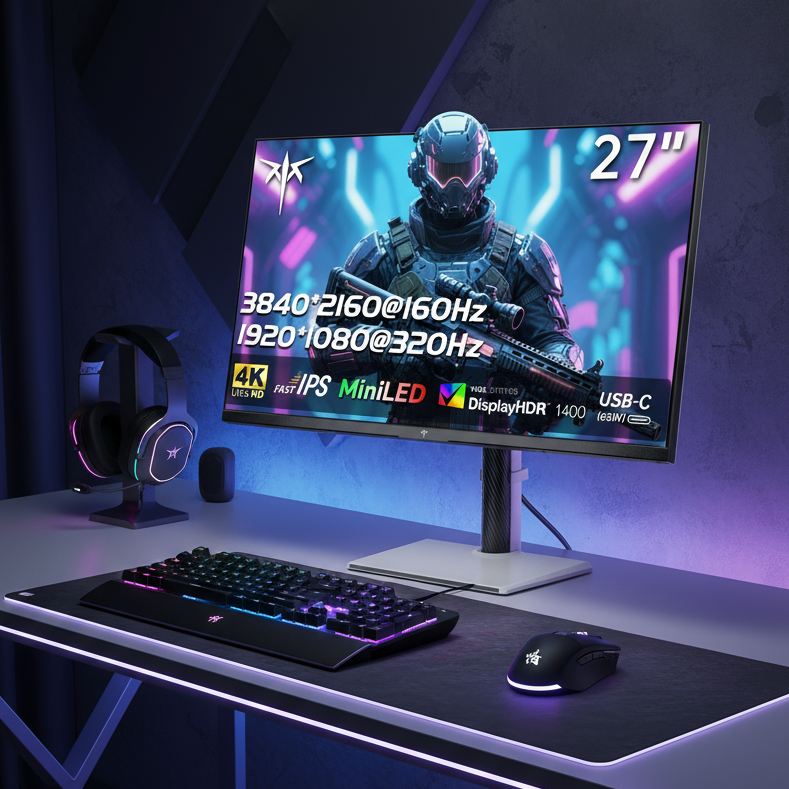
Four 32-inch monitors look impressive, but they can be ergonomically expensive. The larger each panel gets, the more physical area your eyes and neck must cover. KTC’s size guidance notes that 24-inch monitors favor focused competitive play and limited desk space, while 27-inch monitors favor more immersion and multitasking; it also emphasizes that pixel density matters for sharpness.
For quad productivity, four 24-inch monitors can be more comfortable than four oversized displays because the total viewing field stays manageable. Four 27-inch monitors can work well if the desk is deep enough and the side panels are angled inward. Four 32-inch displays should be reserved for specialized monitoring or setups with generous depth, strong mounts, and deliberate scaling.
The sweet spot for many users is a 27-inch 1440p or 4K center monitor, matching or slightly smaller side monitors, and a portrait 24- or 27-inch fourth screen. That gives you usable workspace without turning every glance into a shoulder movement. If the fourth screen is mainly for communication or documents, portrait orientation often beats another wide landscape panel.
Use Angles to Reduce Neck Rotation
Side monitors should not sit flat in a straight line. Angle them inward so they face your seated position, creating a shallow semicircle. For dual screens used equally, ergonomic guidance often recommends placing both displays close together and angling them inward; the same principle applies to four monitors, but with stricter role assignment.

The side screens should sit close enough that their inner edges nearly meet the primary display. Gaps create unnecessary eye travel and can make the cursor feel disconnected from the physical setup. A 10- to 30-degree inward angle is a practical starting range, with smaller angles for shallow desks and stronger angles for deeper setups.
When you need to work on a side screen for more than a few minutes, rotate your chair or swivel your whole body instead of twisting only your neck. That one habit separates an immersive workstation from a painful one.
Desk, Mounts, and Stability Matter More Than They Look
A four-monitor setup is a load-bearing workstation, not just a cable project. Monitor arms are recommended because they organize the screens, improve height and angle control, and reduce desktop clutter. They also make micro-adjustments easier, which matters because small position changes can determine whether you lean, twist, or stay neutral.
Before mounting four screens, estimate the total weight of monitors, arms, clamps, speakers, lights, docks, and accessories. Heavy setups stress the desk through both static load and dynamic movement, especially on sit-stand desks. Desk guidance commonly recommends choosing a desk with a rated capacity at least 25% to 30% higher than the total equipment weight, because movement, sag, and future upgrades add stress beyond the resting load.
Mount arms near structural support, ideally toward the rear third of the desktop, and use reinforcement plates on MDF or laminate surfaces when clamping heavy arms. If the monitors wobble every time you type, the setup will feel less precise and more fatiguing, even if the screen positions are technically correct.
Software Alignment: Make the Cursor Match the Desk
Physical comfort is only half the setup. The operating system must match the real monitor arrangement so the cursor moves naturally between screens. After connecting all four displays, open your display settings, identify each screen, then drag the virtual monitor boxes to match the actual layout.

This is especially important with a fourth monitor above or in portrait orientation. If the upper display is physically above the center screen, the virtual display should sit above it too. If a portrait display is slightly lower or higher than the landscape displays, align the virtual edges so cursor movement feels predictable. Mismatched scaling, resolution, or orientation can make cursor transitions feel awkward, so standardize scaling where possible and use consistent text sizes across work zones.
Users can extend displays through system display settings, while many laptop users may need a docking station, USB-C display output, DisplayPort daisy chaining, or a graphics adapter. Before buying screens, confirm that the computer can drive four displays at the target resolution and refresh rate. A quad 4K setup is a much heavier graphics load than four 1080p office panels.
Pros and Cons of a Four-Monitor Setup
A quad setup is excellent when it reduces context switching. One quad-monitor overview cites Jon Peddie Research for a 42% average productivity increase with four monitors, but the practical value depends heavily on workflow. Four screens help most when you truly need persistent visibility across tools, not when you simply dislike closing tabs.
The main advantage is separation. You can keep the main task centered while reference, communication, monitoring, and output stay visible. This reduces the mental load of remembering hidden windows and makes complex workflows feel calmer. Developers, traders, video editors, streamers, analysts, and operations teams benefit most.
The drawback is physical spread. Four monitors can increase neck rotation, desk clutter, heat, cable complexity, GPU demand, and cost. They also invite bad habits: email always visible, chat always blinking, dashboards stealing attention, and one screen slowly becoming the real primary while your body remains pointed elsewhere. Productivity is not the number of panels; it is how little friction you feel while staying comfortable.
Eye Comfort and Movement Breaks
Even a perfect monitor layout cannot make uninterrupted screen time healthy. The 20-20-20 rule is a useful baseline: every 20 minutes, look at something 20 feet away for 20 seconds. Frequent position changes also matter because even good posture becomes a problem when held too long.
Set brightness to match the room, reduce glare from windows and overhead lights, and keep the most readable content on the center screen. If you increase viewing distance to reduce neck movement, increase font size as well. The goal is not to sit farther away at the cost of squinting; it is to keep your head still, your shoulders relaxed, and your eyes comfortable.
The Best Arrangement, Condensed
For maximum productivity without neck strain, build around one centered primary monitor, angle two side monitors inward, and use the fourth as either an upper glance display or a side portrait reference screen. Keep the top of the main screens at or slightly below eye level, place the array far enough back that you can scan without leaning, and assign every monitor a clear role.
A four-monitor workstation should feel like a command surface, not a wall you have to chase. When the center screen owns the work and the other three screens support it, you get the real advantage: more information visible, fewer interruptions, and a body position you can sustain through a full workday.