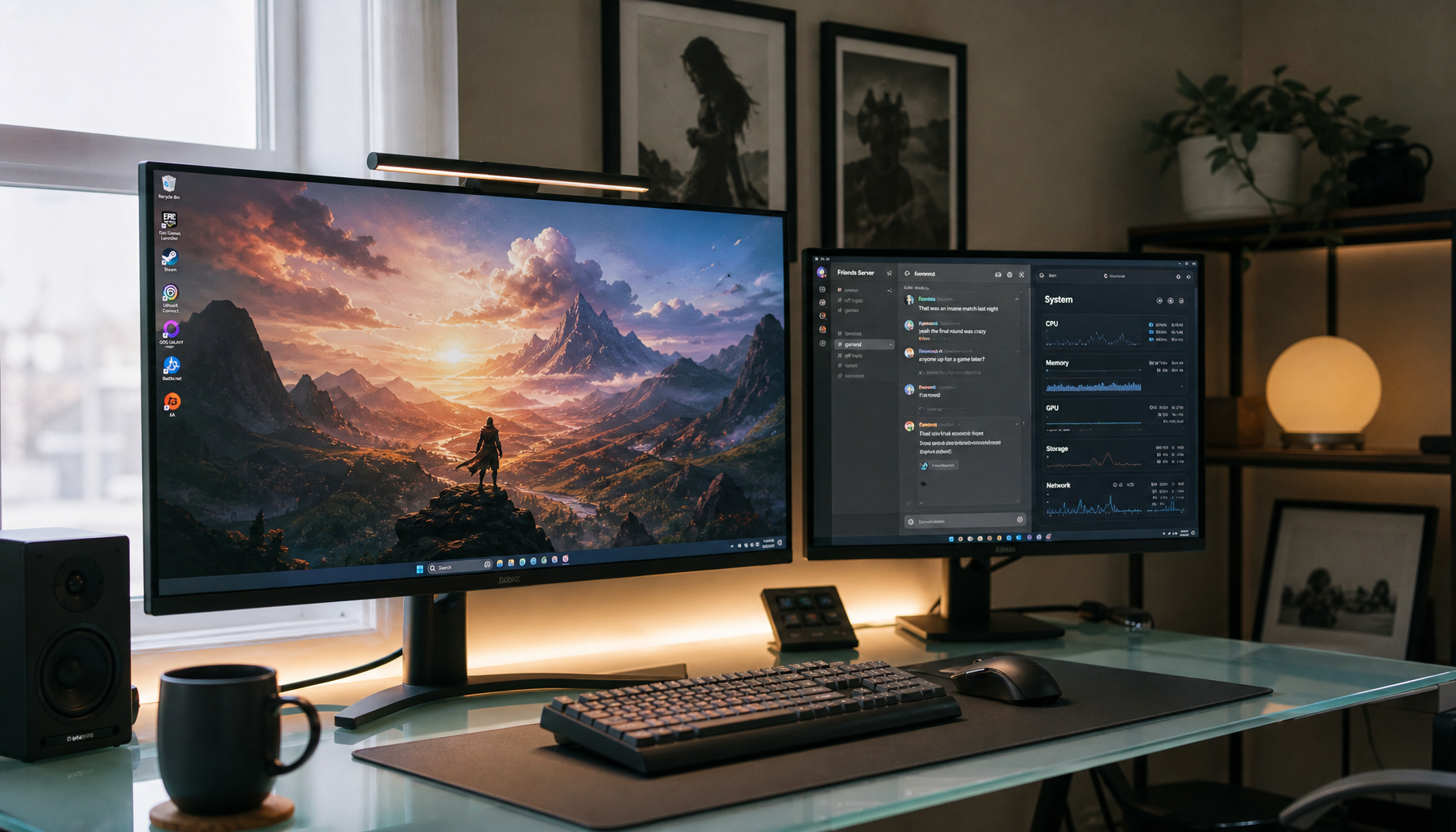
A dual-monitor setup usually feels unbalanced when the screens do not match your eyes, posture, workflow, or display settings. Fix the physical alignment first, then tune the operating system, brightness, scaling, and task placement.
Does one screen feel right while the other makes you lean, squint, or lose your cursor at the edge? Dual displays can deliver measurable workflow gains, including reported productivity increases up to 42%, but only when the setup is built around how you actually work. Here is how to turn two awkward screens into one clean, comfortable command center.
The Real Problem Is Not Always the Second Monitor
A dual-monitor setup means two displays connected to one computer, usually in extended desktop mode so each screen can show separate windows. The value is simple: less tab switching, more visible context, and faster comparison work. Research summarized in dual-screen productivity points to efficiency and accuracy gains when users can view multiple windows at once instead of constantly moving between them.
The unbalanced feeling starts when the two screens compete instead of cooperate. One may be brighter, higher, closer, sharper, or treated as the wrong primary display. In daily office use, this shows up as dragging windows across an awkward height jump, reading text that changes size between displays, turning your neck too far for chat or email, or gaming on one screen while the second panel pulls performance and attention away.

The best fix is not always buying a matching monitor, although that can help. The practical goal is visual continuity, ergonomic neutrality, and a clear job for each screen.
Match the Screens Where It Matters Most
The cleanest dual-monitor experience comes from two displays with similar size, resolution, refresh rate, and panel behavior. Matching monitors reduce uneven text size, strange scaling, inconsistent color, and the cursor step that happens when moving between screens. Practical setup advice on matching size and resolution also connects visual consistency with comfort, especially during long work sessions.
If you already own mismatched monitors, do not assume the setup is doomed. A 27-inch 1440p primary paired with a 24-inch 1080p secondary can work well if the 27-inch screen handles focused work and the smaller screen holds reference material, chat, music, or monitoring dashboards. The mistake is treating both displays as equal when their pixel density, height, and clarity are not equal.
Mismatch |
What It Feels Like |
Best Fix |
Uneven heights |
Neck tilt, cursor jumps |
Raise the lower monitor or use arms |
Uneven resolutions |
Text changes size between screens |
Adjust scaling and assign clear roles |
Uneven brightness |
One eye feels more strained |
Match brightness and contrast manually |
Uneven refresh rates |
Motion feels uneven |
Put high-motion work on the faster panel |
Uneven color tone |
Creative work looks unreliable |
Calibrate or keep color work on one screen |
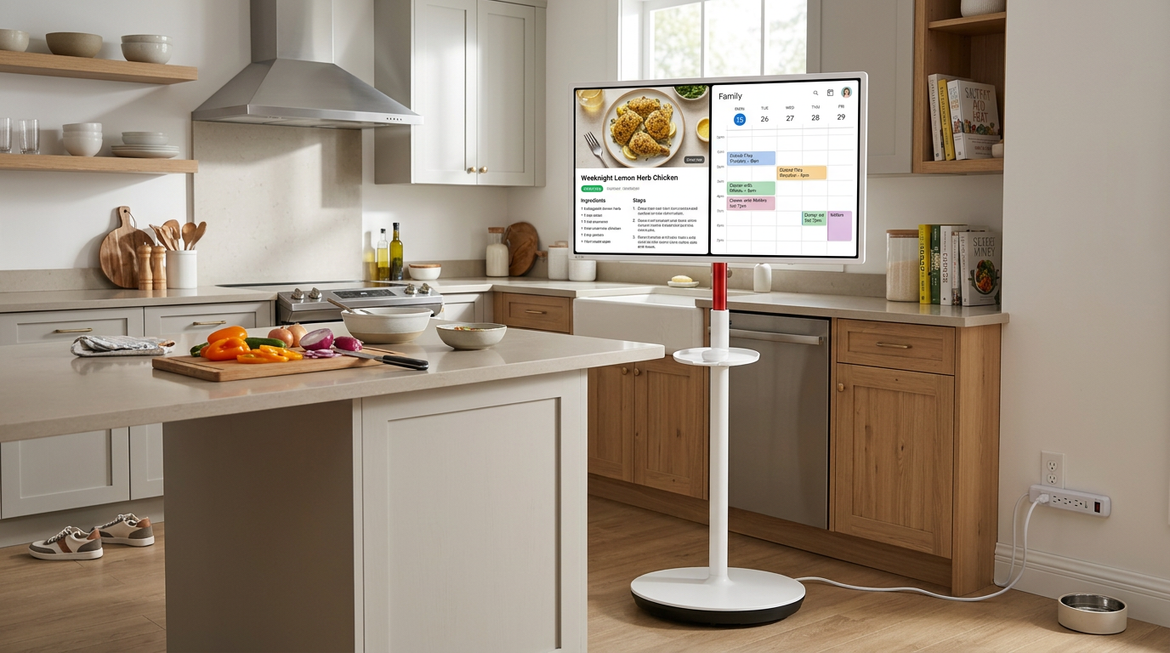
For pro gaming, prioritize the fastest, lowest-latency screen as the primary display. For office productivity, prioritize the sharpest and most comfortable reading panel. For portable smart screens, accept that the second display may be a support screen, not a visual twin.
Fix the Physical Layout Before Touching Settings
Monitor placement is the fastest way to remove imbalance. For two screens used equally, place the inner edges together, center your body between them, and angle both displays slightly inward. For a primary-secondary setup, put the main monitor directly in front of your keyboard and place the secondary display to the side at a mild inward angle. Ergonomic recommendations for two monitors used equally favor adjacent screens at similar height and distance so your head is not constantly rotating or dipping.
A simple test works well: sit in your normal posture, close your eyes, relax your shoulders, then open your eyes. Your gaze should land on the area where your most important work happens. If it lands on the bezel gap but one monitor gets 80% of your attention, the layout is wrong. Move the primary display to the center and let the secondary support it.

Viewing distance matters too. Many ergonomic references put a typical screen around arm’s length, with larger displays farther back. A 27-inch monitor often feels better at roughly 3 to 4 ft, while a 32-inch screen may need closer to 5 ft depending on resolution and eyesight. If your second screen is closer than your main display, it can feel oversized and aggressive even when it is technically smaller.
Align Height, Brightness, and Eye Comfort
A balanced setup should let your eyes move more than your neck. The top of each screen should sit at or slightly below eye level, with the center of the display slightly below your natural gaze. Workplace ergonomics guidance for monitor height and distance also emphasizes a supported back, relaxed shoulders, elbows near 90 degrees, and wrists kept neutral.
Brightness mismatch is a hidden cause of fatigue. If one monitor is much brighter, your eyes repeatedly adapt as you glance between screens. Start by setting both displays to a similar white background, such as a blank document, then adjust brightness until neither panel dominates. After that, adjust contrast and color temperature. For office work, a slightly warmer tone can feel calmer under indoor lighting; for design or media work, keep color-critical work on the better-calibrated display.
Monitor arms are often worth the cost because they let you tune height, depth, and angle precisely. Fixed stands can work if both monitors are the same model, but mixed displays often need separate adjustment. If you use a standing desk, check cable slack at full height so the screens do not tug on ports or shift position when the desk rises.

Configure the Desktop to Match Reality
Even a perfect physical layout feels broken if the operating system thinks the left monitor is on the right or the screen edges are vertically misaligned. Display settings usually let you identify, arrange, extend, duplicate, and choose the main display. The key setting for productivity is Extend mode, which spreads your desktop across screens instead of mirroring the same content.
After choosing Extend, drag the monitor rectangles in Display settings until they match your desk. Align the top edges if the physical monitors are aligned at the top. If one panel sits slightly lower, reflect that in the arrangement so the cursor crosses naturally. Then select your main display, set each monitor to its native resolution, and adjust scaling until text feels similar in real use.

Window snapping can make dual monitors feel intentional rather than scattered. Put your active document on the primary display and snap reference material, chat, calendar, or dashboards on the secondary. For example, a report writer can keep the draft full height on the main monitor while reference tables and email sit on the second. That setup removes repeated context switching without forcing the user to hunt for windows.
Choose the Right Role for Each Screen
The most reliable dual-monitor setups are role-based. One screen should own the work that requires attention, while the other supports it. Productivity examples involving visible applications and documents include data entry, report building, document review, video meetings, dashboards, and creative or technical workflows where reference material stays visible.
For office productivity, use the better reading screen as the main display. Keep email, messaging, calendar, file browser, or research on the second display. For creators, place the editing canvas or timeline on the best panel and supporting assets, scopes, notes, or references on the other. For developers, keep the editor in front and logs, documentation, preview, or terminal on the side.
For gaming, the decision changes. A second monitor is excellent for voice chat, stream controls, telemetry, walkthroughs, or music, but it can add GPU load. Dual-monitor setup advice from graphics card requirements warns that high resolutions and high refresh rates depend on GPU capability, ports, and cable bandwidth. If a competitive game feels less smooth, test with the secondary display disabled, then re-enable it with lower refresh or less demanding content.
Check Cables, Ports, and Docking Limits
An unbalanced setup can be a bandwidth problem disguised as a comfort problem. HDMI, DisplayPort, USB-C, and docking stations do not all support the same resolution and refresh rate. A monitor may look worse simply because it is connected through an older cable, a limited adapter, or a dock that cannot drive both displays at full quality.
Before replacing hardware, inspect your ports and cables. A common strong pairing is DisplayPort for the primary high-refresh or high-resolution monitor and HDMI or USB-C for the secondary screen, depending on what your computer supports. Beginner setup guidance still starts with the same practical step: identify the available display outputs before assuming a monitor or computer is faulty, especially when mixing HDMI, DVI, VGA, or adapters from older systems.
Laptop users should be especially careful. A portable smart screen may run beautifully over USB-C, but only if that USB-C port supports video output. Some ports charge or transfer data without carrying display signal. A proper USB-C or Thunderbolt dock can simplify the setup, but it must match your target resolution, refresh rate, and power needs.
When Matching Monitors Is Worth It
Buying a second identical monitor is worth it when both screens share equal duty, when you work long hours across both, or when the visual mismatch keeps pulling your attention. The benefit is a more seamless field of view, easier mounting, cleaner scaling, and fewer color or brightness gaps.
Keeping a mixed setup is sensible when your workflow is clearly divided. A premium gaming monitor plus a modest secondary display is efficient. A laptop plus portable smart screen is excellent for travel and hybrid work. A color-accurate creative display paired with a cheaper communication screen can be the best value choice. The key is to stop demanding symmetry from hardware that was never meant to behave symmetrically.
Quick FAQ
Should both monitors be the same size?
They do not have to be, but matching size and resolution makes the setup easier to balance. If they vary, use the better display as your primary and tune height, scaling, and brightness carefully.
Should the bezel gap be centered?
Only if you use both monitors equally. If one screen gets most of your attention, center that monitor in front of your body and place the second display off to the side.
Is portrait mode useful?
Portrait mode is useful for code, long documents, chat, dashboards, and research feeds. It is less ideal for video, gaming, spreadsheets, or work that benefits from horizontal width.
Why does my mouse jump strangely between screens?
The display arrangement in your operating system probably does not match the physical layout, or the monitors use uneven resolutions and scaling. Reposition the display icons in Settings and align them to match your real desk.
A balanced dual-monitor setup should feel like one wider workspace, not two screens fighting for your eyes. Align the hardware, assign each display a job, tune the desktop to match the desk, and your setup becomes faster, calmer, and more immersive without wasting pixels or posture.