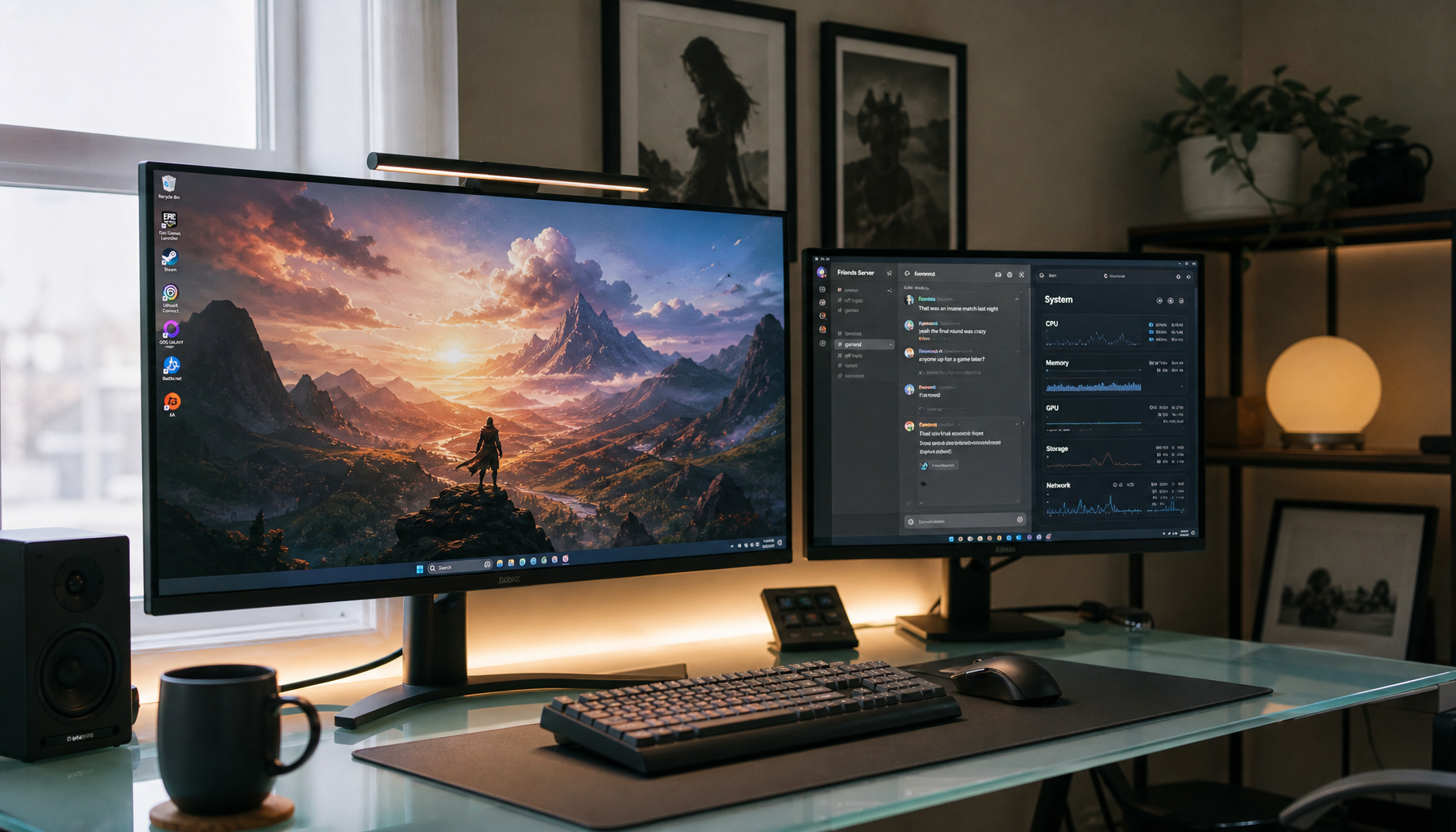
A strong hybrid setup starts with one fast, centered gaming display and one support display for work, chat, references, streaming tools, or system monitoring. Match the layout to your desk depth, GPU ports, and daily workflow before buying more screens.
Is your game smooth, but your second-screen workflow still feels like a pile of windows fighting for space? A well-planned dual-monitor layout can reduce tab switching, keep live tools visible, and preserve a centered gaming view without putting bezels in the middle of the action. Here is how to build a setup that feels fast for play and controlled for work.
Start With the Real Goal: Hybrid, Not Just More Screens
A multi-monitor setup uses two or more displays connected to one computer so you can extend the desktop and place different content on each screen. For a gaming and productivity hybrid, the key word is “extend.” Mirroring duplicates the same image, which is useful for presentations, but an extended desktop lets the game, browser, chat, spreadsheet, code editor, streaming controls, or hardware monitor live in separate spaces.
The practical win is less context switching. Productivity research often points to meaningful gains when people compare documents, monitor dashboards, edit content, or keep communication tools open, though vendor-backed numbers should be treated as directionally useful rather than guaranteed. The benefit is easy to test: you should spend less time Alt-Tabbing and more time acting.
For gaming, the second display should usually support the game rather than compete with it. Keep the game on the primary screen and place chat, stream controls, walkthroughs, maps, music, or performance metrics on the other. Stretching a game across two equal monitors sounds immersive, but it often puts the bezel directly in the center of your aim point or cockpit view, which can break the experience.

Choose the Primary Gaming Monitor First
Your primary display should sit directly in front of you because it controls both gaming comfort and daily posture. For competitive shooters, a 24- to 24.5-inch high-refresh monitor is still practical because more of the screen stays inside central vision. KTC’s size comparison notes that 24-inch 1080p is about 93 PPI, while 27-inch 1440p rises to about 109 PPI, making 27-inch 1440p the sharper and more spacious mixed-use option.
Desk depth matters. If your desk is under about 22 inches deep, a 24-inch monitor is easier to place at a comfortable distance. If you have roughly 26 inches or more, a 27-inch 1440p display becomes more natural for mixed gaming, productivity, and media. KTC also warns that 27-inch 1080p drops to about 81 PPI, which can look visibly coarse at close range unless you sit around 3 ft away.
Refresh rate should follow your game type and GPU. For esports, prioritize 144Hz or higher, low response time, and stable frame delivery. For hybrid use, 27-inch 1440p at 144Hz to 180Hz is a strong value point because it gives you sharper text, more workspace, and enough speed for most players. A 4K display can look excellent for productivity, but it asks more from the GPU if you also expect high frame rates.
Use Case |
Primary Monitor Choice |
Why It Works |
Competitive FPS |
24- to 24.5-inch, 1080p or 1440p, high refresh |
Less eye travel and easier full-screen awareness |
Mixed gaming and work |
27-inch, 1440p, 144Hz+ |
Sharp text, strong speed, comfortable screen area |
Creative work plus gaming |
27-inch 4K or 32-inch 4K, GPU permitting |
More detail for timelines, images, and dense apps |
Sim racing or flight |
Curved ultrawide or triple monitors |
Wider peripheral view when the game supports it |
Pick the Second Display by Job, Not Ego
The second monitor does not need to match the primary in every spec. Identical monitors give the cleanest visual transition, especially for scaling, color, and cursor movement, but a mixed setup can be smarter for value. A fast gaming panel in the center paired with a cheaper 24-inch or 27-inch office display on the side is often the better buy.
For productivity, the second display should have a clear role. A writer might keep the draft centered and research on the side. A developer might run the code editor on the primary screen and documentation, terminal output, or a local app preview on the second. A streamer can play on the main monitor while chat, alerts, scene controls, and stream health sit beside it. A landscape-plus-portrait setup often works well for streamers because a vertical screen handles chat and text-heavy tools with less scrolling.

Portrait orientation is underrated. A 24-inch vertical side display is excellent for workplace chat, docs, logs, long spreadsheets, and browser research. A 27-inch vertical monitor can work, but vertical monitors above 32 inches may become uncomfortable. If you spend long sessions at the desk, comfort beats spectacle.
Check Ports, Bandwidth, and GPU Support Before You Buy
The most reliable setup is one cable from each monitor into the GPU or laptop dock. Dual-monitor success depends mainly on the video outputs on the computer and the inputs on the monitors. HDMI is common, DisplayPort is common on desktops, and USB-C can be excellent, but only if that USB-C port supports video through DisplayPort Alt Mode or a high-bandwidth video standard.
Do not assume every USB-C port carries video. Some video-capable USB-C ports use a DisplayPort logo, while high-bandwidth ports may use a lightning symbol. If you are using a laptop with one cable to a dock, confirm the dock supports your target resolution and refresh rate on both displays. A dock that handles two 1080p office monitors may not run a 1440p 180Hz gaming display and a 4K side display at full capability.
HDMI splitters are a common trap because they usually duplicate one image instead of extending your desktop. USB graphics adapters can help when a laptop lacks native video output, but they are better for office screens than latency-sensitive gaming. Daisy chaining can reduce cable clutter, but only some monitors support it, so it should be a bonus feature rather than your core plan.
Build the Physical Layout Around Your Neck and Eyes
The strongest hybrid layout is simple: primary gaming monitor centered, secondary monitor angled inward on the side, both top edges aligned at or slightly below eye level. University ergonomics guidance for dual monitors recommends positioning displays to reduce twisting and keeping frequently used screens in the most direct viewing zone, which is exactly why the gaming display belongs in front.

A practical test takes 30 seconds. Sit in your normal posture, close your eyes, then open them. Your gaze should land near the center of the main monitor, not between two bezels. If you constantly turn your head left or right to use the main screen, the setup is wrong even if it looks impressive in a photo.

Viewing distance should be comfortable enough that you can read text without leaning forward. KTC cites general screen-distance guidance of about 20 to 28 inches, which fits most 24- and 27-inch desktop setups. If your monitor is larger, you may need more depth, a monitor arm, or a wall-adjacent desk layout.
Monitor arms are worth considering when desk space is tight. Check VESA compatibility, common 75x75mm and 100x100mm mounting patterns, and weight capacity before buying a mount. A gas-spring arm is useful if you switch between sitting and standing or frequently rotate a side screen into portrait mode.
Configure the Operating System for Speed and Order
Once everything is connected, open display settings, choose “Extend these displays,” and drag the monitor icons so they match your physical desk. Set the gaming monitor as the main display, apply each monitor’s native resolution, and check scaling so text does not jump in size when you move windows across screens.
Set the refresh rate manually because the operating system does not always choose the highest option by default. Your gaming display might be capable of 165Hz or 180Hz but still run at 60Hz until changed in advanced display settings. Also open your GPU control panel to confirm adaptive sync, color depth, and output format when needed.
Window management matters more than most people expect. Snapping shortcuts can help compare documents and arrange apps quickly, while Shift + Win + Left or Right can move a window between monitors. For a hybrid setup, that means you can keep the game launcher, browser, and chat where they belong without dragging windows around during every session.
Taskbar behavior is also worth tuning. If you show taskbar buttons only on the monitor where each window is open, the desktop feels cleaner and you spend less time hunting for the right app. For work blocks, keep email and chat on the side display. For gaming blocks, close or silence anything that can steal focus from the primary screen.
Tune Gaming Without Sacrificing Productivity
Make the best-spec monitor your primary gaming display. If one screen is 1440p 180Hz and the other is 1080p 75Hz, the faster panel should run the game, while the second handles static or low-motion tools. Mixing refresh rates usually works, but keeping video playback, animated browser content, or heavy monitoring tools off the side screen can reduce distraction and potential performance dips.
For supported racing, flight, and simulation titles, triple-monitor or ultrawide layouts can create real immersion. Wider field of view is especially useful for sim racing, flight simulation, open-world games, and cockpit-style experiences. For most shooters and general gaming, however, a centered single gameplay monitor plus a utility screen is cleaner, faster, and less likely to distort the HUD.
If you stream, place your streaming suite on the side screen and test your scene changes before going live. Chat belongs where you can glance without turning your whole upper body. A vertical monitor can be ideal here because it shows more messages, alerts, and moderation tools in less horizontal space.
Pros and Cons of a Hybrid Multi-Monitor Setup
Pros |
Cons |
Less Alt-Tabbing during work and games |
More cables, ports, and power use |
Better separation between game, chat, references, and tools |
Poor placement can cause neck strain |
Stronger streaming control with chat and scene tools visible |
Mixed resolutions can create scaling quirks |
More useful workspace for spreadsheets, editing, coding, and research |
GPU bandwidth may limit resolution or refresh rate |
Flexible value: premium primary plus budget secondary |
Desk depth and mount compatibility matter |
The biggest advantage is role separation. The biggest risk is building for symmetry instead of behavior. Two beautiful monitors placed equally off-center can feel worse than one centered performance display and one modest side screen.
A Reliable Setup Formula
For most hybrid users, start with a 27-inch 1440p high-refresh primary monitor centered on the desk, then add a 24-inch or 27-inch secondary display to the left or right. If your work is text-heavy, rotate the second screen vertically. If your work is visual, keep it horizontal and match resolution or color quality more closely.
Use DisplayPort for the gaming monitor when available, especially at higher refresh rates, and use HDMI or USB-C for the secondary screen if bandwidth allows. Keep the top edges aligned, angle the side display inward, set the operating system to extended mode, and assign each monitor a job you can describe in one sentence.
A hybrid display setup should make the PC feel more responsive to how you actually work and play. Center the performance screen, give the second screen a purpose, and tune the layout until your eyes, hands, and windows stop fighting the desk.