A 24-inch monitor is still enough for competitive games, compact desks, and focused 1080p work. It starts to feel limiting when you multitask heavily, edit timelines, compare documents, or want a more cinematic gaming field.
Is your desktop turning into a shuffle of half-hidden browser tabs, chat windows, and game launchers? A 24-inch screen can still deliver fast focus and clean desk ergonomics, but moving to 27 inches at 1440p often gives the most noticeable upgrade in sharpness, workspace, and gaming immersion. Here is how to decide whether 24 inches is still enough for your setup or whether your next display should be larger.
The Short Answer: 24 Inches Still Has a Job
A 24-inch monitor remains relevant because it fits the way many people actually sit at a desk. At roughly arm’s length, it keeps the whole screen easy to scan without turning your head, which matters in fast shooters, ranked esports, and small home offices. For players who value reaction time and visual focus over cinematic scale, that compact field can be an advantage.
For work, 24 inches is best when the task is centered: email, writing, admin dashboards, video calls, coding in one main window, or using a laptop as a secondary screen. Office-size guidance commonly places 24 to 27 inches in the practical sweet spot for general productivity, especially when desk depth and posture matter.
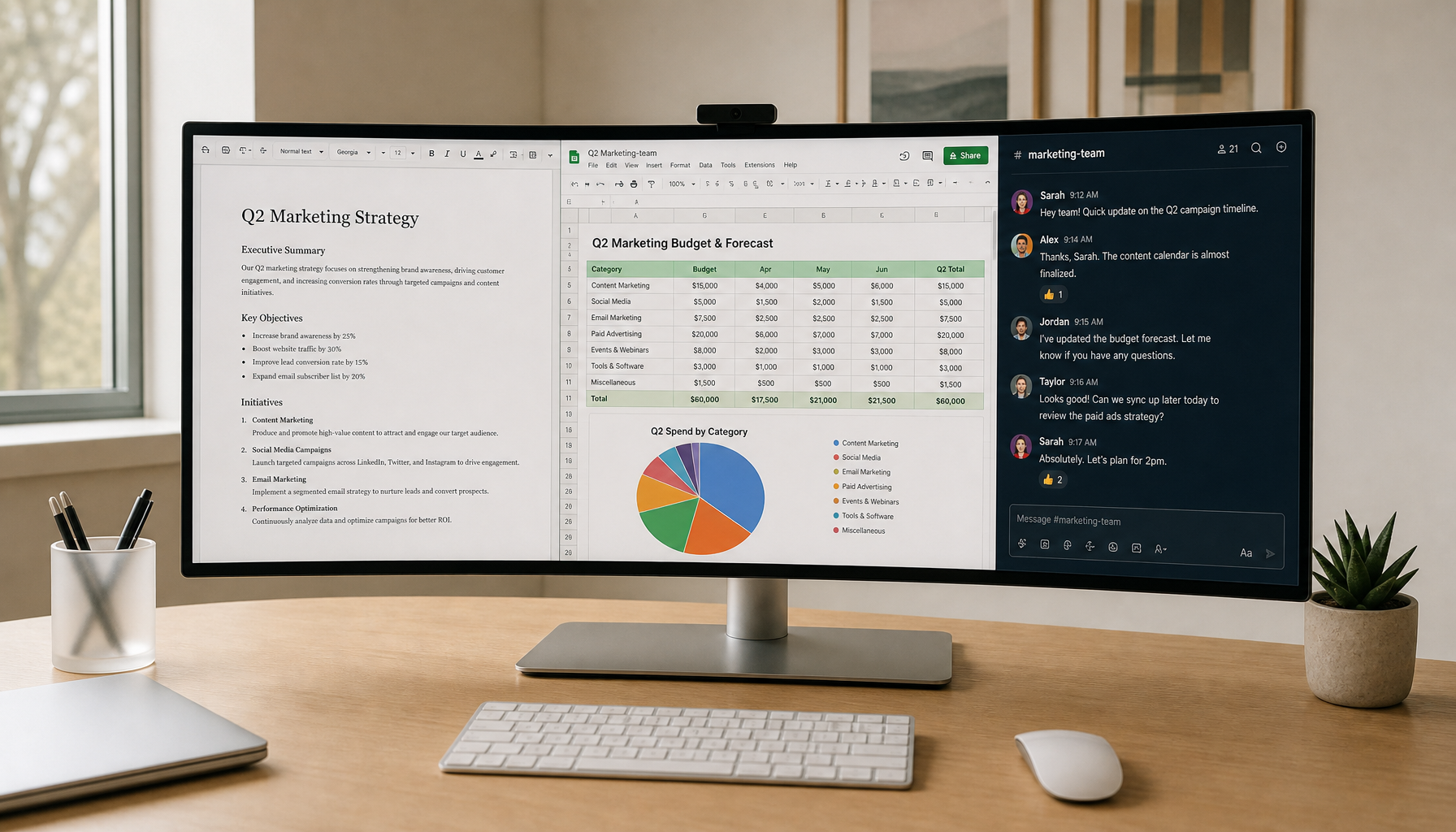
The catch is resolution. A 24-inch 1080p monitor is coherent: text is readable, games are easy to drive, and interface scaling is simple. But a 24-inch display does not give you the same workspace as a 27-inch 1440p screen or a 34-inch ultrawide. If your workday depends on comparing documents, spreadsheets, dashboards, or design panels, screen size stops being cosmetic and becomes a workflow constraint.
What “Too Small” Really Means
“Too small” is not just diagonal size. It is the point where the screen forces bad behavior: constant window switching, squinting, leaning forward, shrinking text, or hiding tools you need to see. A monitor that technically fits your desk can still fail if it makes you work in a cramped layout for eight hours.
Productivity analysis is useful here because it warns against measuring only tiny speed gains from isolated actions. Real productivity should be judged by task output over time, not just whether one copy-paste action is faster. That matters for monitors because a bigger screen only pays off when it improves the whole task, such as reconciling a spreadsheet while referencing a bill and keeping chat visible.
A simple example makes this clear. If you write reports with one browser tab and one document, 24 inches is fine. If you regularly need a spreadsheet, document viewer, chat app, calendar, and video call visible at once, a 24-inch screen becomes a bottleneck even if the panel quality is good.
Gaming: When 24 Inches Is a Strength
For competitive gaming, 24 inches is still a strong format. The display is small enough that the minimap, crosshair, ammo count, and enemy movement stay inside your natural field of view. Gaming-size guidance often notes that 25 inches or less can work well for fast-paced competitive games because players can scan the screen quickly.

The performance side also favors smaller 1080p monitors. A 24-inch 1080p panel is easier for a midrange graphics card to drive at high frame rates than 1440p or 4K. That means your money can go toward refresh rate, response time, and adaptive sync instead of pixels your system may not push smoothly.
For modern gaming, the bigger issue is not the 24-inch size itself; it is buying a slow 24-inch office panel and expecting it to feel like a gaming monitor. Current gaming guidance says a modern gaming monitor should include a high refresh rate and frame-syncing technology. A 120Hz to 165Hz range is a practical modern sweet spot, while 240Hz and above targets serious esports.
Gaming: When 24 Inches Feels Outdated
A 24-inch monitor can feel small in cinematic games, racing titles, RPGs, flight sims, and open-world environments. Those games benefit from peripheral space and stronger immersion, especially when the art direction, HUD, and world scale are part of the experience.
That is where 27-inch and 32-inch displays become compelling. A 27-inch 1440p screen gives a sharper image and more physical presence without demanding as much GPU power as 4K. Many buying discussions for mixed gaming and productivity converge around 27-inch, 1440p, IPS, and at least 144Hz because that combination balances clarity, motion, and cost.
Current gaming displays range from 27-inch OLED models and 34-inch ultrawides to extreme-refresh 25-inch esports screens. The lesson is not that every buyer needs OLED or 500Hz. It is that 24 inches is now a specialized choice, best for focus and speed rather than maximum immersion.
Use Case |
24-Inch Fit |
Better Upgrade |
Competitive shooters |
Strong fit with high refresh 1080p |
25-inch 240Hz+ if esports is the priority |
Casual gaming |
Good if budget or desk space is tight |
27-inch 1440p for sharper visuals |
Open-world and racing games |
Playable but less immersive |
27 to 34 inches, depending on desk depth |
Console gaming from farther away |
Usually too small |
Around 32 inches for visibility |
Streaming plus gaming controls |
Tight |
27-inch or ultrawide |
Productivity: The 24-Inch Reality Check

For productivity, a 24-inch monitor is acceptable, not luxurious. It is enough for focused tasks and compact desks, especially when paired with a laptop or second display. Compact 23.8-inch office monitors remain viable budget home-office options, especially when they include USB-C, ergonomic adjustment, and good IPS contrast.
Where 24 inches struggles is horizontal workspace. Two documents side by side feel compressed. Large spreadsheets require more scrolling. Creative tools lose breathing room because panels, timelines, and previews compete for the same limited pixels. Ultrawide displays address this by giving multiple applications one continuous workspace, which is exactly the pain point a single 24-inch display cannot solve.
A practical test is simple: open your three most-used work apps at the same time. If you immediately maximize one and hide the others, 24 inches is controlling your workflow. If you can keep your main task centered and reference material nearby without strain, the size is doing its job.
Resolution Matters More Than the Tape Measure

A 24-inch 1080p monitor and a 27-inch 1440p monitor do not just differ by three inches. They create different work surfaces. 1080p gives basic clarity and easy performance. 1440p gives more usable desktop space and sharper text, especially at 27 inches. 4K improves text density further, but gaming at 4K requires a stronger GPU.
For mixed work and gaming, several sources point toward 27 inches as the modern balance point. KTC’s hybrid monitor guidance favors 27-inch 4K or 27-inch 1440p, depending on whether text sharpness or gaming value matters more. Other buying guidance commonly describes 1440p as a performance-quality sweet spot and aligns 24 inches with 1080p, while 27 inches pairs better with 1440p or 4K.
The key is not to chase resolution blindly. If your graphics card cannot sustain your target frame rate, a 4K monitor may look sharper on the desktop but feel worse in demanding games. A 27-inch 1440p 144Hz monitor often gives hybrid users the cleanest value because it improves both workspace and motion without jumping to the cost and GPU load of 4K.
Ergonomics: Small Can Be Comfortable, Large Can Be Wrong

A 24-inch monitor can be excellent ergonomically when it is placed correctly. The screen should sit about 20 to 24 inches from your eyes, with the top third at or slightly below eye level. That setup helps reduce neck tilt and forward lean.
A larger monitor is not automatically healthier. If a 32-inch display sits too close on a shallow desk, you may scan with your neck instead of your eyes. If an ultrawide is too wide for your seating distance, the edges become active work zones that pull your posture off center. Ergonomic buying advice consistently emphasizes desk depth, viewing distance, and adjustability over size alone.
This is where stand quality matters. Height, tilt, swivel, and pivot adjustment are not bonus features for long sessions; they are part of the display’s performance. A great panel on a poor stand can still create fatigue.
Pros and Cons of a 24-Inch Monitor
A 24-inch monitor gives you lower cost, easier GPU performance, clean focus, and compact desk fit. It is especially strong for 1080p competitive gaming, dorm desks, small apartments, shared workspaces, and setups where the monitor sits close.
The drawbacks are workspace and immersion. You get less room for multitasking, less cinematic scale, and less benefit from higher resolutions compared with 27-inch or 32-inch displays. A 24-inch 4K monitor can look sharp, but many users will need scaling, which can reduce the practical workspace advantage.
So the decision is less about whether 24 inches is “modern” and more about whether your modern workload has outgrown it.
Who Should Keep a 24-Inch Monitor?
Keep or buy a 24-inch monitor if you mainly play competitive games, sit close to the screen, use a modest GPU, or work in focused single-window sessions. It is also a smart value choice when you can afford a better 24-inch panel instead of a weak larger one. A 24-inch IPS monitor with 100Hz or higher refresh, ergonomic adjustment, and USB-C can be more useful than a bargain 27-inch display with poor motion and a fixed stand.
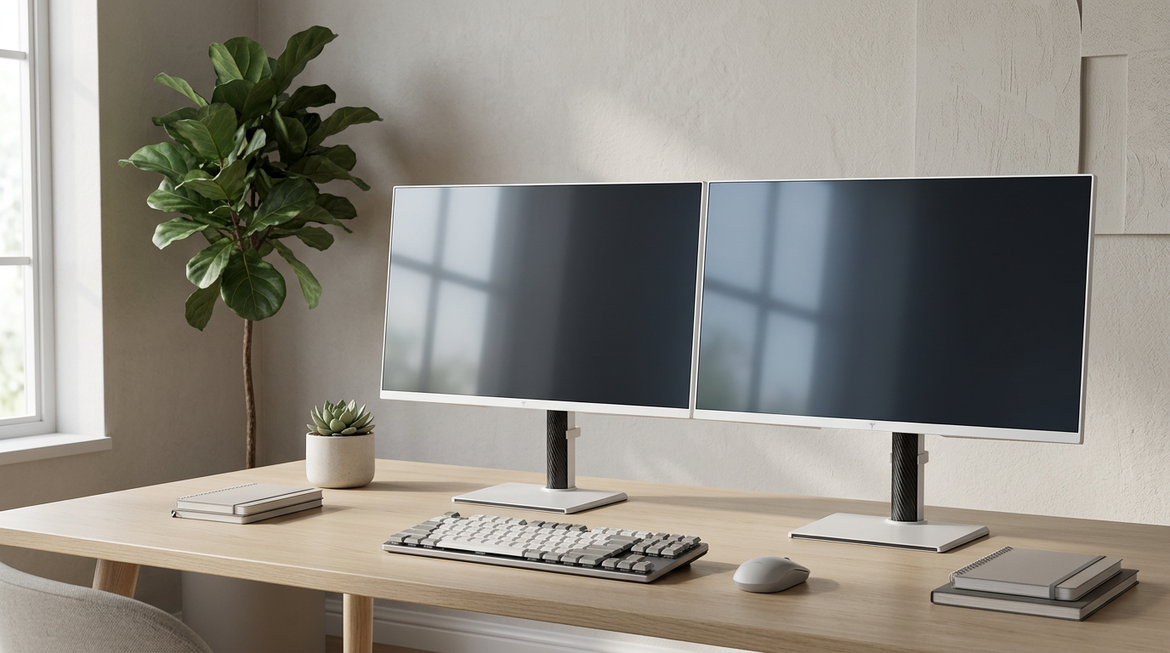
A dual-24-inch setup can also be powerful for office work. Two 24-inch monitors often beat one 27-inch screen for document comparison, communication apps, and reference-heavy workflows, provided your desk has enough width and your primary display remains centered.
Who Should Upgrade to 27 Inches or Larger?
Move to 27 inches if you want one monitor that handles both gaming and productivity well. A 27-inch 1440p IPS monitor at 144Hz or higher is the most sensible upgrade for many users because it adds workspace, sharpness, and smoother motion without becoming awkward on a normal desk.
Choose 32 inches if you want more visible workspace, play from slightly farther back, or prefer 4K clarity. Choose 34 inches or wider if your work depends on timelines, spreadsheets, coding panels, market dashboards, or multitasking across several windows. Ultrawide monitors also add immersion in supported games, though not every game handles ultrawide aspect ratios perfectly.
FAQ
Is 24 Inches Too Small for 1440p?
It is usable, but 1440p is usually more comfortable at 27 inches. On a 24-inch panel, 1440p can make text and interface elements smaller unless you adjust scaling. If you want sharper text in a compact footprint, it can work; if you want more usable workspace, 27 inches is the better target.
Is a 24-Inch Monitor Good for Current Consoles?
It works, but it is not ideal if you sit several feet away. Console setups often feel better around 32 inches because text, HUD elements, and detail remain easier to see from a couch or deeper desk.
Should I Buy One 27-Inch Monitor or Two 24-Inch Monitors?
Choose one 27-inch monitor if you want a cleaner gaming and work balance with sharper 1440p visuals. Choose two 24-inch monitors if your productivity depends on keeping separate apps visible, such as a document on one screen and research, chat, or spreadsheets on the other.
Bottom Line
A 24-inch monitor is not too small for modern gaming and productivity when speed, focus, budget, and desk space matter most. It becomes too small when your work requires persistent multitasking or your games benefit from scale and immersion. For the strongest all-around upgrade, 27-inch 1440p at 144Hz or higher is the performance-driven sweet spot; for compact competitive setups, a fast 24-inch display still earns its place.