For hybrid work, a rolling smart display vs second monitor is mostly a choice between mobility and desk efficiency. If your screen needs to move between rooms or shared spaces, the rolling setup can earn its keep. If your desk stays in one place most days, a fixed second monitor is usually the simpler, lower-friction choice.

The Core Trade-Off for Hybrid Work
The cleanest way to think about this comparison is location, not brand language. A fixed monitor is built around a stable desk. A rolling smart display is built around movement, so it makes more sense when your workday shifts between rooms, seating areas, or shared spaces.
That difference matters because screen size alone does not decide the better setup. Cable routing, where the power lives, and how often you want to re-aim the screen can change the real experience more than a few extra inches of panel size.
If you want one mobility-first example, the KTC MEGAPAD 27-inch mobile smart display shows the idea in a practical way: a screen meant to travel with the work, not just sit beside it. Use that kind of setup when movement is part of the job, not as a default upgrade for every desk.
When a Fixed Second Monitor Makes More Sense
A fixed second monitor usually wins when the workstation stays in one place most days. OSHA's monitor placement guidance points toward a screen that stays directly in front of you at a comfortable viewing distance, which is easier to maintain when the setup is permanent.

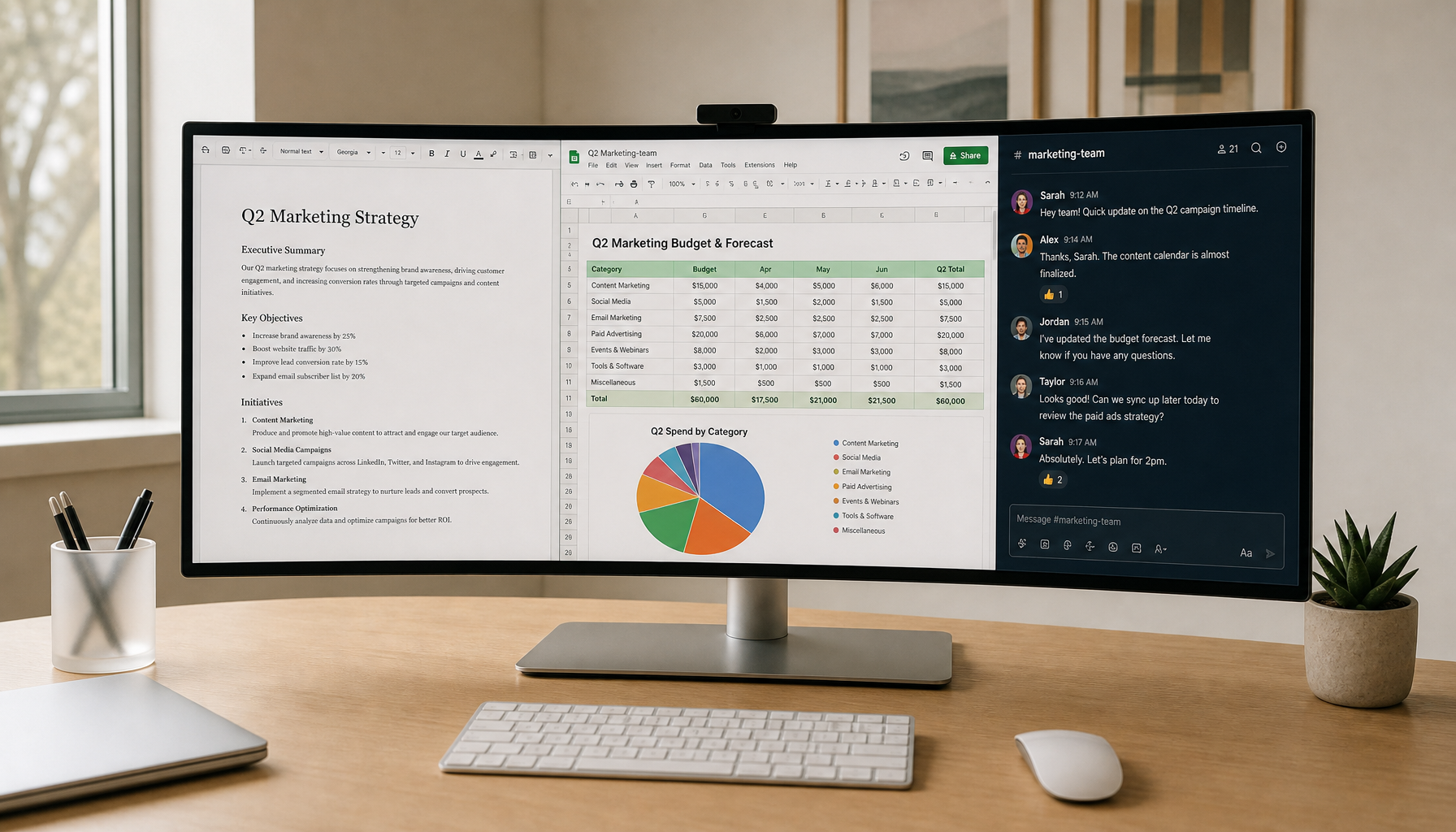
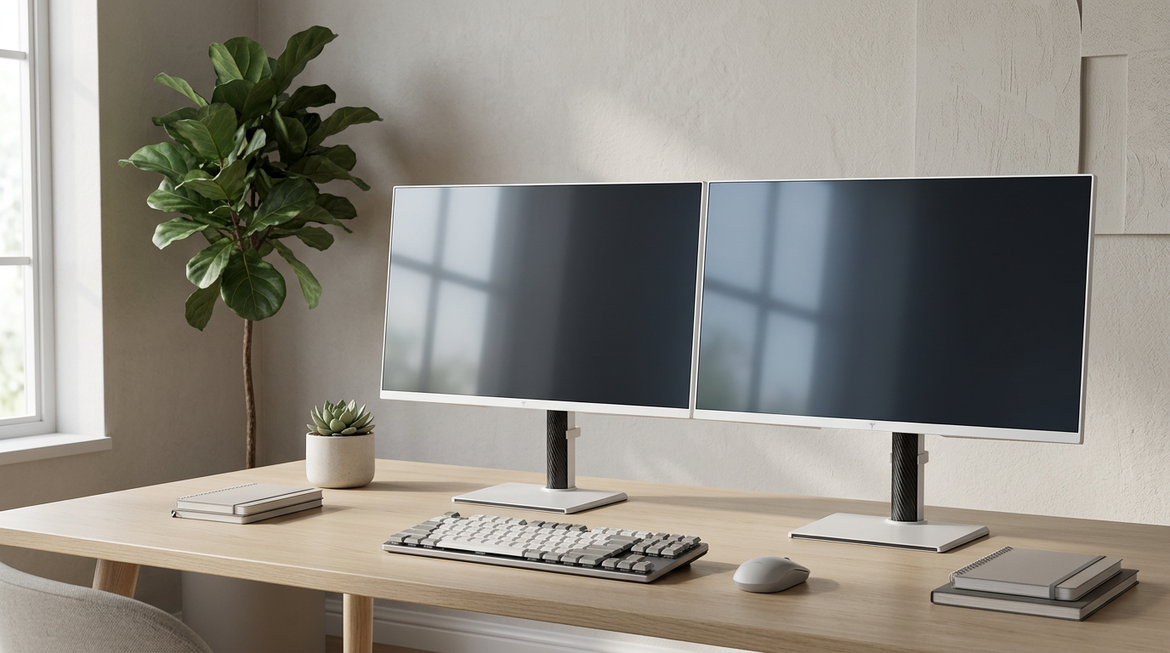
That stability can be a real advantage for long typing sessions, spreadsheets, email, and back-to-back meetings. The monitor stays aligned with your laptop stand or dock, so you do not spend time re-centering the screen every morning. A dual-screen setup can also help with high-information work, as long as both screens stay easy to view without constant head turning, according to dual-screen ergonomics guidance.
A fixed monitor is the better fit when you want the workspace to disappear into the background. If your screen only moves when you rearrange furniture, a rolling smart display may add more hassle than value. For readers who want to browse desk-first options, the Office Monitor collection is the more natural place to start.
Desk Stability and Alignment
A fixed monitor is easier to place once and leave alone. That matters when you want the top of the screen, the chair height, and the laptop position to stay consistent from day to day.
For most hybrid workers, that consistency is the real benefit. If you already have a desk, dock, and keyboard in a permanent spot, a rolling display does not solve a problem you actually have.
Cable Management and Peripheral Setup
A fixed monitor usually pairs more cleanly with a dock, keyboard, mouse, and charging cable. Once the cables are routed, they tend to stay put.
That means fewer little resets at the start of each session. If you care most about getting to work fast, less movement usually means less friction.
Work Tasks That Benefit Most
Long document editing, spreadsheet work, research, and regular video calls all tend to favor the fixed monitor path. Those workflows reward stable alignment and predictable viewing more than room-to-room flexibility.
Decision sentence: if the desk is your main work anchor, the fixed monitor is usually the safer buy because it reduces repeated setup work. Decision sentence: if you expect to move the screen often, the convenience advantage shifts toward the rolling option. Decision sentence: if your setup only moves sometimes, the trade-off may not justify the extra complexity.
What a Rolling Smart Display Adds
A rolling smart display makes the most sense in a fluid workspace. KTC's rolling smart display workflow examples describe a setup that can support conferencing and app use without keeping the laptop open the whole time, which is helpful when the screen needs to move with the day.
That flexibility matters in shared rooms, multipurpose spaces, and homes where the desk is not permanent. WIRED's screen-on-wheels review makes the same practical point from a different angle: a mobile screen is useful when the room itself changes, not just the app you are using.
Built-in apps, touch control, and camera features can also reduce laptop dependence in some workflows. On KTC's smart-display lineup, the screen can run video conferencing apps directly on the display through Google EDLA, which is useful if you want a more self-contained setup. That said, smart features are only valuable if you will actually use them. If you mostly want a passive second screen, they can be overkill.
Room-To-Room Flexibility
Rolling wheels matter most when the screen needs to move between a home office, living room, kitchen table, or bedroom corner. That is where a mobile screen earns its place.
If the display will sit in one room all week, the mobility advantage shrinks fast. In that case, you are paying for flexibility you will not use.
Shared-Space and Multi-Use Scenarios
A rolling display is especially useful in apartments or shared homes where one room has to do several jobs. You can park it out of the way, then roll it back when it is time to work.
That can be a practical fix when you do not want a second monitor dominating the room all day. It is a space-management choice as much as a screen choice.
Built-In Functions That Reduce Laptop Dependence
Smart features matter when they change the workflow. If you can open a meeting app, join a call, or keep a screen active without relying on the laptop as the center of everything, the setup can feel lighter.
The featured KTC example is the mobile smart display path, but it still only makes sense if you want those built-in functions. If you are just going to mirror a laptop and never use the apps, the extra capability does not buy much.
Setup Effort, Stability, and Daily Friction
Here is the part many buyers miss: the easier setup is not always the better everyday setup. A rolling display can be simpler to move into place, but it often asks for more re-aiming, power checks, and cable attention after each move. A fixed monitor takes more commitment upfront, but it usually asks for less attention after that.
| Factor | Rolling Smart Display Advantage | Fixed Second Monitor Advantage | Best Fit |
|---|---|---|---|
| Setup speed | Easier to move into a new room or spot | Easier to leave ready once installed | Rolling for shared spaces, fixed for one desk |
| Movement between rooms | Built for frequent repositioning | Not meant to travel day to day | Rolling if the screen changes rooms |
| Cable management | Can feel flexible, but may need more resets | Usually cleaner once routed | Fixed for docked laptop desks |
| Stability on long sessions | Useful if parked carefully, but wheels add another variable | Usually steadier on a permanent desk | Fixed for long work sessions |
| Shared-space flexibility | Easier to tuck away or roll back out | Takes permanent space | Rolling for multipurpose rooms |
| Device dependence | Smart features can reduce laptop reliance | Usually depends on the laptop and dock | Rolling if you want self-contained use |
| Maintenance effort | More movement means more little checks | Less daily attention | Fixed for low-friction routine work |
The table only looks simple because the underlying rule is simple. Choose the setup that matches how often the screen actually moves. If mobility is part of the day, the rolling smart display is the better fit. If the desk is the anchor, the fixed monitor usually creates less friction.
For readers who want a browse-first path into desk monitors, the All Monitors collection is the broader starting point.
Which Setup Fits Your Work Style
- If you work from one desk most days, choose a fixed second monitor. It is easier to align, easier to cable, and easier to leave alone.
- If you move between rooms during the day, choose a rolling smart display. The mobility is the reason to buy it.
- If you share a living room or multipurpose space, lean toward the rolling setup. It is easier to park out of the way when work ends.
- If your work is mostly spreadsheets, email, and long document sessions, a fixed monitor is usually the cleaner fit.
- If you want apps, touch control, or a more self-contained screen, a rolling smart display may be worth the extra complexity.
- If you already use a docked laptop and do not plan to move the screen, the simpler desk monitor is probably the better deal.
A good shortcut is this: if you move the screen more often than you rebuild the desk, mobility starts to matter. If you do not, stability usually wins.
A Practical Buy-List Before You Decide
- Confirm how often the screen will move. If the answer is "rarely," the fixed monitor path is usually enough.
- Check whether the desk is permanent. A permanent desk favors a second monitor; a temporary or shared space favors mobility.
- Trace the power and cable path. If resets will annoy you, favor the setup that needs fewer moves.
- Ask whether smart features will actually be used. If not, do not pay extra for them.
- Pick the option that creates the least friction on an ordinary Tuesday, not just the most impressive setup on day one.
If you want a mobility-first example to compare against a fixed screen, the KTC MEGAPAD 25-inch touch display is a useful check point. For a broader desk-first comparison, start with the Office Monitor range.
Frequently Asked Questions
How Do I Know If a Rolling Smart Display Is Worth It for Hybrid Work?
It is worth considering when the screen will actually move between rooms, shared spaces, or work modes often enough to offset the extra setup work. If the display will mostly sit still, the convenience edge usually goes back to a fixed monitor.
What Makes a Fixed Second Monitor the Better Choice?
A fixed monitor is the better choice when you want stable alignment, cleaner cable routing, and a desk that is ready every day without repositioning. That usually fits laptop-dock workflows, long typing sessions, and repeat office-style routines.
Can a Rolling Smart Display Replace a Laptop Second Screen?
Sometimes, yes, but only in workflows that use the built-in apps, touch controls, or camera features. If your real need is just extra desktop space beside the laptop, a regular second monitor may be simpler and cheaper.
Why Does Cable Management Matter So Much in This Comparison?
Because cable handling changes how ready the setup feels. A fixed monitor can stay plugged in and aligned, while a rolling display may need more attention each time you move it. That difference becomes obvious in everyday use, not just on spec sheets.
How Should I Decide Between Flexibility and Stability?
Use one rule: choose flexibility if the screen truly needs to travel with your day, and choose stability if the desk is your main work anchor. That keeps the decision tied to real behavior instead of future intentions.
Final Takeaway
For hybrid work, the better choice is the one that fits your routine with the least friction. A rolling smart display makes sense when the screen needs to move, the room changes, or smart features will be used. A fixed second monitor makes more sense when the desk stays put and you want the simplest setup possible. Choose the setup you will use on most weekdays, not the one that only looks more flexible.