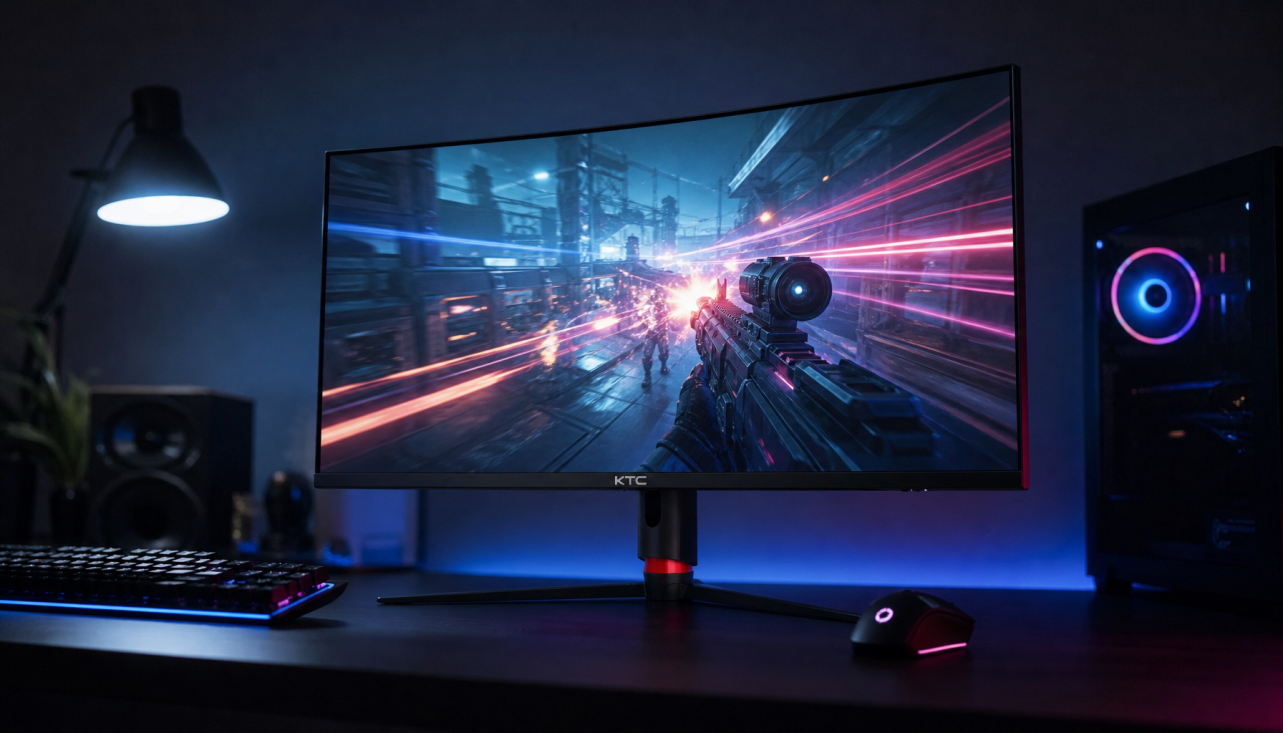
Choose horizontal if your second screen supports wide visuals, dashboards, video, or gaming tools; choose vertical if it mainly holds text, code, chats, documents, or reference material. The best setup is usually a horizontal primary monitor with a vertical secondary display placed close, angled inward, and adjusted to eye level.
Is your second monitor becoming a dumping ground for half-hidden windows, stretched tabs, and constant neck turns? A simple orientation change can make your workspace feel faster immediately: vertical reduces scrolling for long content, while horizontal preserves width for visual and multi-panel work. This article gives you a clear way to choose, set up, and fine-tune the second screen without buying the wrong stand or building an uncomfortable desk layout.
Start With the Job of the Secondary Monitor
A secondary monitor should reduce friction, not create a second place to hunt for things. The first decision is whether the content you park there is tall or wide.
A vertical monitor, also called portrait orientation, is a standard display rotated 90 degrees so it is taller than it is wide. This orientation is strongest when the screen is used for long documents, coding, research pages, chat, logs, email, task lists, or file explorers because it shows more vertical content with less scrolling. A horizontal monitor, also called landscape orientation, is wider than it is tall and fits most apps, games, timelines, spreadsheets, dashboards, video players, and side-by-side windows more naturally.
In real use, the secondary display usually has a support role. For a developer, that might mean code or logs on the vertical screen while the main monitor holds the app preview. For a streamer, it might mean chat, streaming controls, and alerts in portrait while gameplay stays centered on a high-refresh horizontal display. For an office workflow, it might mean keeping email and a project brief visible without covering the main spreadsheet or browser.

The strongest evidence from multi-monitor research is not that one orientation wins everywhere, but that screen layout should match task structure. Georgia Tech researchers studying multiple-monitor use found that people value extra display space for organizing work and reducing window switching, but the benefit depends on how the workspace supports actual tasks, not just on having more pixels multiple-monitor use.
When Horizontal Is the Better Secondary Orientation
Horizontal is the better choice when your secondary monitor needs to show wide information with minimal cropping. That includes spreadsheets, video editing timelines, stock or analytics dashboards, presentation slides, design canvases, wide browser layouts, and most gaming companion tools.
The practical advantage is shape compatibility. Most desktop software is designed first for landscape displays, so toolbars, side panels, video previews, and wide tables tend to fit without awkward scaling. A second horizontal monitor also works well when you regularly compare two documents side by side, keep a full browser window open, or extend a large workspace across both screens.
Horizontal can be the performance-driven choice for gaming setups too. If the secondary display is used for capture software, performance monitoring, walkthroughs, music, or browser references, landscape mode gives those apps their default layout. For competitive gaming, the main display should almost always stay horizontal because most games are built for a wide field of view. A secondary horizontal screen can also be easier to glance at quickly if it is placed close to the primary display and angled inward.
The drawback is desk width and neck rotation. A wide second monitor placed too far to the side forces repeated head turning, especially during long sessions. Ergonomic guidance consistently favors keeping the most-used screen directly in front and angling the secondary screen toward you; for unequal dual-monitor use, the primary display should get the best centered position while the secondary monitor supports it from the side.
When Vertical Is the Better Secondary Orientation
Vertical is the smarter orientation when the monitor acts like a live document column. Code, articles, briefs, email threads, chat, terminal output, reference notes, and long web pages all benefit because the screen’s height matches the content’s flow.
The gain is not abstract. If you rotate a 27-inch 1440p monitor, you get 2,560 vertical pixels instead of 1,440, which can nearly double the visible height for text-heavy work before scaling. That means fewer scrolls while reviewing a contract, a longer visible code block, or a more complete chat history during a stream. For a portable smart screen used beside a laptop, portrait mode can also turn a small display into a focused reading or messaging panel rather than a cramped mini-desktop.

Vertical orientation also saves horizontal desk space. A portrait secondary display can fit beside a large primary monitor on desks where two landscape screens would push speakers, notebooks, or a mousepad into bad positions. This matters for performance gaming desks, where low-sensitivity mouse movement can require a wide mousepad area. A mixed setup keeps the center display immersive while preserving desk clearance.
The tradeoff is vertical eye travel. Ergonomic guidance notes that vertical monitors are best for text-heavy workflows but can increase muscle load when poorly positioned, especially on larger screens vertical monitors. In practice, 24 inches is the easiest size for portrait use, while 27 inches works well if you can lower, tilt, and distance it properly.
The Ergonomic Rule: Orientation Must Serve Your Neck and Eyes
A brilliant layout is a bad layout if it makes you hold a fixed twist for hours. Ergonomics is the discipline of fitting the workstation to the user, and for monitors that means controlling height, distance, angle, glare, and how often you need to turn your head.
For both orientations, start with the top of the display near eye level or slightly below. A useful monitor-positioning standard is that the screen should be far enough away that you can view it without leaning and low enough to keep the eyes looking slightly downward, not craning upward monitor positioning. A practical test is to sit normally, extend your arm, and place the monitor around that distance. If you need to lean forward, enlarge text or adjust scaling before dragging the screen closer.
For a vertical secondary monitor, do not center your eyes on the physical middle of the panel if that makes the top too high. Instead, align the upper text area near eye level and accept that the lower portion is for less frequent reference. For a horizontal secondary monitor, keep the inner edges close to the primary display and angle it inward so your eyes travel more than your neck.

Glare matters more than people expect. A vertical screen can catch window reflections differently after rotation, while a horizontal screen may reflect overhead lights across a wider surface. Workspace guidance recommends placing the monitor about an arm’s length away, tilting it slightly backward, and keeping the viewing zone from eye level to about 30 degrees below your line of sight optimal monitor positioning. If reflections remain, move the desk perpendicular to windows or use shades before raising brightness too aggressively.
Match Size, Resolution, and Mounting to the Orientation
Orientation is only half the decision. The hardware has to support it cleanly.
A 24-inch monitor is the safest portrait size for most desks because it gives useful height without becoming a tower. A 27-inch vertical monitor can be excellent for code, documents, and dashboards, but it needs more viewing distance and a mount with height control. A 32-inch monitor is usually better as a horizontal primary display unless your desk is deep and your workflow is unusually text-heavy.
Resolution also changes the experience. A 1080p vertical monitor can feel narrow for modern web apps, while 1440p gives a sharper, more spacious column. A 4K panel can be excellent, but only if operating system scaling keeps text readable. Home office setup notes make a practical point here: after moving a monitor farther back to reduce strain, adjust text and app scaling so you do not squint or lean forward monitor distance.
Mounting is the deciding hardware detail. A pivot-capable stand is fine for occasional rotation, but an adjustable monitor arm is better for mixed-orientation setups because it lets you adjust height, tilt, swivel, and rotation independently. Fixed stands often leave a portrait display too high or too low. If you use a sit-stand desk, leave cable slack so the monitor can rotate and rise without tugging the video or power connection.

Connection choice also matters for reliability. Common video connections work well for basic displays, while higher-refresh or higher-resolution setups need ports and cables that can carry the required signal. For dual displays, setup guidance emphasizes matching resolution, refresh rate, panel type, brightness, and calibration where possible to avoid inconsistent text size and visual behavior dual monitor setups.
Secondary Monitor Job |
Better Orientation |
Why It Works |
Code, logs, documents, chat, email |
Vertical |
More lines visible, less scrolling, stronger reference view |
Video, dashboards, spreadsheets, design canvases |
Horizontal |
More width for panels, timelines, tables, and previews |
Gaming companion screen |
Usually vertical or horizontal depending on apps |
Vertical for chat and alerts; horizontal for browsers and control panels |
Often vertical |
Saves desk width and turns a small display into a focused reading panel |
|
Equal-use dual monitors |
Usually horizontal pair |
Easier to align as one wide workspace |
A Simple Decision Test Before You Rotate
Open the three windows you use most on your secondary monitor and look at what you are actually doing. If you scroll more than you resize, try vertical. If you resize more than you scroll, stay horizontal. If you constantly compare two wide windows, horizontal wins. If you keep one long reference visible while working on the main screen, vertical wins.
Then test it for one full work session. Rotate the monitor physically, set the operating system orientation to portrait, and place it beside your dominant side if that is where you naturally glance. Most desktop operating systems include rotation controls in their display settings. Keep the secondary display close to the primary, align the top text area near eye level, and use scaling so you can read without leaning.
If the setup feels wrong after an hour, diagnose the cause before rejecting the orientation. Neck tension usually means the monitor is too far to the side, too high, or too close. Eye fatigue may point to brightness mismatch, glare, tiny text, or a low-resolution panel. App frustration often means the software simply expects a wide layout, which is a valid reason to return that screen to landscape.
Pros and Cons at a Glance
Orientation |
Pros |
Cons |
Horizontal |
Best app compatibility, strong for wide visuals, better for video and dashboards, natural for gaming tools |
Uses more desk width, can increase side-to-side neck turning, encourages cluttered window spreading |
Vertical |
Excellent for text, code, chat, documents, feeds, and reference work; saves desk width; reduces scrolling |
Can feel narrow for wide apps, needs a good stand or arm, may increase vertical eye travel if too large or high |
Best Recommendation for Most Setups
For most pro gaming, office productivity, and portable-screen workflows, use the primary monitor horizontally and set the secondary monitor vertically if it is mainly a support screen. That pairing keeps your main visual field wide and immersive while turning the second display into a high-efficiency command column for text, communication, and reference.
Choose horizontal for the secondary screen only when its job is also wide: dashboards, video, timelines, spreadsheets, presentations, or equal-use dual-display work. The winning setup is not the one that looks most impressive in a desk photo; it is the one that keeps your main task centered, your reference material visible, and your posture neutral through the longest session of the day.