







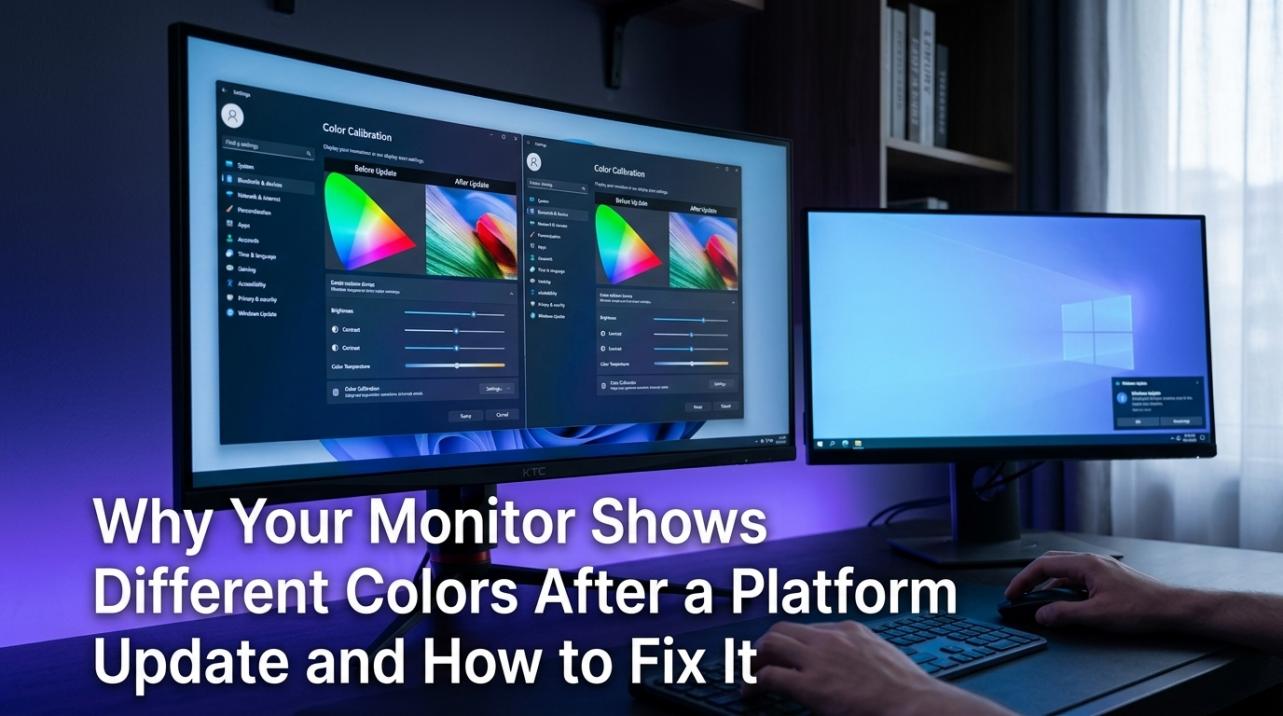

A platform update usually changes software, not your panel. In most cases, different colors after an update come from HDR, color profile, driver, or signal-range settings that were changed, reset, or no longer applied correctly.
Does your gaming monitor suddenly look washed out, too warm, or oddly oversaturated right after the platform restarts? I have seen this pattern show up in real user reports on laptops, ultrawides, and multi-monitor HDR setups, including one case where a clean graphics driver install temporarily improved color until the next reboot. Here is how to tell whether the platform changed the output path, whether your monitor settings are part of the problem, and when the display itself is the real limitation.
What Usually Changes After a Platform Update
The platform can swap or stop applying the right color profile
A washed-out display case on a company support forum points to the most common first checks: brightness, night mode, and the assigned color profile. If the platform switches away from the recommended profile, or stops loading it correctly after an update, blacks can look gray-blue, skin tones can shift warm, and the whole image can lose contrast.
This matters even more on wide-gamut gaming monitors and ultrawides, because those panels can look dramatically different when the wrong profile is active. On a standard sRGB office monitor, the change may be mild. On a wide-color OLED or fast IPS gaming display, the same mismatch can make the desktop look obviously oversaturated or flat within seconds.
Driver updates can reset color behavior even when your monitor settings did not change
A tech community report about one monitor and one graphics card describes a pattern many monitor owners recognize: colors looked better immediately after a clean driver install, then reverted after reboot without any on-screen display or control-panel changes. A similar hardware forum thread describes custom graphics color settings appearing enabled but not actually taking effect after startup.
That points to a software handoff problem, not instant panel failure. The platform, the GPU driver, and any profile loader all have a chance to touch output color during boot. If one layer loads late or overwrites another, your high-refresh-rate monitor can look different even though the monitor itself is fine.
Why HDR Causes So Many “My Colors Changed” Complaints
SDR and HDR can use different calibration paths
A display forum discussion of HDR/SDR profile switching notes that a platform version can use separate ICC behavior for SDR and HDR. In plain terms, your monitor may be showing one calibrated look on the desktop and a different look once HDR is toggled, which is why some users say the problem disappears in HDR or only appears in SDR.
That matches a tech forum report where a laptop display looked low-contrast and washed out, but the issue vanished in HDR mode and did not appear on an external display. When screenshots look normal on another device, that is a strong sign the problem is in the local display pipeline rather than the app content itself.
Multi-monitor HDR setups can behave differently on each screen
A platform app issue tied to multiple HDR monitors documented visible flicker when adjacent HDR displays used different SDR content brightness values. The reproduced setup used four HDR displays, with three set to 20% SDR brightness and one at 100%, and the visual issue appeared when moving focus between windows.
For gamers and sim-rig users with stacked ultrawides or two-monitor desks, that is an important clue. If one display looks “right” and another suddenly looks milky, dim, or oddly bright after an update, compare the HDR toggle state and SDR content brightness on every connected screen instead of assuming the panel with bad color is defective.

Washed Out, Oversaturated, or Too Dark: Match the Symptom to the Cause
Washed out usually means profile, night mode, brightness, or limited-range behavior
A forum discussion of RGB Limited vs RGB Full describes the classic limited-range look: blacks turning dark gray, colors looking faded, and shadow detail appearing easier to see than it should. The same visual logic applies to PC monitors. If the GPU and display disagree on range, your monitor can look washed out even when the panel is working normally.
That support checklist is still the right starting point for this symptom: turn off night mode, verify brightness, confirm the correct color profile, and run the built-in display color calibration tool. On a portable monitor or budget gaming monitor with fewer hardware controls, software range and profile mistakes are often more visible because the screen has less room to compensate.
Oversaturated usually points to wide gamut in SDR or the wrong preset
The same display forum discussion notes that wide-gamut oversaturation in SDR may need sRGB emulation or other gamut control, not just an ICC profile. That is especially relevant for modern gaming monitors sold with wide color coverage. After an update, the platform may still output correctly while the monitor has switched modes or the profile loader is no longer constraining SDR color.
If reds suddenly look neon and skin tones look sunburned, check the monitor’s picture mode before you start blaming the panel. Many gaming displays have preset modes that boost saturation for impact. If the update or driver reset pushed the monitor or GPU back to a vivid-style path, accuracy drops fast.

Crushed blacks and odd contrast often mean the signal path changed
The forum black-level troubleshooting example also highlights the opposite failure: blacks can look deeper and colors more vivid, but dark detail disappears. That is not automatically “better” color. It often means your RGB range, black level, or gamma is no longer matched.
On ultrawide monitors used for both gaming and work, this is easy to misread. A desktop may look punchier at first glance, but if near-black detail at roughly 1% to 3% above black vanishes, the image is less accurate and harder to use for darker games or video.
How to Diagnose Whether the Platform, the Connection, or the Monitor Is at Fault
Use a fast isolation test before you change ten settings at once
The tech forum case where the internal display looked wrong but an external display looked normal shows why the quickest test is often the best one: connect a second monitor, or test the same monitor on another input or device. If the problem only appears on one screen after the update, you are probably looking at a profile, HDR, or panel-specific path issue. If it follows the PC to every display, focus on the GPU driver and platform settings first.

For portable monitors, also test the connection type. Different display paths can negotiate different refresh rates, bit depth, and HDR behavior. On a high-refresh-rate monitor, a mode change from your usual setup can alter how the image looks even when resolution stays the same.
Watch for “settings look enabled, but aren’t actually active”
The hardware forum startup-reset report is useful because the user saw the exact sequence at boot: default color, then custom graphics color, then default color again within about 1 second. That kind of behavior strongly suggests a setting conflict or failed persistence, not random eyesight or panel aging.
If you see that pattern, do not waste time tweaking only the monitor OSD. Reapply the GPU color settings, check whether the platform color management is set to use the correct profile, and remove extra calibration utilities temporarily. The display forum thread specifically mentions that third-party profile loaders can override platform behavior.
Practical Fixes for Gaming Monitors, Ultrawides, and Portable Displays
Start with the platform-side fixes that solve the most cases
A support response on a company forum recommends a clean order that fits most monitor types: check display settings, turn off night mode, verify brightness, review the color profile in advanced display settings, and use the built-in display color calibration tool. It also recommends updating or reinstalling the graphics driver if colors still look wrong.

For HDR users, the display forum thread adds two practical details: make sure platform calibration is enabled where required, and remember that a keyboard shortcut can toggle HDR if a gaming overlay is active. That shortcut is worth knowing because it immediately tells you whether your “bad color” issue is really an SDR-only or HDR-only problem.
Then match the monitor mode to your actual use
If you bought a gaming monitor for speed, it may default to features that help motion but do nothing for color accuracy. If you use a wide-gamut ultrawide for both games and productivity, try the display’s sRGB mode for desktop work and a wider mode only when you actually want that look. If you use a portable monitor on the road, keep expectations realistic: many compact panels have fewer controls and lower consistency, so software mistakes stand out more.
The goal is not to make every monitor look identical. The goal is to restore a known-good path: correct signal range, correct profile, correct HDR state, and a sensible picture mode for the panel you own.
Comparison Table: What the Symptom Usually Means
Symptom after update |
Most likely cause |
Best first check |
More common on |
Blacks look gray and colors look flat |
Wrong ICC profile, night mode, limited-range mismatch |
Turn off night mode, confirm profile, verify RGB/range path |
Office monitors, portable monitors, laptops |
Colors look too vivid or neon |
Wide-gamut SDR without sRGB clamp, vivid preset |
Switch monitor to sRGB or standard mode |
Gaming monitors, OLEDs, ultrawides |
Image looks fine in HDR but bad in SDR |
Separate SDR/HDR handling or calibration issue |
Toggle HDR and compare behavior |
HDR gaming monitors, mini-LED displays |
Custom color returns only after manual reapply |
Driver or startup persistence problem |
Reinstall GPU driver, remove extra profile loaders |
Multi-monitor graphics setups |
One monitor looks different from the others |
Per-display HDR brightness or profile mismatch |
Compare SDR brightness and HDR state on every screen |
Dual-monitor and sim-rig setups |
Dark scenes lose detail but look punchy |
Crushed blacks, wrong gamma, full/limited mismatch |
Check black-level pattern behavior and gamma |
TVs used as monitors, consoles, some digital-input monitors |
Practical Next Steps
Use this checklist in order so you can isolate the real cause without chasing random fixes:
- Turn off night mode and any third-party color apps such as a color utility or profile loaders.
- Check display settings for HDR state, brightness, and the correct monitor selection.
- Confirm the assigned color profile under advanced display settings or color management, and switch back to the recommended profile if needed.
- Toggle HDR once to compare SDR and HDR behavior; if the image changes dramatically, focus on HDR calibration and SDR brightness.
- Reinstall or update the GPU driver if colors changed right after platform or driver updates.
- Test the monitor on another input, another cable, or another device to separate platform issues from monitor-side limits.
- If your display is wide gamut, try its sRGB or standard preset before doing deeper calibration.
FAQ
Q: Why do screenshots look normal even though my monitor looks wrong?
A: That usually means the content is fine and the problem is happening in the local display path, such as HDR state, color profile, gamma, or the monitor’s own mode. The tech forum example showed exactly that pattern.
Q: Can a platform or GPU update really reset monitor color settings?
A: Yes. User reports on a tech community and a hardware forum describe driver-related color changes that appeared after updates or reboot and did not persist correctly.
Q: When should I stop troubleshooting and consider a better monitor?
A: If the correct profile, correct HDR mode, correct range, and correct preset still leave you with poor blacks, unstable brightness, or no usable sRGB-like mode, the panel may be the limiting factor. That is most relevant if you need one display to handle both accurate desktop work and high-refresh gaming without constant mode changes.
References
- A company support community: washed-out display colors troubleshooting
- A display forum: HDR/SDR switching and ICC profiles
- A platform app issue: HDR SDR brightness mismatch across multiple monitors
- A tech forum: low-contrast washed-out platform display that improves in HDR
- A tech community: monitor colors changing after a graphics driver update
- A hardware forum: graphics color settings resetting after startup
- A forum: RGB Full vs Limited and washed-out or crushed-black behavior





