Most portable monitors draw about 5W to 15W from a laptop, with brighter, sharper, touch-enabled, or high-refresh screens using more. On a 60Wh laptop battery, that can turn a 6-hour work session into roughly 4 hours or less unless you use USB-C Power Delivery passthrough, a wall charger, or a power bank.
Is your laptop dropping from “plenty of battery” to panic mode halfway through a café work session after you plug in a second screen? In real-world portable monitor use, the draw range is small in watts but large in impact: an 8W to 15W display can meaningfully shorten a thin laptop’s runtime. Here is how to estimate the drain, choose the right monitor, and set up power so the extra screen feels useful instead of costly.
The Short Answer: Expect 5W to 15W for Most USB-C Portable Monitors
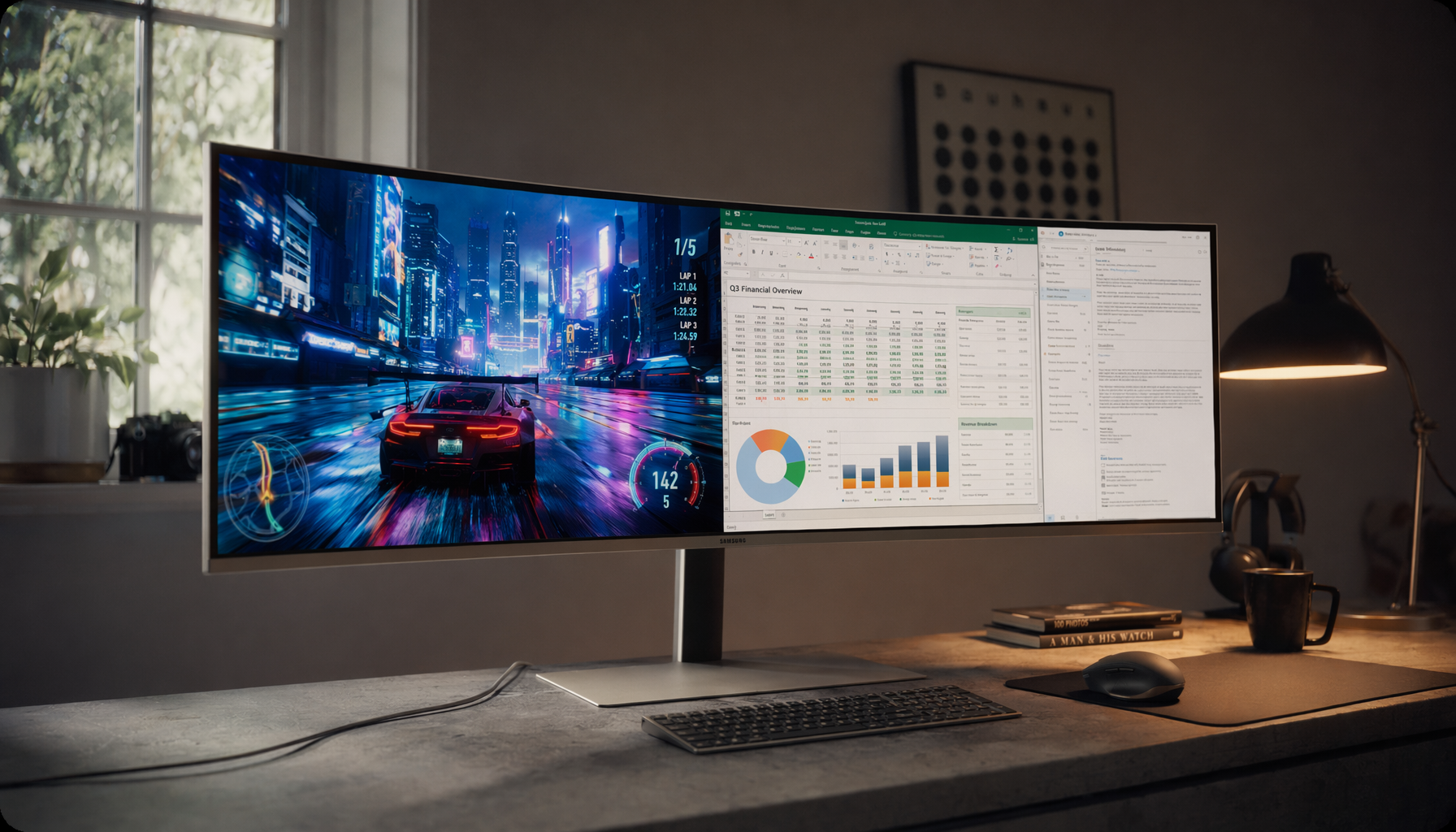
A typical USB-C portable monitor is built for low-power operation, and typical USB-C portable monitor power consumption often lands around 5W to 15W depending on resolution, brightness, refresh rate, and features. In practical terms, a basic 1080p office display usually sits near the efficient end, while a 4K, bright, touch-enabled, or gaming-oriented model pushes higher.
That number may look harmless next to a gaming laptop GPU, but battery math changes the story. A 60Wh laptop battery can theoretically run a 10W device for about 6 hours if nothing else uses power. Your laptop, however, may already be using 10W to 25W during light work, or much more under heavy loads. Add a 12W portable monitor and the total system drain can rise enough that the second screen becomes the difference between finishing a flight spreadsheet and hunting for an outlet.
Portable monitor type |
Typical draw from notes |
Best fit |
1080p 60Hz productivity screen |
5W to 8W |
Writing, email, spreadsheets, calls |
2K/QHD portable screen |
8W to 12W |
Sharper text, coding, mixed work |
4K portable screen |
12W to 15W or more |
Photo, video, detail-heavy work |
Larger or feature-rich portable display |
15W to 30W |
Touch, high brightness, speakers, gaming |
Why Laptop Battery Life Drops Faster Than the Monitor Wattage Suggests
The monitor is only one part of the draw. A typical laptop can use about 30W to 60W in many active workloads, and adding a portable display rated at 15W to 30W can raise total consumption sharply. That is why a monitor that seems modest on paper can feel aggressive in the field.
Here is a simple field estimate. If your laptop uses 18W while writing and browsing, and your portable monitor adds 10W, your total becomes 28W. A 60Wh battery divided across that load gives you a little over 2 hours of theoretical runtime before losses, background tasks, screen brightness, and battery age reduce it further. If the same laptop runs without the monitor at 18W, the practical window is closer to 3 hours. The portable display did not “kill” the battery by itself; it changed the whole power budget.

Brightness is usually the first setting to check. Some power-consumption measurements show a monitor dropping from about 22W at full brightness to 14W at half brightness and 10W at low brightness. That is the difference between treating your portable screen like a desktop panel and tuning it like a mobile tool.
The Main Power Drivers: Brightness, Resolution, Refresh Rate, and Extras
Brightness Is the Fastest Lever

A bright display is easier to use in a sunny room, airport lounge, or window seat, but the backlight is usually the largest draw on LCD portable monitors. For indoor work, 250 nits is often enough; for brighter spaces, 300 nits or more is more comfortable. The tradeoff is direct: running at maximum brightness improves visibility but shortens battery life.
The best practical move is to set brightness around the lowest level that still preserves readability. For office documents, email, dashboards, and code, many users can work comfortably around 60% to 70% brightness. For color review, design, or video, you may need more brightness, but then power planning matters more.
1080p Is the Battery-Efficient Sweet Spot
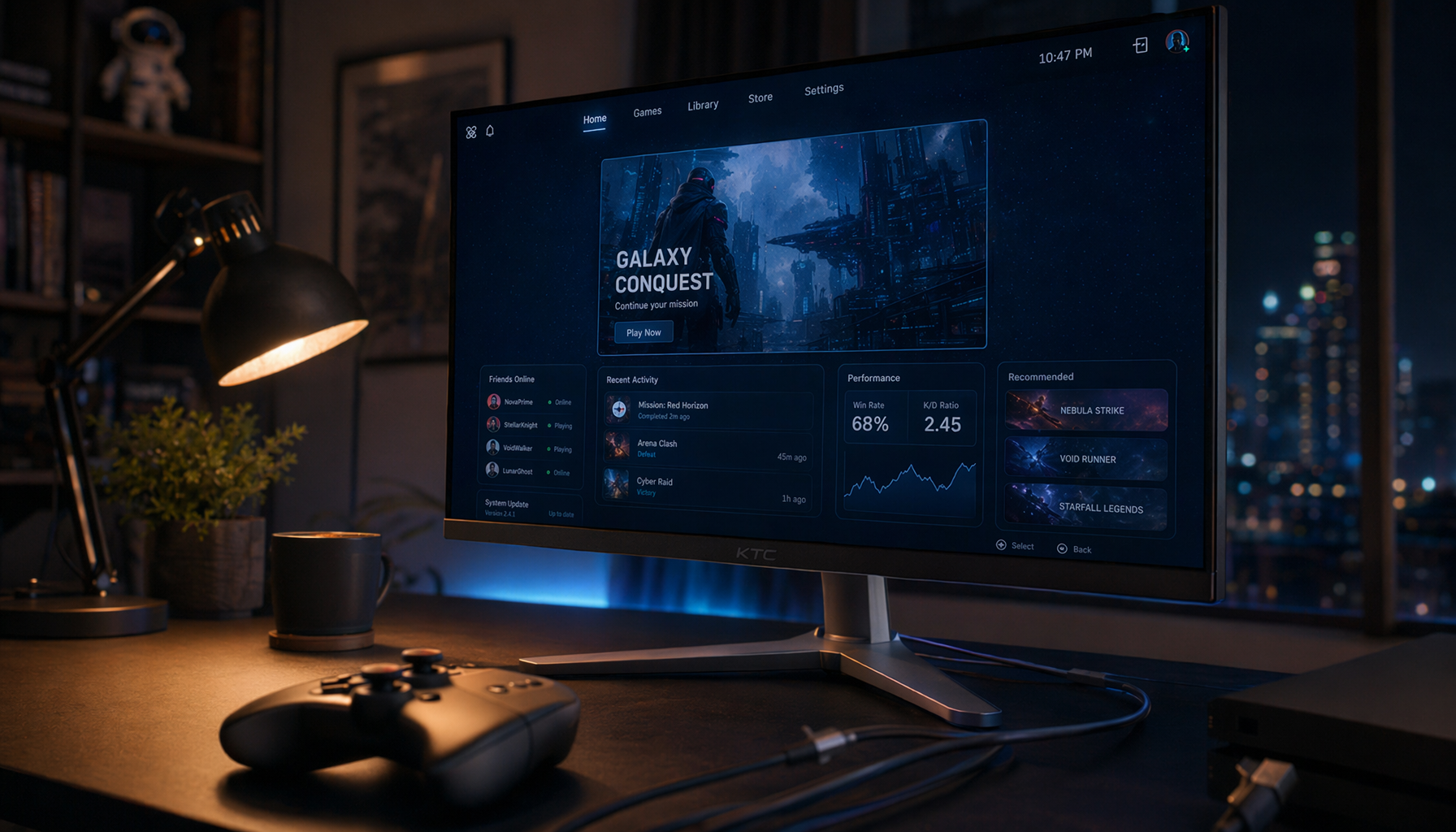
For mobile productivity, 1080p remains the value-performance center. KTC’s portable touchscreen monitor notes describe Full HD as sharp enough for everyday work while using less laptop battery than 4K, and Full HD portable monitors are still the practical default for most users. A 15.6-inch 1080p panel gives enough room for chat, browser research, spreadsheets, or a preview window without forcing the laptop GPU and monitor electronics to work harder than necessary.
4K has a place. If you edit photos, inspect high-resolution footage, or need fine UI detail, the extra pixels can be worth it. For general travel work, though, 4K often gives you a shorter battery window, higher cost, and more demand on the laptop.
Touch, Speakers, HDR, and High Refresh Add Up
Touchscreens are useful for annotation, signatures, tablet-style workflows, and creative review. They also add another device path over USB and can draw extra power. Built-in speakers, HDR, USB hub features, and 120Hz or 144Hz refresh rates all move the monitor away from “efficient second screen” and toward “portable workstation or gaming display.”
For a gaming monitor mindset, high refresh can be worth the drain when motion clarity matters. For office productivity, 60Hz is usually the smarter mobile setting. It keeps the experience smooth enough for documents and meetings while respecting the battery.
USB-C Direct Power vs USB-C PD Passthrough
A single USB-C cable is clean because it can carry video and power together, but it often means the laptop is powering the display. That direct draw is the classic battery penalty. USB-C PD passthrough is better for longer sessions because a wall adapter or power bank feeds the monitor, and surplus power continues to the laptop.

The best version of this setup uses a portable monitor with two USB-C ports: one for the laptop connection and one dedicated to power input. Plug a 65W or 100W USB-C PD charger into the monitor’s power port, then connect the monitor to the laptop. The monitor gets stable power first, and the laptop receives charging power through the same chain if the hardware supports it.
Cable quality matters. A basic phone charging cable may power something but fail to carry stable video, touch data, or high-wattage PD. For a serious mobile workstation, use a full-feature USB-C cable rated for video/data and 100W charging. If the screen flickers, touch stops working after sleep, or charging cuts in and out, the cable is one of the first things to test.
Battery-Powered Portable Monitors: Better for Freedom, Not Always Better Value
A portable monitor with a built-in battery avoids drawing from your laptop during use, which is excellent on flights, field visits, and outlet-poor workdays. Buying notes for battery-equipped portable monitors commonly describe capacities in the 4,000mAh to 10,800mAh range and often estimate about 3 to 5 hours under moderate brightness.

The advantage is obvious: your laptop battery is protected, the setup is more flexible, and you can position the screen without always chasing an outlet. The drawback is also real. Battery models tend to weigh more, cost more, and age like any rechargeable device. After enough charge cycles, runtime drops. If most of your work happens at a desk, coworking table, or hotel room with power nearby, a non-battery monitor with PD passthrough can be the more reliable value.
Online marketplace search results can also be messy. Many listings mention portable monitors with batteries, but some results are standard portable monitors without batteries, so the product page must clearly state built-in battery capacity and runtime. Do not assume a search-result phrase proves the hardware includes a battery.
Real-World Setup Recommendations
For a one-hour meeting, a single USB-C cable from laptop to monitor is usually fine. The drain is noticeable but manageable, and the clean setup matters when you are moving between rooms.
For a half-day work block, use 1080p at 60Hz, reduce brightness to a comfortable level, disable HDR unless needed, and avoid using the monitor as a charging hub. If your monitor supports passthrough, connect a 65W USB-C PD charger through the monitor before the laptop battery becomes the emergency reserve.
For a full workday, treat power as part of the display spec. Two-way USB-C power delivery is the kind of feature that separates a casual second screen from a dependable mobile workstation. Pair it with a 65W or 100W charger, or a high-output PD power bank when wall power is uncertain.
For flights, do not count on the seat outlet or USB port to run a full dual-screen setup. Airplane seat power is often limited around 10W to 20W, which may be enough for light charging but not enough for a laptop plus display under load. A 65W PD power bank is the more predictable tool.
Should You Buy for Lowest Power or Best Experience?
Lowest power is not always the best choice. A dim, unstable, low-color screen may save watts but slow you down. Real tested brightness, color coverage, weight, and durability vary widely across models, and portable monitors as secondary laptop displays serve different users depending on whether the priority is travel weight, business touch input, color work, or value.
The better target is controlled power. For office productivity, choose a 14-inch to 16-inch 1080p or 1200p-class IPS display, 60Hz refresh, matte finish, dual USB-C if possible, and PD passthrough if you work away from a desk. For creative work, accept the higher draw of brighter, more color-accurate panels, but budget power with a PD charger or power bank. For gaming, high refresh and brighter visuals are part of the experience, so battery drain is the price of performance.
FAQ
Can a portable monitor damage my laptop battery?
A portable monitor will not normally damage a laptop battery just by drawing power over USB-C, but it can increase charge cycles because the laptop drains faster and needs charging more often. Heat, constant deep discharge, and frequent high-load use are bigger long-term concerns than the monitor connection itself.
Why does my monitor flicker when powered by my laptop?
Flicker often means the USB-C port, cable, or power budget is marginal. A monitor that needs 12W to 15W may behave poorly if the laptop port cannot supply stable power while also carrying video and data. Try the original cable, a full-feature 100W USB-C cable, a different USB-C port, or external PD power.
Is a power bank enough for a portable monitor?
A power bank can work if it supports enough USB-C PD output. For lighter 1080p monitors, 18W PD may be usable, while laptop-plus-monitor passthrough setups are better served by 45W, 65W, or higher depending on the laptop. Capacity matters too; a small cell phone power bank is not the same as a workday travel battery.
Final Word
A portable monitor usually draws only 5W to 15W, but that small number can reshape your entire laptop runtime. For serious mobile productivity, buy the screen for the workflow and power it like a workstation: efficient resolution, controlled brightness, a full-feature USB-C cable, and PD passthrough whenever the session matters.