




To reduce console input delay, use Game Mode, connect directly to the right HDMI port, enable 120 Hz and VRR when supported, disable extra picture processing, and keep audio/video gear in passthrough or low-latency modes.
Do your shots feel late, your parries mistimed, or your car turn half a beat after your thumb moves? A poorly configured TV or home theater chain can feel dramatically slower than the console itself, while a tuned setup can make controls feel immediate and predictable. Here is the practical path to finding the delay, removing it, and choosing display settings that actually help.
What Input Delay Means in Console Gaming
Input delay, or input lag, is the time between pressing a controller button and seeing the result on the screen. It is not the same as response time, which describes how quickly pixels change from one shade to another; response time mainly affects blur, ghosting, and motion trails rather than the full button-to-screen delay.

For console players, the delay chain usually includes the controller, console processing, game engine, HDMI path, TV or monitor processing, panel refresh, pixel response, and sometimes an AV receiver or soundbar. In real play, anything under about 20 ms feels sharp to most people, 20 to 40 ms is usable for many games, and delay above 50 ms can start to make aiming, blocking, or rhythm timing feel disconnected.
Start With Game Mode
Game Mode is the first setting to check because the display is often the biggest latency contributor. TVs commonly add processing for motion smoothing, noise reduction, contrast enhancement, edge sharpening, upscaling, and cinematic frame interpolation; those features can make movies look smoother but make games feel heavier.
A practical example is simple: if your TV is running in Standard or Cinema mode at around 80 ms and Game Mode brings it near 15 ms, that is the gap between a sluggish setup and one that feels console-ready. On some displays, Game Mode can reduce delay by four or five times by bypassing heavy image processing.

The trade-off is picture quality. Game Mode may reduce motion interpolation, sharpening, local contrast tricks, or some HDR tone-mapping options. For competitive play, that is usually worth it. For cinematic single-player games, you may prefer a calibrated Game Mode instead of leaving low-latency mode entirely.
Use the Right HDMI Port, Cable, and Console Output
A current-generation console can only deliver its best low-latency features if the HDMI chain supports them. For 4K at 120 Hz, HDR, VRR, and ALLM, use the display’s HDMI 2.1 gaming port and a certified Ultra High Speed HDMI cable. HDMI 2.1 supports the bandwidth needed for modern console modes, while HDMI 2.0 is generally limited to 4K at 60 Hz.

ALLM, or Auto Low Latency Mode, lets a compatible console automatically switch the TV into its low-lag gaming mode. VRR, or Variable Refresh Rate, lets the display match the console’s frame output more smoothly, reducing tearing and stutter without the same latency cost as traditional V-Sync behavior. The benefit is strongest when a game fluctuates around a target such as 60 fps or 120 fps.
The downside is compatibility. Some TVs reserve HDMI 2.1 features for only one or two ports. Some receivers pass 4K/60 cleanly but not 4K/120 with VRR. If a 120 Hz option does not appear in your console menu, test a direct cable from console to TV before blaming the console.
Choose 120 Hz When the Game Supports It
Refresh rate is how often the display updates its image. At 60 Hz, a new refresh happens every 16.67 ms. At 120 Hz, it happens every 8.33 ms. That does not remove all latency, but it cuts the display’s waiting window and makes motion feel more connected.
Sample-and-hold displays show less perceived motion blur as refresh rate rises, with 60 Hz around 16.67 ms MPRT and 120 Hz around 8.33 ms MPRT; this makes higher refresh rates valuable for both clarity and perceived responsiveness. On a console, a 120 fps performance mode can feel much faster than a 30 fps quality mode, even if both look sharp in screenshots.
The trade-off is visual fidelity. Many console games reduce resolution, ray tracing, crowd density, or effects quality to hit 120 fps. For ranked shooters, fighters, racing, and sports games, take the faster mode. For slow story games, a 60 fps quality mode may be the better balance.
Disable Processing That Adds Delay
After Game Mode, inspect the picture menu for features that may still run in the background. Motion smoothing, frame interpolation, noise reduction, dynamic contrast, live color enhancement, super-resolution processing, and extra sharpness should usually be off for gaming.
Overdrive is different. On gaming monitors, overdrive pushes pixels to change faster, reducing ghosting. The fastest setting is not always best because aggressive overdrive can create inverse ghosting, where bright halos trail moving objects. KTC’s monitor latency explainer warns that advertised “1 ms” response claims can be best-case figures and that low overshoot matters more than chasing the most aggressive setting.
A good real-world test is to open a fast side-scrolling scene, racing game, or training map and switch overdrive from Off to Normal to Fast. If motion gets clearer without bright trails, keep it. If outlines start glowing or flickering around movement, step down one level.

Keep AV Receivers and Soundbars From Slowing the Chain
Home theater gear can quietly add delay. If your console runs through an AV receiver, set the receiver to passthrough, direct, bypass, or its equivalent low-processing video mode. Disable receiver upscaling and on-screen overlays for gaming because they can add processing delay with little visual benefit.
Audio can also feel out of sync. ARC, eARC, object-based surround formats, and complex decoding paths may add audible delay, while switching console audio to PCM or Linear PCM can reduce latency in some setups. The compromise is that PCM may limit surround format options depending on your gear, so the right choice depends on whether you prioritize competitive timing or cinematic surround.
A clean test is to connect the console directly to the TV, then send audio from the TV to the receiver or soundbar. If controls feel faster, the receiver path was part of the problem. If you need the receiver in the path, use its most transparent HDMI mode.

Monitor Versus TV: Which Feels Faster?
A good gaming monitor often feels faster because it usually has less image processing and supports higher refresh rates with cleaner overdrive tuning. Gaming TVs have improved dramatically, especially OLED models with Game Mode, HDMI 2.1, VRR, and ALLM, but settings still matter.
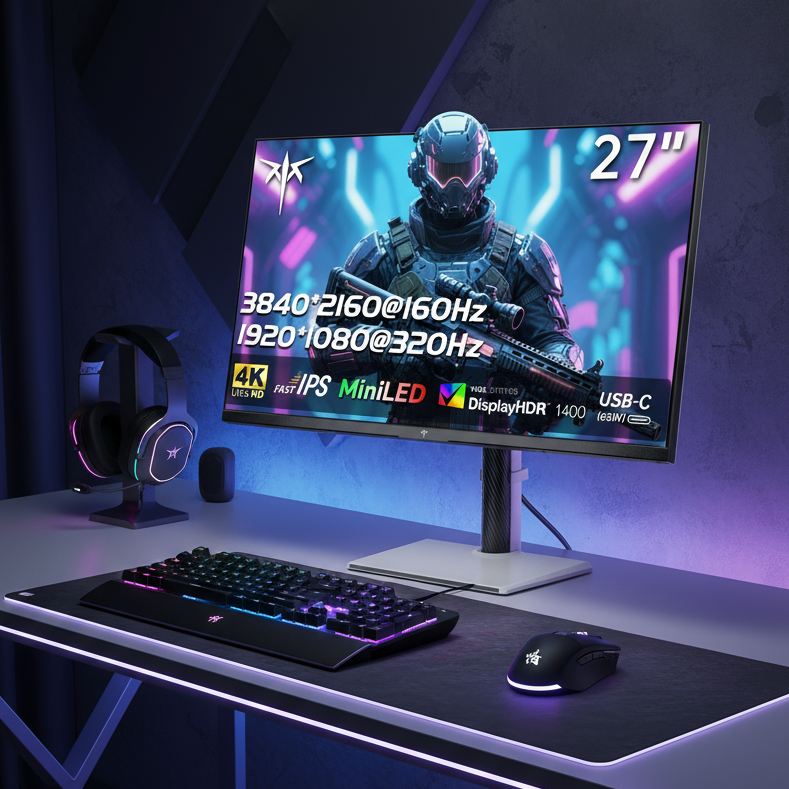
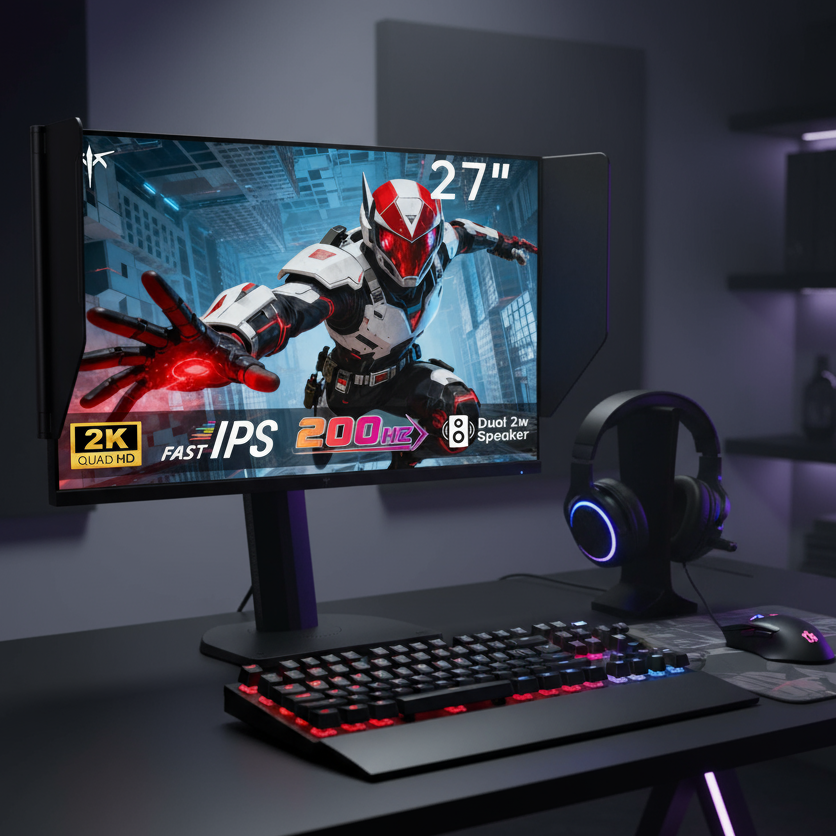
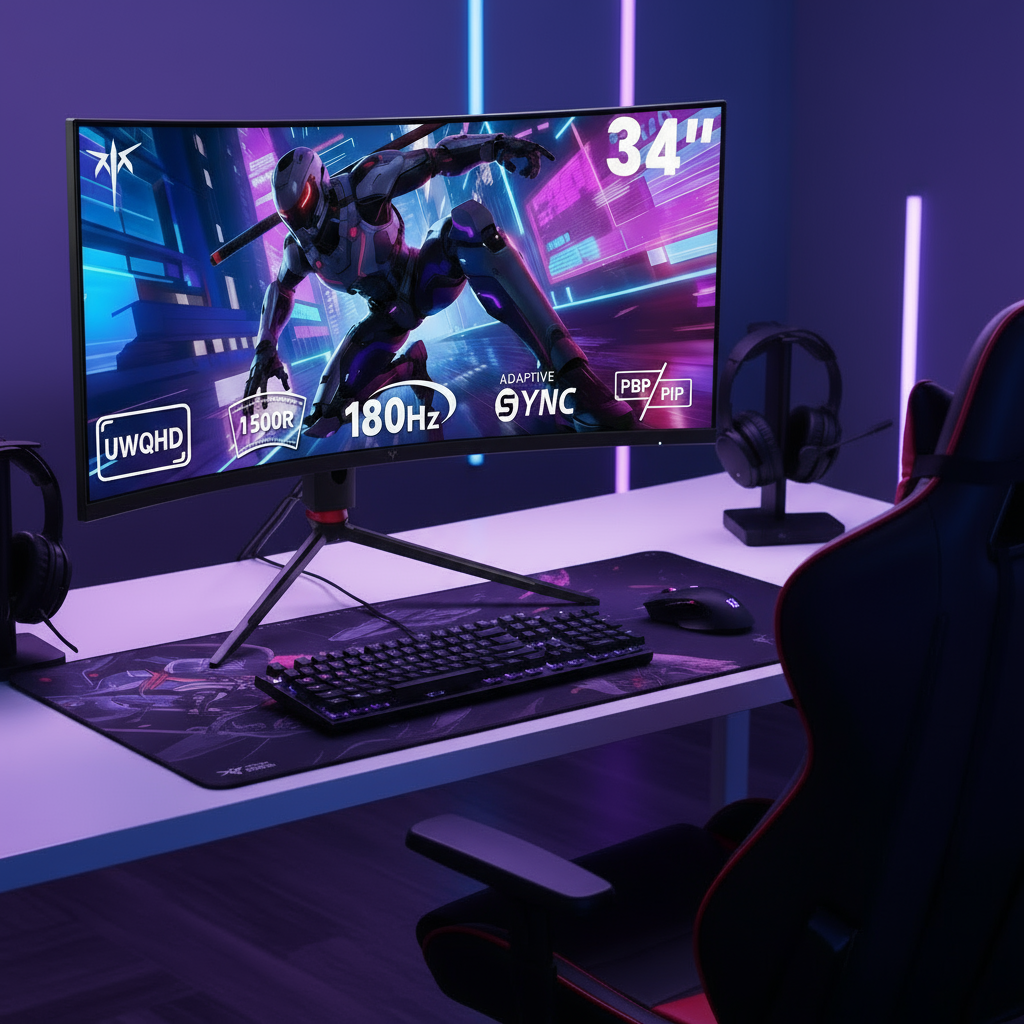
Current monitor recommendations show how gaming displays are now segmented by use case, from compact esports panels to 27-inch 1440p OLEDs and 4K 240 Hz models; competitive players often prioritize small high-refresh screens, while immersion-focused players may prefer larger 4K or ultrawide displays. Tested recommendations make the same practical point: choose based on the job, whether that is budget speed, 4K OLED clarity, HDR impact, or extreme refresh performance on a dedicated gaming monitor.
For console gaming, the sweet spot is usually a 4K display with HDMI 2.1, low input lag, 120 Hz support, and VRR. A 240 Hz or 500 Hz monitor can be excellent for PC esports, but most console games will not use those refresh rates.
Quick Diagnostic Path Without Buying Anything
Start by enabling Game Mode on the exact HDMI input your console uses. Then confirm the console is set to 120 Hz where supported, VRR is enabled, and the game itself is running in Performance or 120 fps mode if available. Next, turn off motion smoothing, noise reduction, extra sharpening, and display-side upscaling. Finally, bypass receivers, splitters, capture cards, and adapters temporarily to see whether the direct HDMI path feels better.
If you want a simple before-and-after test, use a training mode in a fighting game, a rhythm timing screen, or a shooter practice range. Change only one setting at a time and play for a few minutes. If aim correction, menu movement, or repeated timing inputs feel more predictable, that change improved the chain.
When Hardware Is the Real Limit
Some delay is fixed by the display hardware. A TV with inherently high processing latency will not become esports-grade through settings alone. That is why third-party testing matters more than box claims like “1 ms response time,” which may describe pixel transitions rather than full input latency.
A fast OLED or QD-OLED can offer excellent pixel response and contrast, while high-refresh IPS options can deliver strong value; the best choice depends on whether your priority is competitive timing, HDR image quality, desk productivity, or living-room immersion through a console gaming display.
The practical buying filter is straightforward: for consoles, look for independently tested low input lag, HDMI 2.1, 4K/120 support, VRR, ALLM, and a Game Mode that keeps HDR usable. For portable smart screens, prioritize low-latency wired input over wireless casting when gaming, because wireless display modes usually add delay.
FAQ
Does a Faster HDMI Cable Reduce Input Lag?
A certified Ultra High Speed HDMI cable does not make button presses faster by itself, but it can unlock 4K/120, VRR, HDR, and ALLM on compatible gear. If your current cable limits the console to 4K/60 or causes signal dropouts, replacing it can indirectly improve responsiveness.
Should V-Sync Be On or Off for Console Games?
On consoles, you usually do not get the same V-Sync controls as on PC. Use VRR when available, because it reduces tearing and stutter with less latency penalty than traditional synchronization. If a game offers a performance mode with stable frame pacing, that is often the better low-lag choice.
Is OLED Always the Fastest Option?
OLED pixels switch extremely quickly, which helps motion clarity and ghosting. Input lag still depends on the display electronics, refresh rate, Game Mode, and HDMI path, so a well-tested gaming OLED is excellent, but OLED alone is not the whole answer.
Closing Thought
The fastest console setup is not built from one magic setting. It comes from a clean signal path, low-latency display mode, the highest stable refresh rate your game supports, and display settings chosen for control first. Tune those pieces and the screen stops feeling like a delay layer between your hands and the game.


