How to update KTC monitor firmware safely starts with one rule: only flash the exact file your model and revision are meant to use, then keep power and the connection stable until the monitor reboots cleanly. The update itself is usually the easy part; the real risk is using the wrong file or interrupting the process mid-flash. 
Why Firmware Updates Go Wrong
Most firmware problems come from avoidable setup mistakes, not from the idea of updating itself. A mismatched file can fail to install or leave the monitor acting strangely afterward, which is why model and revision checks matter before you download anything. That caution lines up with broader firmware guidance from the NHTSA's firmware update cybersecurity report, which warns that interrupted updates can leave devices unusable, and the Trusted Computing Group's secure update guidance, which emphasizes stable power and no mid-process interruption.
In real use, the first signs of a bad flash are often small: an OSD menu that lags, settings that reset, or an input that behaves differently after reboot. That does not always mean the firmware failed, but it does mean you should stop treating the update like a routine click-through.
One useful decision sentence: if you cannot confirm the file belongs to your exact monitor revision, do not flash it yet. Another: if power is unstable, the safer move is to wait, not improvise. And if the monitor boots but the menu behaves oddly, verify first before assuming the worst.
Check the File Before You Flash
Before you think about how to update KTC monitor firmware, verify the file like you would verify a replacement part. Match the exact model number, size, and revision label on the monitor or box to the update package you found. Nearby variants may look similar and still use different firmware.

A good pre-flash check is simple:
- Confirm the exact model name on the monitor label or box.
- Match the revision or version wording in the download details.
- Read the release notes first so you know whether the update is for OSD behavior, stability, or another specific fix.
- Save a photo or note of your current brightness, input, and picture mode settings.
If the release notes do not clearly explain what the update is meant to change, treat the flash as optional rather than urgent. That is especially true when the monitor is already behaving normally.
For readers checking KTC's support content, the linked monitor firmware audit guide is a useful follow-up on OSD checks and post-update review. It should be used as a support resource, not as a substitute for the monitor's own update instructions.
Safe Update Steps
The safest way to run the update is to make the process boring. Use a stable power source, avoid storms or outage-prone times, and reduce the number of things connected to the monitor during the flash. The less moving parts, the easier it is to tell what went wrong if something does.
Prepare the Monitor and PC
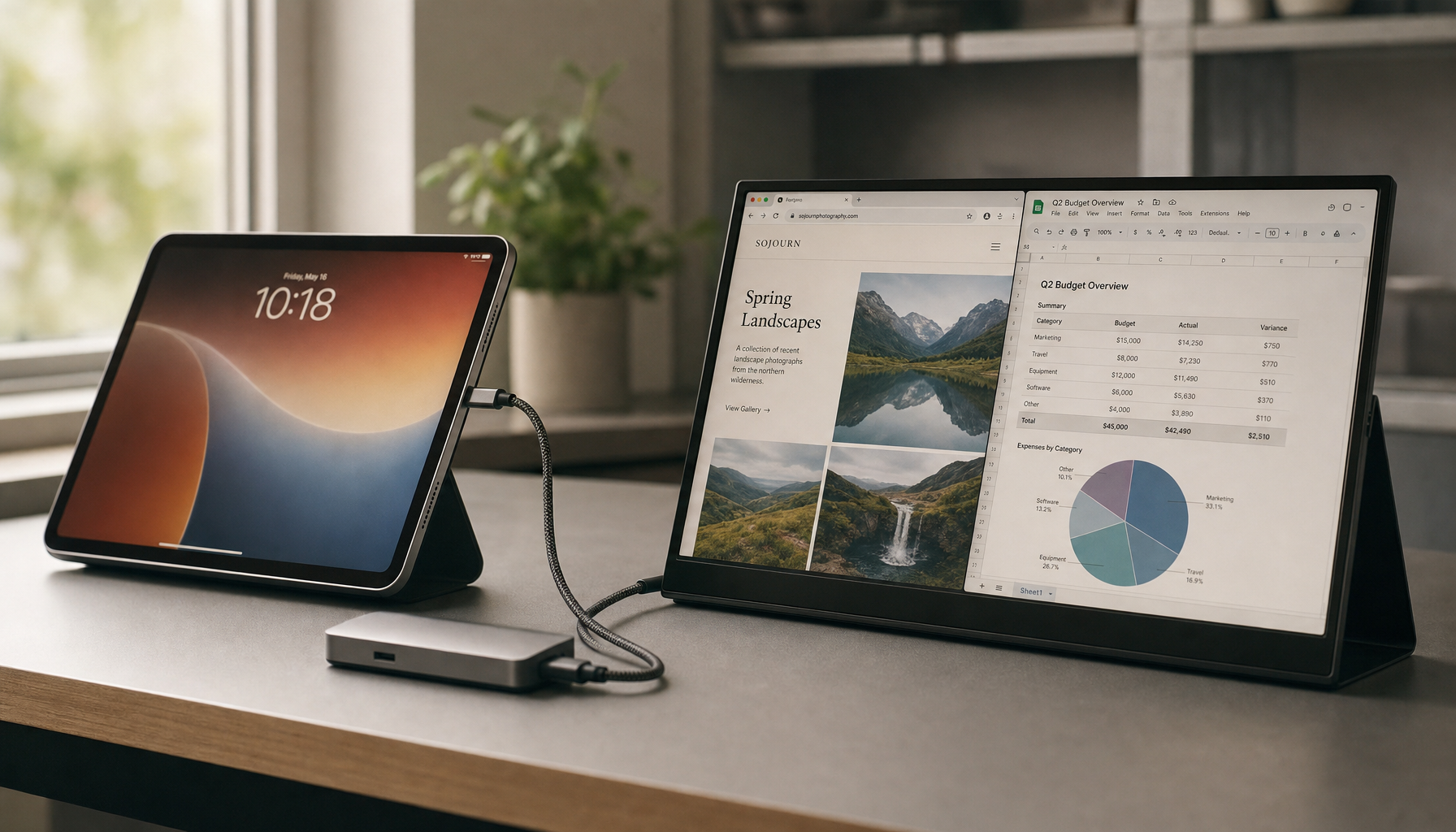
Start with a direct connection and a calm setup. Disconnect extra hubs, splitters, or adapters unless the monitor's instructions require them. If you are using a laptop, make sure it will not sleep during the process.
For the main device path, this is where a direct cable matters more than convenience. A simple setup is easier to troubleshoot, and it lowers the chance that a dock or extension cable introduces avoidable interruption.
Run the Flash Without Interruptions
Follow the updater prompts exactly. Do not force-close the tool, unplug the cable, or switch inputs while the flash is running. If the installer pauses or appears to hang, wait for the vendor's documented timing before assuming it froze.
A practical rule: if you are tempted to click around in other windows, the update is probably not the time to multitask. Leave the monitor and PC alone until the updater clearly says the process is complete.
Restart and Confirm the Version
After the reboot, confirm that the monitor starts normally and that the version changed if the updater shows a version screen. Only after that should you restore your brightness, game mode, HDR, or input preferences.
That order matters. If the menu or input selection is unstable right after the flash, restoring old settings too early can make it harder to tell whether the problem came from the firmware or from your own changes.
Verify Stability After Flashing
A successful flash is not just "the screen came back on." You also want to know the monitor behaves normally in the way you actually use it. Open the OSD and make sure the menu responds cleanly. Then cycle through your usual inputs and refresh-rate settings to confirm the display still negotiates video correctly.
Watch for three things in the first normal-use session:
- menu lag or frozen OSD items,
- picture presets that reset to defaults,
- brightness, HDR, or input behavior that no longer matches your setup.
If the monitor is stable for a regular work or gaming session after reboot, that is a much better sign than a five-second power-on check. For most users, a short test window is enough to catch obvious issues, but it is still worth saving the receipt of stability by leaving the monitor in normal use for a while before calling the job done.
Fix Common Post-Flash Issues
Not every post-flash issue means the update failed. Some issues are just reset settings or a temporary state change that clears after a restart. The key is to use the least disruptive fix first.
| Symptom | Likely Cause | First Safe Action |
|---|---|---|
| OSD lag or odd menu behavior | Temporary state issue or settings mismatch | Restart the monitor, then recheck the menu |
| Picture modes disappeared | Settings reset during update | Reapply your saved picture mode and brightness |
| Input not detected | Cable, port, or handshake issue | Reseat the cable and test the direct source connection |
| Monitor acts unstable after several restarts | Update may not have settled cleanly | Stop further changes and consult vendor guidance |
The best first move is usually the least dramatic one. If the issue is just lost presets, restore them from your notes. If the issue is input detection, recheck the cable path before blaming the firmware. And if the monitor keeps acting erratically, do not keep re-flashing on your own.
For related troubleshooting context, KTC's no-signal troubleshooting guide can help you separate source-device issues from monitor-side behavior when an update appears to have changed input behavior.
When to Stop and Ask for Help
Stop the process if the monitor loses output and does not recover normally after reboot. Pause if you still cannot verify the exact firmware file for your model or revision. And if the updater reports repeated errors, or the display becomes unstable after multiple restarts, that is the point to use official support instead of trying again and again on your own.
If you want a broader checkpoint for future purchases, the software UX and firmware support guide is a reasonable next read. It helps you judge how much firmware support matters before you buy, but it should not replace the model-specific update steps for your current monitor.
Related Resources
- KTC 32" 2K IPS 100Hz/120Hz Home&Office Monitor | H32D6
- KTC 32" 2K 180Hz 1500R Curved Wall Mount Gaming Monitor | H32S17
- KTC 27" 2K 200Hz HDR400 Gaming Monitor with Speakers | H27T6
- All Monitors
FAQs
Q1. How Do I Find the Correct KTC Firmware File?
Start with the exact model label and revision printed on the monitor or package, then compare that to the update page and release notes. If the wording does not line up cleanly, treat the file as a mismatch until support confirms it. That is safer than guessing based on appearance alone.
Q2. Can a Firmware Update Fix OSD Glitches?
Sometimes, but only when the release notes mention OSD behavior or a related stability fix. If the menu issue comes from a cable, source device, or settings reset, firmware may not change anything. A good test is to fix the simple causes first, then update only if the problem still looks firmware-related.
Q3. What Should I Do If the Update Freezes?
Wait first unless the vendor's instructions say otherwise. Do not start repeatedly unplugging cables or forcing restarts in a panic. If the process stays frozen or the monitor no longer responds normally, stop and follow official recovery guidance rather than guessing at a second flash.
Q4. How Can I Check Whether the Firmware Installed Correctly?
Confirm the version screen if the updater shows one, then test the OSD, input switching, and your usual picture modes. A correct install should leave the monitor usable in normal day-to-day conditions, not just show a boot screen. If settings are missing, restore them from your notes and retest.
Q5. Why Did My Settings Change After Updating?
Firmware updates often reset stored preferences, especially brightness, input, picture mode, or gaming presets. That is inconvenient, but it does not automatically mean the flash failed. Save your favorite settings before updating so restoration is quick if the monitor returns to defaults afterward.
The Safest Way to Treat Firmware Updates
The safest approach to how to update KTC monitor firmware is to slow down, match the file carefully, and keep the update path simple. If the monitor is already stable, a firmware flash should be treated as a targeted fix, not a routine habit. When the file is uncertain or the display becomes unstable, stop and use support before making the problem harder to recover from.