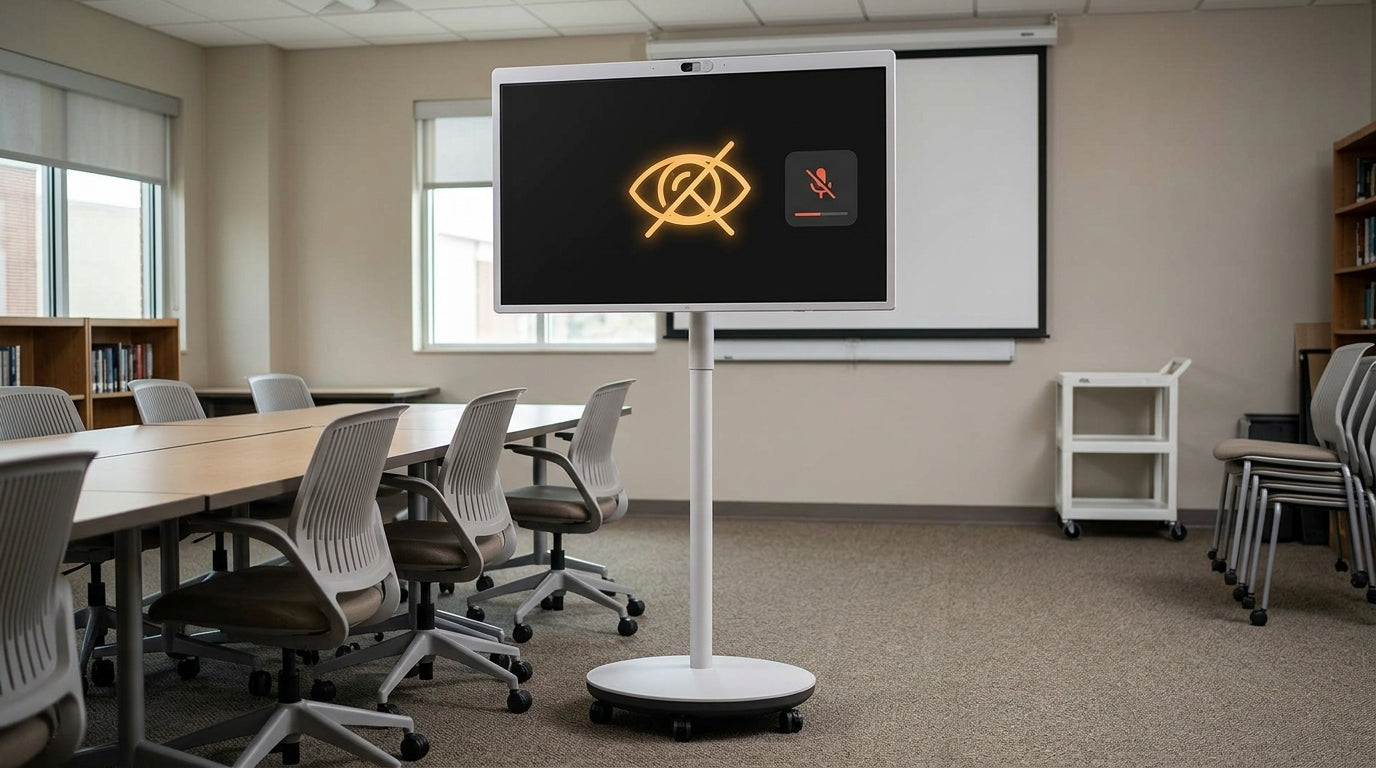
Your monitor usually loses audio over HDMI or DisplayPort because the computer, graphics driver, cable, adapter, or monitor menu is routing sound to the wrong output.
HDMI and DisplayPort Audio Is Real, But It Is Not Automatic
A common misconception is that DisplayPort is video only. It is not. Both HDMI and DisplayPort can carry digital audio, and DisplayPort is designed to transport audio alongside high-resolution video through a display link, as outlined in the DisplayPort audio documentation.
The catch is that your monitor must actually have speakers or an audio output path. Many productivity and gaming monitors appear as an HDMI or DisplayPort audio device in the operating system, yet only provide a 3.5 mm headphone jack instead of built-in speakers.
That means monitor audio may really mean audio routed through the monitor, not sound coming out of the monitor.
The Most Common Cause: Wrong Output Device
When you plug in HDMI or DisplayPort, your PC may create a new audio device named after the monitor, graphics card, TV, or dock. The system may switch to it automatically, or it may keep using headphones, built-in speakers, a USB headset, or another display.
- Open sound settings and choose the monitor, HDMI, or DisplayPort output.
- Raise volume in both the operating system and the monitor’s on-screen menu.
- Check app-specific output settings in games, voice chat apps, browsers, or media players.
- Reboot after changing graphics or audio drivers.

This matters for gaming setups because some games can send audio to a different device than system sounds. You may hear the game through the monitor while voice chat stays on a headset, or the reverse.
Cable, Adapter, and Bandwidth Problems Can Break the Handshake
HDMI and DisplayPort audio depends on a successful digital handshake between the source and display. A weak cable, passive adapter, USB-C hub, dock, or bent connector can pass video while still causing audio to disappear.
Cable quality becomes more important at high refresh rates. If you are running 144 Hz, ultrawide, HDR, or high resolution, the weakest link limits the whole signal path. Monitor performance depends on the port and cable generation supported by both devices, not just the connector shape, and bandwidth varies by HDMI and DisplayPort generation.
- Unplug the HDMI or DisplayPort cable from both ends.
- Power off the monitor for 30 seconds.
- Reconnect directly to the PC, skipping docks or adapters.
- Test a known-good cable under 10 ft for DisplayPort.

A cable can look fine and still fail intermittently, because HDMI cable wear can show up as audio problems, flicker, or signal drops.
Graphics Drivers Control More Audio Than You Think
For HDMI and DisplayPort, audio often comes from the graphics stack, not only the motherboard sound chip. Graphics display-audio endpoints are what let your graphics card send sound through the display cable.
If audio vanished after an operating system update, graphics driver update, sleep/wake cycle, or monitor swap, reinstall the graphics driver first. Then check Device Manager or your system sound panel to confirm the HDMI or DisplayPort audio device is enabled.
For laptops, make sure the cable is connected to the output controlled by the active graphics hardware. Some USB-C, Mini DisplayPort, and HDMI ports are wired differently depending on the model.
When to Stop Using Monitor Speakers
Built-in monitor speakers are useful for alerts, quick video calls, and casual playback. For competitive gaming, editing, streaming, or movies, they are usually the weakest part of an otherwise premium display setup.
If the monitor has a 3.5 mm audio-out jack, connect powered desktop speakers or headphones there. For cleaner audio and lower hassle, connect speakers directly to the PC, console, DAC, or USB audio interface instead of relying on the monitor as the middleman.

Use HDMI for consoles and TV-style setups. Use DisplayPort when it best unlocks your gaming monitor’s refresh rate, VRR, or multi-monitor workflow. For audio reliability, the winning setup is the one with the fewest adapters, the right output selected, and a cable that can handle the full signal.