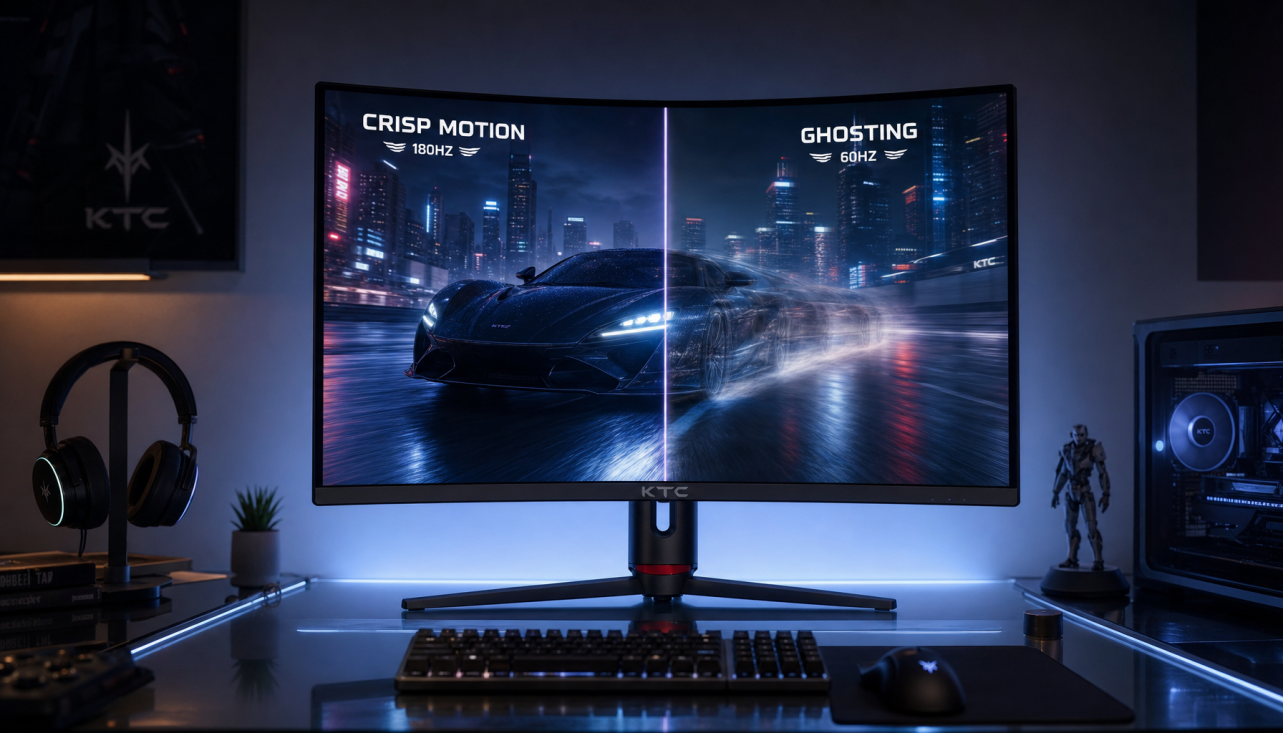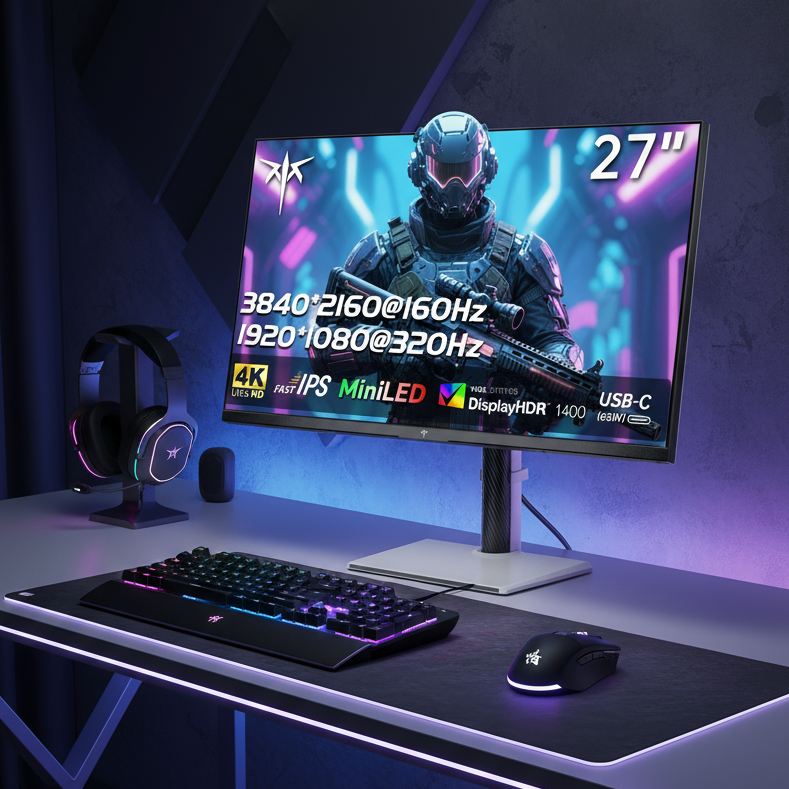


Yes, VRR can work over some HDMI 2.0 monitor setups on consoles, but HDMI 2.1 is the safer and more complete choice if you want 4K at 120Hz with fewer compromises.
You buy a gaming monitor for smooth console play, plug in a current-generation console, and then discover that 120Hz works while VRR does not. Real-world reports show exactly that split: some HDMI 2.0 displays can deliver lower-resolution 120Hz or even VRR, while high-end 4K 120Hz console features are much more dependable on HDMI 2.1. What follows is the practical way to tell which monitor specs matter, which ones mislead buyers, and when paying for HDMI 2.1 is actually worth it.
The Short Answer
a console platform’s VRR works with HDMI 2.1 VRR-compatible TVs and PC monitors, so a company’s official baseline is stricter than many monitor buyers expect. That company rolled VRR out to that console platform the week of April 25, 2022, and designed the feature around displays that expose HDMI 2.1 VRR properly over HDMI.
At the same time, some HDMI 2.0-bandwidth monitors still support VRR on a console platform, and another console platform is more flexible because it also supports a sync technology. That means the port version on the spec sheet is not the only deciding factor; the monitor’s actual HDMI VRR implementation matters more.
120Hz and VRR are separate features. A monitor can accept a 120Hz console signal and still fail to provide variable refresh, which is why buyers should stop treating “120Hz over HDMI” as proof of full console compatibility.

When HDMI 2.0 Is Enough
Some monitors on HDMI 2.0 still support 120Hz and VRR at lower resolutions. In user reports, that usually means 1080p at 120Hz or 1440p at 120Hz rather than a full 4K 120Hz signal, and that can still be a good fit for competitive console gaming on a 27-inch or 32-inch monitor.
The full signal chain has to support the mode: console output, monitor input, cable, firmware, and the specific refresh-rate range the display supports. In practice, that means an older HDMI 2.0 gaming monitor may still be a smart buy if your real goal is 1080p/120 or 1440p/120 with smoother frame pacing rather than maximum resolution.
Another console platform also supports a sync technology, so owners of that console platform have more room to use VRR on monitors that do not expose HDMI Forum VRR the same way the first console platform expects. If you are buying primarily for that console platform and mostly play shooters at 120Hz, a good HDMI 2.0 monitor with proven HDMI VRR or sync-technology support can still make sense.
When HDMI 2.1 Actually Matters
4K at 120Hz in 4:4:4 10-bit is around 40.10 Gbps, which is why HDMI 2.1 becomes the practical requirement for buyers who want a 4K gaming monitor and expect 120Hz, HDR, and VRR to work together cleanly. That is the real dividing line: not “does VRR exist at all,” but “can this monitor carry the console signal I actually want without dropping quality?”
One console owner saw 4K 120Hz HDR fall back to YCbCr 4:2:2 and report VRR: No in the monitor OSD, even after trying multiple HDMI cables and both monitor HDMI ports. That is a useful buying lesson: even with modern hardware, consoles may use chroma subsampling or other compromises at 4K 120Hz, and the on-screen readout does not always match what buyers expect from the marketing.

A brand positions HDMI 2.1 gaming monitors around 4K 120Hz console play, while also advertising up to 4K 144Hz for PC use. If your display budget is aimed at a premium 4K monitor rather than a value 1440p panel, HDMI 2.1 is the better long-term filter because it aligns with the console feature set high-end buyers usually want.
Why Gaming Monitor Specs Cause So Much Confusion
Adaptive-sync support varies by model, and even within one monitor family you may see different combinations of HDMI 2.1, HDMI 2.0, one sync technology, another sync technology, or a compatibility label. None of those labels automatically guarantees that a console will deliver VRR over every HDMI input on the display.
VRR across DP-to-HDMI conversion is inconsistent, which is a useful warning for buyers who assume “the signal is digital, so it should just work.” In one case, a user managed to unlock 4K144 and even 4K240 with HDR through EDID workarounds, but VRR still would not engage, showing how fragile compatibility becomes once you rely on adapters or unofficial tweaks.
A company also lets users apply VRR to unsupported console-platform games, but results vary by display, game, and visual mode. That means even after you buy the right monitor, the experience can still change from title to title, which is another reason to prioritize models with proven console testing rather than just a strong PC spec sheet.
How to Check a Monitor Before You Buy
Checking the official spec sheet by port and color mode is more useful than reading the headline bullet list. For a console-focused monitor, confirm which HDMI ports support the full refresh rate, whether VRR works over HDMI and not only DisplayPort, and whether the manufacturer names HDMI Forum VRR, sync technology over HDMI, or both.
A review outlet-style console testing checks 1080p, 1440p, and 4K at both 60Hz and 120Hz with HDR and VRR. That is the right mindset for monitor shopping because it matches how people actually use a console: switching between performance modes, quality modes, SDR, HDR, and different games rather than running one perfect lab signal forever.

Use case on a gaming monitor |
HDMI 2.0 monitor |
HDMI 2.1 monitor |
What to expect |
1080p at 120Hz |
Often works |
Works |
Good for competitive play on budget displays |
1080p or 1440p with VRR |
Sometimes works |
Usually works |
Check real console reports, not just PC sync badges |
4K at 60Hz |
Common |
Common |
Fine for story-driven games and general use |
4K at 120Hz |
Usually not the safe assumption |
Intended target |
Main reason to pay for HDMI 2.1 |
4K at 120Hz with VRR and HDR |
Rare and inconsistent |
Best chance |
Best fit for premium console monitor buyers |
A brand’s product pages show why this matters: a single monitor can include both HDMI 2.1 and HDMI 2.0 ports. If a spec sheet does not clearly say which input handles console VRR, that is a warning sign for anyone shopping for a high-refresh gaming monitor.

FAQ
Q: Can a console platform use VRR on an HDMI 2.0 monitor?
A: Sometimes, yes. Some HDMI 2.0-bandwidth monitors still support VRR on a console platform, but a company’s official guidance is built around HDMI 2.1 VRR-compatible displays, so compatibility is less predictable than with a true HDMI 2.1 gaming monitor.
Q: Does 120Hz mean VRR will work too?
A: No. 120Hz and VRR are separate features, so a monitor may accept a 120Hz console signal but still fail to vary refresh dynamically during gameplay.
Q: Is HDMI 2.1 worth paying extra for on a monitor?
A: Usually yes if you want 4K at 120Hz, VRR, and HDR from a current-generation console without guessing. For 1080p/120 or 1440p/120, a proven HDMI 2.0 monitor can still be a sensible value choice.
Final Takeaway
The simplest buying rule is this: HDMI 2.0 can be enough for console VRR on some gaming monitors, especially at 1080p or 1440p, but HDMI 2.1 is the safer choice for buyers who want a 4K high-refresh monitor and expect VRR to work without trial and error. If the monitor is meant to anchor a premium console setup for the next few years, buy based on tested console behavior, not just the HDMI label.
Use this checklist before you buy: - Confirm which HDMI port supports the console mode you want. - Verify VRR over HDMI, not only adaptive sync over DisplayPort. - Check whether your target is 1080p/120, 1440p/120, or 4K/120. - Look for real console compatibility testing, including HDR and VRR. - Treat HDMI 2.1 as the safe requirement for 4K 120Hz VRR. - Avoid relying on adapters if console VRR is a priority.