Center-weighted calibration can make the middle of a monitor look accurate while leaving the edges, corners, and full-screen work area unverified. That gap matters because real content does not stay parked under the colorimeter.
Center Accuracy Is Not Screen Accuracy
Most calibration workflows optimize the point where the measuring device sits, usually the center. That is useful for setting white point, gamma, luminance, and color response, but it does not prove that the whole panel behaves the same way.
A monitor can hit a clean 6500K white point and a stable gamma curve in the center while the left edge looks cooler, the right edge looks dimmer, or the corners show visible falloff. In a medical-display evaluation, non-uniformity was measured as a separate performance characteristic, not as a side effect of center calibration.

That separation is the key: calibration answers, “Is this measured point accurate?” Uniformity asks, “Is the full screen consistent?”
Uniformity Problems Live Away From the Probe
Full-frame uniformity failures often show up where center-weighted calibration is least sensitive: corners, borders, and large flat fields. Think spreadsheets, coding windows, CAD backgrounds, sports broadcasts, foggy game scenes, or a portable screen used beside a laptop.

A simple example makes the flaw obvious. If the center measures 300 nits but one corner is 240 nits, that corner is 20% darker. The calibration result may still look excellent at the center, but the screen is not visually even.
Professional display workflows include uniformity alongside luminance, gamma, white balance, contrast, gamut, and stability because spatial consistency changes the viewing experience in ways one center reading cannot capture.
Why This Matters for Gaming, Work, and Portable Screens
For gaming monitors, poor uniformity can hide dark-scene detail in one region while overexposing another. Competitive visibility depends on consistency across the frame, not just a tuned crosshair zone.
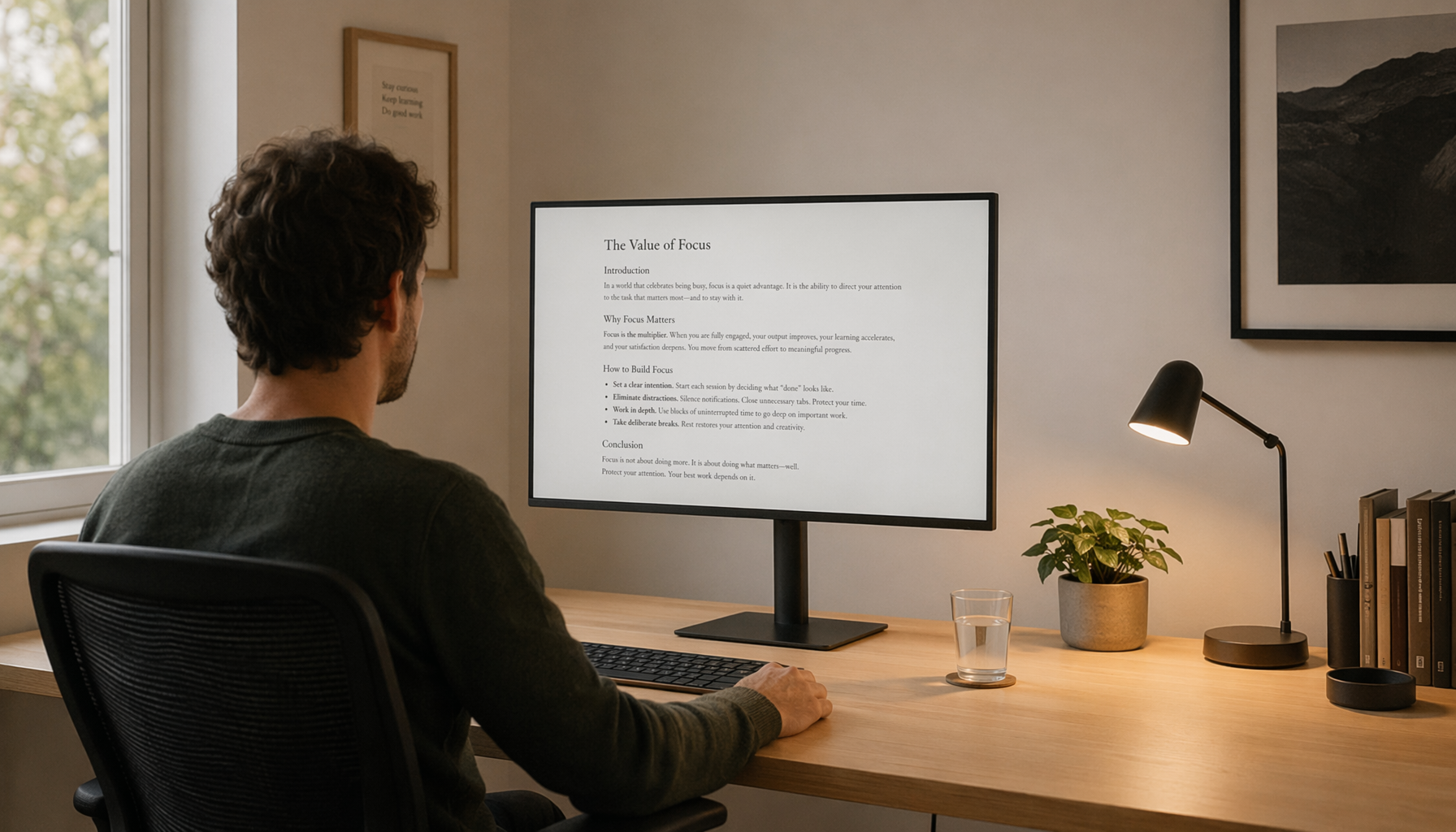
For office productivity displays, uniformity affects comfort and trust. A white document should not look clean in the center and slightly gray near the edge. On ultrawide monitors, the problem is amplified because your peripheral workspace covers more panel area.

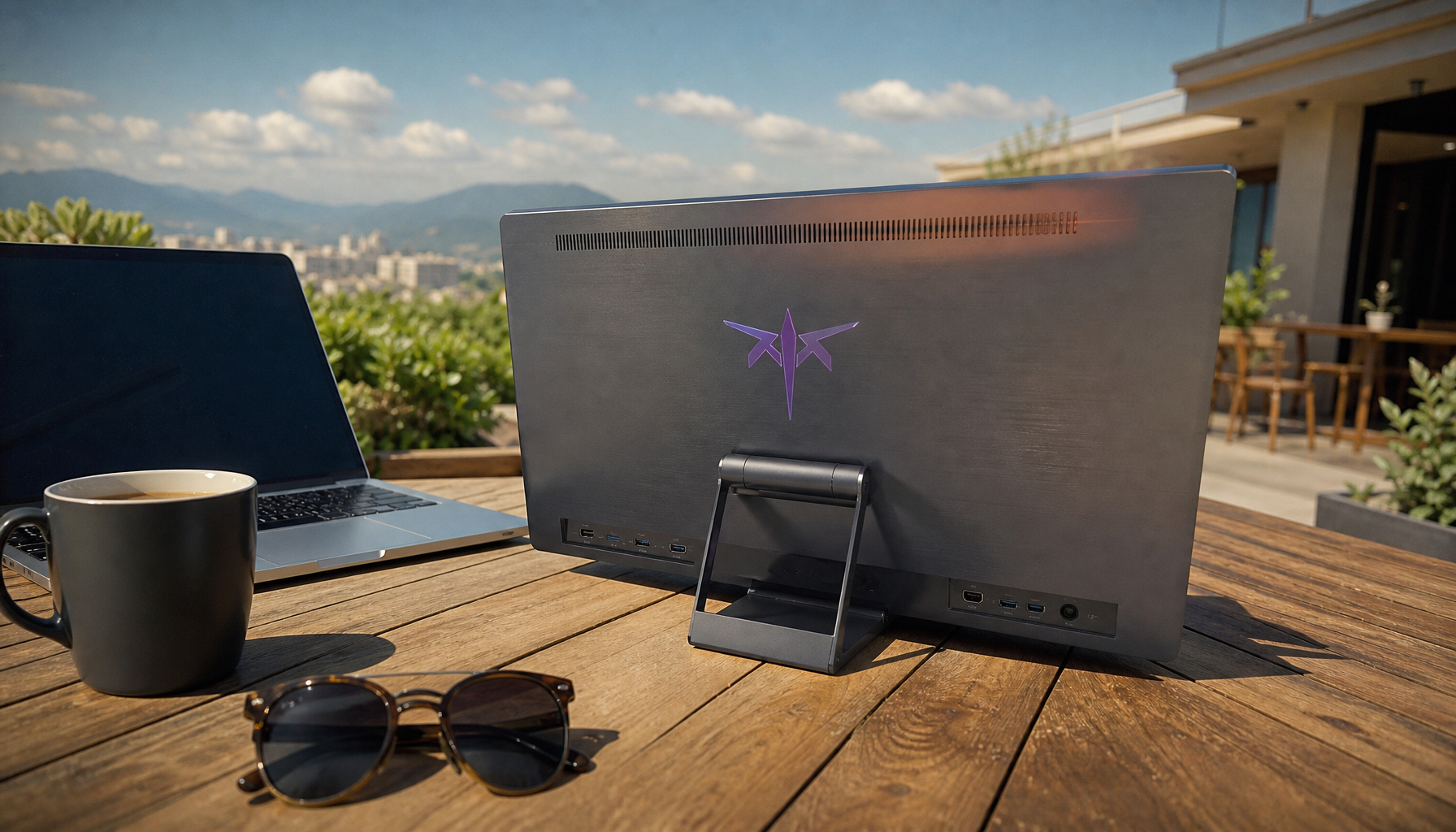
Portable smart screens add another risk: thinner chassis, travel pressure, and changing viewing angles can make edge behavior more noticeable. A center-perfect portable display can still feel uneven when used for presentations, second-screen dashboards, or photo review.
Better Evaluation: Measure the Frame, Not Just the Center
A stronger uniformity check uses multiple points across the panel, usually the center, edges, and corners. The goal is not to replace calibration; it is to verify that calibration holds across the image area users actually see.

Use this quick workflow:
- Warm up the display before measuring.
- Calibrate the center for baseline accuracy.
- Measure a grid across the screen.
- Compare luminance and color shifts by zone.
- Review full-screen gray, white, and dark patterns visually.
Display standards and lab methods recognize that image quality includes spatial behavior; display quality control evaluates more than a single center target.
Center-weighted calibration is still valuable for baseline color accuracy, but it should be treated as the start of evaluation, not proof of full-frame uniformity.