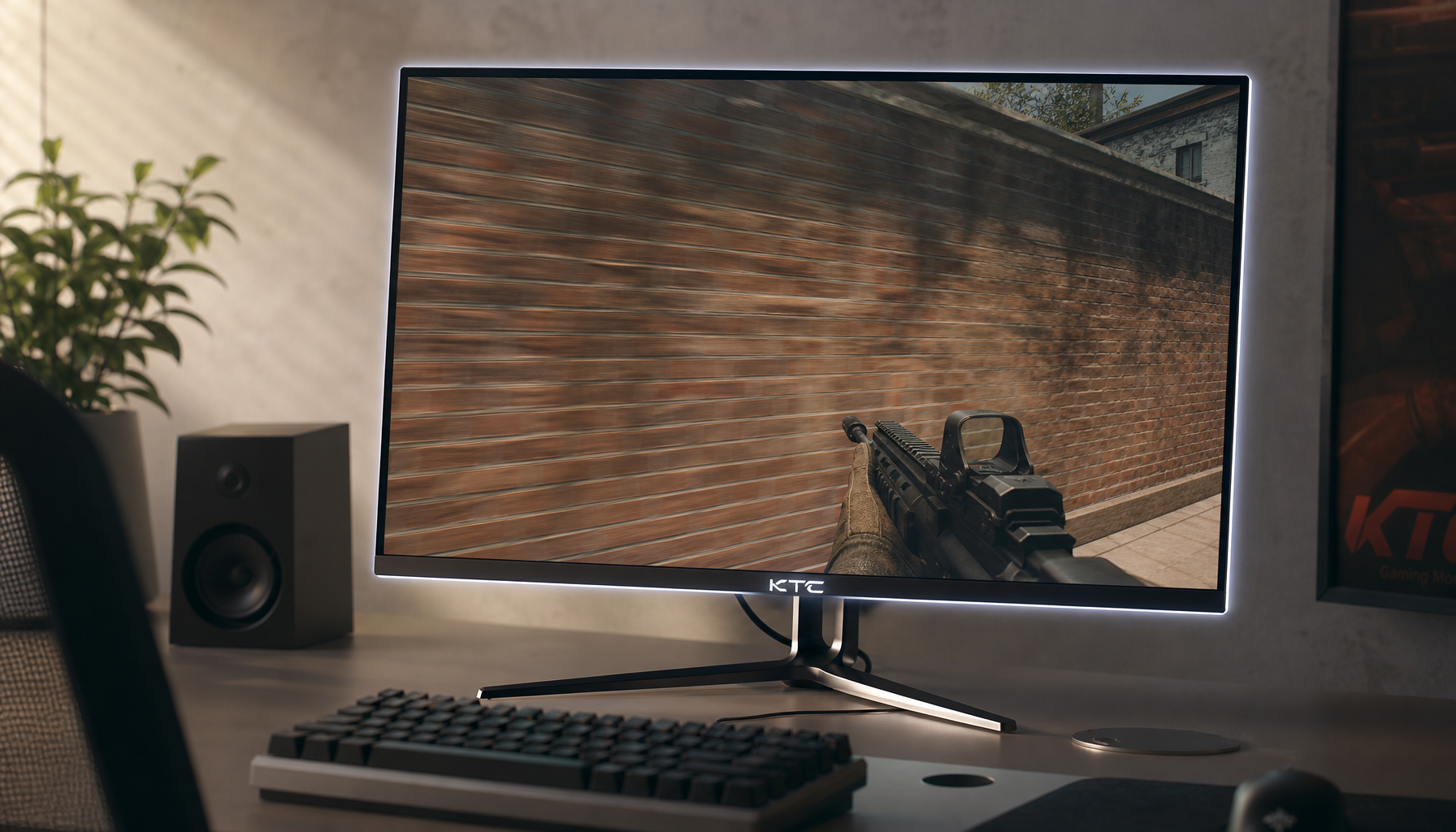
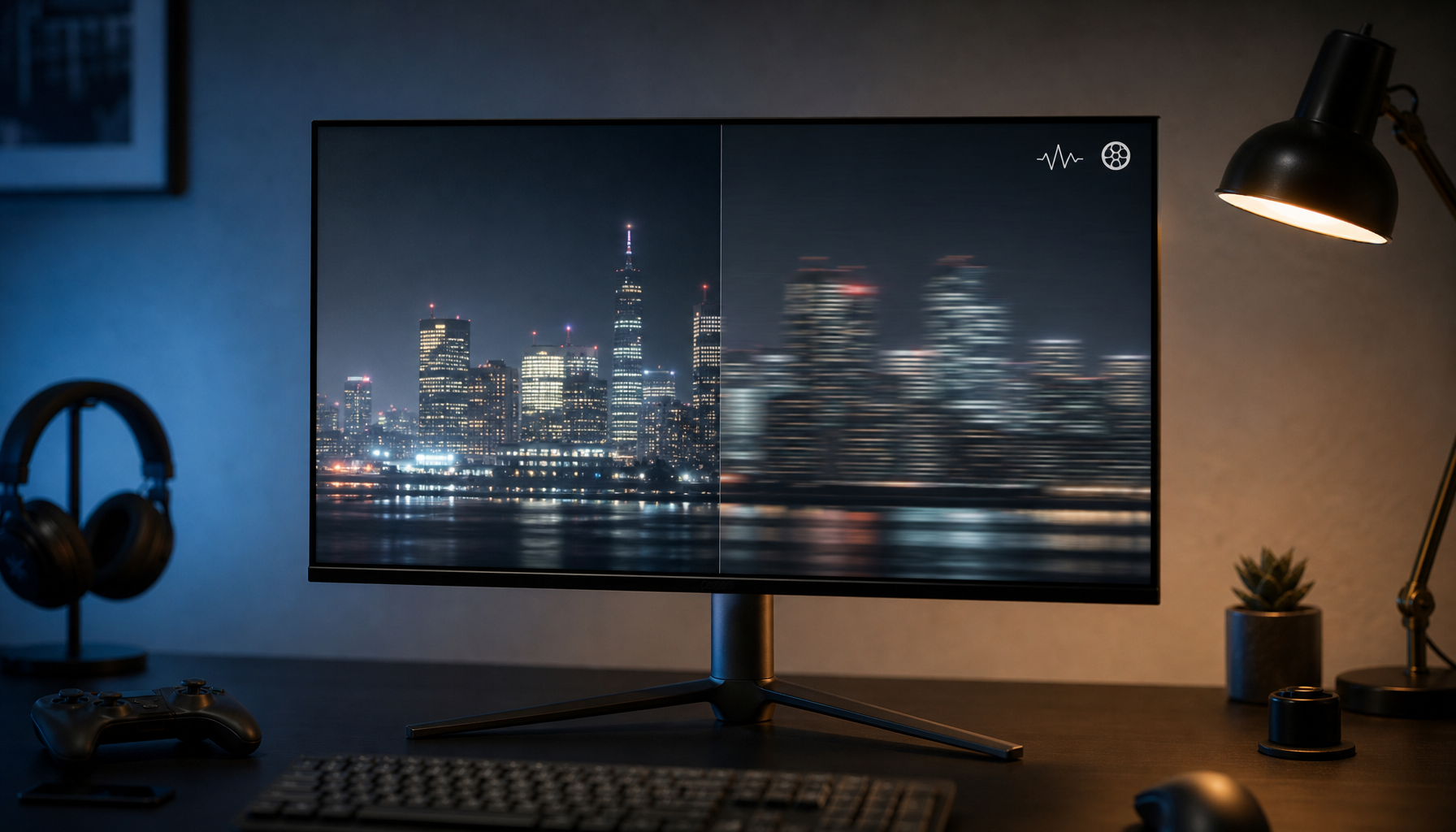
A native 4K monitor shows the full 3840 x 2160 image, while a 1080p display can only show a reduced 1920 x 1080 version of that same content.
If you have ever played a 4K game trailer on a 1080p monitor and thought, “That looks better than normal 1080p, but not truly 4K,” your eyes were right. On a typical desk setup, the jump from roughly 90–95 PPI on many 24- to 26-inch 1080p gaming monitors to much denser 4K panels changes how text, HUD lines, foliage, and fine textures resolve. The sections below explain what detail disappears, what quality can still survive the downscale, and how to choose the right monitor for gaming and everyday use.
A 1080p Screen Cannot Show All the Detail in a 4K Image
Four source pixels become one output pixel
A 4K image carries about four times as many pixels as 1080p, so a 1080p monitor has to compress that extra information into a much smaller pixel grid. The result is simple: fine detail gets merged. Tiny text strokes, distant map labels, fabric texture, thin specular highlights, and single-pixel diagonal lines are the first things to lose definition.
That does not mean the 1080p version looks bad. It means it looks different because the display is no longer presenting every pixel the source created. On a gaming monitor, this often shows up in UI sharpness and edge clarity before it shows up in broad scene detail. A cinematic shot may still look rich, but the micro-detail that makes native 4K feel “clean” is reduced.
The difference is larger on desktop monitors than many buyers expect
A native 4K panel still looks better than 1080p content scaled to it, even when full-screen video can appear only slightly softer at the same physical size. That distinction matters for monitor buyers because desktop use is harsher than movie watching. Text, spreadsheets, browser tabs, and game HUDs expose scaling artifacts faster than motion video does. A 27-inch 4K panel such as the a brand’s 27-inch 4K 160Hz/320Hz 90W gaming monitor shows the full 3840 x 2160 image on the desk, while a 1080p display viewing that same content is seeing a reduced version.

This is why someone can say a 1080p stream “looks fine” on a 27-inch 4K monitor, then complain that the desktop on a platform looks soft or awkward. Static elements reveal the limits of scaling much more clearly than moving images.
Downscaled 4K Can Still Look Better Than Ordinary 1080p
Oversampling helps even when the final screen is only 1080p
A 4K-to-1080p downscale can preserve more useful image information per output pixel because each 1080p pixel is built from a 2 x 2 block of source pixels. In practice, that acts a bit like multisampling or anti-aliasing. Edges can look smoother, shimmer can drop, and compressed color detail can survive the resize better than it would in a native 1080p source.
This is the reason many viewers notice that a 4K upload on a platform still looks unusually clean on a 1080p monitor. You are not seeing full native 4K detail, but you may be seeing a better-sampled and better-encoded 1080p result than a regular 1080p file would deliver.
Better source quality and better display quality are not the same thing
A 4K stream on a 1080p display can also look better because services often give 4K tiers better encodes, not just more pixels. Higher bitrate, cleaner compression, and fewer visible artifacts can make the downscaled image look more refined. That improvement comes from the source pipeline, not from the 1080p panel suddenly becoming a 4K panel.
For monitor shoppers, that distinction matters. If your main use is streaming video, a good 1080p monitor may still benefit from higher-quality 4K source files. If your main use is desktop work, photo review, or strategy games with dense UI, the native panel resolution still decides how much real detail you can actually see at once.
Running a 4K Monitor at 1080p Often Looks Worse Than Buyers Expect
Native resolution is where LCD monitors look their best
A 1080p signal on a 4K monitor is upscaled rather than reproduced one-for-one, which is why it often looks a little softer than a native 1080p monitor. In theory, the 2:1 scaling ratio sounds perfect. In practice, monitor processing, GPU scaling, edge enhancement, and subpixel behavior still affect the final result.
That is why the most practical advice for a 4K monitor is usually to leave the panel at native 4K and raise UI scaling instead. A 27-inch 4K desktop setup at around 150% scaling is a common compromise because it keeps the panel sharp while making text usable.

Real-world desktop complaints are consistent
A 27-inch dual-4K user running both displays at 1080p reported that games looked acceptable while the desktop looked poor, especially with platform scaling left at 100%. That pattern is common: games can hide softness with motion, but text and window borders cannot.
A similar 27-inch 4K vs. 23-inch 1080p comparison from a brand found that GPU scaling and added sharpness improved the image, yet it still failed to match the crispness of the native 1080p screen for text and window edges. If you are buying a monitor mainly for office work, coding, or web use, this is one of the strongest reasons not to plan on running a 4K panel at 1080p long-term.
Screen Size and Viewing Distance Change How Big the Gap Feels
1080p is much more forgiving on smaller monitors
A 1080p monitor looks sharper at 21 to 24 inches than it does at 27 inches and above because the same pixel count is packed into a smaller surface. That is why a 24-inch 1080p esports monitor can still look perfectly reasonable at normal desk distance, while a 27-inch 1080p display starts to show its structure more clearly.
The same logic helps explain why small portable monitors often get away with 1080p better than larger desk monitors do. Higher density masks the limits. Larger ultrawide and big-screen desktop displays do the opposite: they make low pixel density easier to notice, especially when you sit close.
Distance changes what your eyes can resolve
A 24-inch 1080p screen is commonly suited to competitive gaming and close seating, while larger screens benefit more from added resolution or a slightly longer viewing distance. At a few feet away, some of the difference between native 4K and downscaled 1080p shrinks. At typical desk distance, especially on 27-inch and larger panels, the difference is easier to see.

That is why “Is 4K worth it?” has no single answer. The right answer depends on three linked variables: screen size, viewing distance, and task. Fast shooters, office work, video editing, and console gaming do not punish the display in the same way.
The Best Choice Depends on Whether You Value Sharpness, Refresh Rate, or Efficiency
High-refresh gaming still changes the equation
A 2026 gaming monitor range of roughly 240–500Hz at 1080p, 165–240Hz at 1440p, and 120–240Hz at 4K shows why many players still choose lower resolutions. Driving 4K well requires far more GPU power. If your priority is frame rate, low input latency, and stable competitive performance, a native 1080p or 1440p gaming monitor is often the cleaner choice than buying 4K and scaling down most of the time.

For mixed-use buyers, 1440p remains the middle ground. It gives a noticeable jump in workspace and detail over 1080p without the full rendering burden of 4K. That is especially relevant for gamers who want sharper desktop use but are not ready to commit GPU budget to native 4K.
Buy the monitor you plan to run natively most of the time
A buyer considering 1440p gaming on a future-proof 4K monitor was really facing the core monitor-buying question: do you optimize for today’s actual workload, or for the resolution you hope to use later? In most cases, native use wins. A monitor looks best at its designed resolution, whether that is 1080p, 1440p, 4K, or an ultrawide equivalent.
If nearly all your content, games, and hardware are staying at 1080p for the next few years, a strong 1080p high-refresh display can be the smarter purchase. If you split time between productivity, media, and slower-paced games, a 27-inch 4K monitor used at native resolution with UI scaling is usually the better long-term desktop experience.
Setup |
What you see |
Best fit |
Main compromise |
Native 4K on a 4K monitor |
Full detail, sharp text, cleaner fine edges |
Productivity, photo work, premium single-player gaming |
Higher GPU demand and usually lower refresh for the same budget |
4K content downscaled on a 1080p monitor |
Cleaner than ordinary 1080p in many cases, but not full 4K detail |
Streaming, casual media viewing, budget setups |
Fine detail is still lost at the display level |
1080p signal on a 4K monitor |
Often acceptable in motion, softer on desktop and text |
Temporary fallback when hardware is limited |
Native 1080p monitor usually looks cleaner for text |
Native 1080p on a 24-inch gaming monitor |
Fast, efficient, easy to drive at high refresh |
Esports and value-focused gaming |
Less workspace and less fine detail |
Native 1440p on a midrange gaming monitor |
Balanced sharpness and performance |
Mixed gaming and daily desktop use |
Not as crisp as 4K, not as fast or cheap as 1080p |
FAQ
Q: If I select a 4K video stream on a 1080p monitor, am I actually seeing 4K?
A: No. Your monitor still outputs only 1920 x 1080 pixels. What you may see is a better downscaled image because the source started with more detail and may also use a better bitrate or cleaner compression.
Q: Why does 1080p sometimes look worse on a 4K monitor than on a native 1080p monitor?
A: Because the 4K panel is scaling that lower-resolution signal to fit its native pixel grid. Motion can hide the softness, but desktop text, icons, and sharp edges reveal it quickly.
Q: Is 4K worth it for a gaming monitor if I want very high refresh rates?
A: Usually only if your GPU and your game library support it. For competitive gaming, native 1080p or 1440p often makes more sense. For mixed use, 4K becomes easier to justify because desktop clarity improves even when gaming does not always run at native 4K.
Practical Next Steps
The practical rule is simple: buy for the resolution you will actually use every day, not the one you might use someday. Native 4K is best when you value desktop sharpness and media detail. Native 1080p is still a strong choice for high-refresh value. Native 1440p remains the safest middle ground for many gaming monitor buyers.
- Match screen size to resolution before anything else: 1080p works best on smaller monitors, while 27-inch and larger screens benefit more from 1440p or 4K.
- Keep a 4K monitor at native resolution and use UI scaling instead of switching the panel to 1080p.
- If you mainly watch streamed video, remember that a 4K source can still improve image quality on a 1080p monitor without becoming true 4K.
- If you mainly play esports titles, prioritize refresh rate and GPU headroom over maximum resolution.
- If you are choosing between future-proofing and current usability, pick the monitor that looks right at the resolution you can sustain now.
References
- A platform: How do 1080p text and computer sources look on a 4K Display?
- A brand: Understanding the Best Monitor Size for 1080p Across Various Workflows
- A platform: Why is 4K downsampled so much better than 1080p at low bitrates?
- A platform: Gaming Monitor Resolution Guide 2026
- A platform: Down scale from 4k to 1080p looks horrible
- A platform: Does anybody have a good solution to scale 1080p onto a 4k monitor?
- A platform: Downscaling 4k vs. native 1440p for gaming?
- A platform: 4k monitor set to 1080p looks blurry?