Display brightness changes what the eye treats as important. When luminance is too high or too low, hierarchy cues like contrast, spacing, color, and type weight can feel weaker, harsher, or less reliable than the design actually is.
Brightness Rewrites Visual Priority
Visual hierarchy is the order in which users notice and understand elements on a screen, shaped by size, color, contrast, alignment, spacing, and repetition. Strong visual hierarchy helps people scan faster and act with less friction.
Brightness affects that scan path because it changes perceived emphasis. A bright white dashboard can make secondary cards feel louder than intended, while a dim screen can flatten subtle dividers, shadows, and disabled states.

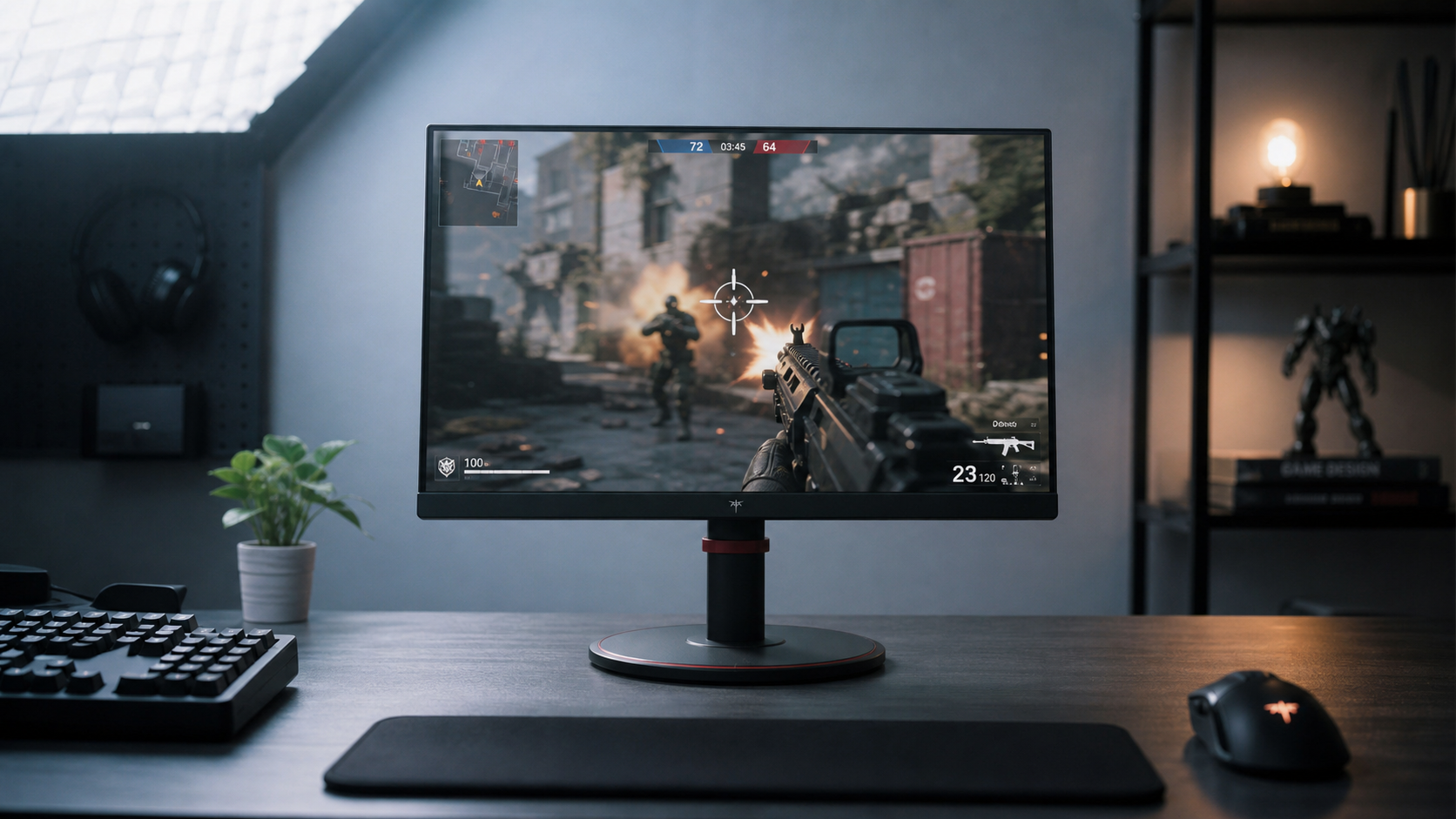
For gaming monitors, this is why enemy visibility, HUD readability, and menu contrast depend on more than resolution or refresh rate. For office displays, it is why a spreadsheet header, CTA button, or warning badge may feel obvious at noon but muted at night.
Contrast Needs Room to Breathe
Contrast is the separation between bright and dark areas. A display with poor perceived contrast makes everything compete; a display pushed too bright can wash out light tones and reduce the impact of carefully chosen foreground colors.
A useful baseline is to adjust brightness first, then contrast. Monitor contrast ratio describes the difference between the darkest black and brightest white a screen can produce, and a stronger contrast ratio helps preserve depth when the panel and room lighting cooperate.
Designers often build hierarchy with small contrast steps: primary text, secondary text, borders, muted labels, and hover states. If the screen is too bright, those steps compress visually; if it is too dim, shadow detail and low-contrast UI elements can disappear.
Match Brightness to the Room
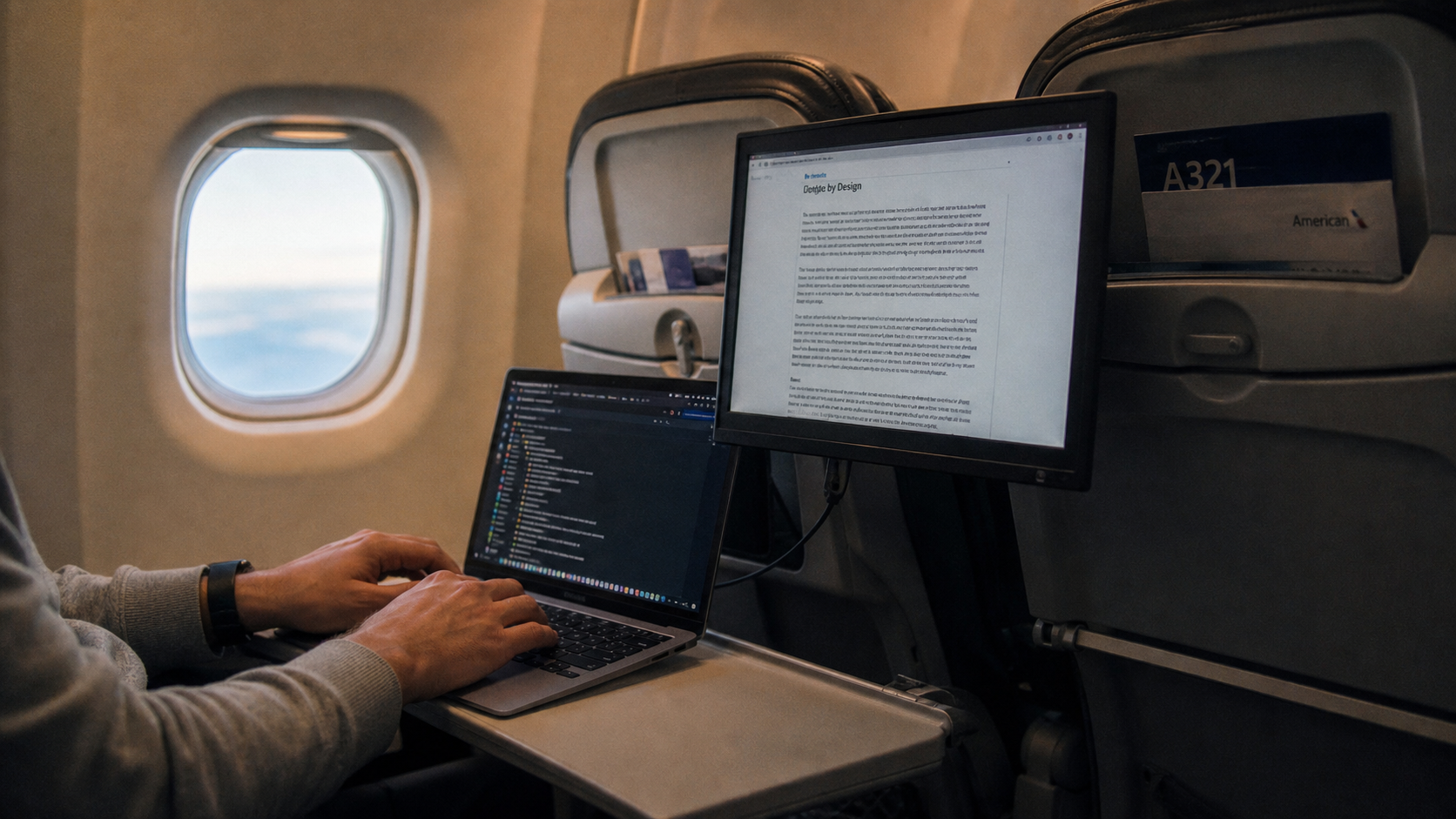
Brightness should respond to ambient light, not personal habit alone. A bright office, a dim bedroom, and a portable smart screen on a flight all need different luminance targets.

For gaming, one practical range is about 250–350 nits in brighter rooms, with lower settings in dark spaces to reduce strain while keeping visibility. At night, lower brightness with controlled contrast usually feels clearer than running the same vivid daytime preset.
- Set brightness until a white page looks like lit paper, not a lamp.
- Use native resolution so type hierarchy stays sharp.
- Keep contrast high enough for separation, but not clipping.
- Recheck settings when moving from daylight to evening use.
Brightness Also Affects Creative Accuracy
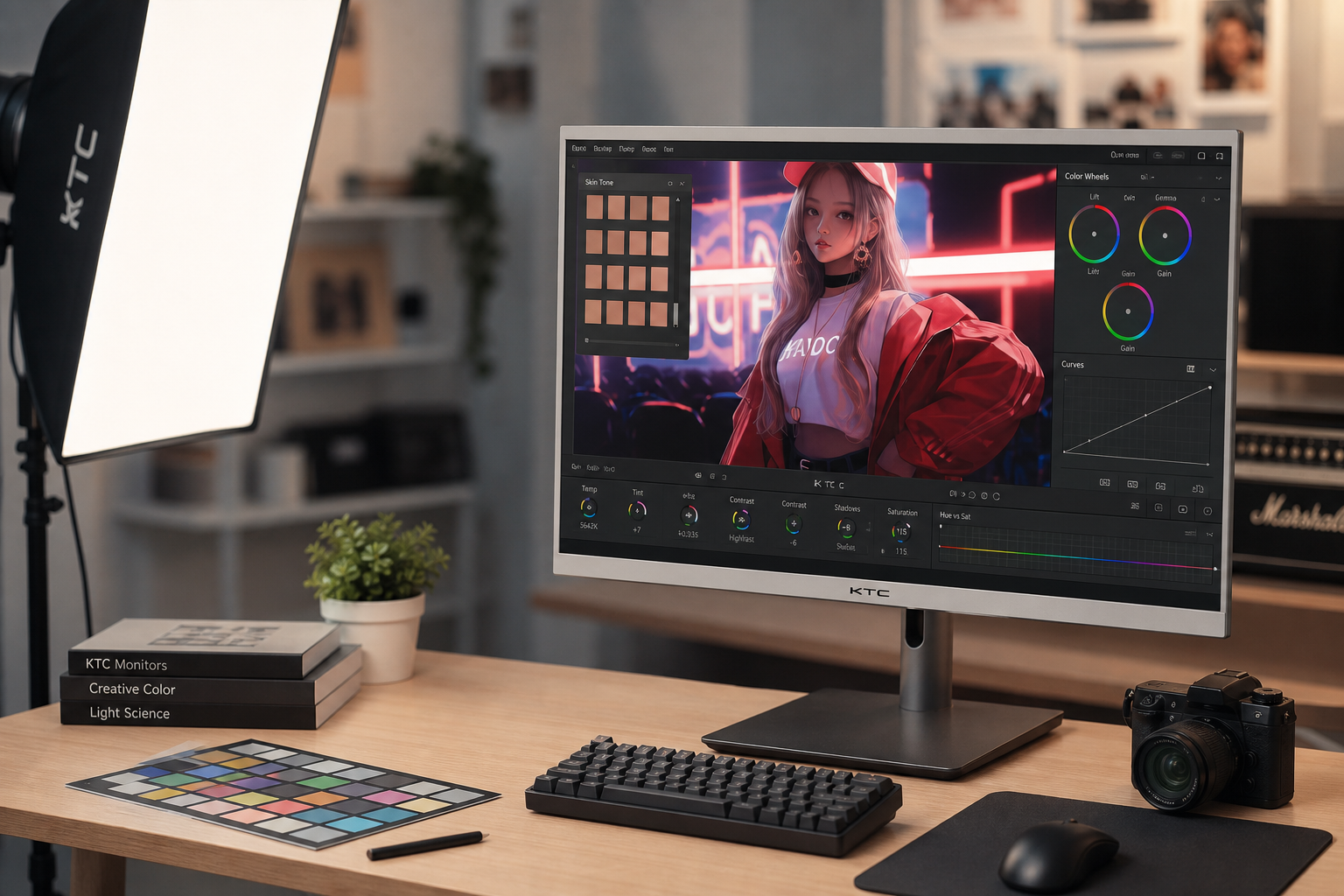
Brightness is not the same as image correction. In editing software, brightness changes overall tonal values, while contrast changes the range between light and dark tones; a brightness adjustment can expand highlights or shadows depending on direction.
That distinction matters for design review. If your monitor is too bright, you may under-design contrast because everything already feels intense. If it is too dim, you may overcorrect with bolder colors, heavier shadows, or oversized text.

For professional workflows, color consistency matters too. Auto color management is designed to keep colors more consistent across apps on supported displays, which helps when color consistency is part of the job.
Better Brightness Makes Better Decisions
The best monitor setting is the one that lets hierarchy behave as designed. Primary actions should pop, secondary content should stay readable, and background surfaces should support focus without glare.
Brightness cannot rescue weak hierarchy, but bad brightness can make good hierarchy look broken.
For pro gaming, tune brightness for fast recognition without crushing dark detail. For office productivity, tune it for long-session readability. For portable smart screens, tune it every time the environment changes, because the screen is only as useful as the perception it enables.