









DisplayPort 1.4 provides 32.4 Gbps of raw link bandwidth, about 25.92 Gbps of usable video payload, and DSC can make that payload behave like much more bandwidth for supported modes without a visible quality penalty in normal use.
Choosing between 1440p 240Hz, 4K 144Hz, HDR, and a monitor spec sheet that says “DP 1.4 with DSC” can be confusing. A clean HBR3 DisplayPort 1.4 link can carry about 25.92 Gbps of usable data, while DSC is the reason many high-refresh HDR modes fit when raw bandwidth alone would not. Here is what the numbers mean, when DSC matters, and how to avoid buying the wrong cable, GPU, or monitor.
The Real DisplayPort 1.4 Bandwidth Number
The first thing to separate is raw bandwidth from usable bandwidth. DisplayPort 1.4 runs at up to 8.1 Gbps per lane across four lanes, which gives 32.4 Gbps raw, but after encoding overhead, the practical video payload is about 25.92 Gbps, a figure also reflected in technical positioning for 8.1 Gbps per lane.

That 25.92 Gbps number is the one that matters when judging whether a signal can fit uncompressed. A monitor box may advertise “32.4 Gbps,” but the screen does not get all of that for pixels. For a practical desk example, 2560 x 1440 at 240Hz in 8-bit RGB or 8-bit 4:4:4 can often fit over DP 1.4 without DSC when timing is efficient, because the active image data is roughly 21.2 Gbps before timing overhead, and 1440p 240Hz without DSC is realistic on a clean HBR3 connection.
DisplayPort 1.4 figure |
What it means |
32.4 Gbps |
Raw four-lane link bandwidth |
25.92 Gbps |
Approximate usable video payload after overhead |
DSC 1.2a |
Compression support used to fit heavier display modes |
Common practical fit |
1440p 240Hz 8-bit SDR without DSC, depending on timings |
Common DSC trigger |
10-bit HDR at high refresh rates |
What DSC Changes
DSC means Display Stream Compression. It is a visually lossless compression system, not the kind of heavy quality tradeoff people associate with low-bitrate streaming video. In real monitor use, its value is simple: it lets the GPU and monitor carry high-resolution, high-refresh, high-color-depth signals through a port that would otherwise run out of payload.
The important phrase is “visually lossless,” not “uncompressed.” DSC still compresses the signal, but the goal is that you do not see a meaningful difference during normal gaming, office work, or creator workflows. In a practical monitor review, the larger visible differences usually come from the panel itself: coating, subpixel layout, overdrive behavior, HDR tuning, local dimming quality, font smoothing, and calibration. DSC is usually not the reason text looks soft or motion looks smeared.
A simple way to think about it is this: DisplayPort 1.4 without DSC is a fixed-size pipe, and 25.92 Gbps is the usable pipe size. DSC does not physically make the pipe wider. It packs the video stream more efficiently so that modes like 4K high refresh or 1440p high refresh with 10-bit HDR can pass through.

How Much Effective Bandwidth Does DSC Provide?
There is no single honest “DP 1.4 with DSC equals X Gbps” answer unless the compression ratio, resolution, refresh rate, bit depth, chroma format, and timing behavior are specified. Many discussions simplify DSC as roughly 3:1 compression, which makes DP 1.4’s 25.92 Gbps payload behave like a much larger uncompressed payload for compatible modes, but the actual implementation is about fitting a target video format rather than advertising one universal effective number.
For buyer decisions, the useful answer is that DP 1.4 with DSC can support modes well beyond the 25.92 Gbps uncompressed ceiling when both source and display support the same DSC path. That is why comparisons often list DisplayPort 1.4 bandwidth as 32.4 Gbps raw and 25.92 Gbps data rate while still acknowledging demanding modes such as 4K 120Hz and 8K 60Hz with compression support.
Here is the performance-minded interpretation. If your desired mode fits under 25.92 Gbps after real timing overhead, DSC is not necessary. If it exceeds that limit because you enabled HDR, 10-bit color, higher refresh, or a larger resolution, DSC becomes the bridge. The monitor may still look excellent, but your setup becomes more dependent on GPU support, monitor firmware, cable quality, and mode negotiation.
1440p 240Hz: The Best Real-World Example
A 1440p 240Hz esports display is the cleanest way to understand the boundary. At 8-bit SDR, DisplayPort 1.4 can usually handle the signal without DSC over a clean HBR3 link. This is why many high-refresh 1440p monitors feel straightforward: plug in DisplayPort, set 240Hz in the system display settings or GPU control panel, and you are done.

The moment you move to 10-bit HDR, the math gets tighter. 10-bit color uses about 25% more color data than 8-bit color, so a mode that was comfortably inside the limit can move toward or beyond the usable payload ceiling. That is why 10-bit HDR is often the point where DSC becomes necessary at 1440p 240Hz.
For competitive gaming, that tradeoff is usually acceptable. DSC does not meaningfully add input lag in normal use, and the refresh-rate gain is far more important than theoretical purity. For office productivity, DSC is also usually fine, but if text clarity disappoints you, check scaling, sharpness, panel coating, font smoothing, and chroma format before blaming DSC.
4K, HDR, and High Refresh: Where DSC Earns Its Keep
At 4K, DisplayPort 1.4 runs out of uncompressed headroom much faster. 4K 60Hz is easy territory. 4K 120Hz can be possible depending on color settings and timings, while 4K high refresh with 10-bit HDR is exactly the kind of monitor use case that made DSC valuable.

This is where the HDMI 2.1 comparison matters. HDMI 2.1 has up to 48 Gbps raw bandwidth, giving it more headroom than DP 1.4, and that makes it a strong fit for consoles, TVs, and living-room gaming. Still, DisplayPort 1.4 remains deeply relevant on PC because desktop GPUs and gaming monitors commonly use it, and PC gaming monitors often pair high refresh, adaptive sync, and multi-monitor workflows around DisplayPort.
For a 4K 144Hz gaming monitor, DP 1.4 with DSC is not a warning sign by itself. It is often the intended operating mode. The better question is whether the GPU, cable, monitor input, firmware, and driver all support the exact mode you want: native resolution, target refresh rate, RGB or 4:4:4 color, desired bit depth, HDR, and VRR.
Pros and Cons of DP 1.4 With DSC
The biggest advantage is value. DP 1.4 with DSC lets many monitors deliver premium-feeling modes without requiring a newer DisplayPort 2.1 UHBR20 chain. That keeps cost down while still enabling high-refresh PC gaming, creator work, and dense multitasking displays.
The second advantage is image quality in practice. For most users, DSC is not something they can spot during normal motion, text work, or desktop use. If a display looks poor, the more likely causes are panel quality, bad scaling, low-quality HDR implementation, poor overdrive tuning, or an accidental color-format downgrade.
The downside is compatibility friction. Some setups can show brief black screens during wake, resolution changes, alt-tabbing, or multi-monitor renegotiation. Some GPU features may also be restricted when DSC is active, especially in edge cases involving very high refresh rates, multiple displays, or driver-specific features. A broader discussion around newer DisplayPort labels makes a useful point: version numbers alone can mislead, and detailed bandwidth specifications matter more than a big port-version badge.
Cable and Setup Advice That Actually Matters
Use a native DisplayPort connection from the GPU to the monitor whenever possible. Adapters add one more negotiation point, and at high refresh rates, that is exactly where stability problems appear. A short, certified, well-built DP 1.4 cable is the practical default for a 1440p 240Hz or 4K high-refresh desk.

Do not assume every “DisplayPort cable” is equal. Cable length, shielding, build quality, and certification matter, especially near the HBR3 limit. If a monitor randomly drops signal, refuses 240Hz, loses HDR, or falls back to a lower color mode, test with a shorter certified cable before replacing the monitor or GPU.
Also check the monitor’s input notes. Some displays reserve their highest refresh mode for DisplayPort while HDMI is capped lower. That is common enough that buying based only on the headline resolution and refresh rate can lead to disappointment. For consoles, HDMI 2.1 is usually the right path; for gaming PCs and multi-monitor productivity desks, DisplayPort 1.4 remains the more natural fit because of GPU and monitor support, plus MST and adaptive-sync ecosystems.
Quick FAQ
Is DisplayPort 1.4 with DSC better than HDMI 2.1?
Not universally. HDMI 2.1 has more raw bandwidth at 48 Gbps and is usually better for TVs, consoles, eARC audio, and living-room setups. DisplayPort 1.4 with DSC is often better aligned with PC monitors, high-refresh desktop gaming, and multi-display workstations.
Does DSC reduce image quality?
In normal use, it should not create a visible quality loss. DSC is designed to be visually lossless, and practical sharpness problems are more often caused by panel behavior, scaling, chroma settings, or calibration than by DSC itself.
Should I avoid a monitor that needs DSC?
No, not automatically. Avoid it only if your workflow depends on a GPU feature that is known to be restricted with DSC, or if you run a complex multi-monitor setup where wake and switching delays would cost you time every day. For most gaming and productivity users, a well-implemented DSC monitor is a smart value choice.
DisplayPort 1.4 gives you 32.4 Gbps raw and about 25.92 Gbps usable. DSC does not change the physical bandwidth, but it lets that connection carry display modes that would otherwise exceed the uncompressed limit, often with no visible penalty. Buy around the whole chain: GPU, monitor, cable, color depth, HDR mode, refresh rate, and whether the monitor’s best mode actually runs over DisplayPort.


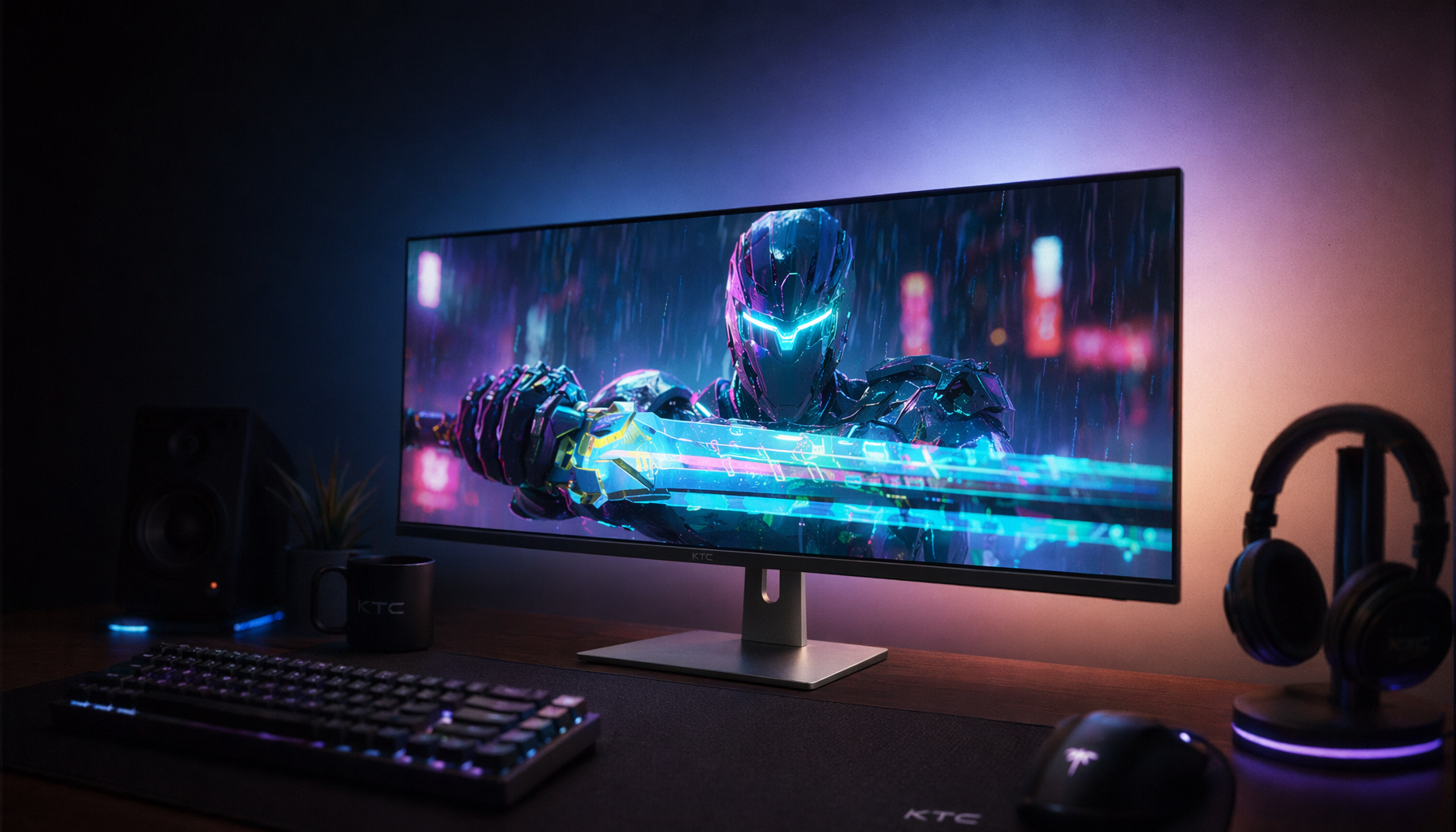
%20is%20the%20key%20to%20running%204K%20144Hz%20or%201440p%20240Hz%20HDR%20modes%20without%20visible%20quality%20loss.
)