







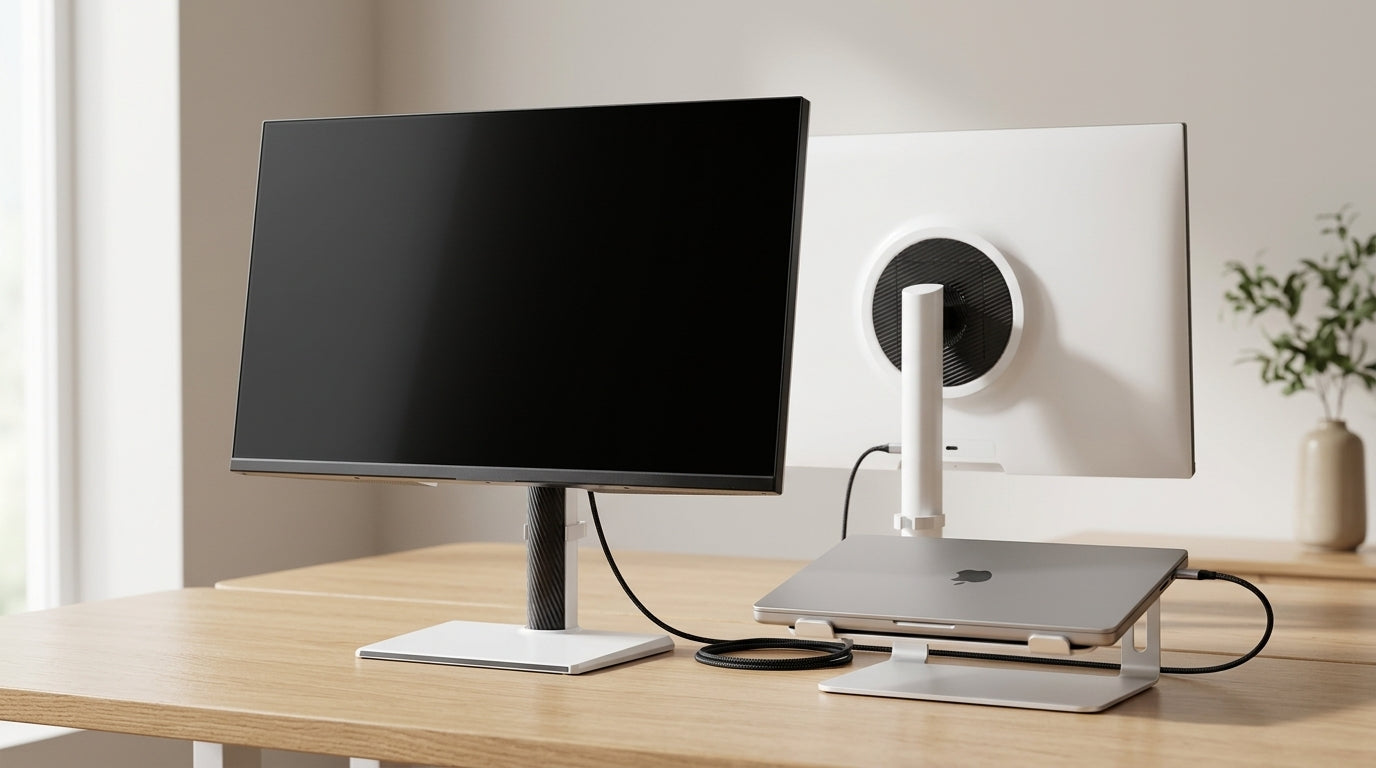
Many MacBook users want a clean, single-cable setup that delivers power, data, and a sharp external monitor image at the same time. DisplayPort Alternate Mode (DP Alt Mode) is the technology that makes this possible by letting a USB-C port send full native DisplayPort video signals. The right cable and monitor settings turn a seemingly ordinary USB-C connection into a high-performance video link, but the wrong choice often results in capped refresh rates, black screens, or frustrating limitations.

The MacBook Display Problem: Why Your USB-C Connection Matters
MacBook owners frequently expect a single USB-C cable to handle charging, data transfer, and high-resolution video without compromise. In practice, many discover that their connection only mirrors the screen at 60Hz or fails to produce an image at all. The root cause usually comes down to three factors: the specific USB-C port on the MacBook, the cable itself, and whether the monitor input is configured to support video over USB-C.
Charging-only cables lack the high-speed differential pairs needed for video. Even when the cable is capable, macOS and the monitor must negotiate the correct lane allocation. Poor negotiation commonly leads to reduced refresh rates or the dreaded “no signal” message. Understanding DP Alt Mode early helps you avoid these issues and build the one-cable workstation you actually want.
What is DisplayPort Alternate Mode (DP Alt Mode)?
DisplayPort Alternate Mode lets the USB-C connector carry native DisplayPort audio and video by reconfiguring its four high-speed lanes. Instead of forcing video through an adapter or separate port, the MacBook and monitor agree on a shared signaling format that travels inside the same cable that also supplies power and data.
The four lanes inside a USB-C cable can be allocated in different ways. A 4-lane video mode gives maximum bandwidth for resolution and refresh rate but limits the data channel to USB 2.0 speeds. A 2-lane video mode leaves two lanes for USB 3.0 data at roughly 5 Gbps, which is often the better balance for Mac users who also connect external drives or peripherals. The trade-off between video bandwidth and data speed is the core decision when setting up a MacBook with an external monitor.
How MacBooks Utilize DP Alt Mode for High-Performance Video
Every modern MacBook with a USB-C or Thunderbolt port natively supports DisplayPort output, according to Apple’s official guidance. Thunderbolt 3, 4, and later versions build on DP Alt Mode as their video foundation, so the same port can deliver video, power delivery, and high-speed data depending on what the connected device requests.
Apple Silicon chips add another advantage through strong support for Display Stream Compression (DSC). DSC is a visually lossless compression method that reduces the amount of data that must travel across the cable. This compression allows higher resolutions and refresh rates even when only two lanes are allocated to video, preserving USB 3.0 data speeds at the same time. Intel-based Macs before 2020 have more limited DSC support, so performance expectations should be adjusted downward for those older models.
DP Alt Mode vs. Thunderbolt 4: Clearing the Confusion
The USB-C shape is used by both standard DP Alt Mode and full Thunderbolt connections, which creates frequent confusion. Thunderbolt 4 guarantees 40 Gbps of total bandwidth plus stricter certification for docks and cables, while DP Alt Mode performance depends on the specific port version and cable quality. Most monitors, including KTC’s USB-C models, rely on DP Alt Mode rather than a full Thunderbolt controller to keep costs reasonable while still delivering excellent video performance.
For the majority of MacBook users, a monitor that supports DP Alt Mode over USB-C is sufficient. You do not need a Thunderbolt-certified monitor unless you require the extra features Thunderbolt provides, such as daisy-chaining multiple high-bandwidth devices or running multiple 4K displays from a single port. In everyday use, a well-implemented DP Alt Mode connection gives the same clean single-cable experience at a lower price.
Resolution and Refresh Rates: Unlocking 4K 144Hz on Your Mac
Newer MacBook Pro models with M4 Pro, M4 Max, or later chips support high-bandwidth standards such as DisplayPort 2.1, enabling up to 8K at 60Hz or 4K at 240Hz in ideal conditions, per Apple’s technical specifications. For most enthusiasts the practical sweet spot remains 4K at 144Hz, which balances sharpness, smoothness, and system load.
DSC plays a critical role here. Without compression, 4K 144Hz often exceeds the bandwidth available on a 2-lane connection. With DSC enabled, the same signal fits comfortably inside two lanes, freeing the remaining lanes for USB 3.0 data. Base M-series chips and older Intel Macs have stricter single-display limits, so users with those models should verify their exact configuration before expecting 4K 144Hz.
The chart above illustrates the bandwidth relief DSC provides. In typical setups, switching to the 2-lane mode with DSC keeps both high refresh rates and usable data speeds available on the same cable.
The Hardware Checklist: Cables, Ports, and Monitor Settings
A “Full Feature” or USB4-rated USB-C cable is required for reliable 4K 144Hz output. Standard charging cables do not contain the necessary high-speed lanes and will fail to transmit video. Look for cables explicitly marked as supporting video, data, and power delivery up to at least 90W.
On KTC monitors that offer USB-C input, open the on-screen display (OSD) menu and select “USB 3.0” mode. This setting allocates two lanes to video and two lanes to data, which works especially well with Apple Silicon Macs that use DSC. Older Intel Macs may need the “USB 2.0” (4-lane video) setting to avoid signal instability, though this reduces data transfer speeds.
Connecting the MacBook directly to the monitor is usually more reliable than routing through a cheap hub or dock. Direct connection lets the devices negotiate the optimal lane allocation without extra points of failure. For users who need multiple peripherals, choose a Thunderbolt dock that is certified for the bandwidth you require.

Common Failure Points: Troubleshooting Black Screens and Bandwidth Limits
macOS does not support DisplayPort Multi-Stream Transport (MST) for extending the desktop across multiple monitors from a single USB-C cable. Attempts to daisy-chain two monitors typically result in mirrored displays only. The practical workaround is to use separate ports or a Thunderbolt dock that provides independent video outputs.
Wake-from-sleep black screens are another frequent complaint, especially on M1 and M2 models. The handshake between the MacBook and monitor sometimes fails after the system wakes. Unplugging and replugging the cable, or restarting the monitor, usually restores the signal. Keeping both devices on the latest firmware and macOS version reduces these occurrences.
Power Delivery (PD) can also behave differently under load. A monitor advertised with 90W PD may deliver closer to 65W when the screen is at maximum brightness and HDR is enabled. Heavy workloads can still cause gradual battery drain on some MacBook models. Monitor your battery percentage during extended sessions and consider lowering brightness or using a dedicated charger if sustained power is critical.
Choosing Your Path: How to Build the Ultimate One-Cable MacBook Setup
Start by confirming your MacBook model and chip generation. Newer M-series Pro or Max chips give the most flexibility with DP 2.1 features and strong DSC support. Next, select a certified Full Feature USB-C or USB4 cable rated for the bandwidth and power you need. KTC’s Premium Display Signal Cables are designed specifically for these high-performance connections.
Connect directly to a USB-C monitor that supports DP Alt Mode, such as the KTC H27P6 or M27P6. In the monitor’s OSD, choose “USB 3.0” mode to enable the golden-path balance of 4K 144Hz video plus usable data speeds. Finally, verify that macOS recognizes the display at your desired resolution and refresh rate in System Settings > Displays.
When these steps align, the “magic inside the cable” disappears and you simply get a clean, high-performance workstation. The difference between a frustrating setup and a seamless one usually comes down to choosing the right cable and the correct monitor lane mode rather than any mysterious incompatibility.
Frequently Asked Questions
Does every USB-C port on a MacBook support DisplayPort Alternate Mode?
Yes, all USB-C and Thunderbolt ports on modern MacBooks support DP Alt Mode for video output. However, performance still depends on the cable quality and monitor input capabilities.
Can I run two external 4K monitors from a single USB-C cable on a MacBook?
No. macOS does not support MST, so two independent extended displays require either multiple ports or a Thunderbolt dock with separate video outputs.
Will a regular USB-C charging cable work for video output?
No. Charging-only cables lack the high-speed lanes required for DP Alt Mode. You must use a Full Feature cable that explicitly supports video, data, and power.
Why does my MacBook only output 60Hz even though the monitor supports 144Hz?
The cable, lane allocation, or monitor OSD setting may be limiting bandwidth. Switching the monitor to USB 3.0 mode and using a high-quality cable often restores the higher refresh rate.
Does Display Stream Compression reduce image quality?
DSC is designed to be visually lossless. In typical viewing conditions the compression is not noticeable, allowing higher resolutions and refresh rates within the available bandwidth.
Should I buy a Thunderbolt monitor or is USB-C with DP Alt Mode enough?
For most users a monitor with good DP Alt Mode support is sufficient and more cost-effective. Full Thunderbolt monitors are only necessary if you need the extra bandwidth or daisy-chaining features Thunderbolt provides.


%20is%20the%20technology%20that%20m...
)