DisplayPort Alternate Mode, usually shortened to DP Alt Mode, is what lets a USB-C connection carry monitor video without switching to a separate DisplayPort plug. It works by letting USB-C repurpose some or all of its four high-speed lanes for DisplayPort traffic while still supporting USB data and USB Power Delivery on the same connector and cable.
The important catch is compatibility. A USB-C connector shape does not guarantee video output. The source port has to support video, and not all USB-C cables support all features. In practice, every USB-C display setup is limited by the weakest link in this chain: source port, cable, dock or adapter, and monitor.

Action Checklist
- Confirm the source USB-C port supports DisplayPort Alt Mode, Thunderbolt, or USB4 display output in the device specs; a port may also have a DP logo nearby.
- Start with a direct connection before adding a dock, hub, KVM, or adapter.
- Use a full-featured USB-C cable, not a charge-only cable; certified cables can be labeled with both power and data rate.
- If you need the highest refresh rate or a heavy ultrawide resolution, prefer a video-first path instead of a dock loaded with USB peripherals.
- On the monitor, select the correct input source.
- In Windows, check Settings > System > Display, use Detect or Win+P, and confirm the expected refresh rate in Advanced display.
What DP Alt Mode Actually Does
Plain-English version: DP Alt Mode turns a USB-C port into a DisplayPort output path when both ends agree to use it. That is why one cable can sometimes handle:
- Video to the monitor
- USB data for the monitor’s hub, webcam, or Ethernet
- Charging back to the laptop through USB Power Delivery
VESA’s guidance is clear that DisplayPort, USB data, and USB Power Delivery can be carried simultaneously through the same USB-C cable. The reason this gets confusing is that video and fast USB data compete for the same high-speed lane budget. Power uses the same cable, but the display-performance tradeoff you notice day to day is mostly between video bandwidth and SuperSpeed USB data.
How the Lane Sharing Tradeoff Works
USB-C gives DP Alt Mode up to four high-speed lanes. If more of those lanes are reserved for video, you get more display headroom. If some are kept for USB 3.x data, you keep faster data on the same cable but give video less room to breathe.
VESA’s own examples show the tradeoff well: 4K at 60 Hz with simultaneous USB 3.1 on one hand, or 5K with simultaneous USB 2.0 on the other. In its FAQ for newer DisplayPort generations, VESA also notes that using only two lanes is what allows simultaneous SuperSpeed USB data and video.

USB-C display path |
Video headroom |
USB data on the same cable |
Official example |
Best fit |
DP Alt Mode with SuperSpeed USB still active |
Lower than a video-first path |
Yes, fast USB data remains available |
Desk docks, monitors with built-in USB hubs, webcam/Ethernet setups |
|
DP Alt Mode prioritizing video |
Higher |
Usually only USB 2.0-class data remains on that same link |
High-refresh gaming monitors, heavier ultrawides, higher-resolution panels |
|
USB-C to HDMI or DisplayPort adapter path |
Depends on the adapter and monitor |
Depends on the adapter |
USB-C adapters are defined for DisplayPort, HDMI, DVI, and VGA displays |
Existing monitors, TVs, conference-room displays |
That tradeoff is why a single-cable office monitor can feel effortless at 60 Hz, while the same laptop may need a cleaner, more direct path to hit the top refresh rate on a gaming display.
What This Means for Real Monitor Setups
For gaming monitors
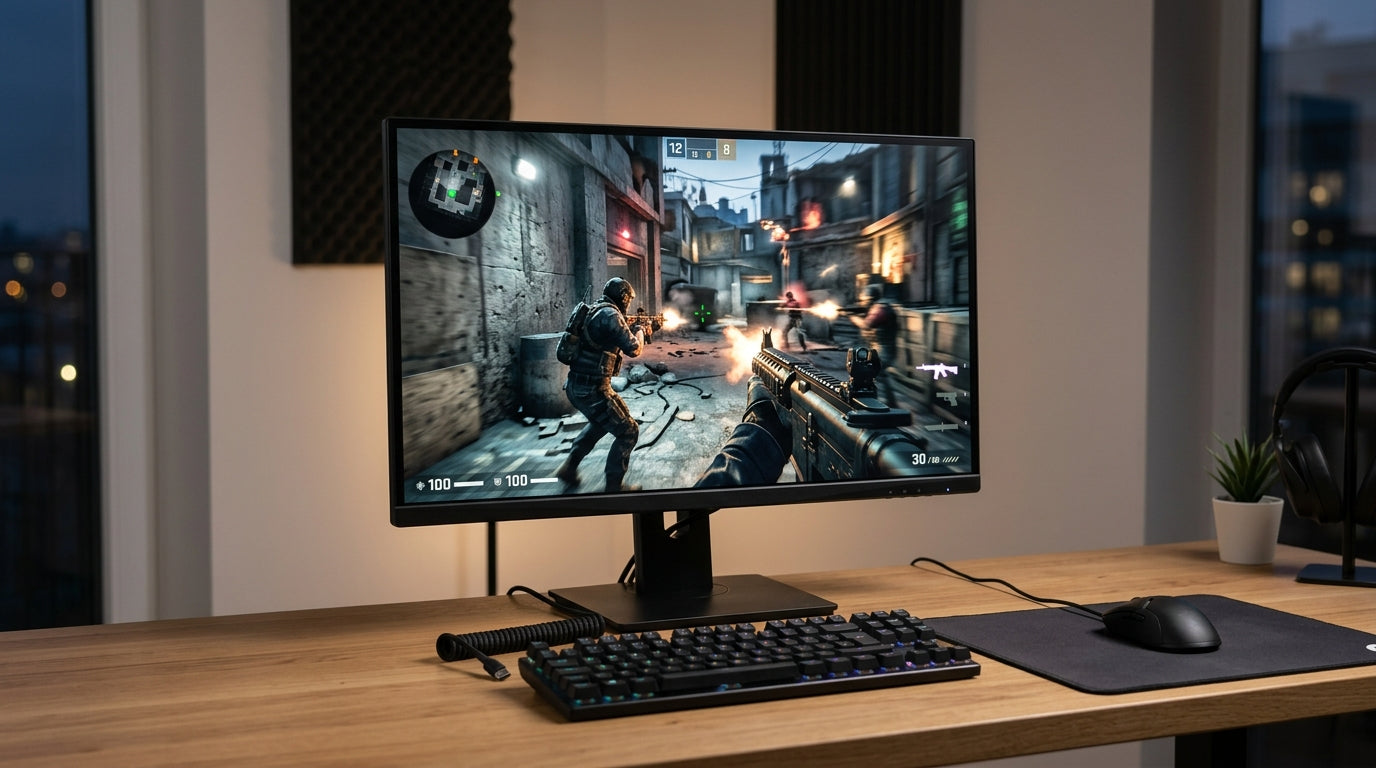
If your goal is the maximum refresh rate, keep the signal path simple. A direct DisplayPort connection is often the least ambiguous option. If you are using USB-C, a direct USB-C-to-DisplayPort cable or a monitor input that prioritizes video is usually safer than routing through a dock that also has USB-A devices, Ethernet, storage, and multiple display outputs hanging off the same link.
For ultrawide and high-resolution displays
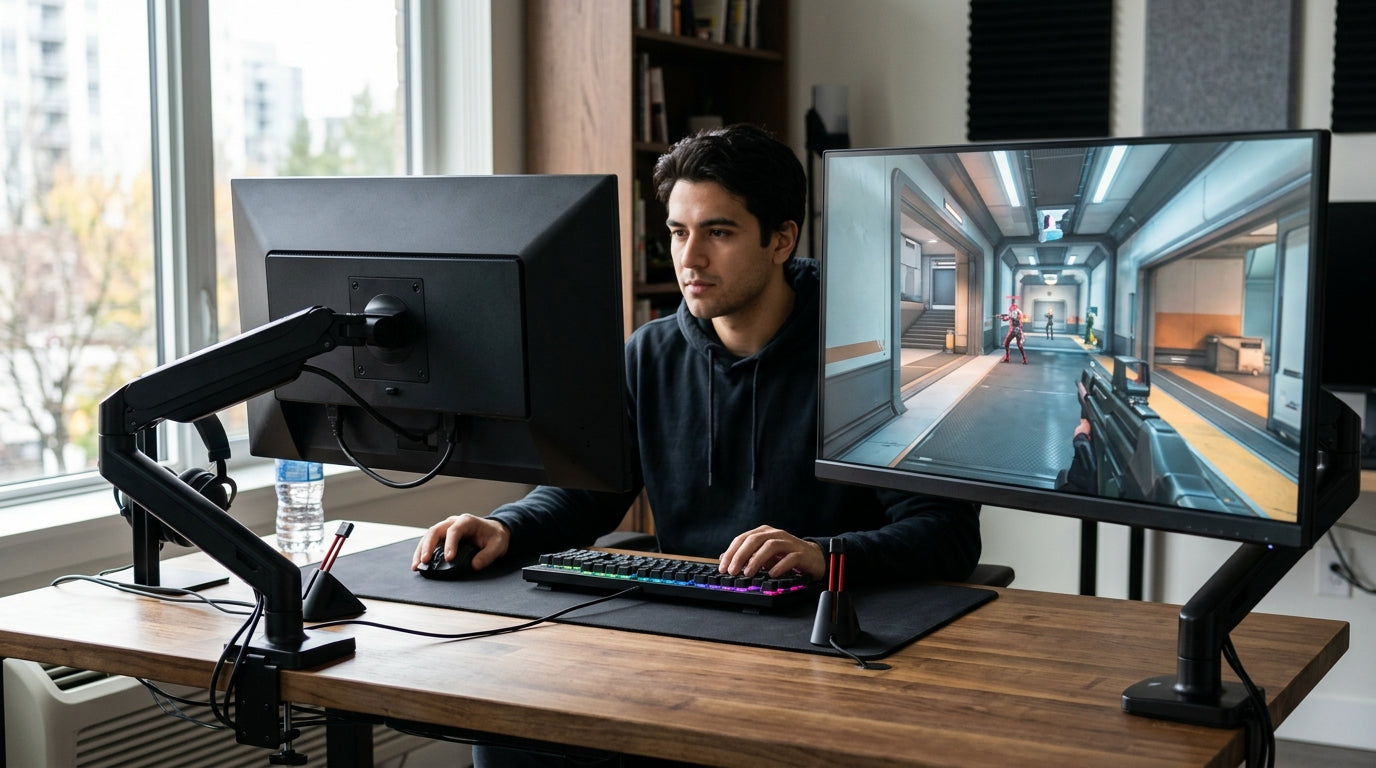
Ultrawides and high-refresh displays expose bandwidth limits quickly. A setup that works fine for 2560 x 1440 at 60 Hz may not have enough margin for a larger panel or higher frame rate once fast USB data is added to the same cable. If the monitor has a USB hub and you do not need its USB 3 ports, a video-first USB-C mode can be the better trade.
For single-cable desk setups
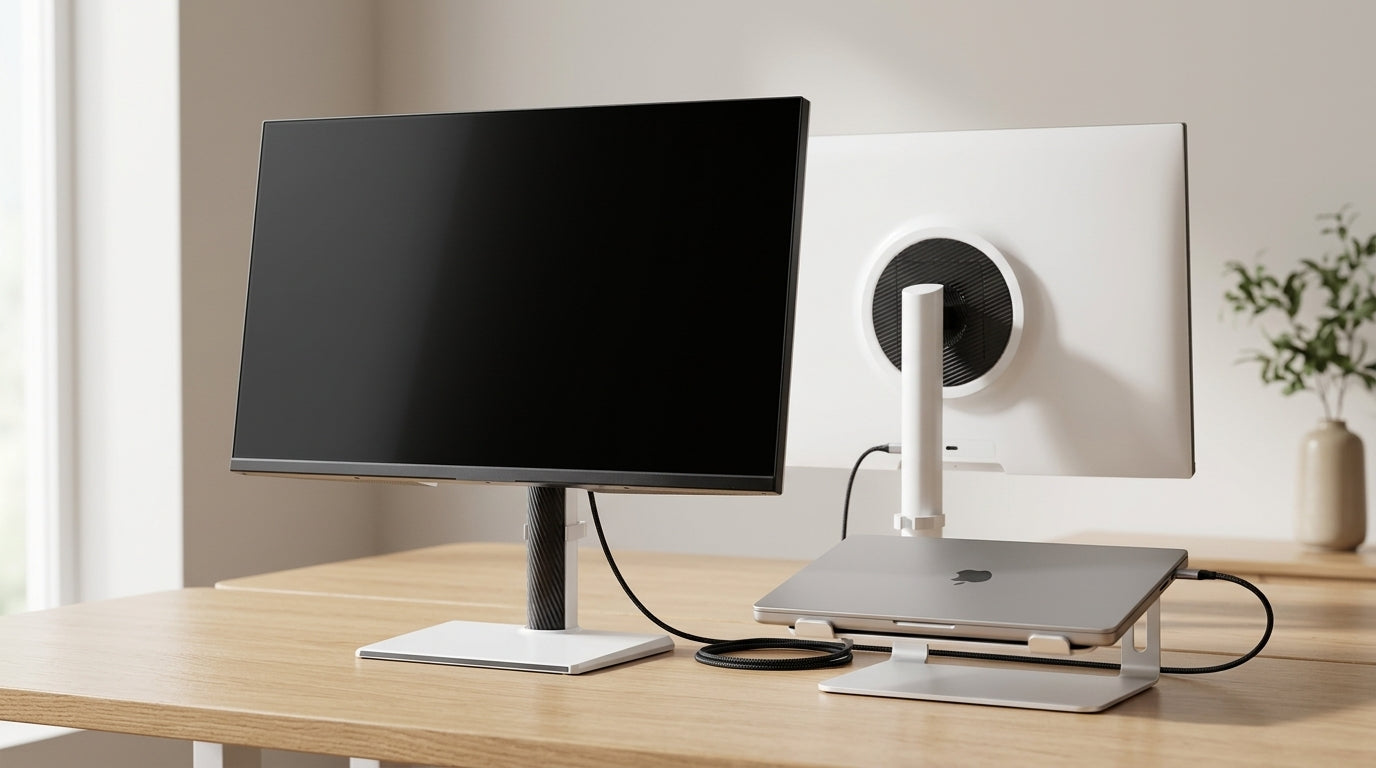
This is where USB-C display connections shine. VESA specifically calls out displays that can carry video, USB data, and power together so a laptop can dock with one cable. For office and mixed-use setups, that convenience is often worth more than chasing the last bit of refresh-rate headroom.
The Biggest Compatibility Bottlenecks
1. The port
A USB-C port must actually support video. Microsoft’s guidance for USB-C adapters says they require a USB-C port on the PC that is configured for video output. If the port is data-only, the monitor will not light up.
2. The cable
Cable confusion causes a large share of failures. Some USB-C cables are charge-only. Some support USB 2.0 data but not the full feature set needed for display. Microsoft states plainly that not all USB-C compatible cables support all features.
If you are buying a new cable, USB-IF’s newer labeling is useful because certified cables can show power ratings such as 60W or 240W, and certified USB-C-to-USB-C cables are also required to be marked with the data rate they support unless they are USB 2.0-only cables.
3. The dock or adapter
A dock can be the convenience layer or the bottleneck. VESA notes that a dock can transport charging, USB data, and display data over one USB-C cable, but once that dock also has USB hub functions and multiple display outputs, the final result depends on how the host allocates bandwidth and what the dock supports.
If your monitor has native DisplayPort input, VESA says the cleaner option is usually a USB-C-to-DisplayPort adapter cable rather than a receptacle-style adapter plus a separate DisplayPort cable.
4. The monitor and its input mode
The monitor still has to be listening on the right input. If it supports USB-C, DisplayPort, and HDMI, make sure the on-screen menu is set to the correct source. If the monitor includes USB hub features over USB-C, check whether its USB-C mode prioritizes data or display bandwidth.
A Practical Troubleshooting Flow
Start at the hardware path, then move to the OS.
Step 1: Simplify the chain
Disconnect the dock, adapter stack, KVM, and extra USB devices. Test one laptop, one cable, one monitor. Microsoft’s external-display troubleshooting recommends exactly this kind of basic hardware isolation, including disconnecting docks and dongles and trying a different cable.

Step 2: Verify the port and cable
Check the laptop or tablet specs. If the port does not support DP Alt Mode, changing cables will not fix it. If the port does support it, switch to a known-good full-featured cable.
Step 3: Confirm the monitor input
Set the monitor to the correct source manually if needed. If you are testing USB-C, do not leave the monitor parked on HDMI or DisplayPort.
Step 4: Check Windows display mode
If the monitor is physically connected but not behaving as expected, Windows gives you the core tools:
- Use Win+P to choose Extend, Duplicate, or second-screen-only modes.
- Use Detect in Settings > System > Display > Multiple displays.
- Use Advanced display to choose the refresh rate. Microsoft also notes that a refresh rate marked with an asterisk means Windows will change resolution to reach that rate.
Step 5: Be realistic about multi-monitor limits
If one monitor works but two do not, the issue may be the graphics path rather than the cable. Microsoft also warns that a simple display splitter duplicates one signal instead of creating two independent displays. For true multi-display expansion, you usually need a proper dock or another display-capable output path.
Bottom Line
DP Alt Mode over USB-C is useful because it can collapse video, data, and charging into one cable. The tradeoff is that video and fast USB data are sharing the same high-speed lane budget. If you want the cleanest desktop setup, that is a strength. If you want the highest possible refresh rate on a demanding monitor, it is the first place to look for limits.
The practical rule is simple: convenience paths favor all-in-one connectivity, while performance paths favor direct video.
FAQ
Q: Does every USB-C port support monitors?
A: No. A USB-C port must support display output, such as DisplayPort Alt Mode or another display-capable implementation. Microsoft also notes that USB-C adapters require a USB-C port configured for video output.
Q: Why does my monitor work at a lower refresh rate through a dock than it does directly?
A: Because the dock may be keeping SuperSpeed USB data active for its USB ports, Ethernet, or storage while also carrying video. That uses part of the same high-speed lane budget that a direct video path could devote to the display. VESA’s examples of 4K at 60 Hz with USB 3.1 versus 5K with USB 2.0 illustrate the tradeoff.
Q: Is USB-C to HDMI the same thing as native HDMI output?
A: Not exactly. With DP Alt Mode, the source is usually outputting DisplayPort over USB-C and the adapter converts that to HDMI. VESA confirms that USB-C adapters and adapter cables exist for HDMI and other legacy display inputs. For a monitor with native DisplayPort input, a direct USB-C-to-DisplayPort cable is often the cleaner path.
References
- VESA: VESA Brings DisplayPort to New USB Type-C Connector
- DisplayPort.org: DisplayPort Over USB-C
- DisplayPort.org: FAQ, including DisplayPort Over USB-C
- Microsoft Support: Troubleshoot problems with USB-C on Surface
- Microsoft Support: How to use multiple monitors in Windows
- Microsoft Support: Change the refresh rate on your monitor in Windows
- Microsoft Support: Troubleshoot external monitor connections in Windows
- USB-IF: Certified USB Type-C Cable Power Rating Logos
- USB-IF Compliance Updates: USB-C to USB-C Cable Logo Requirements