Gaming monitor specs only deliver real value when evaluated together rather than in isolation. Refresh rate, response time, variable refresh rate, and HDR each address a different piece of the motion and image-quality puzzle, yet marketing labels often hide the interactions that actually matter in gameplay.

Beyond the Label: Why Gaming Monitor Specs Matter in 2026
Higher numbers on a spec sheet do not automatically translate into smoother or more immersive gameplay. Many buyers discover that a 240 Hz panel with slow pixel response can still produce visible blur, while an HDR400 monitor often lacks the local dimming needed for meaningful contrast. In 2026 the industry has moved toward standardized measurements such as ClearMR for motion clarity and VESA DisplayHDR tiers for contrast performance, making it easier to separate real capability from marketing claims.
Refresh Rate vs. Response Time: The Secret to Motion Clarity
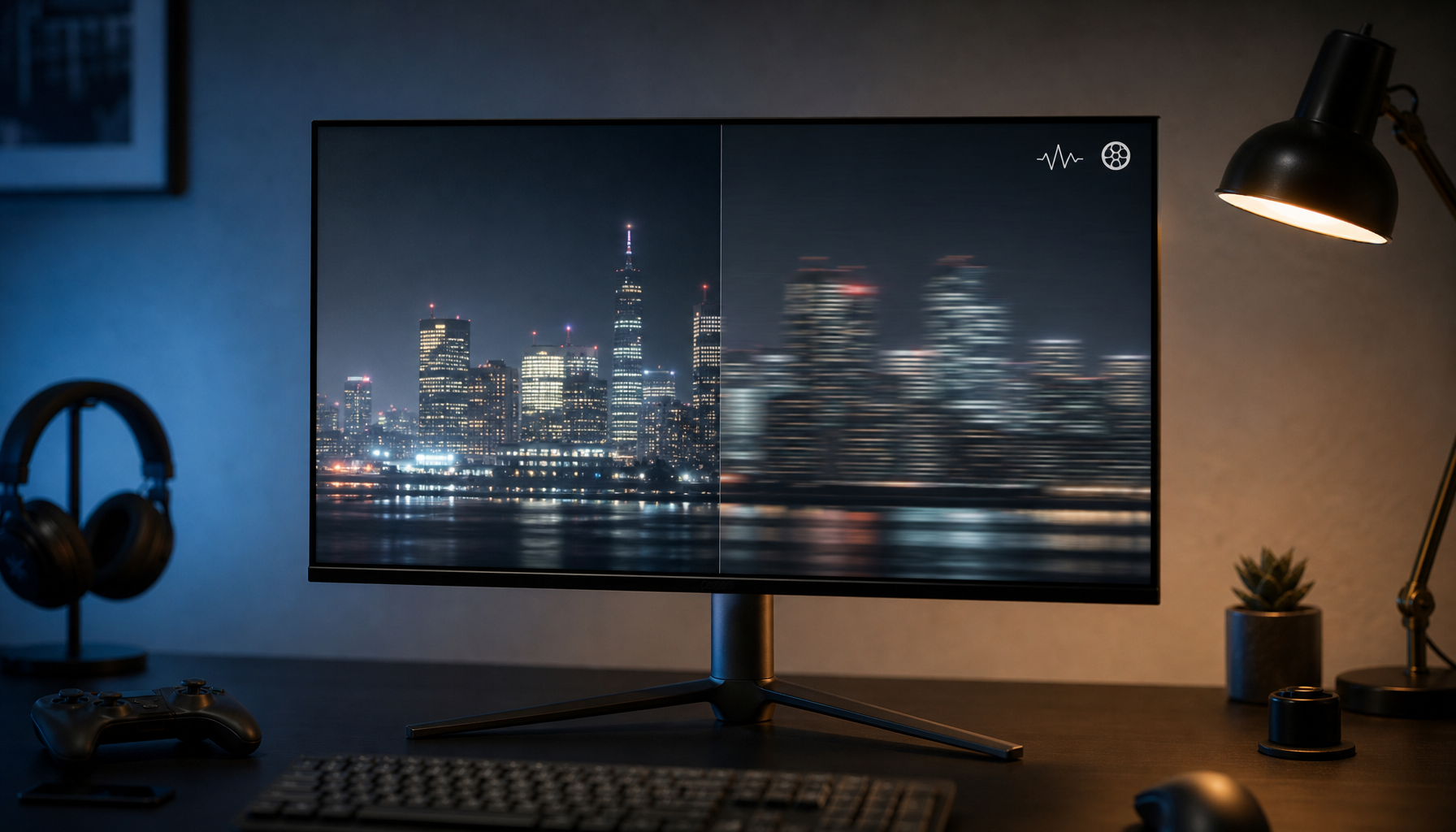
Refresh rate tells the monitor how many times per second it can update the image, while response time determines whether each new frame appears sharp or smeared. A high refresh rate paired with slow pixel transitions often results in ghosting that makes fast-moving targets harder to track. The VESA ClearMR standard measures the actual ratio of clear to blurry pixels and provides a more reliable comparison across panel types than traditional 1 ms GtG claims.
This chart helps visualize the typical motion-clarity patterns by ClearMR tier and panel type. For fast FPS play, higher tiers usually reduce ghosting and blur, while lower tiers are more likely to show black smearing or visible trailing. The best fit depends on how sensitive your game type is to motion artifacts.
ClearMR Tier and Panel Type: Motion Clarity Fit for Different Game Types
This chart helps visualize the typical motion-clarity patterns by ClearMR tier and panel type. For fast FPS play, higher tiers usually reduce ghosting and blur, while lower tiers are more likely to show black smearing or visible trailing. The best fit depends on how sensitive your game type is to motion artifacts.
View chart data
| Scenario | ClearMR 3000 | ClearMR 7000 | ClearMR 9000+ |
|---|---|---|---|
| Fast IPS | 1.0 | 2.0 | 3.0 |
| VA | 1.0 | 1.0 | 2.0 |
| OLED | 2.0 | 3.0 | 3.0 |
ClearMR 7000 has become the practical target for most competitive players because it balances motion clarity with achievable frame rates. Monitors rated below ClearMR 3000 frequently exhibit black smearing during rapid movement, especially on VA panels. Higher refresh rates only help when the panel can complete pixel transitions quickly enough to keep each frame distinct.
Variable Refresh Rate (VRR): Ending Screen Tearing and Stutter
Variable Refresh Rate synchronizes the monitor's refresh cycle with the GPU's frame output, removing the horizontal tearing that occurs when the two fall out of sync. HDMI 2.1 implementations add Quick Frame Transport and Auto Low Latency Mode, which further reduce display latency for both PC and console users. NVIDIA G-Sync and AMD FreeSync remain the dominant software ecosystems, so checking compatibility with your graphics hardware prevents unexpected stuttering.
The Truth About HDR: Nits, Zones, and the VESA 1.2 Standard
HDR400 monitors often function as enhanced SDR displays because they lack the local dimming zones required for deep blacks and bright highlights. The VESA DisplayHDR 1.2 standard, updated in May 2024, now requires 2D local dimming for all tiers at 1000 and above, making these the minimum credible options for genuine HDR gaming. VESA Certified DisplayHDR Performance Criteria 1.2 explains that DisplayHDR 1000 and 1400 tiers deliver the contrast range most noticeable in dark-room cinematic titles.
Mini-LED panels can sustain higher peak brightness than OLED, which helps preserve highlight detail in bright rooms. OLED, by contrast, offers perfect per-pixel black levels that excel in controlled lighting. Choosing between the two technologies starts with evaluating your typical ambient light rather than chasing the highest nit rating alone.
The 'Toggle Tax' and Other Hidden Trade-offs of High-Spec Panels
High-performance panels introduce practical compromises that rarely appear on spec sheets. Mini-LED models with hundreds of dimming zones can produce noticeable blooming around bright objects on dark backgrounds, requiring manual HDR or SDR mode switches for mixed productivity and gaming use. OLED panels avoid blooming but carry a small risk of static HUD burn-in during long sessions of the same game. Buyers who switch frequently between competitive shooters and single-player campaigns often accept these small daily adjustments as the price of better contrast or motion clarity.
Translating Specs into Performance: Competitive, Console, and Immersive Use Cases
Competitive FPS players benefit most from 240 Hz or higher refresh rates paired with ClearMR 7000 or better, such as the fast IPS models in the 240Hz-400Hz Monitors collection. Console gamers using PS5 or Xbox Series X should prioritize HDMI 2.1 ports, VRR support, and at least 4K resolution, as found in the M27P6. Immersive single-player experiences gain the most from Mini-LED HDR1400 panels that maintain high brightness and local dimming contrast, available in the All-Mini-LED Monitors collection.
Which Specs Matter Most for Your Game Type?
Match the monitor to your primary game types and room conditions rather than chasing the highest single number. Bright rooms favor Mini-LED brightness, while dark-room cinematic play rewards OLED contrast. Ensure your GPU can sustain the frame rates the panel is capable of displaying; otherwise the extra refresh rate headroom remains unused. Checking VRR compatibility, port versions, and real-world ClearMR ratings before purchase prevents the most common post-buy regrets.
Frequently Asked Questions
What VRR Range Should I Look For on a Modern Gaming Monitor?
Most current gaming monitors support a VRR range that begins around 48 Hz and extends to the panel's maximum refresh rate. This range covers typical console output and variable PC frame rates without forcing the monitor into fixed 60 Hz or 120 Hz modes.
Does HDR400 Deliver Noticeable Benefits Over Standard SDR?
HDR400 improves color volume and peak brightness compared with basic SDR, yet it usually lacks the local dimming required for true black levels and specular highlights. The improvement is most visible in brighter rooms where the extra luminance helps combat ambient light.
How Do I Verify a Monitor's Actual Response Time Performance?
Look for ClearMR ratings rather than manufacturer GtG numbers. ClearMR 7000 or higher indicates the panel maintains acceptable motion clarity across a wide range of content, while lower tiers often reveal ghosting once overdrive settings are tested in real games.
Should Console Players Prioritize 4K or Higher Refresh Rate?
Console players gain more consistent visual quality from 4K panels with HDMI 2.1 and VRR than from 1080p or 1440p panels running at 240 Hz. The higher resolution and tear-free experience matter more for most console titles than the extra frame rate headroom.
Is Burn-In Still a Concern With Modern OLED Gaming Monitors?
Current OLED panels include pixel-shift, screen-saver, and brightness-limiting features that reduce burn-in risk during normal gaming use. Static HUD elements in competitive titles remain the highest-risk scenario, so many players enable pixel-refresh cycles or lower static HUD brightness as preventive steps.