

When your GPU delivers fewer frames than your monitor can refresh, the screen cannot use all of its refresh headroom, so motion looks less smooth and may show tearing or stutter unless your settings are tuned well.

You buy a fast gaming monitor, launch a favorite game, and it still feels uneven when fights get busy or scenery gets dense. That mismatch shows up in practical ways: rougher camera movement, less consistent aim feel, and a screen that never quite looks as clean as the spec sheet promised. The good news is that you can usually improve it with better monitor settings, smarter frame targets, and a more realistic match between your GPU and display.
FPS and Refresh Rate Are Connected, Not Identical
The quick definitions
A display’s refresh rate is its maximum update frequency, so 60Hz means up to 60 screen refreshes per second, while 144Hz cuts each refresh window to about 6.94 milliseconds.
In simple terms, frame rate is how many new frames your system renders each second, while refresh rate is how many times your monitor can redraw the image in that same second. Frame rate is measured in frames per second, or fps, and depends on the game, GPU, CPU, and overall system load. Refresh rate is measured in hertz, or Hz, and depends on the monitor.
For a gaming display to feel truly smooth, a 1:1 match between frame rate and refresh rate is the ideal outcome. If your monitor is 144Hz and your PC can hold about 144 fps, the panel is being used as intended. If the same monitor is only getting 40 to 70 fps, you still gain something, but not the full benefit you paid for.
That timing gap matters because those update intervals are far apart: a 60Hz display refreshes every 16.666 milliseconds, while a 144Hz display refreshes every 6.944 milliseconds. That is why even moving a cursor on the desktop often feels cleaner on a high-refresh monitor, and why 144Hz remains a strong gaming baseline while 60Hz is better treated as a minimum and 75Hz as a nicer entry point.
What You Actually Notice When FPS Falls Short
The monitor is ready, but the GPU is late
In practice, a 144Hz monitor receiving only 30 FPS is not using most of its refresh potential. The panel can update 144 times per second, but the GPU is only supplying 30 new images, so the display repeats information and motion looks jumpy. This is the most common reason a new high-refresh gaming monitor feels underwhelming on demanding games.
That does not mean the monitor becomes pointless. Even 110 FPS on a 144Hz display is still better than 60 FPS on a 60Hz screen because you are seeing more unique updates and getting a more responsive feel. If you play a mix of competitive shooters and heavier single-player titles, that partial gain still matters.
Tearing and stutter are not the same thing
A frame-rate mismatch can create both screen tearing and stutter, and tearing is not limited to cases where fps exceeds refresh rate. Tearing is the broken horizontal split you notice when parts of two frames appear on screen at once. Stutter is the uneven pacing that makes motion look jerky because frames are arriving too slowly or inconsistently.
Just as important, the monitor can only display up to its own refresh limit, so a 165Hz panel cannot show 200 unique updates per second even if a frame counter reports 200 fps. Extra rendered frames can still affect latency and how the game feels, but they do not magically turn a 165Hz monitor into a 200Hz one. That matters when you are deciding whether a faster panel is actually useful for your current GPU.
Sync Settings Decide Whether the Mismatch Feels Playable
VRR is usually the cleanest fix
A standards-based adaptive sync technology was created so the display can vary its refresh timing with changing frame delivery, which is why VRR usually reduces visible tearing and stutter best when the game stays inside the monitor’s supported VRR range.
For most gaming monitors, VRR is the best first fix because the display changes its refresh rate to follow the GPU’s output instead of sticking to one fixed value. That is what vendor-specific and standards-based adaptive sync technologies are trying to do: reduce tearing, reduce stutter, and keep motion aligned even when frame rate moves around.

This matters most in the real world, where frame rate is rarely flat. A demanding game might sit near 100 fps in one area, drop into the 70s in combat, and jump back up in a menu. On a fixed-refresh monitor, those swings are much easier to see. On a VRR display, the monitor can track those changes across its supported range and look much more consistent.
V-Sync is effective, but it has trade-offs
Standard vertical sync fixes tearing by locking frame output to the monitor’s refresh cycle, but that fix comes with costs. If performance falls below the refresh target, frame rate can drop in big steps, such as from 60 fps to 30 fps on a 60Hz screen, which creates obvious stutter. Input lag can also increase because the GPU has to wait for display timing instead of sending frames as soon as they are ready.
That is why vertical sync is often the backup plan, not the first choice, on a modern high-refresh gaming monitor. It still has value on older fixed-refresh displays, on games without VRR support, or when tearing bothers you more than a little extra latency. But if your panel supports VRR, that is usually the smoother and more flexible starting point.
Why a frame cap often helps
A slightly-below-refresh FPS cap can improve consistency, especially when VRR is enabled. The main benefits are less risk of small pacing spikes, lower GPU heat, lower fan noise, and less wasted power from rendering frames your monitor cannot fully show. On a 165Hz monitor, for example, it often makes more sense to target just under that ceiling than to let the GPU run flat out for no visible gain.
One misconception is that lowering your monitor from 144Hz to 120Hz or 90Hz automatically limits the game to that frame rate. Lowering the monitor’s refresh rate does not cap fps by itself; you still need a sync method, a game-level frame limiter, or a driver-level cap to control render output.
How to Choose a Monitor Your GPU Can Actually Feed
Buy for the frame rates you really get
When shopping for a gaming monitor, benchmarking your GPU, game, and resolution together is more useful than looking at refresh rate alone. A panel is only a good match if your average frame rate in the games you play sits near the refresh range you are paying for. Entry-level GPUs tend to make the most sense at 1080p, mid-range parts usually fit 1440p better, and high-end hardware is where 4K high-refresh starts becoming realistic.

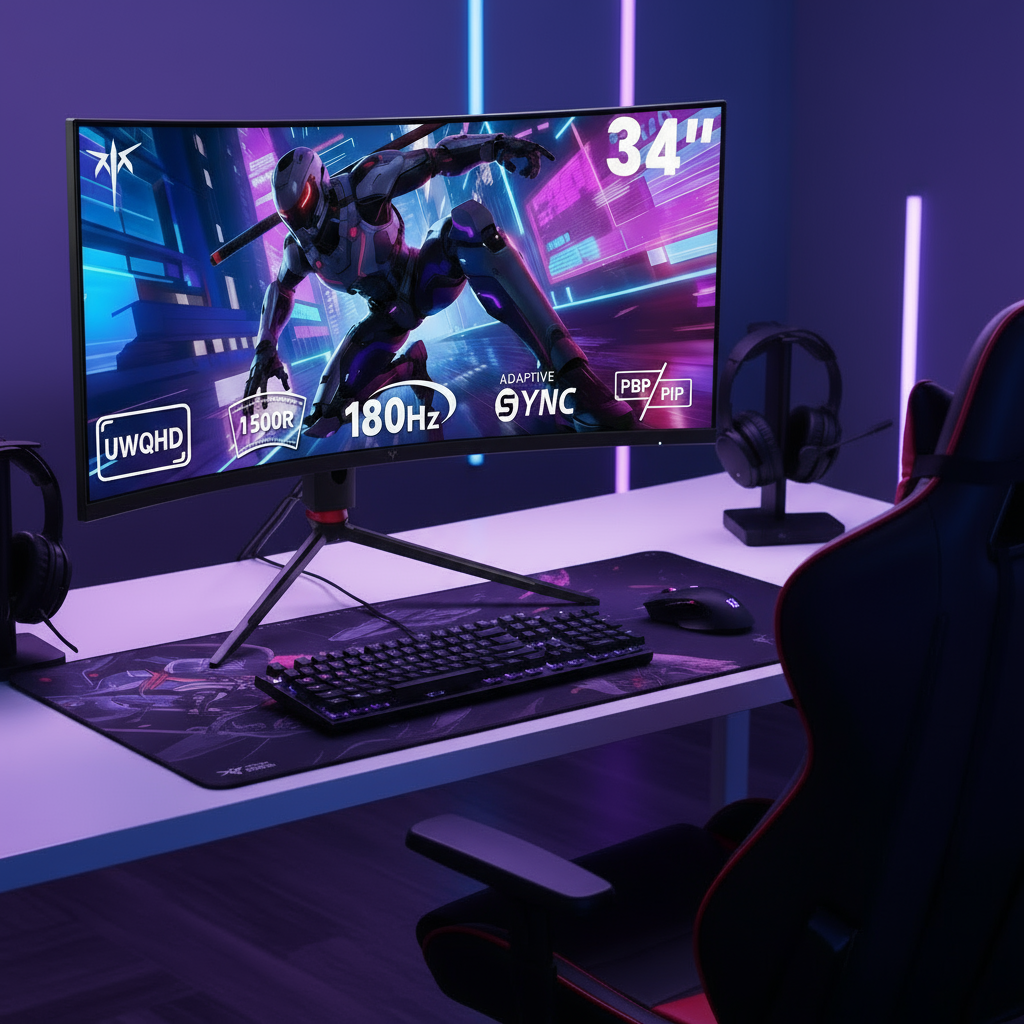
That same logic matters even more on ultrawide monitors because higher pixel counts raise GPU load quickly. If your system already struggles at standard 1440p, jumping to a 34-inch ultrawide without lowering settings can push you farther away from your refresh target. Portable monitors deserve the same caution: they can be great secondary gaming displays, but they make the most sense when their refresh rate matches the realistic output of the device driving them.
Speed and image quality should match the game type
In buying terms, higher refresh improves motion smoothness, not image quality, so once your usual frame rates fall far below the panel’s ceiling, extra Hz brings diminishing returns. If your system produces 80 to 100 fps in most games, a 144Hz or 165Hz monitor with VRR is usually a smart balance. If you mostly play competitive titles and often exceed 160 fps, then 240Hz becomes easier to justify.
As a shorthand, 60Hz is acceptable for basic use, 75Hz is a better starting point, and 144Hz is still a very practical baseline for gaming monitors. Beyond that, the right choice depends less on marketing and more on whether your GPU can sustain the numbers you need at your chosen resolution and settings.
Comparison table: refresh target by gaming scenario
Typical in-game frame rate |
Better monitor target |
What you gain |
Trade-off to watch |
50-75 fps |
75Hz to 100Hz with VRR |
Noticeably smoother motion than 60Hz and less tearing when fps fluctuates |
Limited upgrade headroom for faster games |
80-140 fps |
144Hz or 165Hz with VRR |
Strong balance of responsiveness, clarity, and reasonable GPU demand |
You may need medium settings in heavier titles |
150-240+ fps |
165Hz to 240Hz |
Best fit for competitive play where motion clarity and low latency matter most |
Higher cost and more demanding GPU targets |
35-90 fps at 1440p ultrawide or 4K |
Prioritize VRR and image quality over extreme refresh |
Better visual quality while keeping motion stable |
Much of a 240Hz panel would go unused |
The practical sweet spot for many players is not the highest refresh rate on the shelf. It is the point where your GPU can stay close enough to the monitor’s range that motion feels clean without forcing image settings so low that the game stops looking good.
Practical Next Steps
Check the display before changing the game
Before tuning graphics settings, confirm the monitor is actually set to its intended refresh rate in the operating system or your GPU control panel. On a system using a major GPU brand’s driver tools, that means opening the control panel, going to the display settings, selecting the display, and choosing the correct refresh rate from the list. If VRR is enabled on a supported display, the highest refresh is typically used automatically.
On a PC, advanced display settings are also worth checking so you know the current refresh rate, supported modes, and whether the display is operating where you expect. That simple check solves a surprising number of “my 144Hz monitor doesn’t feel smooth” complaints.
For console users and TV-or-monitor setups that support it, a modern display-interface VRR standard is the best option when frame rate moves around. If your console offers 120Hz output, use it only when the games you care about can take advantage of it; otherwise, a stable 60Hz mode with cleaner frame pacing is often the better-looking result.
Action checklist
- Confirm your monitor is running at its advertised refresh rate in the operating system or your GPU control panel.
- Turn on VRR if your monitor and GPU both support vendor-specific or standards-based adaptive sync.
- Test your usual games at the resolution you actually play, not just a menu benchmark.
- Lower the settings that hit GPU load hardest first, such as resolution scale, shadows, and post-processing.
- Add an fps cap slightly below your monitor’s max refresh if the game’s frame pacing feels uneven or your GPU runs unnecessarily hot.
- If you mainly play cinematic single-player games, prioritize stable frame pacing and image quality over chasing the highest Hz.
- If you mostly play competitive shooters, prioritize a refresh target your GPU can hold consistently, even if that means lowering some visual settings.
- Quick check: If your operating system is not set to the panel’s advertised mode, change the refresh rate first and retest before changing game settings.
- Quick check: After enabling VRR on supported hardware, replay the same busy 30 to 60 second scene; if tearing improves but motion still feels uneven, keep VRR on and add a small FPS cap just below max refresh.
- Advanced tuning: A short capture from a frame-time analysis tool lets you compare FPS with frame time, and simple checkpoints help: about 16.67 ms per frame lines up with 60 fps, while about 6.94 ms lines up with 144 fps, so large spikes usually point to pacing instability rather than the panel itself.
FAQ
Q: Is a 144Hz monitor wasted if my game only runs at 90 fps?
A: No. You still get smoother motion and a more responsive feel than 60Hz, especially if VRR is enabled. You are simply not using the full ceiling of the monitor.
Q: Does lowering my monitor from 144Hz to 120Hz cap my game at 120 fps?
A: Not by itself. A refresh setting changes how often the monitor updates, but the GPU can still render faster unless you also enable a sync method or set a frame cap.
Q: Should I buy a 240Hz monitor if my PC usually gets 80 to 100 fps?
A: Usually not, unless you plan to upgrade your GPU soon or mostly play lighter esports titles. For that performance range, a good 144Hz or 165Hz monitor with VRR is generally the more practical fit.
References
- a brand: Frame Rate vs. Refresh Rate
- a company: Highest Refresh Rate Gaming
- a platform thread: Is your frame rate limited to monitor refresh rate?
- a platform thread: Does lowering refresh rate cap FPS?
- a platform thread: Screen tearing even when FPS is lower than monitor refresh rate
- a brand: What Is Screen Tearing?
- a company help page: Select a screen refresh rate
- a platform discussion: Refresh rate and FPS behavior
- a brand: Match a monitor to your graphics card