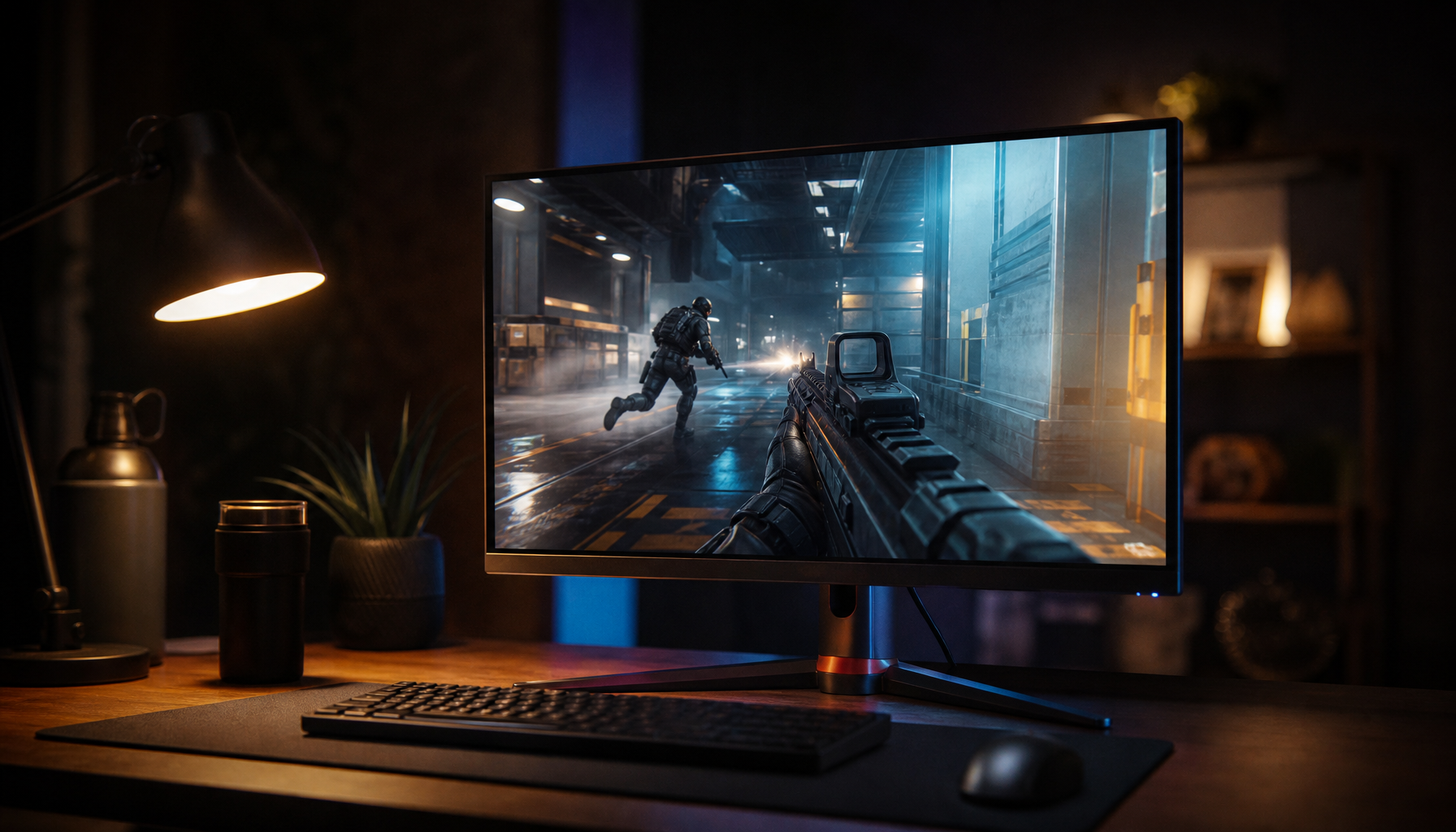
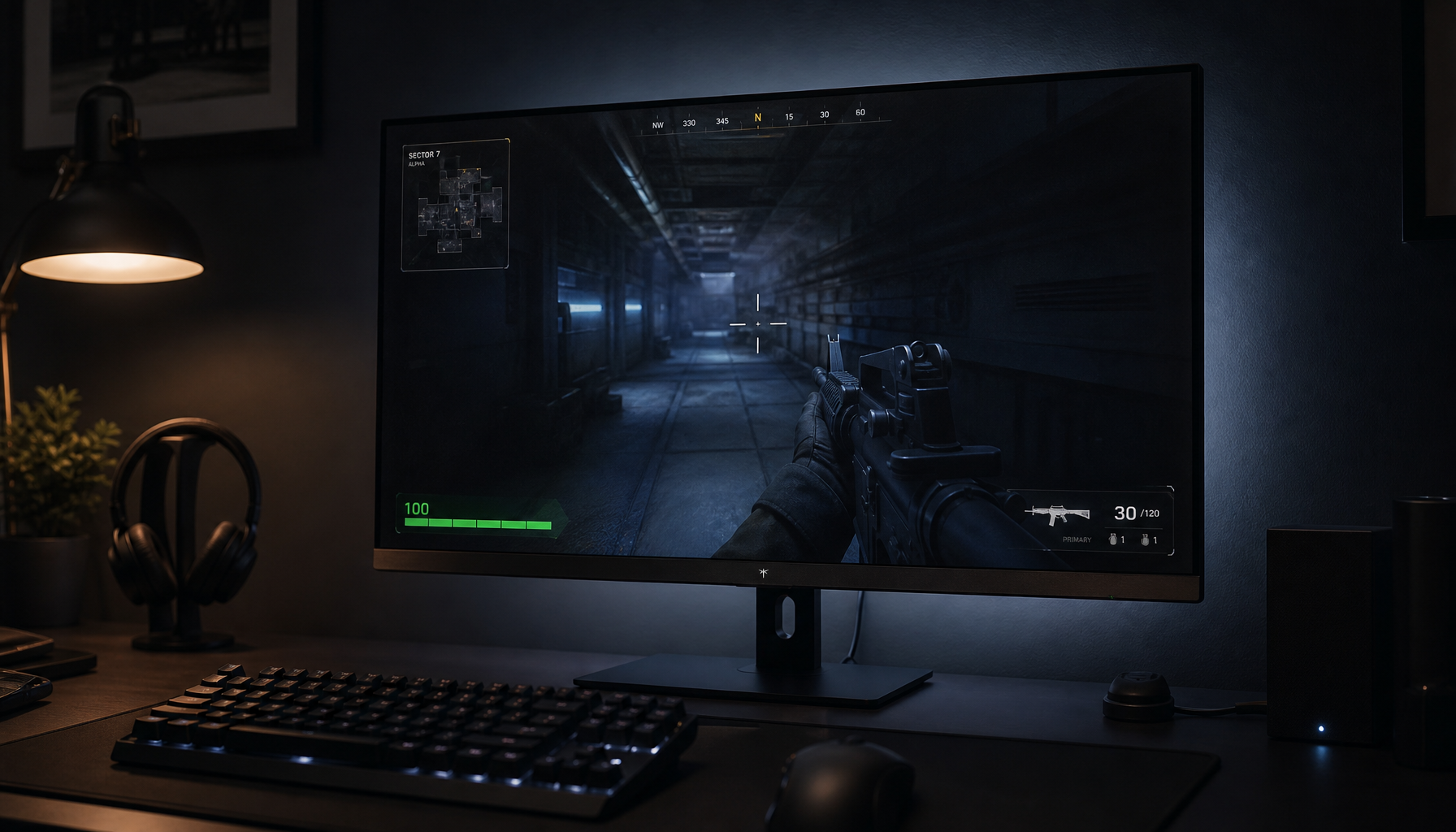
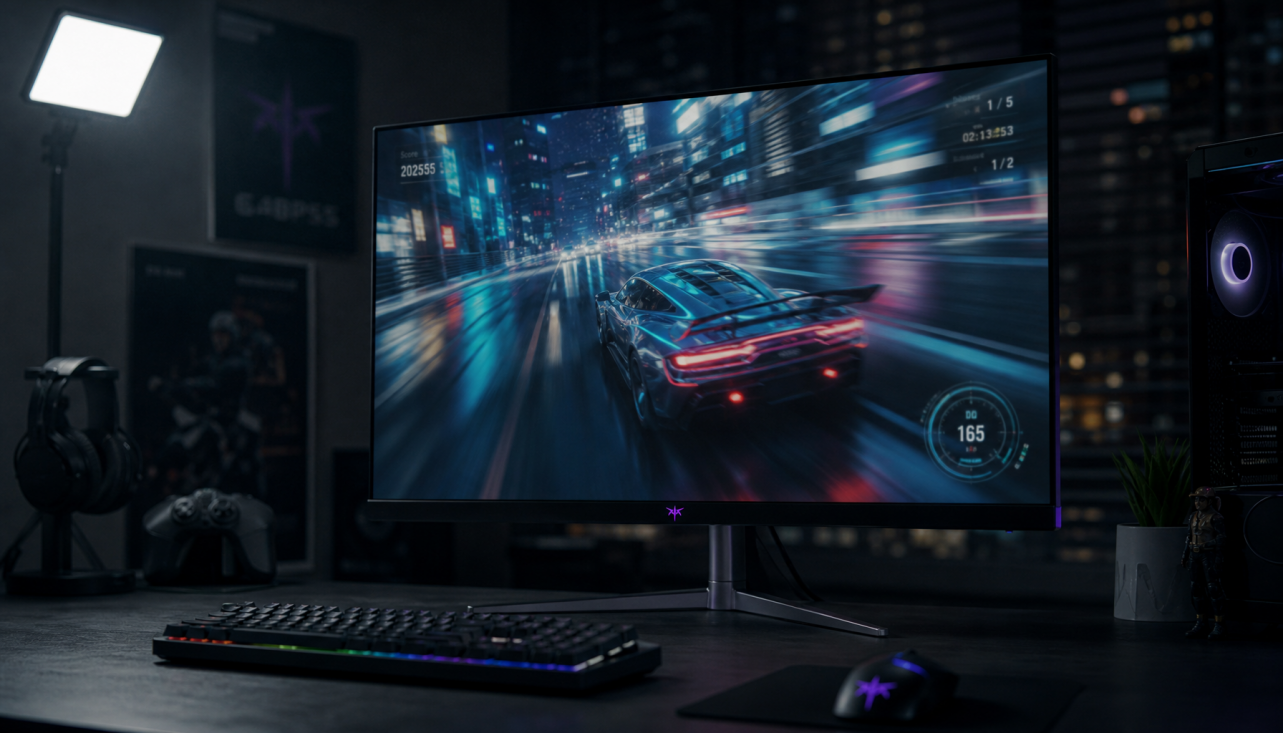
Adaptive Sync works per display path, so each compatible screen can vary its refresh timing based on the frames sent to it. In multi-monitor setups, the smoothest results usually come when the motion-critical display has its own VRR-capable connection, enough bandwidth, and the right driver settings.
The Core Idea: VRR Follows the Active Screen
Adaptive Sync, also called VRR, lets a monitor refresh when the GPU has a new frame ready instead of forcing a fixed 60Hz, 144Hz, or 240Hz rhythm. That is why a display’s refresh rate can track changing frame output and reduce tearing or stutter.
With multiple outputs, each connected display still has its own limits: resolution, refresh range, cable bandwidth, and VRR support. A 240Hz gaming monitor may run Adaptive Sync while a side office display stays fixed at 60Hz.

The key point is simple: Adaptive Sync is a display-specific feature, not a setting that upgrades every screen at once.
Direct Connections vs. Daisy Chains
A direct DisplayPort or HDMI connection from the GPU to the main monitor is usually the cleanest path for Adaptive Sync. DisplayPort remains the most predictable choice for many VRR setups, while HDMI VRR depends more heavily on GPU, monitor, and HDMI support.
Daisy chaining adds another layer. DisplayPort MST can split one output across multiple screens, but that shared link must carry all resolution and refresh data. DisplayPort daisy chaining requires DisplayPort 1.2 or higher plus MST support.
For productivity displays, daisy chaining is useful for cleaner desks and fewer cables. For competitive gaming, a direct cable to the primary high-refresh monitor is the safer choice.

What Happens When Displays Have Different Refresh Rates?
Mixed-refresh setups are common: a 27-inch 240Hz gaming display, a 60Hz office monitor, and a portable USB-C screen. Adaptive Sync can still work, but the GPU driver must manage different timing behavior across outputs.
Windows lets you arrange, extend, duplicate, and identify displays through multiple monitor settings. For VRR, Extend is usually better than Duplicate because each screen can keep its own native behavior.
For example, if your game runs between 110 and 141 FPS on a 144Hz monitor, Adaptive Sync can keep the gaming display fluid while your 60Hz second screen handles chat, browser tabs, or monitoring tools independently.

Some systems may still show flicker, black screens, or uneven windowed-game behavior when VRR, HDR, mixed refresh rates, and multiple outputs are all active.
Best Settings for Smooth Multi-Display VRR
Start with the monitor’s on-screen menu, then the GPU software, then Windows. A reliable setup flow is to enable VRR in the display menu and driver control panel, then use a compatible cable and port with sufficient bandwidth.

Use this quick checklist:
- Enable Adaptive Sync or VRR in the monitor menu.
- Use DisplayPort for the main gaming monitor when available.
- Set the game display as the primary monitor.
- Cap FPS slightly below max refresh, such as 141 FPS on 144Hz.
- Keep GPU drivers and monitor firmware current.
For GPU-specific VRR modes, confirm that both the graphics card and monitor support the same standard. A compatible setup requires both a supported GPU and a monitor that supports VRR.
The Practical Buying Takeaway
For gaming-first setups, prioritize one excellent Adaptive Sync monitor over several average screens. A 144Hz, 165Hz, or 240Hz display with strong VRR support will feel more immersive than a bigger array with unstable timing.
For office productivity, portable smart screens, and creator workflows, Adaptive Sync is still useful, but bandwidth and layout matter more. Choose USB-C, DisplayPort, or dock solutions that can support your actual resolution and refresh targets without forcing the main screen to compromise.