Local dimming and VRR can clash because one system predicts and shapes backlight brightness by zone while the other changes frame timing in real time. The result can be flicker, blooming shifts, delayed dimming, raised blacks, or crushed shadow detail during games with unstable frame rates.
Does your Mini-LED monitor look stunning in a paused HDR scene, then pulse, gray out, or show halos around HUD elements the moment a game drops from 120 fps to 83 fps? With the right settings check, you can often separate a panel limitation from a poor mode choice in under 10 minutes. Here is how the conflict works and what to change before blaming the whole display.

The Short Version: Two Smart Systems Competing for Timing
Variable refresh rate is designed to make motion feel smoother by matching the display’s refresh cycle to the GPU’s changing frame output. Variable refresh rate technologies reduce tearing, stutter, and input lag compared with traditional fixed-refresh behavior, especially when frame rates fluctuate below a monitor’s maximum refresh rate.
Local dimming solves a different problem. Local dimming on a monitor adjusts brightness in specific backlight zones instead of lighting the entire display uniformly, so dark areas can stay darker while highlights remain bright.
The conflict starts when the monitor has to decide how bright each backlight zone should be without knowing exactly when the next frame will arrive. At a fixed 144 Hz, the display has a steady rhythm. At 48 to 144 Hz VRR, that rhythm changes constantly. A dimming algorithm tuned for predictable frame intervals can become too early, too late, or too aggressive.
Why VRR Makes Local Dimming Harder
Frame Timing Stops Being Predictable
At fixed refresh, each frame arrives on a schedule. At 120 Hz, the monitor expects a new frame roughly every 8.3 milliseconds. At 60 Hz, it is roughly every 16.7 milliseconds. VRR breaks that fixed cadence on purpose because the GPU may finish the next frame sooner or later depending on scene complexity.
That is excellent for input feel, but it is difficult for backlight control. A local dimming processor needs to analyze image content, decide which zones should brighten or dim, and transition the backlight without obvious pumping. A fast shift from a dark cave to a muzzle flash is already demanding. If the frame cadence is also changing, the algorithm has less predictable time to smooth the brightness transition.
Display-forum users have raised the practical concern that local dimming may require analyzing frame content before adjusting backlight zones. The cautious takeaway is not that FALD always adds a full frame of lag, but that dimming quality and latency are linked engineering tradeoffs. Gaming monitors are judged harshly on input delay, so some modes prioritize speed over backlight refinement.
Low-Latency Modes Reduce Processing Time
Game Mode is where the problem often becomes obvious. Many displays simplify or alter image processing to reduce delay. That helps mouse aim and controller response, but it can weaken the dimming system’s ability to look ahead, average transitions, or preserve shadow detail.
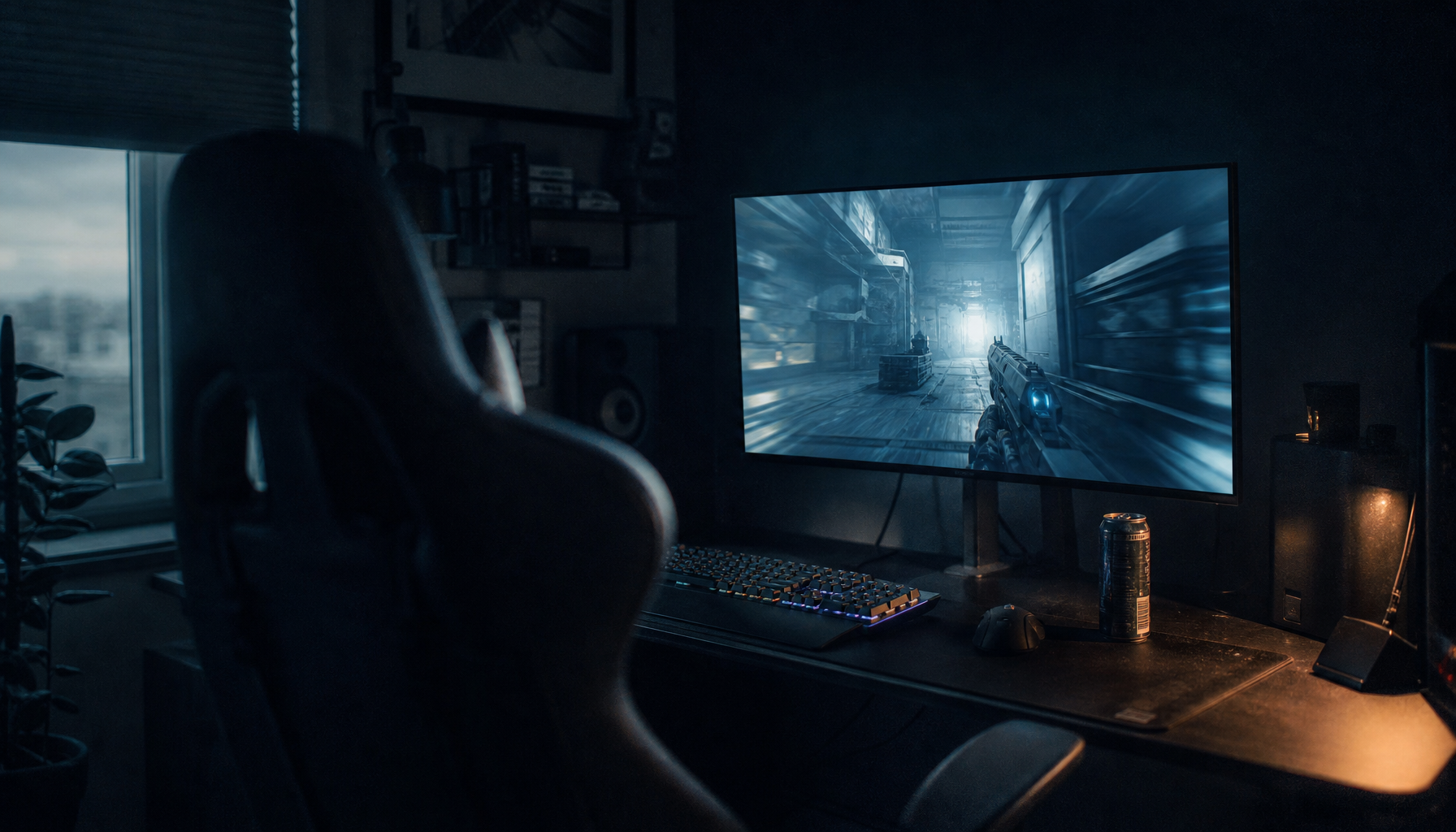
This is why some users see local dimming look better in Movie, Standard, or HDR video modes than in Game Mode. User reports about FALD game modes often mention excessive blooming, grayish tone, reduced contrast, and severe dimming over time in HDR gaming. The broader lesson is that a “fast” mode may use a less refined dimming strategy than a cinematic mode.
For competitive play, that tradeoff may be acceptable. For immersive HDR gaming, it can feel like buying a high-zone Mini-LED panel and getting only part of its contrast advantage.
The Main Artifacts You’ll See
VRR Flicker and Brightness Pulsing
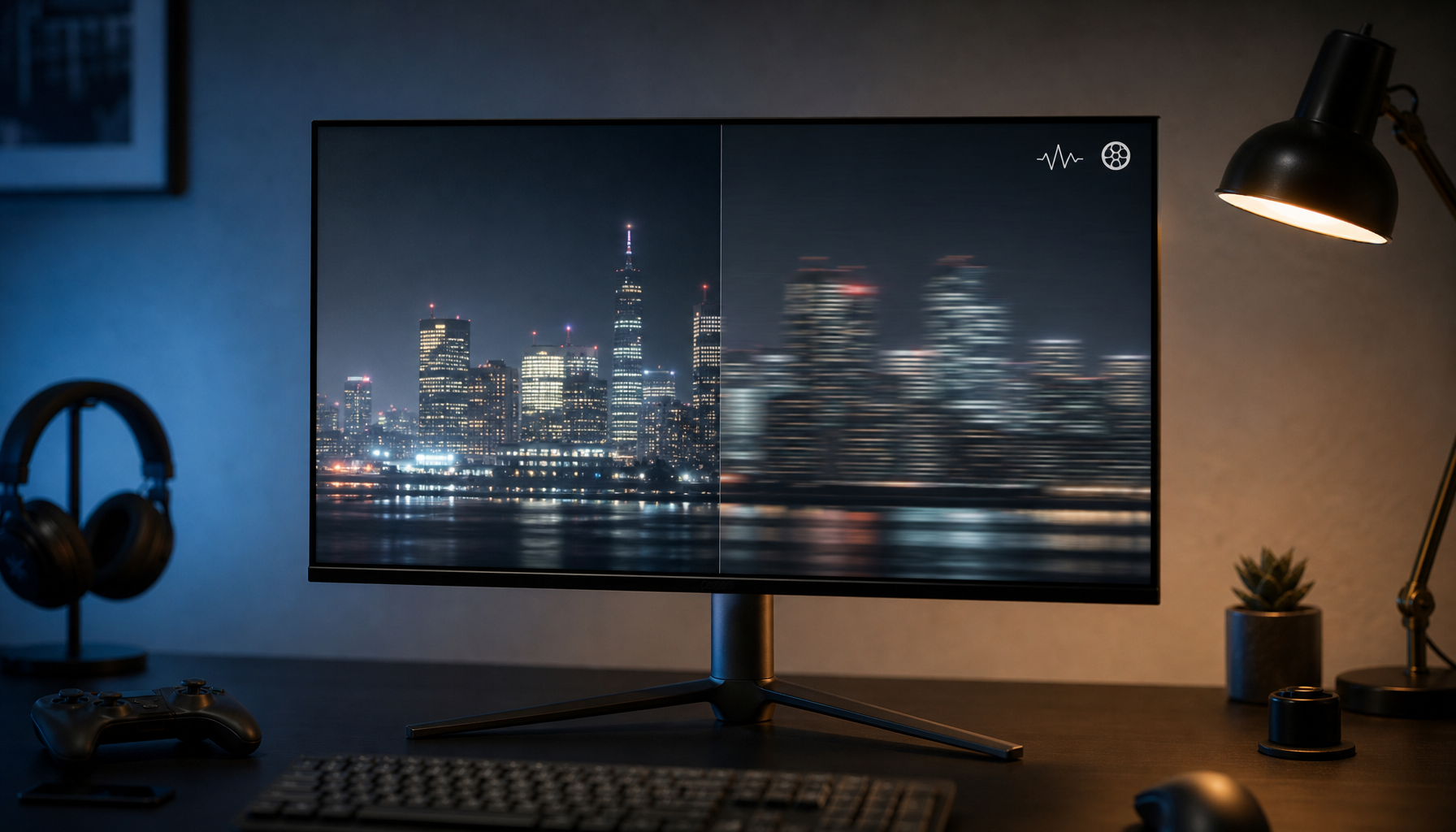
The most common complaint is flicker: a subtle or obvious brightness pulse when frame rate moves around. This can happen because LCD gamma behavior, backlight response, overdrive tuning, and dimming zones are all reacting to changing refresh intervals.
A game menu capped at 60 fps may look stable, then gameplay hovering between 70 and 110 fps starts pulsing in darker scenes. The issue is often more visible in loading screens, foggy scenes, night maps, and games with uneven frame pacing. It may also appear around health bars, subtitles, crosshairs, or bright UI panels because those small elements repeatedly trigger local dimming zones.

Blooming That Changes With Motion
Blooming is not only a static halo around bright objects. Blooming, also called the halo effect, appears when a bright object on a dark background causes a larger backlight zone to illuminate nearby dark pixels. Under VRR, the halo can look like it breathes or trails because the backlight transition is not perfectly synchronized with the moving object.
For example, a white mouse cursor on a dark desktop may create a small glow with local dimming enabled. In a game, a bright sword, flashlight, or HUD marker moving across a dark scene can make that glow shift from frame to frame. Higher zone counts help, but they do not erase the timing problem.

Black Crush, Raised Blacks, and Shadow Instability
Local dimming algorithms constantly choose between preserving dark detail and making blacks look deeper. Stronger settings can dim zones aggressively, which improves perceived contrast but may hide texture in dark scenes. Softer settings preserve detail but can make blacks look gray.
Mini-LED setup guidance reflects this tradeoff clearly: stronger dimming is often recommended for the deepest blacks, while a lower custom value can be better when shadow detail matters more. In VRR gameplay, this balance gets harder because dark detail changes while frame delivery is also changing.
Why Zone Count Helps, But Doesn’t Fully Solve It
More zones give the monitor more precision. A full-array Mini-LED display with hundreds or thousands of zones can isolate highlights better than an edge-lit design with broad columns. Full-array local dimming places backlights behind the screen and is generally more precise than edge-lit local dimming.
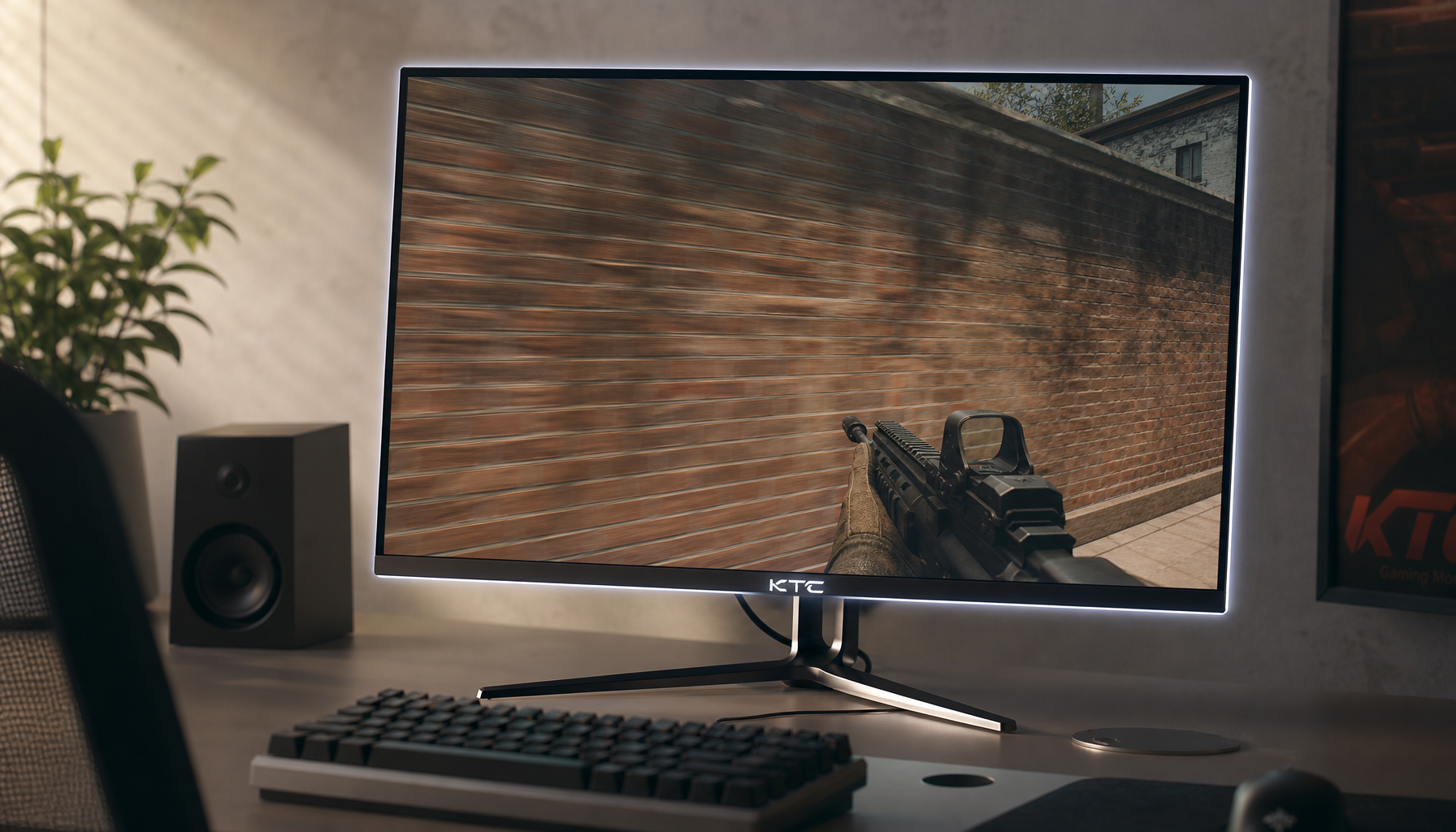
Still, zone count is not the whole display. A 1,152-zone monitor with poor firmware can look worse in motion than a lower-zone monitor with better processing. The KTC buying guide makes the same practical point: zone count matters, but panel contrast and dimming algorithms also affect blooming and halo control.
Panel type also changes the outcome. A VA or HVA LCD with stronger native contrast can mask residual blooming better than a lower-contrast IPS panel. IPS, meanwhile, often appeals to gamers for motion clarity and viewing angles. That creates a real buying decision: the best display for fast esports motion may not be the most forgiving display for dark-room HDR local dimming.
The Role of HDR, Brightness, and Desktop Use
HDR increases the workload because the monitor must handle bright highlights and deep blacks at the same time. Mini-LED shines here, but high brightness also makes every dimming mistake more visible. A 1,000-nit highlight beside a black background will expose zone transitions much faster than a 250-nit SDR scene.
Desktop use is another weak point. The KTC notes call this the “toggle tax,” meaning the annoyance of turning HDR or local dimming on and off because desktop apps, text, and cursors reveal blooming. That is real. A spreadsheet, code editor, or browser window does not behave like a movie scene, and a white pointer over a dark wallpaper can trigger local dimming in an ugly way.
For office productivity, some setup guidance recommends turning local dimming off and brightness uniformity on. For HDR content, local dimming is usually worth enabling, with tuning based on how dark the content is. That split is sensible: use uniformity for work, use local dimming for HDR impact, and do not expect one setting to be ideal for both.
Practical Fixes Before You Replace the Monitor
Start by testing the problem in one dark game scene with an uncapped frame rate, then cap the frame rate slightly below your monitor’s maximum. On a 144 Hz display, try a 138 fps cap. On a 165 Hz display, try 158 fps. A steadier GPU output often reduces VRR brightness pulsing because the monitor receives frames in a narrower timing window.

Next, compare three modes: VRR on with local dimming on, VRR off with local dimming on, and VRR on with local dimming off. If the problem disappears only when local dimming is off, the dimming algorithm is the trigger. If it disappears only when VRR is off, frame timing is the trigger. If both help, the interaction is the problem.
Then lower the local dimming strength. Higher dimming usually deepens blacks, but it can also exaggerate halos, pumping, and black crush. A medium or custom setting is often better for games than the maximum setting, especially in dark scenes with moving HUD elements.
Finally, update firmware and check review history before making a purchase decision. Firmware can change dimming behavior, and implementation quality varies widely even among monitors with similar zone counts. A reliable Mini-LED monitor is not just a spec sheet with high brightness and many zones; it is hardware, processing, thermal control, and VRR behavior working together.
When You Should Turn One Feature Off
For competitive shooters, VRR may matter more than local dimming because smooth frame pacing and low input response affect performance directly. In that case, turn local dimming down or off if it causes flicker or distracting halo shifts.
For cinematic single-player HDR games, local dimming may matter more than absolute latency. If your frame rate is already stable, disabling VRR or using a tighter frame cap can give the dimming system a cleaner rhythm and improve perceived contrast.
For office work, local dimming is usually optional. Use it only if your monitor handles text, windows, and cursor movement cleanly. Otherwise, save it for HDR games and video.
Final Word
Poor local dimming with VRR is usually not one broken feature; it is a timing conflict between adaptive frame delivery and adaptive backlight control. The winning setup is the one that matches your use: stable frame caps and moderate dimming for immersive gaming, VRR-first tuning for competitive play, and local dimming off for clean productivity when needed.