OLED ABL lowers brightness mainly based on how much of the screen is bright, so large bright scenes dim more than small highlights.
Window Size Is the Main Trigger
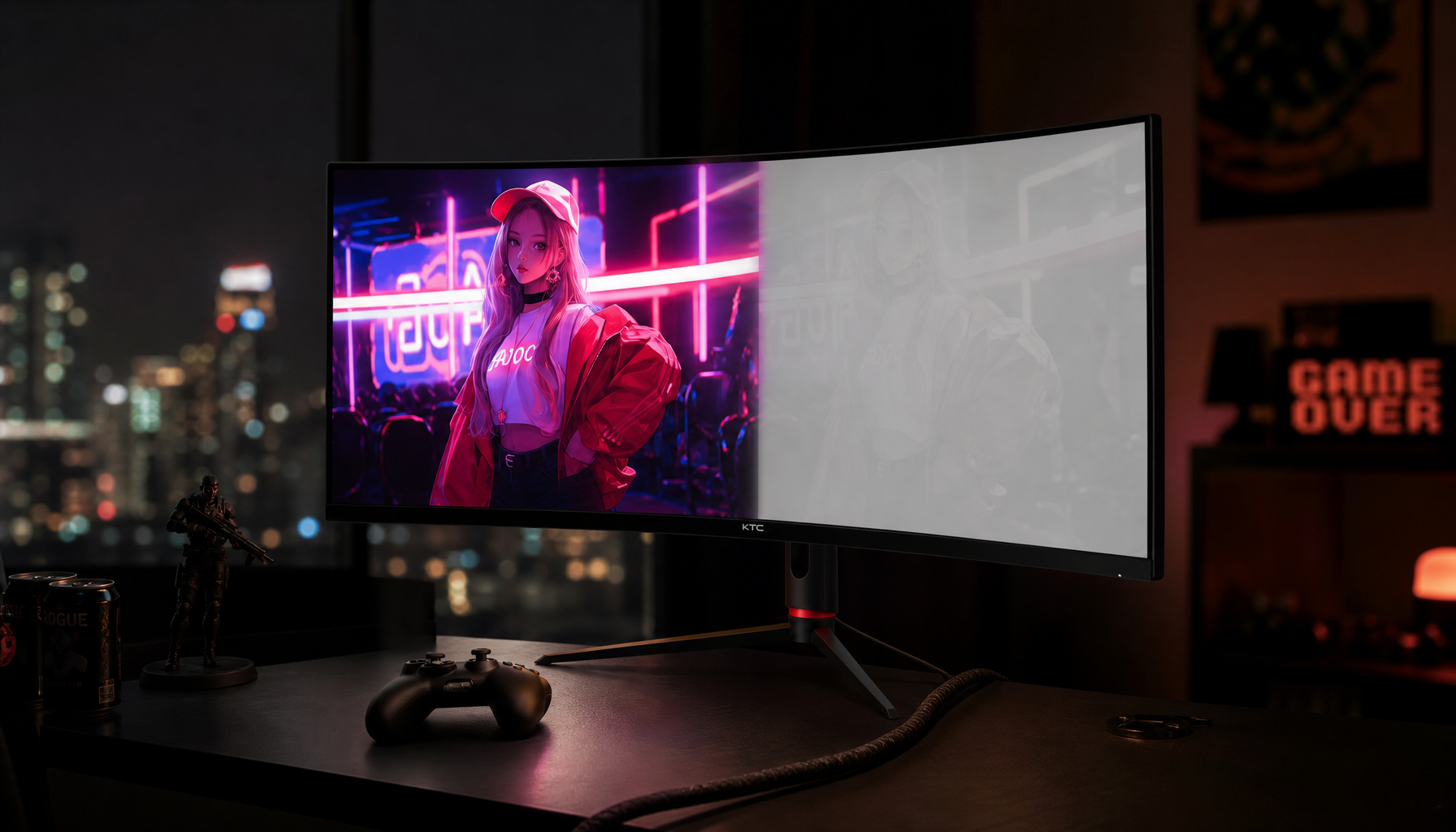
ABL is tied to Average Picture Level, which describes how much of the image is bright across the whole screen. In practical OLED testing, reviewers often compare white windows at 1%, 5%, 25%, 50%, and 100% because peak brightness falls as more pixels demand power.
That is why an OLED monitor may advertise dramatic HDR peak brightness but look calmer on a full white page. A 2% specular highlight in a game can pop, while a 100% white document creates a sustained load.

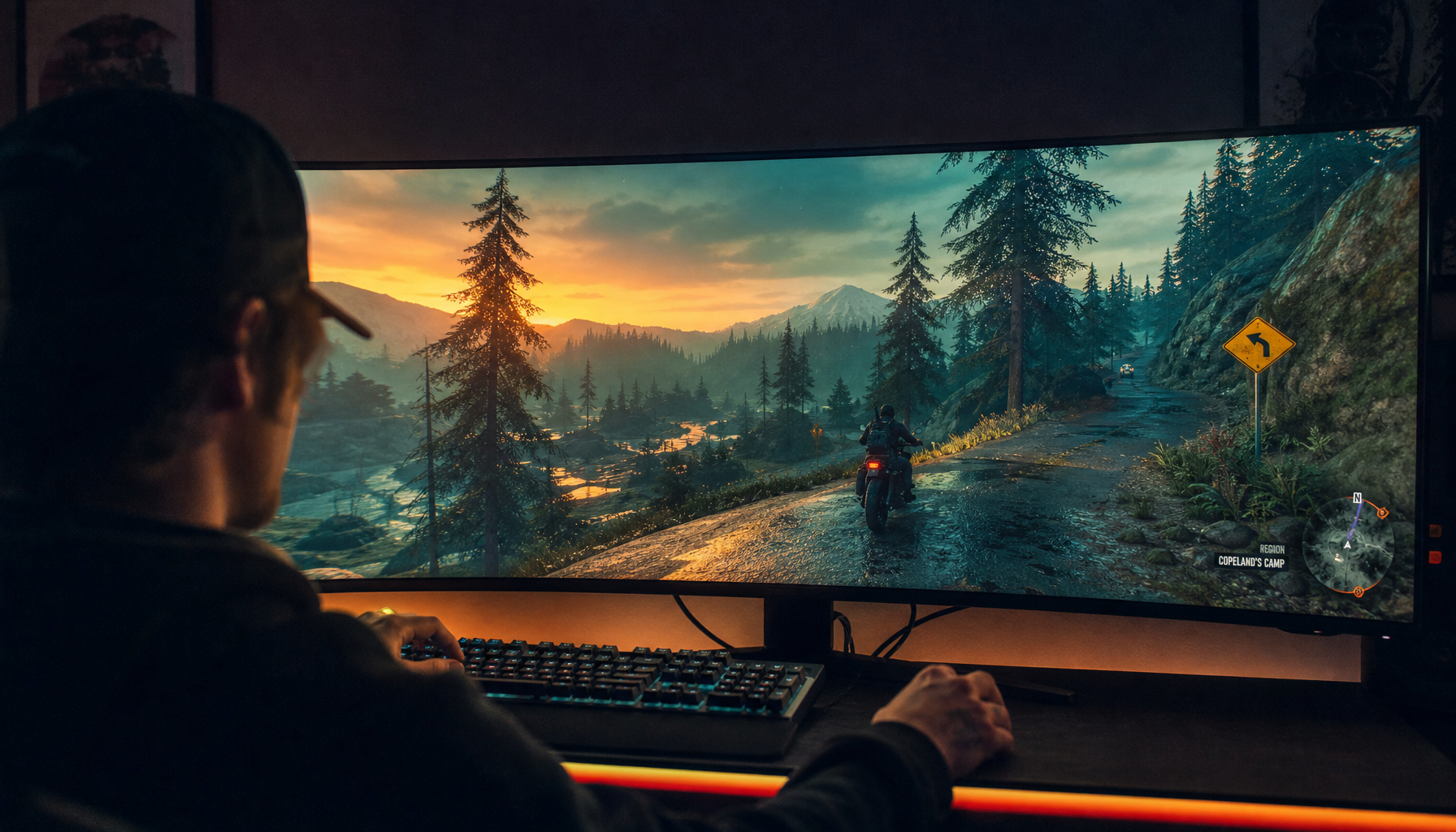
For gamers, this behavior can be both a feature and a tradeoff. Explosions, neon, muzzle flashes, and sparks can look intense against OLED black, but bright maps, snow levels, and white menus may dim after the bright area expands.
Position Usually Matters Less Than Area
A bright 10% window in the center and a bright 10% window near the edge usually create similar ABL pressure because the panel is managing total light output. ABL is global behavior, so the display responds to the power and brightness demand of the image rather than treating the center as special.
Position becomes more relevant when static elements are involved. HUDs, minimaps, scoreboards, and channel logos may trigger separate protection systems, while gaming HUD elements can make dimming easier to notice because they stay bright in the same place.

That distinction matters: ABL reacts to bright area size, while logo dimming and static-dimming systems react to persistence and location. If only a small fixed region darkens, it may not be classic ABL.
Why Office Work Feels Different From Gaming
Office apps often use high-APL content: white browser pages, email, spreadsheets, dashboards, and documents. Dragging a large white window across a dark desktop can make the screen look like it is “breathing” because the bright area changes quickly.

Some OLED monitors add SDR stability modes to reduce this effect. Uniform brightness can keep SDR output steadier when APL changes, which is useful for productivity and browsing.
For office-first buyers, the decision is practical: choose OLED for contrast, response, and immersion, but check full-screen brightness and uniform-brightness options before expecting LCD-like consistency on white workspaces.
Practical Settings That Reduce Visible ABL
You cannot fully remove panel-level ABL on normal OLED displays. A real-world forum discussion around OLED brightness and BFI notes that avoiding visible limiting may require lower calibrated brightness, such as an SDR setup around 100 nits, depending on the model and mode.
Use these quick adjustments:
- Use SDR for desktop work when brightness stability matters.
- Enable Uniform Brightness or a similar OLED monitor mode.
- Lower HUD opacity from 100% to around 80% in games.
- Avoid maxing out brightness, contrast, and tone-mapping controls.
- Check review data at 10%, 25%, 50%, and 100% windows.
ABL behavior varies sharply by panel generation, firmware, HDR mode, and tuning, so two OLED monitors with the same panel type can still feel different in daily use.