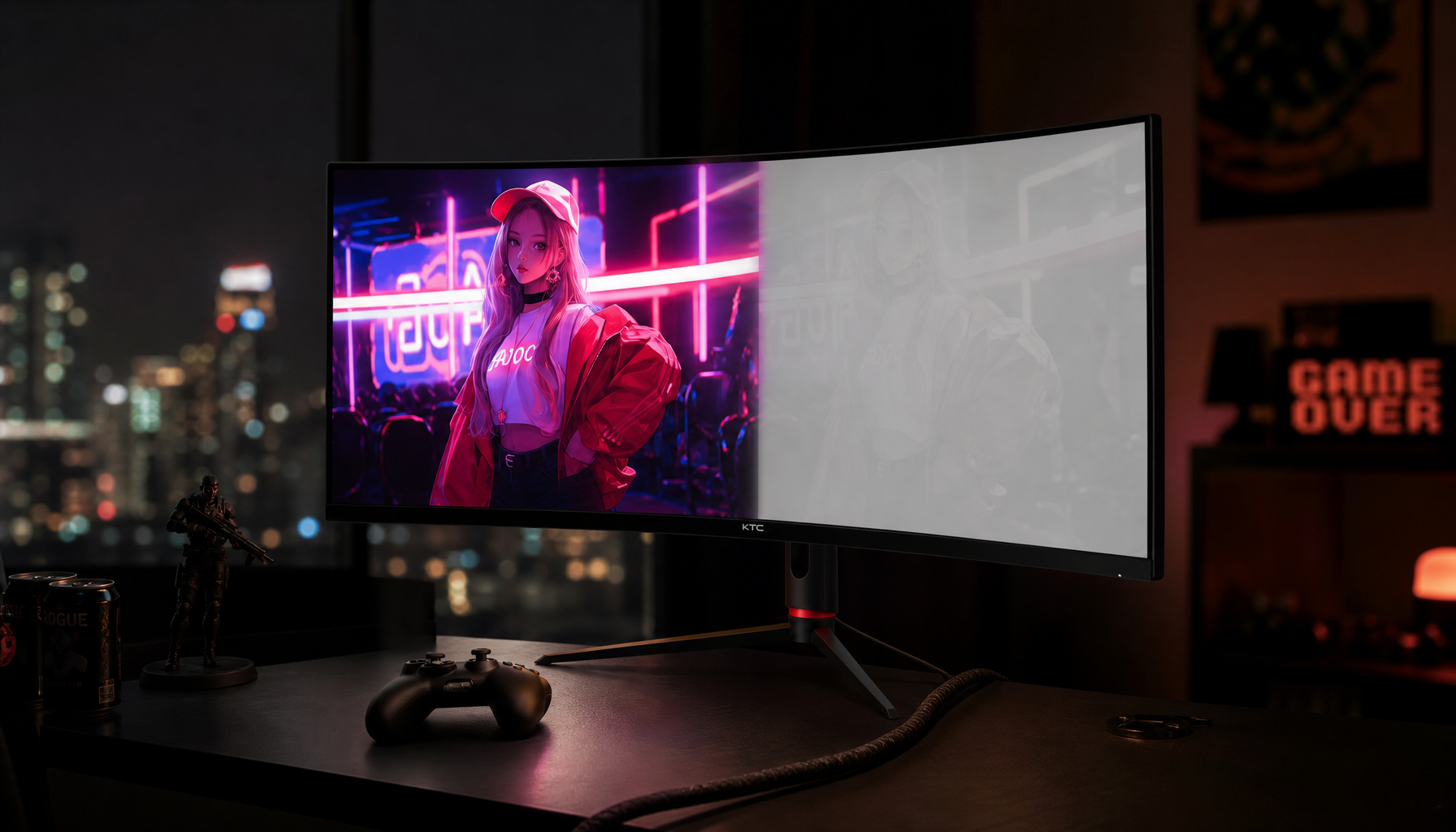
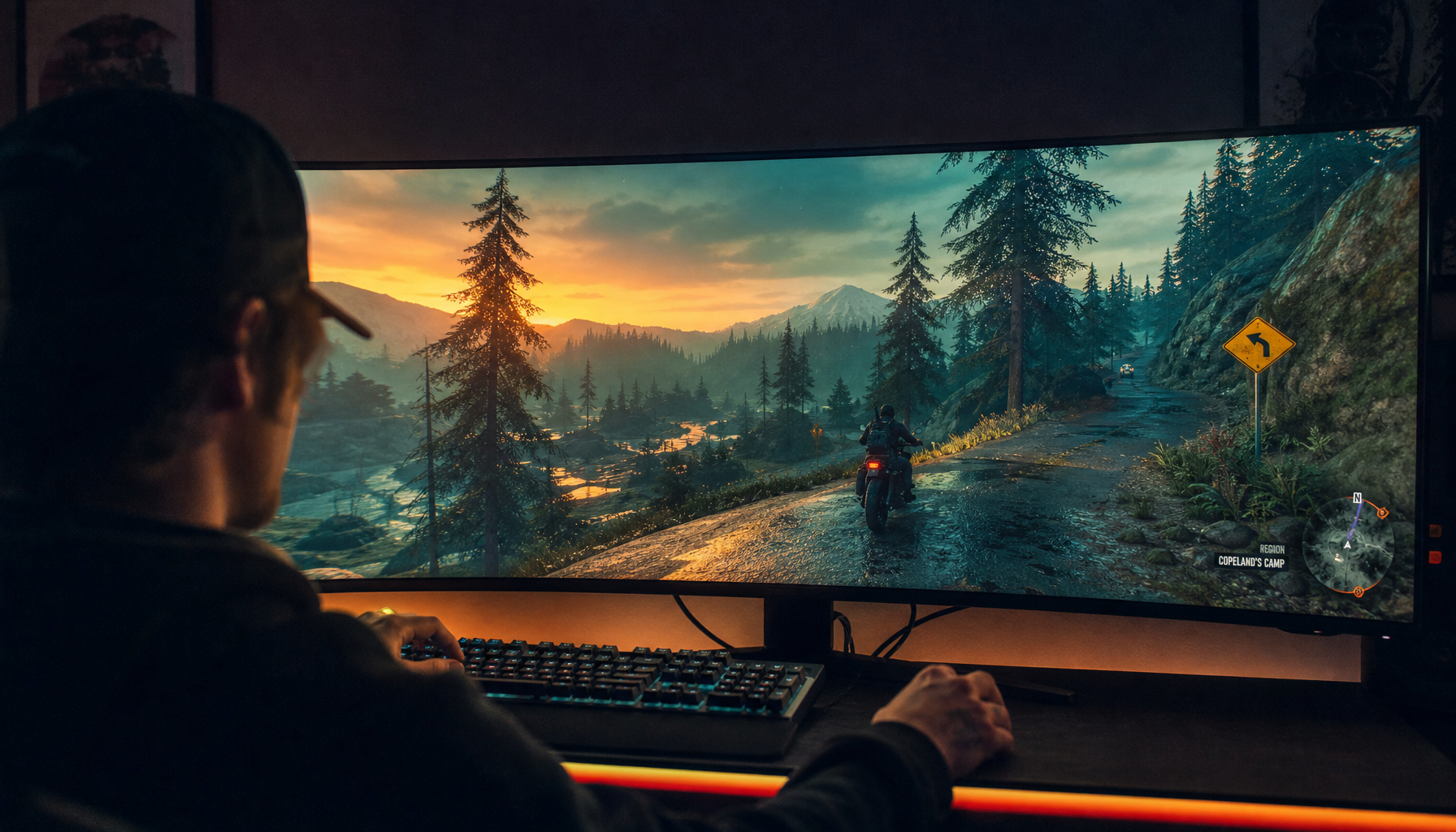
VA panel contrast ratio usually does not materially change when Overdrive is enabled because Overdrive targets pixel transition speed, not the panel’s native black-and-white luminance range. What changes is perceived contrast in motion: dark trails, bright halos, and overshoot can make a high-contrast VA screen look cleaner or messier depending on the setting.

VA Contrast Is Mostly a Native Panel Strength
VA panels are popular because their liquid crystal structure blocks more backlight in dark states, giving them deeper blacks than most IPS and TN monitors. In practical terms, many VA displays land around 2,500:1 to 4,000:1 static contrast, while standard IPS is often closer to 1,000:1.
That native contrast is measured with stable white and black levels. Overdrive does not normally raise a 3,000:1 VA panel into a 4,000:1 panel, and it does not turn LCD black into OLED-style true black.
If your monitor’s spec says 3,000:1, expect that number to remain broadly the same whether Overdrive is Off, Normal, or High. The better question is whether the image keeps that contrast clean while pixels are moving.
What Overdrive Actually Changes
Overdrive, also called response time compensation, sends extra voltage to LCD pixels so they change color faster. It is designed to reduce ghosting and motion blur, especially on high-refresh gaming monitors where each frame has less time to settle. A 144 Hz screen refreshes much faster than a 60 Hz screen, so slow pixel transitions are easier to see.
On VA panels, this matters because dark-to-light transitions are often the weak spot. A VA monitor may look rich and cinematic in a still horror scene, then smear shadow detail when the camera pans quickly.

Think of Overdrive as a motion clarity tool, not a contrast enhancer. It can help the monitor preserve separation between dark and bright objects during movement, but it does that by pushing pixels harder, not by changing the monitor’s static contrast capability.
Off, Medium, and High: What You’ll See
With Overdrive Off, measured contrast may still be excellent, but motion can look softer. Dark objects may leave trails, and black smearing can reduce the usable shadow detail that VA panels are supposed to showcase.
With a balanced Medium or Normal mode, most VA monitors hit their best real-world compromise. You keep the panel’s deep blacks while reducing blur enough for racing games, RPG camera pans, sports, and general desktop motion.
With aggressive High or Extreme modes, contrast can look worse even if the measured ratio is unchanged. Too much Overdrive can cause overshoot, where pixels move past the target shade and create inverse ghosting; users often notice this as bright or tinted trails around high-contrast motion, a higher overshoot risk.

In practical use, Off has the lowest artifact risk but the most VA smearing. Low gives mild cleanup with little downside. Medium or Normal is usually the best everyday balance. High or Fast can sharpen motion but raises the risk of overshoot, while Extreme is usually worth using only if artifacts are minimal.
Best Setting for Gaming and Work
For gaming, start with Normal or Medium. Then test a dark scene with moving bright objects, such as white UI text over a night map, because VA weaknesses show up fastest in high-contrast transitions.
For office productivity, Overdrive is less important. Text, spreadsheets, dashboards, and coding windows benefit more from stable brightness, comfortable contrast, and sharp scaling than from maximum pixel acceleration. Higher contrast can improve readability and depth, but excessive display contrast settings can cause strain, so tune the monitor around your room lighting and task rather than chasing the strongest preset.
One nuance: if you use adaptive sync, the best Overdrive level may change when frame rate drops. A setting that looks clean at 165 Hz can overshoot badly near 60 Hz.
The Practical Takeaway
Overdrive does not meaningfully change VA contrast ratio; it changes how well that contrast survives motion. For most VA gaming monitors, Medium or Normal gives the best value: deeper blacks remain intact, motion gets cleaner, and overshoot stays controlled.
Use High only when you have tested it in your actual games and do not see halos. Avoid Extreme unless the monitor is unusually well tuned, because a fast-looking setting that adds inverse ghosting can make a premium VA panel feel less immersive, not more.