Panel uniformity testing shows whether a monitor was built consistently across the full screen, not just whether the center looks good. It is one of the fastest ways to spot weak manufacturing control before a gaming, office, creative, or portable display becomes your daily driver.
Is the left side of a white document slightly yellow while the right edge looks dim during a late-night match or spreadsheet review? A simple black, gray, and white screen check can reveal practical defects before your return window closes, and measured grid testing can show whether the issue is minor edge variation or a unit worth rejecting. You will learn what to test, what the results mean, and when calibration cannot rescue a bad panel.

Why Uniformity Is a Manufacturing Quality Signal
Panel uniformity is the consistency of brightness and color from corner to corner. A well-made display should show a white page, gray interface, or dark game scene without obvious blotches, tinted bands, glowing corners, or side-to-side brightness shifts. Panel uniformity matters because the same image can look different depending on where it appears on the screen.
That makes uniformity a direct clue about manufacturing discipline. LCD layers, backlight placement, diffuser sheets, panel pressure, bonding, shipping stress, and quality-control tolerances all affect the final image. A monitor can advertise a high refresh rate, wide color, and strong peak brightness while still failing the real-world test of showing an even gray desktop.
Manufacturing quality systems exist to reduce variation, not merely to catch total failures. Quality management systems are built around defined standards, monitoring, documentation, and corrective action. For display buyers, uniformity testing applies the same mindset: instead of trusting the spec sheet, you inspect the output where defects actually appear.
The Two Uniformity Problems Buyers Should Know
Luminance Uniformity
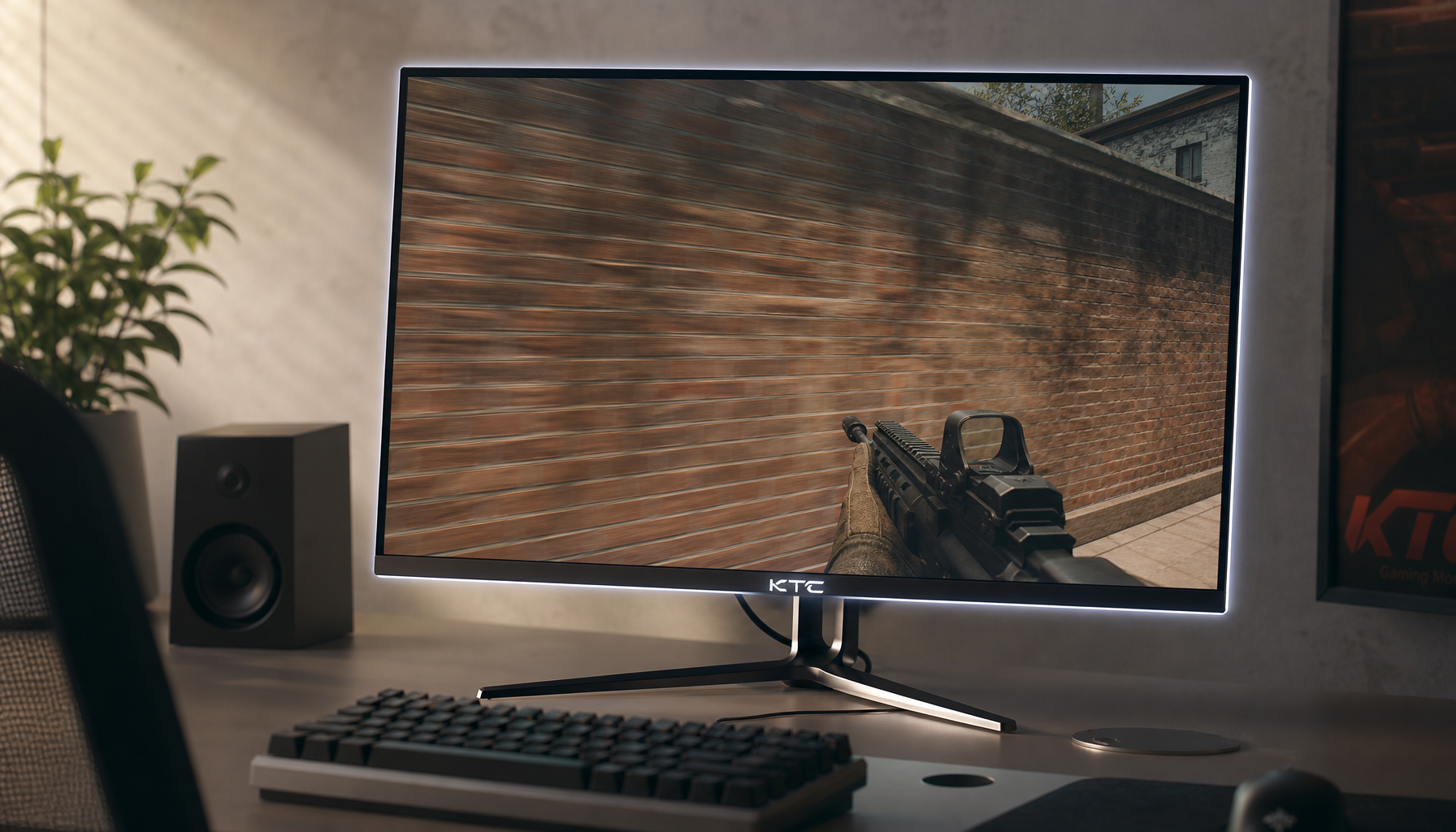
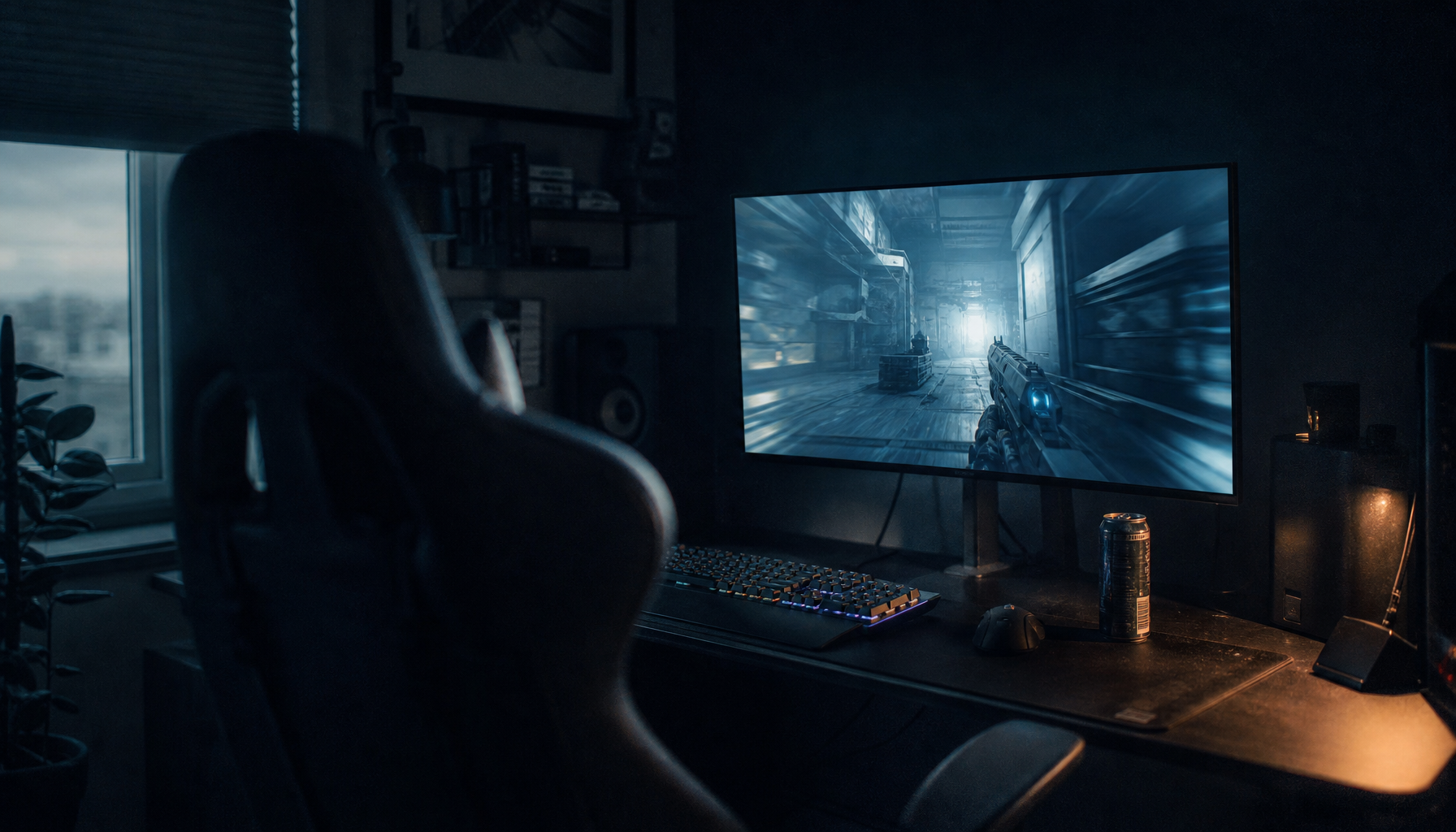
Luminance uniformity describes how evenly a monitor displays brightness. Poor luminance uniformity can show up as a dim side, brighter corners, clouding, or backlight bleed. In a dark tactical shooter, a hazy corner can make shadow detail harder to read. In an office workflow, a dim edge can make a spreadsheet or document feel uneven after several hours.
A practical example is a 32-inch productivity display used for two windows side by side. If the left document pane looks warmer and darker than the right pane, your eyes keep adjusting as you scan. That is not a productivity feature problem; it is a panel consistency problem.
Color Uniformity
Color uniformity describes how consistently the display reproduces color across the screen. Poor color uniformity can make one corner of a white image look pink, blue, yellow, or dirty gray. For photo editing, UI design, video review, and brand-color work, that creates a dangerous bias: you may correct the file to compensate for the monitor, not the image.
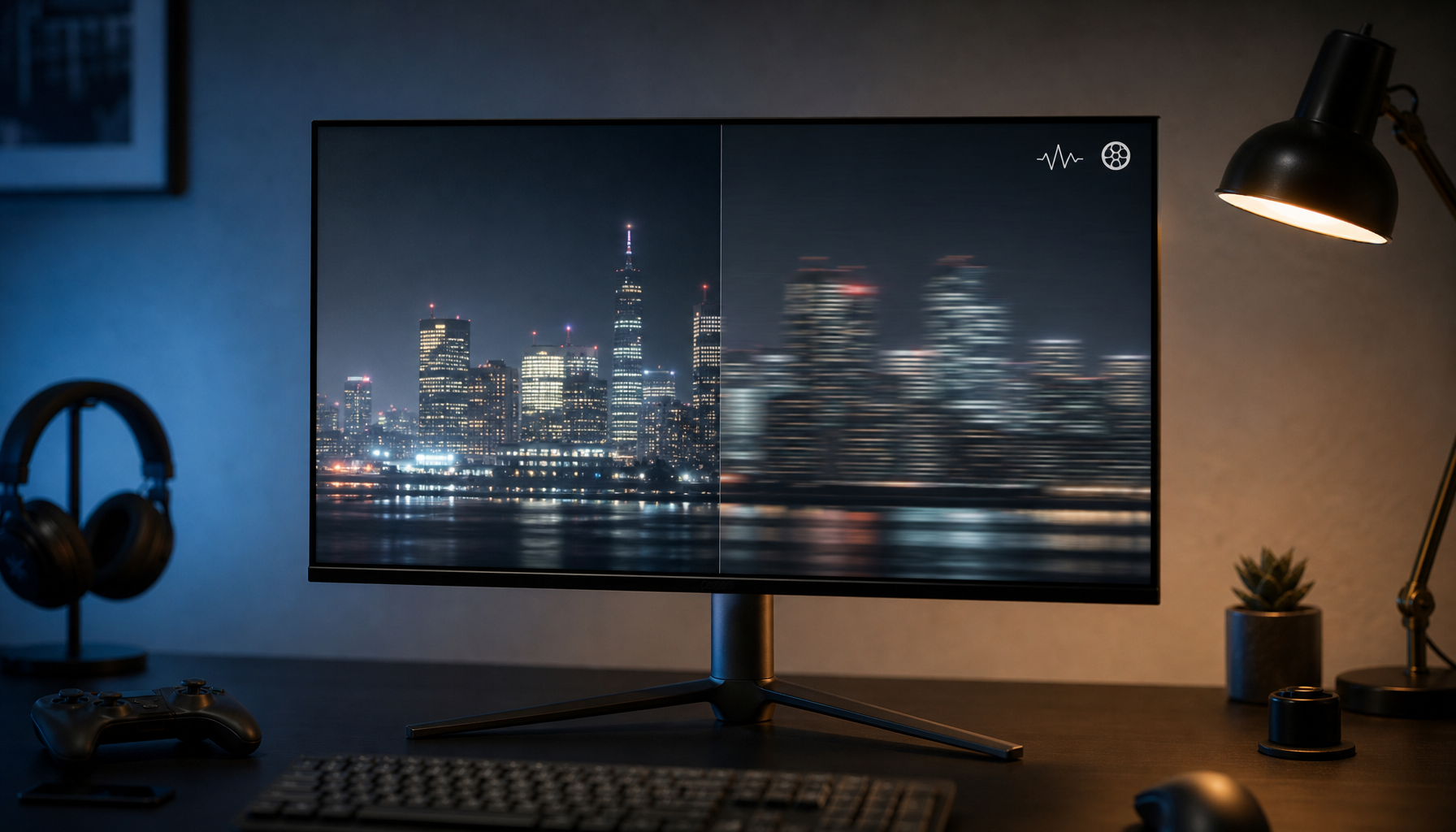
A simple visual test can expose fading edges, pale blotches, and blurry vertical lines before they become expensive mistakes. This kind of check is not laboratory-grade, but it is useful when comparing two units on a desk or inspecting a used monitor before payment.
What a Proper Uniformity Test Looks Like
A professional test divides the screen into zones and compares those zones against a reference point, usually the center. The center matters because most calibration workflows measure and profile the middle of the display first. If the center is accurate but the corners drift badly, your calibration report may look fine while your actual screen experience remains inconsistent.
In practice, a measured test uses a colorimeter or spectrometer to read white, gray, black, and color patches across a grid. The results show brightness deviation and color error by position. The more expensive and color-critical the monitor, the more valuable this becomes.

Test Method |
What It Reveals |
Best Use |
Full-screen black in a dark room |
Backlight bleed, clouding, corner glow |
Gaming, movies, HDR-like scenes |
Full-screen 50% gray |
Dirty-screen effect, blotches, tint bands |
Office work, web design, spreadsheets |
Full-screen white |
Brightness falloff, warm or cool zones |
Documents, coding, editing |
Colorimeter grid test |
Measured luminance and color deviation |
Creative work, premium purchases, returns |
Quality control research uses the same principle in a broader way: measure against a baseline, watch for variation, and act before problems become hidden assumptions. In monitoring practice, control limits help distinguish normal variation from likely process problems. For monitors, you do not need a statistics lab at home, but the habit is the same: compare repeatable readings instead of trusting first impressions.
A Fast Home Test Before the Return Window Closes
Start with the monitor warmed up for at least 20 to 30 minutes, because backlights and panel behavior can shift slightly after power-on. Use the display at your normal seating position, then step back about 1 to 2 ft to see whether larger patches or gradients become more obvious. Test in daylight and again in a dim room, because some flaws disappear under office lighting and become obvious during night gaming.
Open a full-screen black image first. Look for bright corners, cloudy patches, edge bleed, or glowing zones that distract from the center. Then switch to white and 50% gray. Gray is especially revealing because it shows dirty patches, vertical bands, and color tinting without the extreme contrast of black or white.
For a gaming monitor, load one bright map and one dark map for a short real session. If a corner glow hides enemies, smoke looks uneven, or a HUD element changes color as it moves across the screen, the flaw is no longer theoretical. For an office display, open a white document, a gray app interface, and a spreadsheet. If the screen makes ordinary work visually uneven, the unit is not delivering reliable value.

Why Calibration Cannot Fully Fix Bad Uniformity
Calibration improves the measured behavior of the display, but it usually corrects only the area being measured. When the screen has physical variation across zones, software profiling cannot make every corner match the center. A non-uniform screen may still look wrong after calibration because the flaw is spatial, not just tonal.
This is the buying lesson many users learn too late. If a monitor has a serious tint band, obvious side gradient, or distracting black-uniformity problem, returning or exchanging the unit is usually more practical than trying to tune around it. You can sometimes reduce the visibility of a flaw by using a different brightness level, choosing a native-like white point, enabling a better preset, or changing room lighting, but those are mitigations, not repairs.
That distinction matters for value. A $250.00 office monitor with slight edge dimming may still be acceptable if it disappears during normal work. A $900.00 creative or esports display with a central tint band is a much weaker purchase because the defect sits where your eyes focus.
Panel Type Tradeoffs: IPS, VA, TN, OLED, and Portable Screens
IPS panels are often favored for color consistency and wide viewing angles, which makes them strong for mixed gaming, productivity, and creative workflows. Their common weakness is glow or weaker perceived blacks in dark rooms. VA panels often deliver deeper blacks and stronger contrast, which helps cinematic games and movies, but curved VA models can show visible uniformity and dark-transition issues. TN panels can still appeal where speed is the top priority, but viewing angle and color consistency are typical compromises.
Contrast is part of the story but not the whole story. A contrast ratio describes the difference between the brightest white and darkest black a display can produce. Uniformity asks a different question: are those whites, grays, and blacks consistent across the panel? A monitor can have strong contrast and still show a bright corner or dirty gray band.
HDR adds another layer. Peak brightness helps, but brightness alone does not guarantee a premium image; wide color, tone mapping, local dimming behavior, and game implementation all matter. The public HDR monitor brightness debate illustrates the buyer trap: one number can dominate marketing while real viewing quality depends on multiple interacting traits.
Portable smart screens deserve extra caution. Their convenience is real, but thin chassis design, cost pressure, and mobile use can make uniformity more variable. If you plan to use one for client previews, travel editing, or a second productivity display, test gray and white screens before assuming it matches your primary monitor.
What Counts as Acceptable?
Uniformity is never perfect. The real question is whether the flaw changes your work or play. Minor edge variation that disappears during normal use is usually acceptable, especially on budget or large-format displays. Obvious center discoloration, side-to-side brightness gradients, blotchy gray fields, or corner glow that hides dark-scene detail should trigger an exchange if you are still inside the return period.

For competitive gaming, treat uniformity as a pass-fail quality screen after refresh rate, response time, input lag, and resolution are already suitable. A fast monitor with patchy dark areas can still reduce target visibility. For office productivity, prioritize clean white and gray uniformity because those backgrounds dominate daily use. For creative work, be stricter: if a neutral image changes color depending on screen position, the display is steering your edits.
How to Buy Smarter Before Purchase
Read reviews that measure uniformity rather than reviews that only mention brightness, refresh rate, or color gamut. Look for zone charts, gray-uniformity photos, black-screen photos, and comments about unit variation. When possible, buy from a retailer with a clear return policy, because two units of the same model can behave differently.
Treat uniformity like a quality metric, not a hunch. Data quality standards emphasize fitness for use, consistency, and reliability; the same logic applies to displays. A monitor is good only if its panel quality supports your actual use case, whether that is ranked play, eight-hour spreadsheet work, timeline editing, or a portable second screen beside a laptop.
A strong spec sheet gets you interested. A uniformity test tells you whether the unit in front of you deserves to stay on your desk.
FAQ
Can I test panel uniformity without a colorimeter?
Yes. A visual test with full-screen black, white, and gray patterns in a dim room can catch many practical defects. A colorimeter adds measurement and repeatability, but your eyes are enough to reject obvious blotches, tint bands, and distracting edge glow.
Is backlight bleed the same as IPS glow?
No. Backlight bleed is usually a physical leakage or pressure issue near the edges. IPS glow changes more with viewing angle and seating position. If the bright corner shifts or fades when you move your head, glow is more likely; if it stays fixed, bleed or clouding may be the issue.
Should I return a monitor for slight uniformity variation?
Return it if the flaw appears in normal use, sits near the center, affects competitive visibility, or compromises color judgment. Keep it if the variation is faint, limited to the edges, and invisible during the work or games you bought the display for.
A monitor earns its place through consistency, not just headline specs. Test black, gray, and white screens early, judge the unit against your real use, and keep the display that lets your eyes trust the image.