Running an OLED at maximum brightness all the time makes the panel hotter, triggers more aggressive brightness limiting, and speeds up long-term pixel wear.
Why Maximum Brightness Is Different on OLED
OLED pixels create their own light, so brightness is not just a backlight setting. More brightness means more electrical current through organic emissive materials, and higher brightness is directly tied to faster OLED degradation.
That is why “1,000 nits” or “1,300 nits” does not mean the whole screen can sit there forever. Many OLED brightness claims are measured in tiny highlight windows, not full-screen white pages. In real use, peak brightness is only one part of the story.
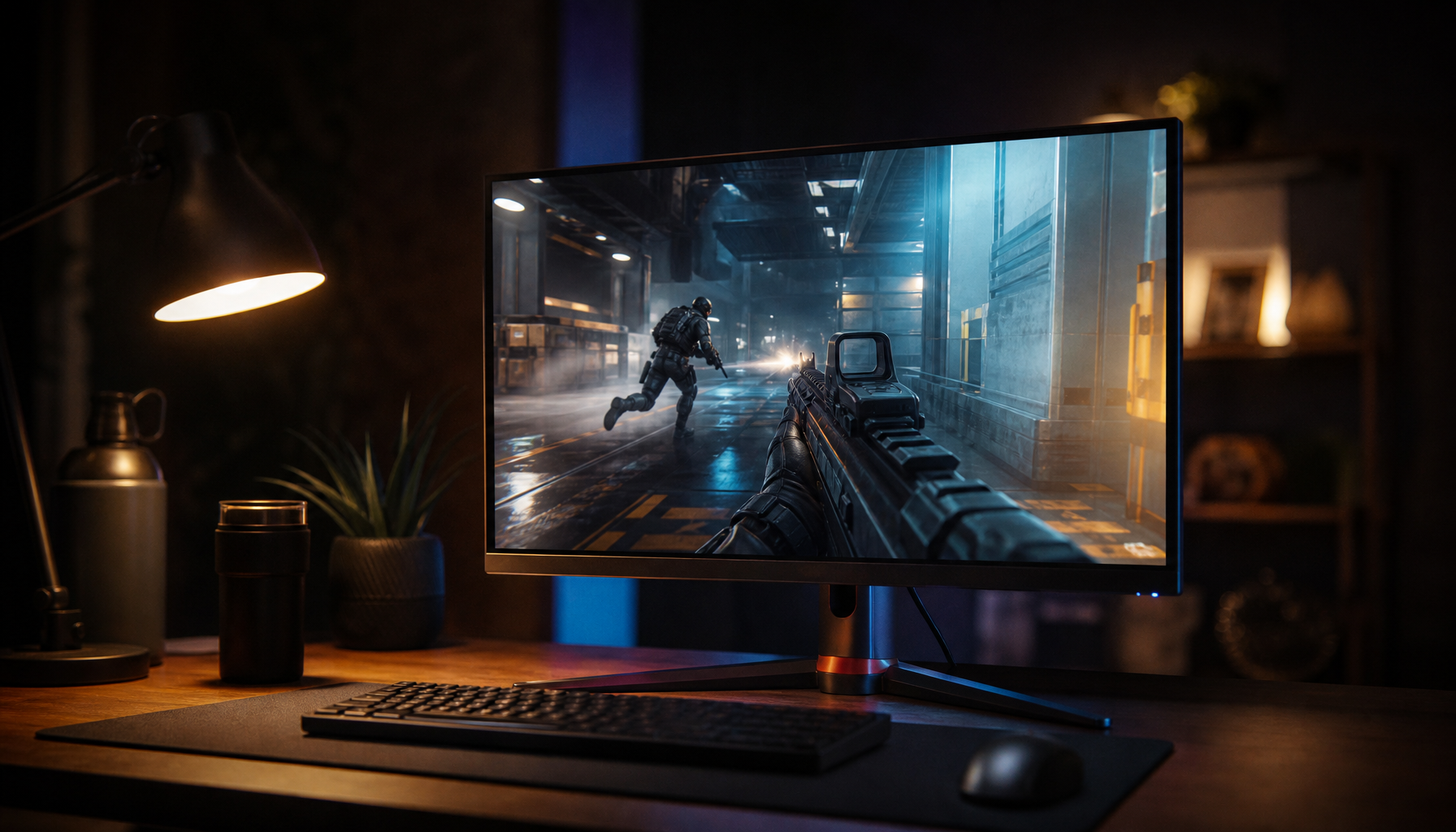
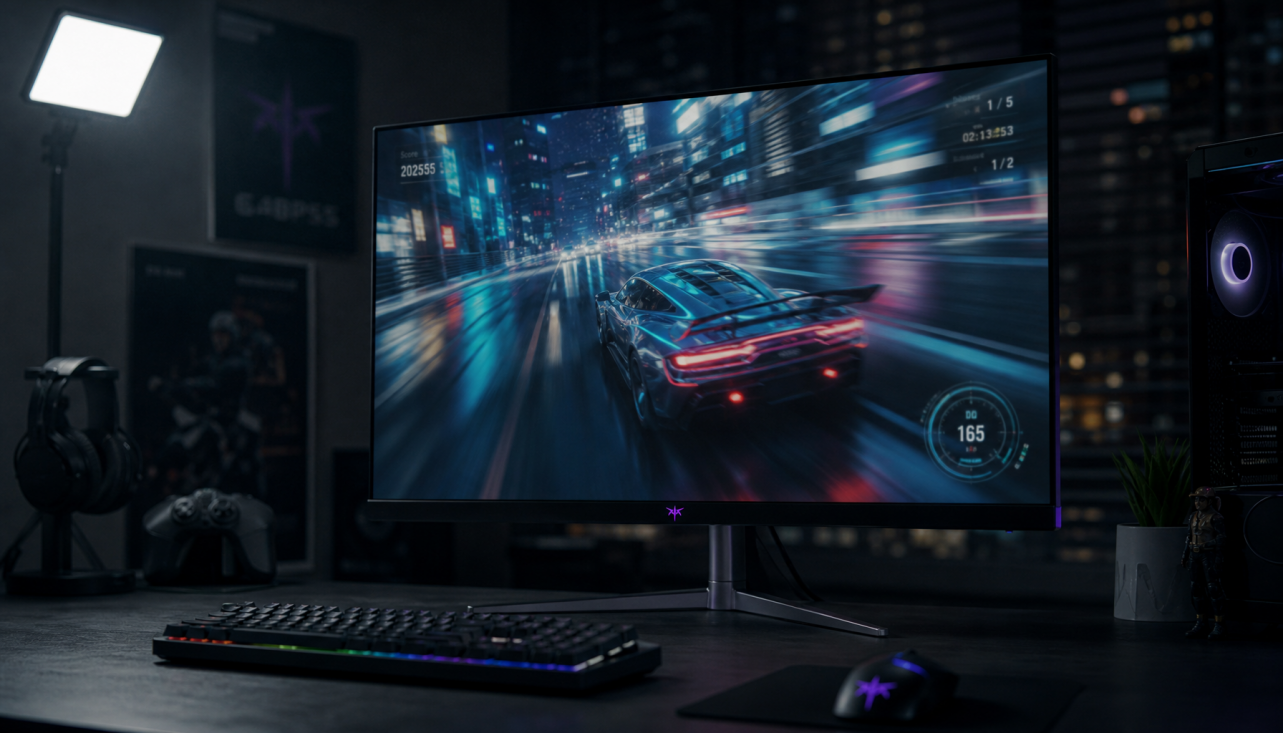
For gaming and movies, this works beautifully: a sword spark, muzzle flash, sun glint, or neon sign can pop against true black. For spreadsheets, white browser windows, and static dashboards, the panel faces a harder thermal and aging workload.

What You Will Notice First
The first effect is usually automatic brightness limiting, or ABL. When a large part of the screen becomes bright, the monitor reduces output to control power and heat.
That means a small HDR highlight may look brilliant, while a full-screen white document looks dimmer than expected. This is normal OLED behavior, not necessarily a defect. Bright windows may dim when maximized, HDR menus may look less intense than small highlights, and white webpages can shift brightness as you resize them. Some models may also activate fans or panel-protection features.

For productivity, this can feel inconsistent. For entertainment, it is often less distracting because most scenes are mixed rather than full-field bright.
The Long-Term Cost: Heat, Wear, and Burn-In Risk
Continuous maximum brightness accelerates wear because OLED materials age as they emit light. Blue subpixels are especially vulnerable, which can contribute to color shift over time.
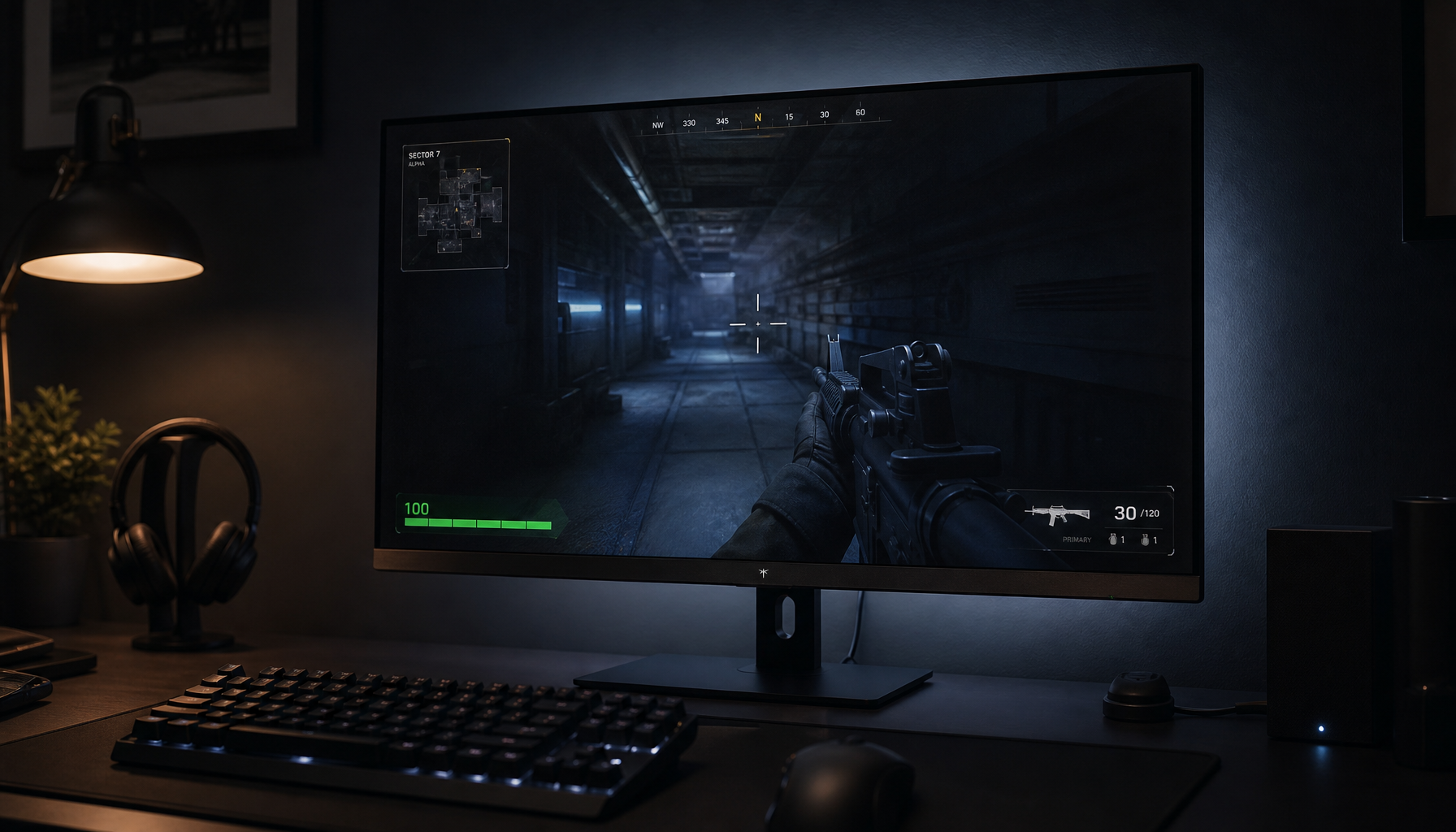
Burn-in is uneven wear. If a taskbar, HUD, logo, menu bar, or stock-ticker-style panel stays bright and static for hours, those pixels age differently from the rest of the screen. Static content plus high brightness is the risk combination to avoid.

A real-world OLED monitor user reported good results after 2,656 hours by using moderate brightness, pixel move, screen saver behavior, and image cleaning, while still noting that faint marks can appear on test patterns. That kind of brightness management is the practical difference between enjoying OLED and abusing it.
HDR at max settings is often less harmful than bright SDR desktop use because HDR highlights are usually brief and small, while office windows can stay bright for hours.
Best Settings for Performance Without Punishing the Panel
Use maximum brightness when it matters: HDR games, cinematic scenes, or short bright-room sessions. For daily desktop work, tune the panel for consistency and comfort.
A strong everyday setup:

- Set SDR brightness around comfortable room levels, not max
- Hide the taskbar and remove static desktop icons
- Enable pixel shift, screen saver, and panel refresh features
- Use dark mode for apps with long static sessions
- Keep the display ventilated and away from direct sun
For computer use, QD-OLED owners can reduce static elements with taskbar auto-hide, rotating wallpapers, and HDR calibration; these static-element controls help preserve the panel while improving the experience.
The Smart Takeaway
Maximum brightness is a tool, not a default. OLED is at its best when it delivers high-impact highlights, perfect blacks, and fast response without being forced to behave like a full-screen office light.
If your day is mostly gaming, video, and mixed content, OLED can be a premium, immersive choice. If your day is eight hours of white documents, browser tabs, and static UI, use moderate brightness or consider a Mini-LED or IPS display for that workload.