Square local-dimming zones generally produce more balanced halos around compact highlights, while rectangular zones can stretch visible blooming along their longer axis. In real monitors, zone count, optical diffusion, and dimming control often matter more than shape alone.
Does a white crosshair, subtitle, or spreadsheet cursor seem to glow into nearby black pixels more in one direction than another? A controlled bright-on-black screen can quickly reveal whether a display contains halos tightly or spreads them sideways or vertically. Here is how to recognize the pattern, understand what zone shape can and cannot explain, and choose a screen that holds contrast where it matters.
What Blooming Means on a Mini-LED Display
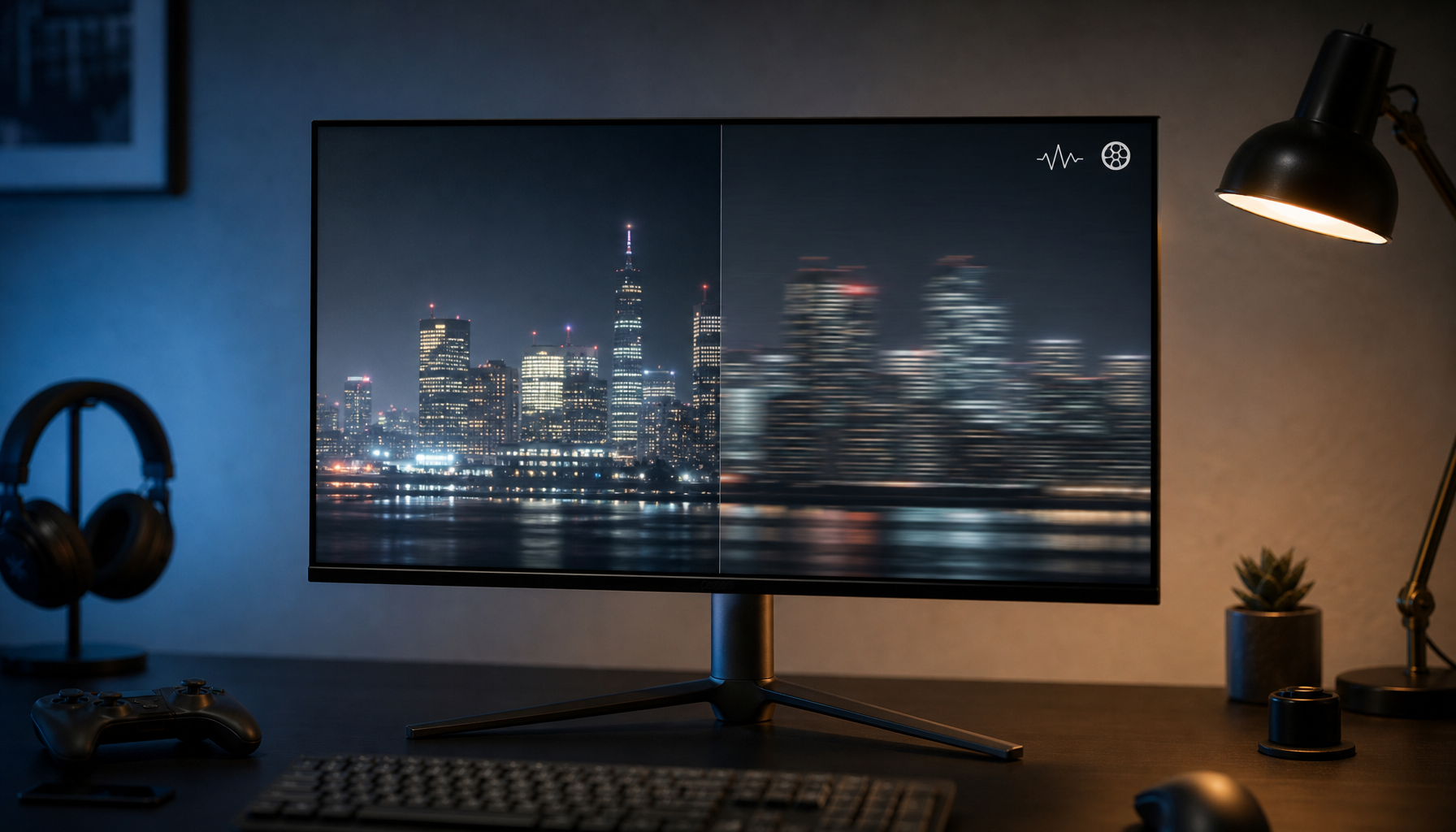
Blooming is the visible light halo that appears when a bright object sits against a dark background and the backlight cannot confine its output precisely to the object. On an OLED display, each pixel emits its own light and can switch off independently; on a Mini-LED LCD, groups of backlight emitters are controlled as local-dimming zones, while the LCD layer still shapes the image in front.
This display behavior should not be confused with artistic bloom added in games or video grading. A bloom shader intentionally spreads bright highlights to suggest intensity, atmosphere, or lens glow. Monitor blooming is unwanted when the panel reveals a halo that was not present in the image.
Mini-LED remains compelling because local dimming can produce high HDR brightness and stronger black levels than a conventional edge-lit LCD. The tradeoff is straightforward: whenever one bright object activates a zone that also covers nearby dark content, some illumination may become visible around that object.
Why Zone Shape Changes the Halo You See
A local-dimming zone does not illuminate only the exact pixels forming a star, cursor, HUD marker, or line of text. It controls a backlight region beneath those pixels. The shape of that region influences the first footprint of spill before diffuser layers, panel contrast, and software dimming decisions further soften the result.
A square zone has roughly equal horizontal and vertical dimensions. When a small bright dot activates it, the earliest visible halo tends to have a more even footprint around the object. This does not guarantee a perfectly circular halo, because optical layers and neighboring zones can still reshape the glow, but it makes one-axis stretching less likely from geometry alone.
A rectangular zone has a longer axis. If a compact highlight activates a wide horizontal zone, the spill can appear broader to the left and right than above and below. If the zone is tall, the same tendency may appear vertically. This is a geometric expectation rather than a universal benchmark result: the available evidence does not include a monitor test that holds zone count, brightness, algorithm, and panel construction constant while changing only square versus rectangular zones.
Zone layout tendency |
Compact white object on black |
Horizontal subtitle or status bar |
Productivity implication |
More square-like zones |
Halo is more likely to appear balanced around the object |
May activate several zones across the line |
Less directional glow around cursors and small icons |
Wider rectangular zones |
Halo may stretch sideways |
Can track wide bright elements efficiently, but may brighten adjacent dark areas along the row |
Sideways haze may be easier to notice beside white text on dark interfaces |
Taller rectangular zones |
Halo may stretch upward and downward |
Less aligned with wide content |
Vertical smear may be noticeable around selection bars or narrow bright UI elements |
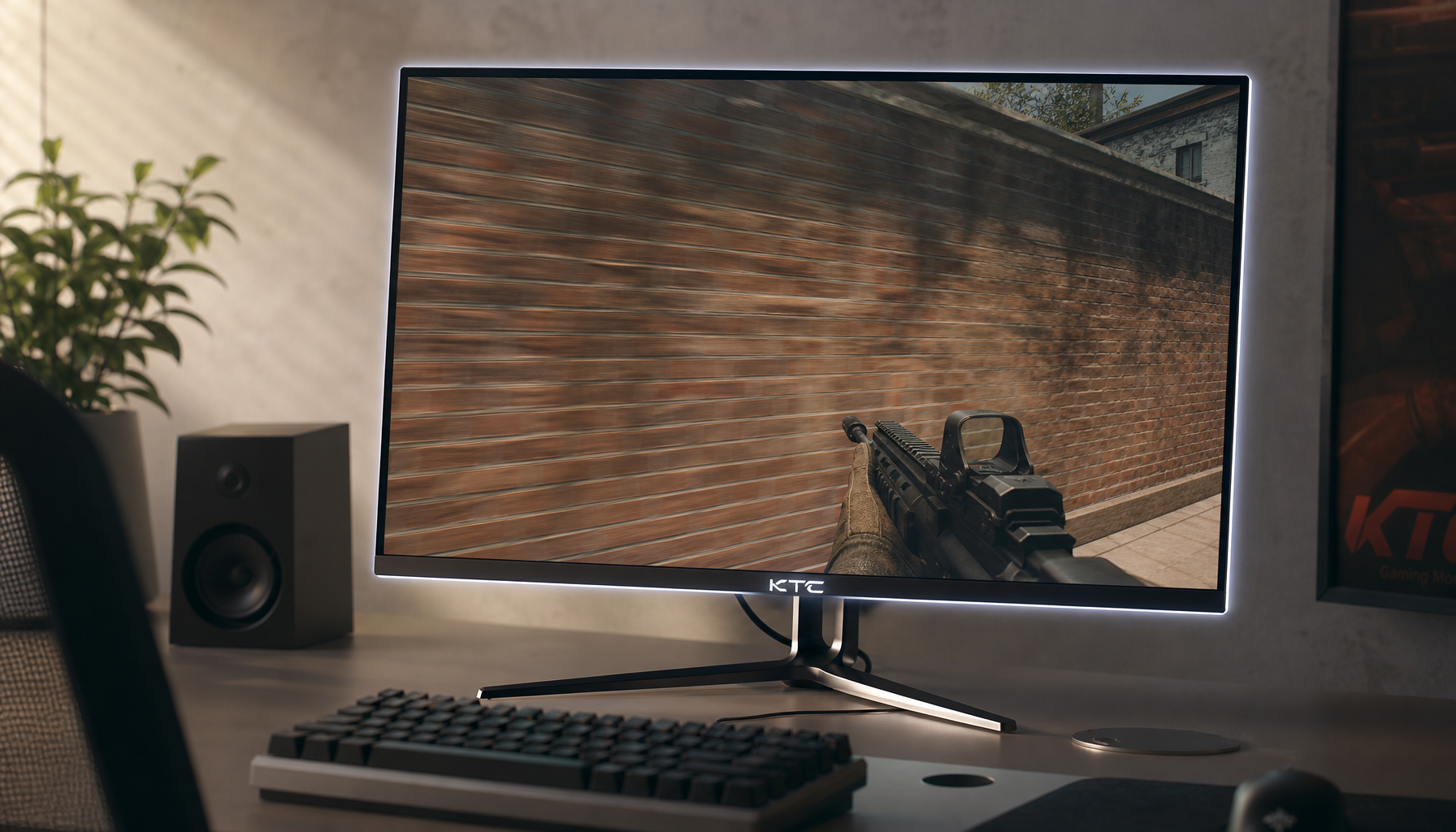
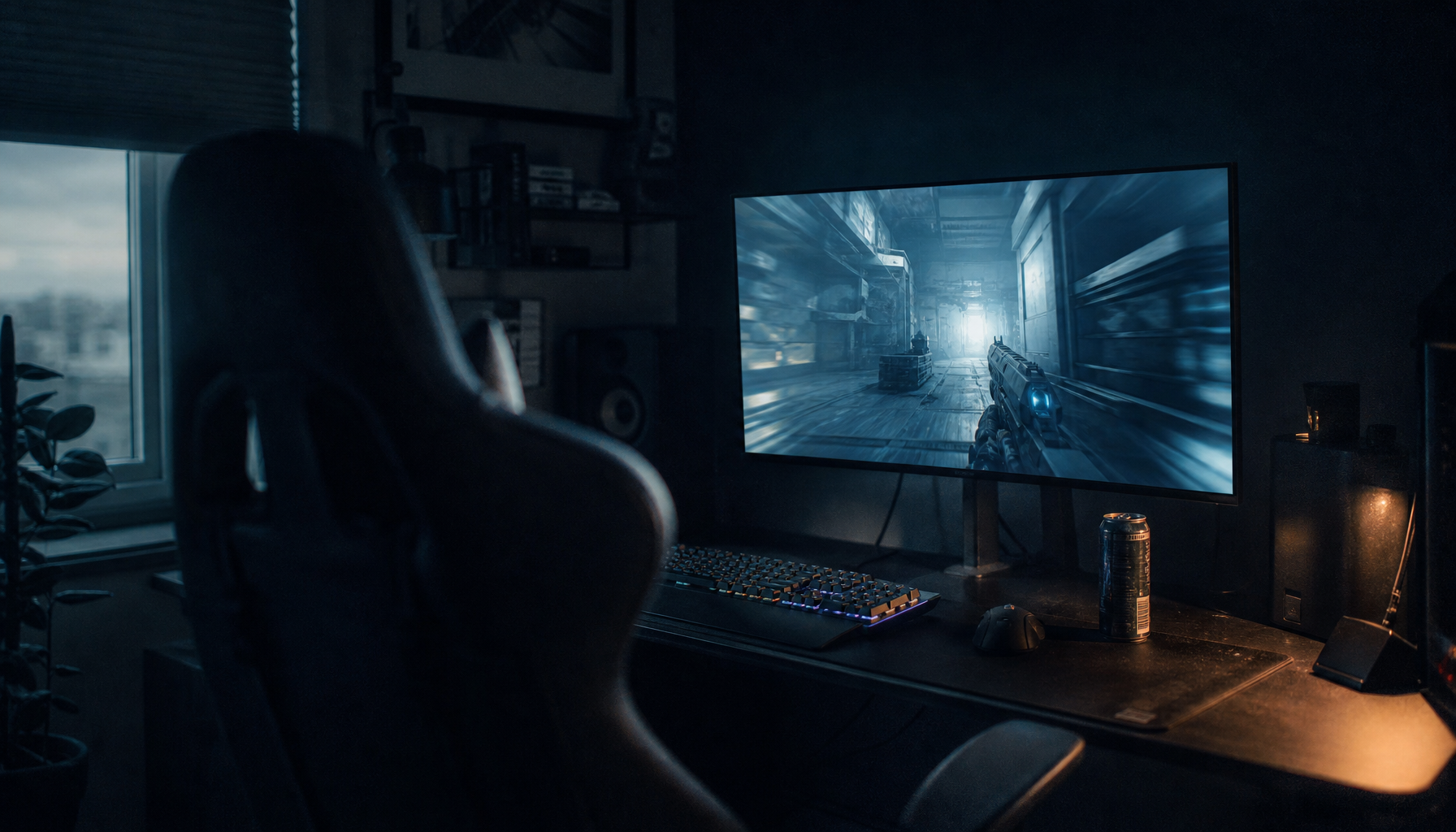
A gaming example makes the effect easy to visualize. In a dark space scene, a small white targeting reticle placed near the center of the screen may look evenly surrounded on a fine square-zone layout, while a horizontally elongated zone structure may make its halo resemble a faint short bar. In office use, a blinking white text cursor in a dark code editor can expose the same directional behavior without requiring HDR video.

Square Zones: Balanced Geometry, Not Automatic Perfection
Square zones make intuitive sense for mixed screen content because pixels, icons, game highlights, and window details can appear in any direction. A more balanced zone footprint is useful when you alternate between compact HDR highlights in games and fine light-on-dark interface elements in work applications.
The practical benefit is consistency. A square-like grid is less predisposed to favor wide or tall highlight shapes, so halos around circular loading indicators, stars, small specular reflections, or white mouse pointers may look less obviously directional. For a portable smart screen used for both streaming and laptop extension, this balanced behavior can matter more than maximizing one particular scene type.
The limitation is that a large square zone can bloom heavily. If a 27-inch monitor uses too few zones, a single small bright icon may still illuminate a substantial patch of dark background. Square shape does not compensate for coarse coverage, weak native panel contrast, aggressive HDR brightness, or slow local-dimming response.
In other words, a display with many well-controlled rectangular zones may easily outperform a display with fewer square zones. Shape influences the pattern; it does not independently determine the severity.
Rectangular Zones: Directional Spill With Possible Efficiency Benefits
Rectangular zones are not inherently a poor design decision. Screen content often contains elongated structures, including subtitles, toolbars, ultrawide game interfaces, window highlights, and bright horizontal reflections. A backlight system designed around wider or taller regions may be optimized for panel construction, cost, electrical routing, thermal behavior, or the intended content mix.
The visibility risk appears when the bright object is much smaller than the zone or oriented across its narrow dimension. A single bright enemy marker on a dark gaming map can light more surrounding area along a wide zone’s length. Likewise, a white spreadsheet cell selection or menu highlight on a dark productivity theme may create a band-like glow that is more distracting than a compact halo.
For a concrete comparison, imagine two displays with similarly sized controlled areas, one using roughly balanced regions and one using wider regions. A small circular highlight is likely to reveal the rectangular layout more clearly than a wide subtitle, because the dot gives the backlight no natural horizontal reason to spread. A movie subtitle already extends sideways, so the difference can be harder to judge unless the glow rises above or below the letters into the black bars.
This is why showroom demo footage is not enough. Bright landscapes and colorful games can hide directional blooming, while a black screen with moving white objects exposes it immediately.
Measurement Evidence: Blooming Falls Off With Distance, but Shape Still Needs Direct Testing
A Mini-LED measurement used a centered white block at maximum brightness and found that the block measured 340 nits, while spill about 0.04 inches from the bright area reached roughly 0.20 nits. At about 0.39 inches away, the remaining spill was only about 10% to 15% of that near-edge brightness, and by roughly 0.79 inches it had dropped into the thousandths of a nit.
That result is valuable because it shows why blooming should be judged by both intensity and spread. A halo that is bright close to a white object but falls away quickly can be less disruptive than a lower-intensity haze extending farther through a dark scene. For gaming, this affects stars, crosshairs, HUD text, and headlights. For office use, it affects bright text, thin gridlines, active-cell borders, and cursor visibility on dark backgrounds.
However, the test notes do not identify a direct square-versus-rectangular zone comparison. The responsible conclusion is that zone geometry can predict the direction in which spill may be most visible, but measured blooming performance must still be verified on the actual monitor model.
What Matters More Than Shape Alone
Zone count is often the first specification buyers notice, and for good reason: more independently controlled regions usually allow the backlight to match bright objects more closely. Yet total count must be considered alongside the screen size and aspect ratio. A large ultrawide monitor may require far more zones than a smaller 16:9 portable screen to achieve similarly tight control around a cursor or game highlight.
The dimming algorithm is equally important. A monitor can suppress blooming by dimming a zone conservatively, but that may also dull small HDR highlights. Alternatively, it can preserve sparkling highlight brightness and permit a more noticeable halo. Competitive gamers may accept a slight halo to keep small bright targets and effects punchy, while dark-room movie viewing often benefits from stricter black-level discipline.
Panel contrast and optical diffusion also alter what your eyes perceive. A VA-based Mini-LED monitor may contain dark-scene spill differently from an IPS-based model with the same advertised zone count, while diffuser design can smooth a hard zone boundary into a broader, softer halo. None of these factors appears completely in a specification table.
How to Test Blooming Before You Commit to a Display
A strong evaluation starts with content that matches your workflow. For a gaming monitor, display a dark game scene with small moving highlights, such as a crosshair, distant light, star field, or bright HUD element. Watch whether the halo travels as a compact cloud or stretches horizontally or vertically as the object moves.
For office productivity, use a dark document editor, dark spreadsheet, or code window with white text, a blinking cursor, and a selected cell border. The issue is not cinematic black level alone; it is whether ordinary interface detail becomes tiring when a bright line or small control seems to glow into surrounding dark space.

For a portable smart screen, repeat the test at the brightness level you would actually use away from a desk. Maximum-brightness demonstrations reveal worst-case halos, but a travel display may normally run at a much lower output. A model that blooms visibly at peak HDR may still be entirely usable for video playback, presentations, and second-screen work at everyday brightness.
Keep room lighting consistent when comparing models. Blooming is easiest to notice in a dim room, while ambient light can mask dark-scene differences. Move a small white object across the screen rather than judging a fixed image alone; motion can reveal zone boundaries and show whether the halo changes shape or brightness abruptly.
Choosing Between Square and Rectangular Zone Designs
If your priority is dark-room gaming with small bright details, a fine, evenly distributed dimming grid is the safer target because it is less likely to produce obviously directional halos around compact highlights. Do not buy on the word “square” alone; look for demonstrated control of white objects on black backgrounds, strong HDR handling, and sufficiently dense local dimming for the screen size.
If your workday includes dark-mode coding, spreadsheets, timelines, or editing panels, pay attention to directional haze around narrow text and selection elements. A monitor can deliver impressive video HDR yet still become distracting during eight hours of high-contrast interface use.
If you value sustained brightness, burn-in resistance, and HDR impact for mixed gaming and productivity, Mini-LED remains a highly capable choice even when some blooming exists. The best value is not the panel that promises perfect blacks; it is the display whose brightness, halo containment, text clarity, connectivity, and ergonomics fit the tasks you perform every day.
FAQ
Are square local-dimming zones always better than rectangular zones?
No. Square zones may create a more balanced halo around small highlights, but a monitor with denser rectangular zones and better dimming control can outperform one with coarse square zones. Actual screen behavior is more important than zone shape in isolation.
Does blooming mean a Mini-LED monitor is defective?
Not necessarily. Some haloing is a known consequence of local-dimming LCD construction, especially in high-contrast HDR scenes. The meaningful question is whether the spill is bright, wide, directional, unstable in motion, or distracting in your normal viewing conditions.
Is OLED automatically the better choice for avoiding blooming?
OLED largely avoids backlight-zone blooming because individual pixels emit light independently. Mini-LED can still be the stronger fit where higher sustained brightness, strong HDR punch, static desktop use, or reduced concern about long-term image retention matters most.
A well-designed local-dimming display should make bright detail feel precise, not surrounded by distracting haze. Treat zone shape as a clue to the halo pattern, then judge the monitor by what you can actually see: tight highlights, controlled blacks, readable interfaces, and immersive performance across the content you use.