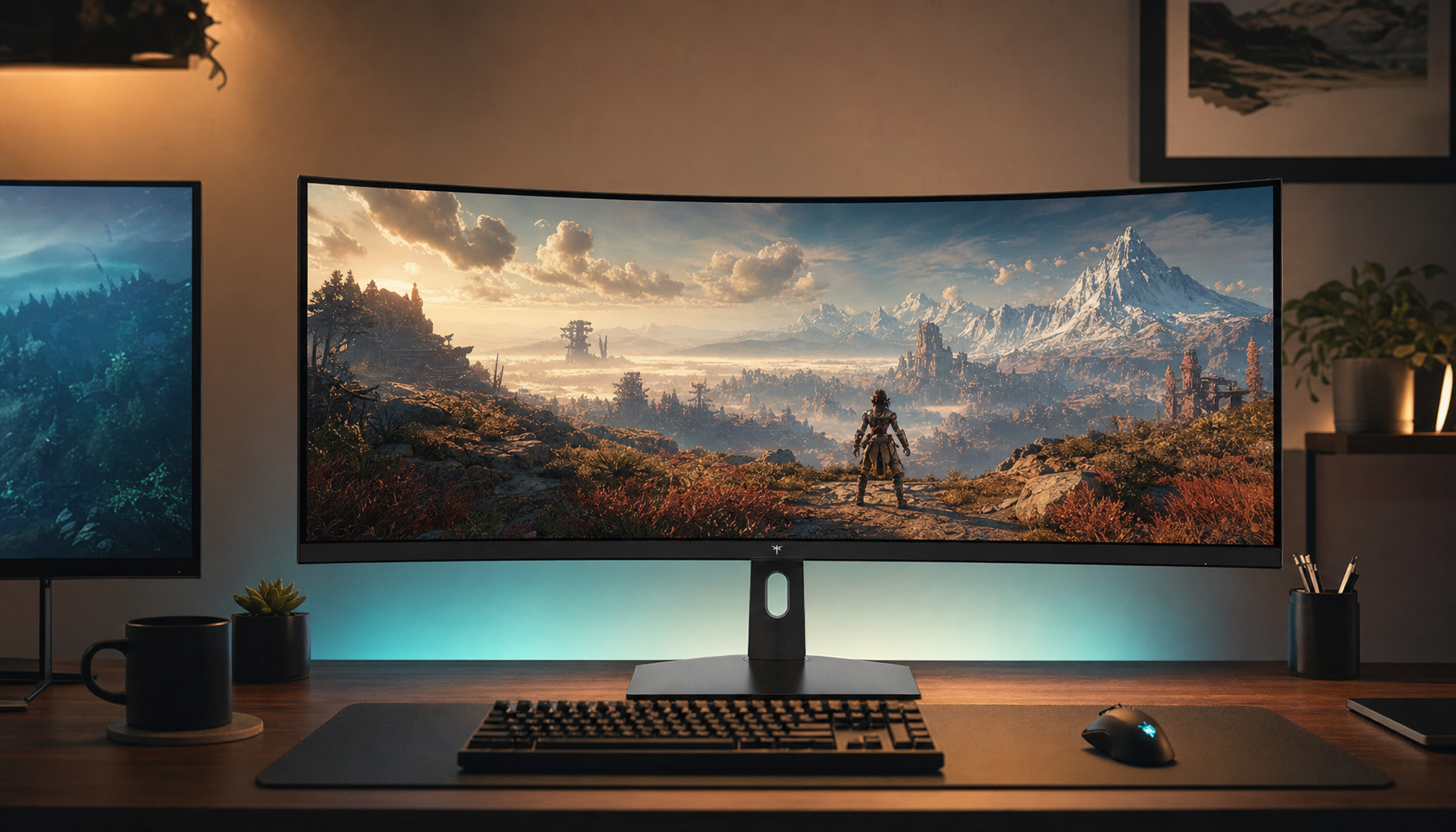
A 21:9 ultrawide can make long reading sessions feel easier when it supports a document-and-notes workflow, but it can also reduce comfort if the text line gets too wide or the screen is set up for multitasking instead of reading.
Have you ever opened a long PDF on a big screen and felt that the page got larger without getting easier to read? A real-world comparison of a 15.5-inch laptop and a 65-inch 4K TV found the smaller display easier to read at 40% zoom, while the larger screen still needed 50% to 60% zoom before the page felt usable. The practical question is not whether ultrawide looks impressive; it is whether the setup makes long-form text easier to scan for hours.
Where 21:9 Ultrawide Displays Help
A 21:9 ultrawide is strongest when reading is part of a larger workflow, not the only thing on screen. Wide monitors can keep a PDF, reference document, browser tab, or notes pane visible without constant window switching ultra-wide monitors. For researchers, writers, and office users, that usually matters more than raw screen width because it lowers friction between reading and taking action.
Document-plus-notes layouts

Two-page layouts also benefit. If you review contracts, research papers, or manuals, the extra width can hold a document, an outline, and a citation list at once. In that case, the 21:9 format is helping by reducing context switching, not by making the text column itself larger.
Better multitasking without a second screen
For buyers deciding between one ultrawide and two monitors, this is the core advantage: a single 21:9 panel can behave like a reading surface and a workspace at the same time. That is useful in a home office where you want fewer cables, less bezel interruption, and less visual clutter than a dual-monitor setup.
Where It Hurts Comfort
Line length can work against you

Long lines are the main reason some readers dislike ultrawide screens. When a page stretches across too much width, each line becomes harder to track, especially in dense PDFs with small type, footnotes, or narrow margins. The fix is usually to keep the reading window narrower than the full panel and leave the outer areas for supporting tools.
Bigger panels do not guarantee clearer text
A test comparing a 15.5-inch 1080p OLED laptop and a 65-inch 4K TV found that the laptop was clearer for word-processing documents at 40% zoom, while the TV still needed 50% to 60% zoom to become readable text size and readability. The measured page width was about 3.7 inches on the laptop versus about 7.8 inches on the TV, but the larger screen still did not win on comfort. That is the practical lesson for monitor buyers: physical size alone does not solve readability.
What Actually Drives Reading Comfort
Effective size and scaling matter more than aspect ratio

The real question is not just 1080p, 4K, or 5K. It is how the operating system scales the interface and how large the text column ends up in real use. One PDF-reading thread described a laptop with an effective resolution of 1,470 x 956 where “Fit to page” made text too small, while “Actual Size” improved readability but pushed the user toward a 24-inch or 27-inch external monitor instead PDF documents. That tradeoff shows up on ultrawides too: if scaling, zoom level, and window size do not line up, the screen can feel larger without feeling better.
Distance and posture change the experience

A 2024 ergonomics summary of wide displays notes that eye strain is tied more to viewing distance, glare, font size, and refocusing than to blue light, and it recommends keeping the primary task in the center third of the screen with the top edge at or slightly below eye level ultra-wide monitor ergonomics. It also says 34-inch ultrawides are generally easier to place than 40-inch or 49-inch models on shallow desks, with about 24 to 31 inches of viewing distance as the practical range. That is a useful yardstick for buyers: if you need to lean in or turn your head constantly, the screen is too big or too close for long reading sessions.
Which Monitor Setup Fits Which Reader
For buyers, the right answer is usually workload-specific. A 34-inch 21:9 ultrawide tends to suit mixed reading and multitasking, while a standard 27-inch 16:9 display often feels more natural for single-page PDFs at a comfortable zoom. Dual monitors still make sense when you need strict separation between source material and notes, but they add more desk space, more bezels, and more setup complexity.
Setup |
Reading comfort for long PDFs |
Best use case |
Main tradeoff |
34-inch 21:9 ultrawide |
Good when the page stays centered and side space is used for notes |
Writing, research, document review |
Wide line length if the viewer spans the whole panel |
Larger 21:9 ultrawide |
Good for multitasking, not always best for pure reading |
Two documents, source plus notes |
More eye and head movement, deeper stand footprint |
27-inch 16:9 monitor |
Very good for single-document reading |
PDFs, manuscripts, textbook-style work |
Less room for side-by-side tools |
Dual 27-inch monitors |
Strong for separating tasks |
Heavy research and comparison work |
Bezels, desk space, more setup complexity |
Portable monitor |
Fair for travel and quick reference |
On-the-go reading |
Smaller text and less comfortable viewing distance |
If you mostly read one page at a time, a 21:9 panel only wins when it lets you keep notes or search results nearby. If the PDF itself must stay full-size and uncluttered, a 27-inch 16:9 screen or a dual-screen setup may feel less tiring.
How To Set Up a 21:9 Monitor For Reading
Use the center third
Keep the main page in the center third of the screen and use the sides for tools, not text you need to read continuously. That reduces eye travel and keeps the most important content near your natural line of sight.
Tune the display before you tune the chair
Start with text that is comfortable at your normal zoom level, then adjust scaling, browser zoom, or PDF zoom before you start leaning forward. If you need to move your head around to follow every line, the layout is too wide for the reading task.
Use a mount if the stand steals desk depth
A bulky stock stand can steal desk depth or push the screen into a bad position on a shallow desk, and the wide-display ergonomics summary recommends checking compatibility with a standard mounting pattern and weight support before buying an arm ultra-wide monitor ergonomics. A mount usually gives you more control over height and distance than the default stand.
Practical Next Steps
Before you buy a 21:9 ultrawide for documents and PDFs, run through this checklist:
- Test a sample PDF at Actual Size on the screen size you are considering.
- Check whether the document remains readable when the viewing window uses only part of the panel.
- Sit far enough back that the display feels comfortable without leaning forward, ideally around 24 to 31 inches.
- Favor a 34-inch 21:9 model for mixed reading and multitasking.
- Choose a 27-inch 16:9 monitor if your priority is single-page reading comfort.
- Verify that the stand or arm keeps the top of the screen at or slightly below eye level.
- Make sure your scaling setting keeps menus readable without shrinking the document text.
The main buying mistake is treating ultrawide width as a reading feature by itself. For long-form documents, the winner is the display that keeps text large enough, lines short enough, and your posture relaxed enough to keep going.
FAQ
Q: Is a 21:9 ultrawide better than a 16:9 monitor for PDFs?
A: Only when your workflow benefits from extra space for notes or side panels. For pure single-page reading, a 27-inch 16:9 monitor often feels more compact and easier to scan.
Q: Do I need 4K or 5K for document reading?
A: Higher resolution helps only if scaling keeps text comfortable. The real test is whether the PDF looks readable at your normal zoom without making menus tiny or forcing you to lean in.
Q: What size ultrawide is best for long-form reading?
A: A 34-inch 21:9 model is usually the safest starting point for mixed reading and multitasking. Larger ultrawides can work, but they ask more from your desk depth, viewing distance, and neck movement.