HDR posterization usually appears when a wider brightness and color range is squeezed through a weak link in the display chain, such as low bit depth, rough tone mapping, poor calibration, or mismatched color settings.
Ever notice a sunset, game skybox, smoke effect, or dark UI gradient suddenly break into visible steps after HDR is enabled? A careful check of bit depth, HDR mode, system display settings, and monitor processing can usually identify whether the problem is the content, the GPU path, or the panel itself. Here’s how to diagnose the cause and get smoother transitions without losing HDR’s impact.
Why HDR Makes Banding Easier to Notice
HDR is designed to increase image quality through brightness, contrast, and color range, not simply through more pixels. Compared with SDR’s older 100-nit, Rec.709/sRGB-centered world, HDR formats can represent much brighter highlights, deeper shadows, and wider color spaces. That expanded range is powerful, but it also asks the signal chain to describe finer steps across a much larger visual space.
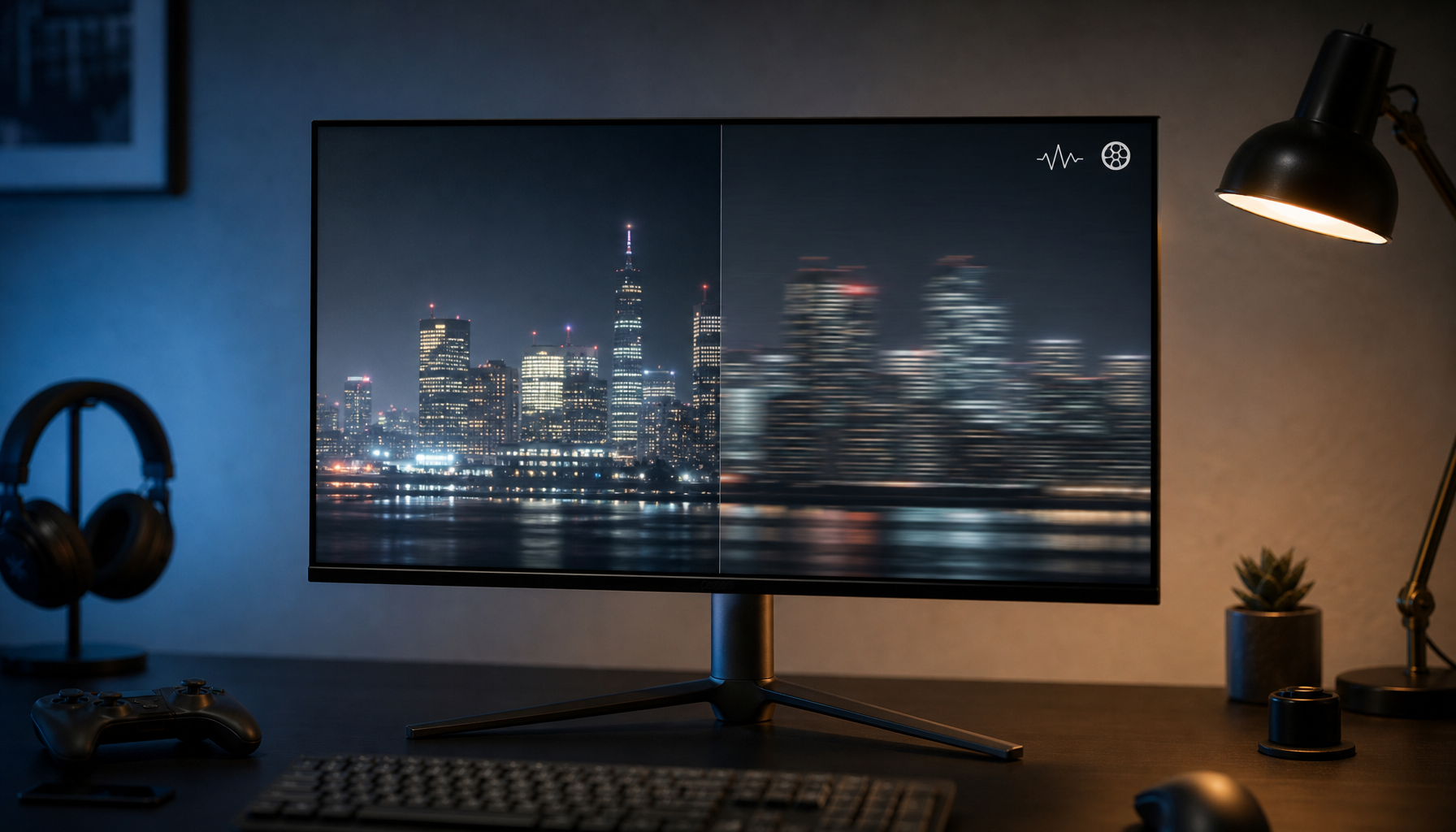
Posterization is the visible stepping that appears where a gradient should look continuous. In monitor terms, it often shows up in blue skies, shadow ramps, fog, bloom, lens flares, anime backgrounds, desktop wallpapers, and game loading screens. HDR does not automatically create the artifact; it exposes weak precision. If the source, GPU output, cable mode, operating system color pipeline, panel, or internal monitor processing cannot preserve enough tonal detail, smooth ramps turn into bands.
A simple way to think about it is this: SDR may spread 256 red, green, and blue levels across a narrower visual range, while HDR may demand smoother control across darker lows and brighter highs. That is why true 10-bit displays are valued for smoother gradients, subtler shading, and more realistic color transitions.
The Main Technical Causes
Bit Depth Is Too Low for the HDR Range
Bit depth controls how many tonal steps are available per color channel. An 8-bit display has 256 levels per RGB channel, while a true 10-bit display has 1,024 levels per RGB channel, producing about 1.07 billion possible colors rather than about 16.77 million. That extra precision matters most in smooth transitions.

Color Path |
Practical Meaning |
Posterization Risk |
8-bit |
Limited tonal steps per channel |
Higher in HDR gradients |
8-bit + FRC |
Simulates extra steps through rapid temporal dithering |
Lower than basic 8-bit, but panel-dependent |
True 10-bit |
Native 1,024 levels per RGB channel |
Best for HDR grading, gaming skies, and smooth shadows |
Frame Rate Control can be a smart value play because it approximates 10-bit behavior at a lower price. The tradeoff is that it is still a simulation, and its success depends on the panel, refresh rate, and monitor electronics. For competitive gaming, 8-bit + FRC may look excellent at high refresh rates; for grading, print preview, or professional HDR review, native 10-bit remains the cleaner tool.
Tone Mapping Compresses Too Aggressively
No consumer monitor can reproduce the full theoretical brightness and color range of HDR formats. An HDR screen usually means it can accept HDR content and map it to its own brightness, contrast, and color volume. That mapping step is where a lot of posterization begins.
HDR10 uses static metadata, so it describes overall mastering conditions but does not give the display scene-by-scene instructions. Dynamic HDR formats adapt presentation more precisely. When a monitor has limited peak brightness or limited color volume, rough tone mapping can crush nearby values together, especially in bright skies or dim shadow gradients. The result can look like contour lines instead of smooth light.

Professional HDR workflows pay close attention to this. In HDR mastering, PQ/ST.2084 is highly non-linear, especially in highlights, so normal grading controls can behave unexpectedly without compensation. A published HDR grading workflow also notes that large bright scenes, clouds, and gradients can stress average brightness limits, causing displays to dim or reshape the image.
Color Space or Gamut Is Mismatched
HDR often uses wider color spaces than SDR. That does not mean every HDR monitor can show every HDR color cleanly. Wide-gamut content must still be mapped into the monitor’s actual color volume, and marketing claims can be misleading if they describe area instead of true coverage.
This matters because gamut errors do not always look like “wrong color.” Sometimes they look like uneven ramps, oversaturated midtones, or flat gradients with abrupt transitions. A monitor advertised with a broad color claim may still fail to cover the exact coordinates needed for faithful reproduction. The same principle appears in gamut education: a percentage alone can mislead when it does not prove coordinate-based coverage.
Calibration and Monitor Modes Are Fighting the Signal
HDR is only as reliable as the display state receiving it. A monitor in vivid mode, eco brightness, dynamic contrast, black equalizer, blue-light mode, or game enhancement mode may reshape the signal after the GPU has already done its work. That can make gradients worse even when the file and cable path are technically correct.
Hardware calibration exists because predictable image processing depends on stable brightness, white balance, gamma, and tone behavior. Some professional displays store calibration data in the monitor’s hardware look-up table, and hardware calibration is presented as more precise than typical software-only adjustment. You do not need a studio reference display for every desk, but if HDR gradients matter, you do need a neutral mode and consistent settings.
Why HDR Can Look Worse on a Good Monitor
A capable display can still show poor HDR if the operating system, app, GPU output, or content path is wrong. PC HDR is especially sensitive because the desktop mixes SDR apps, HDR video, game engines, ICC profiles, driver controls, and monitor firmware.
Real user reports often point to the same chain problem. In one PC gaming discussion, users described HDR looking washed out or flat across multiple displays, including cases where calibration did not make HDR obviously better than SDR. The useful takeaway from that PC HDR discussion is not that HDR is bad; it is that the whole path must be checked, from source device to display mode.
For a practical example, imagine a 1440p gaming monitor running HDR over a bandwidth-limited cable setting. If the GPU silently drops to 8-bit output or chroma subsampling to maintain refresh rate, the monitor may still say “HDR,” but gradients can degrade. The screen accepts the mode, yet the signal precision is compromised.
How to Diagnose HDR Posterization
Check the Signal First
Start with the GPU control panel or operating system display settings and confirm the output format. You want HDR enabled only when the content or game is actually HDR-aware, and you want the highest available bit depth at the target refresh rate. If changing from 165 Hz to 120 Hz unlocks 10-bit output, test both. For visual fidelity, 10-bit at a slightly lower refresh rate may look cleaner than 8-bit at the absolute maximum refresh rate.
Also test a known smooth HDR video, a game with good HDR calibration controls, and a simple gradient pattern. If only one game shows banding, the game’s HDR implementation or in-game calibration may be the cause. If every HDR source shows bands, the issue is probably system-wide or display-side.
Reset the Monitor’s Picture Processing
Use the monitor’s most neutral HDR mode. Disable dynamic contrast, local contrast exaggeration, black boosting, vivid color, and blue-light shifts while testing. These features can be useful in bright offices or competitive gaming, but they are poor diagnostic tools because they alter the tone curve.
If your monitor has local dimming, test with it on and off. Local dimming can improve contrast dramatically, especially on mini-LED displays, but aggressive zone behavior can make gradual luminance changes look uneven. On OLED, the concern is less blooming and more how the content, automatic brightness limiting, and near-black handling interact.
Calibrate for the Use Case
For gaming, run the console, operating system, or in-game HDR calibration and set peak brightness to what the monitor can actually sustain, not what the box advertises. For creative work, use a hardware calibrator if possible and avoid judging HDR color in a sunlit room.
For office productivity, HDR may not need to stay on all day. SDR often looks cleaner for spreadsheets, documents, browser work, and static UI because many desktop apps are still SDR-first. Turn HDR on when viewing HDR video, playing HDR games, or reviewing HDR content, then compare whether the practical benefit outweighs the desktop compromises.
Pros and Cons of HDR When Gradients Matter
HDR Advantage |
Practical Risk |
Brighter highlights and better shadow detail |
Weak tone mapping can create bands |
Wider color and stronger material realism |
Gamut mismatch can distort transitions |
More immersive games and video |
OS/app handling can vary widely |
Better depth perception in 2D imagery |
Low bit depth becomes more visible |
HDR is worth using when the monitor has enough brightness, contrast, bit depth, and processing quality to support it. It is less compelling when the display only accepts an HDR signal but cannot reproduce much of the HDR experience. For a value-oriented setup, a strong SDR mode plus a well-implemented 8-bit + FRC HDR mode can outperform a cheap “HDR” label with poor tone mapping.
Buying Advice for Smoother HDR
Prioritize real HDR capability over the badge. Look for strong contrast, meaningful peak brightness, wide color coverage, and 10-bit support, whether native or well-implemented FRC. Certifications can help, but they should not replace reviews that test actual tone mapping, gradient handling, local dimming, and color accuracy.
For professional display work, native 10-bit, hardware calibration support, stable uniformity, and predictable color modes are the safer investment. For gaming, balance HDR quality against response time, refresh rate, adaptive sync, and input lag. For portable smart screens, be especially cautious: compact panels may accept HDR but lack the brightness and processing depth to make it look clean.
Closing Thought
HDR posterization is rarely caused by one setting alone. Treat it as a chain problem: source precision, GPU output, cable bandwidth, operating system handling, monitor mode, panel bit depth, and tone mapping all have to cooperate. When those links are aligned, HDR stops looking like a gimmick and starts delivering the smooth, high-impact image it was built for.