Local dimming overreacts when backlight zones treat small, bright objects as high-priority highlights, causing blooming, pulsing, black crush, or delayed brightness changes around otherwise stable content.
Why Subtitles Trigger the Backlight So Hard
Local dimming splits the backlight into zones that brighten or dim independently to improve contrast. That works well for HDR movies and games, but subtitles create a difficult pattern: tiny white text on a dark scene.
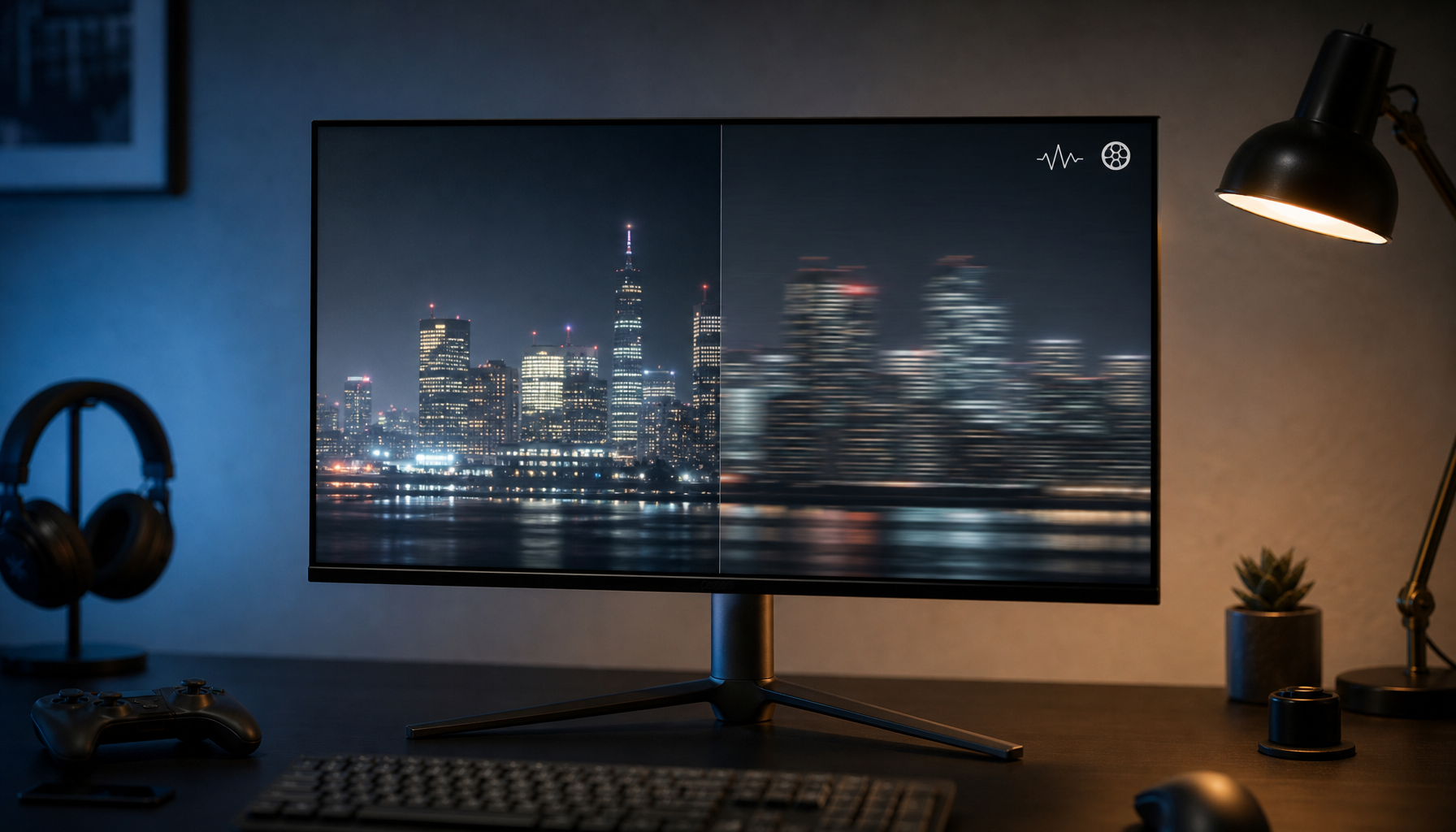
If one subtitle line sits inside a zone, the monitor may brighten the whole zone, not just the letters. On a Mini LED screen, more zones usually improve precision, but halo effects can still appear when a bright object is smaller than the dimming area controlling it.
That is why a starfield, white mouse pointer, game HUD, or streaming-style subtitle can look like it has a glow bubble around it. The monitor is not confused by the text itself; it is limited by how much screen area each backlight zone must control.

The Algorithm Is Chasing Contrast
The real behavior comes from the local dimming algorithm. It has to decide how bright each zone should be, how fast it should react, and how much detail it should preserve in nearby shadows.
A strong setting usually pushes harder for deep blacks and punchy highlights. That can make HDR look more cinematic, but it can also exaggerate blooming around static UI. Some user testing discussions note that a strong local dimming setting may be too aggressive, with blooming and black crush becoming more noticeable.
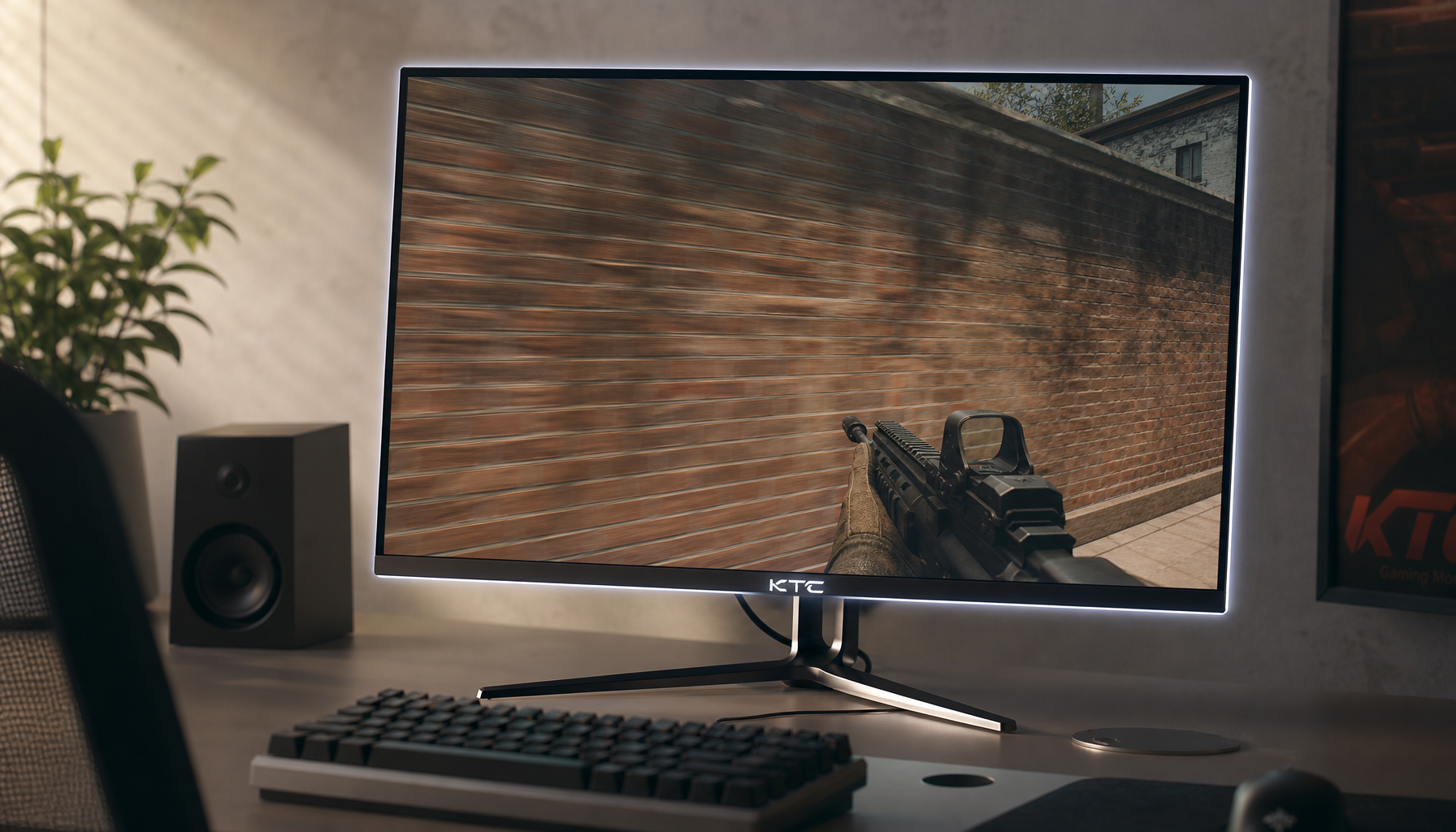
The tricky part is timing. If subtitles appear and disappear quickly, the backlight may brighten fast but dim down slowly, leaving a brief glow after the text is gone. For gaming, this can show up as a bright trail around scoreboards, health bars, crosshairs, or inventory overlays.
A slower algorithm may look smoother in movies, while a faster one may feel sharper in games but more prone to visible brightness pumping.
UI Elements Are Worse Than Movie Highlights
A movie highlight usually belongs to the scene: a lamp, explosion, moon, or reflection. Desktop UI is different. It is sharp, flat, high-contrast, and often static.
That means local dimming may keep reacting to things that were never meant to be treated like HDR highlights: white browser tabs, a spreadsheet grid, app sidebars, taskbars, or a black code editor with bright text. For office use, this can feel unstable because your eyes expect menus and documents to hold steady.

This is why many performance-focused users disable local dimming for SDR desktop work. You trade away deeper blacks, but you gain consistent brightness for reading, writing, coding, and multitasking. For a 27-inch productivity display viewed from roughly 24 to 27 inches away, stable text usually matters more than dramatic contrast.
Settings That Reduce Overreaction
Start with the least aggressive control that still gives you the contrast you want. On supported displays, local dimming levels commonly range from Off to High, where stronger levels apply a larger dimming effect; stronger dimming levels show that tradeoff clearly.

Quick tuning path:
- Use Low or Medium local dimming for subtitles and desktop UI.
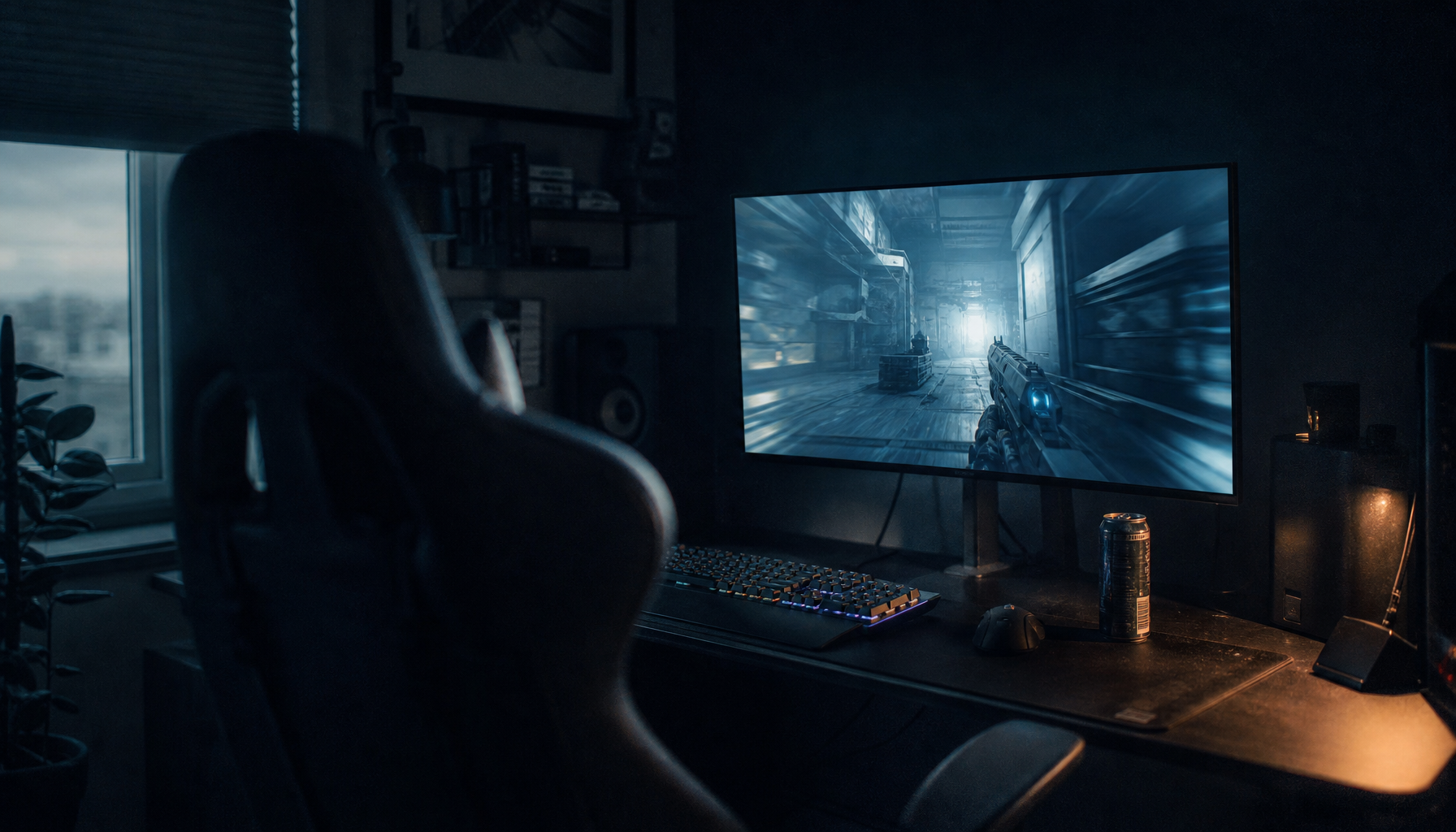
- Use stronger local dimming mainly for HDR games and movies.
- Turn it off for spreadsheets, coding, writing, and static apps.
- Disable dynamic contrast if it stacks with local dimming.
- Update firmware and test another cable or power adapter if artifacts look abnormal.
That last point matters. A forum case involving haloing on a monitor was reportedly resolved by replacing a faulty power adapter, suggesting voltage delivery can sometimes mimic panel or dimming problems.
What to Look For in a Better Monitor
For immersive HDR, choose a display with dense Mini LED zoning, adjustable local dimming levels, and reviews that specifically test subtitles, UI, and dark-scene transitions. Zone count helps, but the algorithm still decides whether the image feels premium or distracting.
Mini LED local dimming relies on algorithms to reduce unwanted halos and smooth transitions between bright and dark areas. That is the key buying lesson: advanced algorithms matter as much as the backlight hardware.
For value-oriented buyers, the best setup is practical: local dimming on for HDR immersion, toned down for subtitle-heavy viewing, and off for office productivity. A great monitor should fit the task in front of you, not make every white word on a black screen feel like a spotlight.