







Some monitors lose contrast at wider viewing angles because the panel no longer directs light evenly toward your eyes. As you move off-center, blacks can look gray, brightness drops, and colors shift, making the image feel flatter even when the advertised contrast ratio looks strong.
Contrast Is Directional, Not Just Numerical
Contrast ratio describes the gap between a screen’s brightest white and darkest black; a 1,000:1 monitor means white is 1,000 times brighter than black under that test condition. That number matters, but it does not guarantee the same punch from every seat.
LCD monitors use a backlight shining through liquid crystal layers. Head-on, those layers control light predictably. From the side, the light path changes, so more unwanted light can leak through dark areas while bright areas lose intensity.
That is why a dark game corridor, spreadsheet grid, or video timeline can look crisp from the center and washed out from an angle. The panel may still be working, but your eyes are receiving weaker black-to-white separation.

Panel Type Is the Big Divider
TN panels are the classic example of narrow-angle contrast loss. They can be fast and affordable for esports, but off-axis viewing often brings color inversion, dimming, and weak blacks.
VA panels usually deliver stronger native black depth than IPS when viewed straight on. The tradeoff is that VA can lose contrast and gamma stability from the sides, especially on larger screens where the edges are naturally viewed at sharper angles.
IPS panels are generally more consistent across wide angles, which is why they are common in office displays, portable screens, and creator setups. Many wide-angle monitors advertise 178-degree viewing angles, but that spec is a broad tolerance, not a promise that contrast looks identical at the extreme edge.
OLED has the strongest angle advantage because each pixel emits its own light. With no LCD shutter and backlight stack to distort the beam, contrast usually holds better from off-center positions.
Why It Shows Up More on Big and Portable Screens
A 32-inch monitor, ultrawide, or triple-screen laptop extender makes viewing angle more obvious because your eyes do not hit every part of the panel straight on. Even when you sit centered, the far left and right edges are already off-axis.

Portable smart screens add another challenge: they are often shared, rotated, propped on stands, or used beside a laptop. If the panel has weak viewing-angle behavior, a teammate sitting just a few feet to the side may see lower brightness and softer blacks than you do.

This matters for work as much as gaming. Color shift and contrast loss can affect slide approvals, video edits, dashboards, and design reviews, where a “looks fine to me” screen can mislead another viewer.
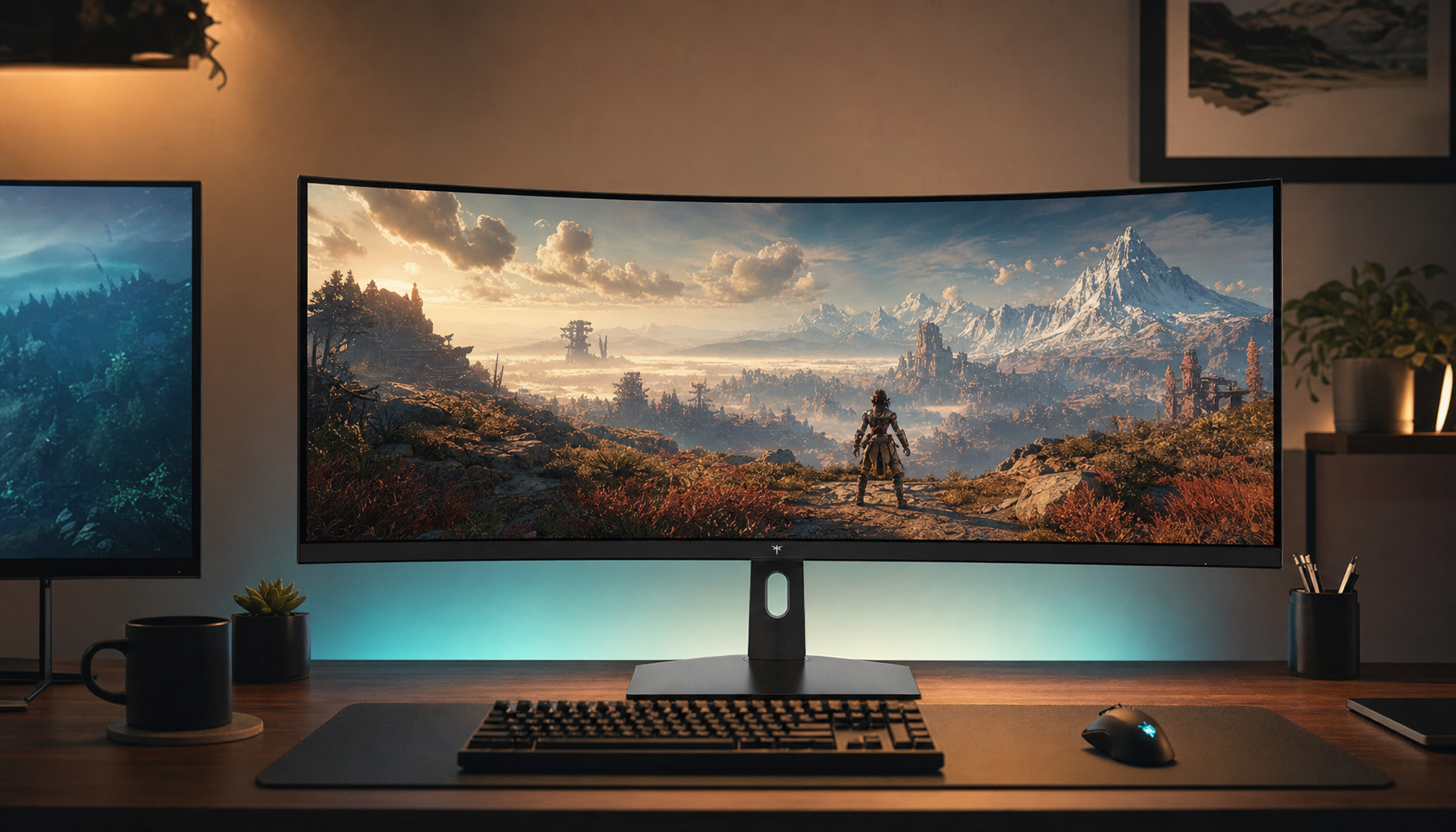
A useful nuance: a curved VA monitor can make the edges face you more directly, but curvature does not change the panel’s actual off-axis performance.
How to Choose and Set Up for Better Off-Angle Contrast
For shared desks, wide monitors, and portable productivity rigs, prioritize IPS, higher-contrast IPS, OLED, or QD-OLED panels over basic TN. For solo dark-room gaming, a good VA panel can still be excellent if you sit centered.
Look for native or static contrast, not just dynamic contrast. A display’s static contrast ratio better reflects simultaneous bright-and-dark performance than inflated scene-based numbers.
- Sit centered, especially with VA or TN panels.
- Keep the top bezel at or slightly below eye level.
- Tilt the screen so the panel faces your eyes directly.
- Reduce glare from side windows and bright lamps.
- Use a consistent color mode for review work.

Calibration cannot fully fix panel physics, but it can prevent avoidable clipping. Adjust brightness for the room, then tune contrast and black level so shadow and highlight details remain visible; monitor settings are most reliable when matched to your actual lighting.
The Buying Takeaway
If you mostly sit dead center, contrast ratio and black depth may matter more than extreme viewing angle. If you use a large monitor, ultrawide, dual-screen setup, or portable smart screen, viewing-angle stability becomes a performance feature.
For the best balance of reliability and immersion, choose the panel around the way you actually view it: IPS for flexible office and shared use, VA for centered high-contrast entertainment, and OLED when wide-angle contrast and deep blacks are top priorities.


%20is%20the%20main%20factor%20for%20off-axis%20image%20quality,%20affecting%20how%20blacks%20and%20col...
)