Zone update frequency affects how steady a display feels because brightness changes over time can become visible as pulsing, shimmer, or eye fatigue.
Do dark game menus, office spreadsheets, or dimmed desktop windows seem to pulse even when the monitor is “high refresh”? A practical test can separate frame-rate flicker, dimming-zone behavior, cable instability, and temporal dithering before you blame the whole display. Here is how zone update frequency affects comfort, gaming immersion, and buying decisions in plain display terms.
What Zone Update Frequency Means
Zone update frequency is how often a display updates the brightness level of a lighting or image-control region. On a mini-LED monitor, that region may be a local dimming zone behind the LCD panel. On OLED, the equivalent issue is not a backlight zone, but the panel can still show brightness instability when refresh behavior, gamma, or subpixel drive changes over time. In practical terms, the viewer experiences the result as luminance variation.
That distinction matters because LCD and OLED displays are sample-and-hold technologies, so their flicker is not automatically tied to the refresh rate printed on the box. A 240 Hz monitor can still flicker if its brightness control uses pulse-width modulation, if local dimming zones update in visible steps, if VRR causes gamma shifts, or if the graphics system applies temporal dithering.
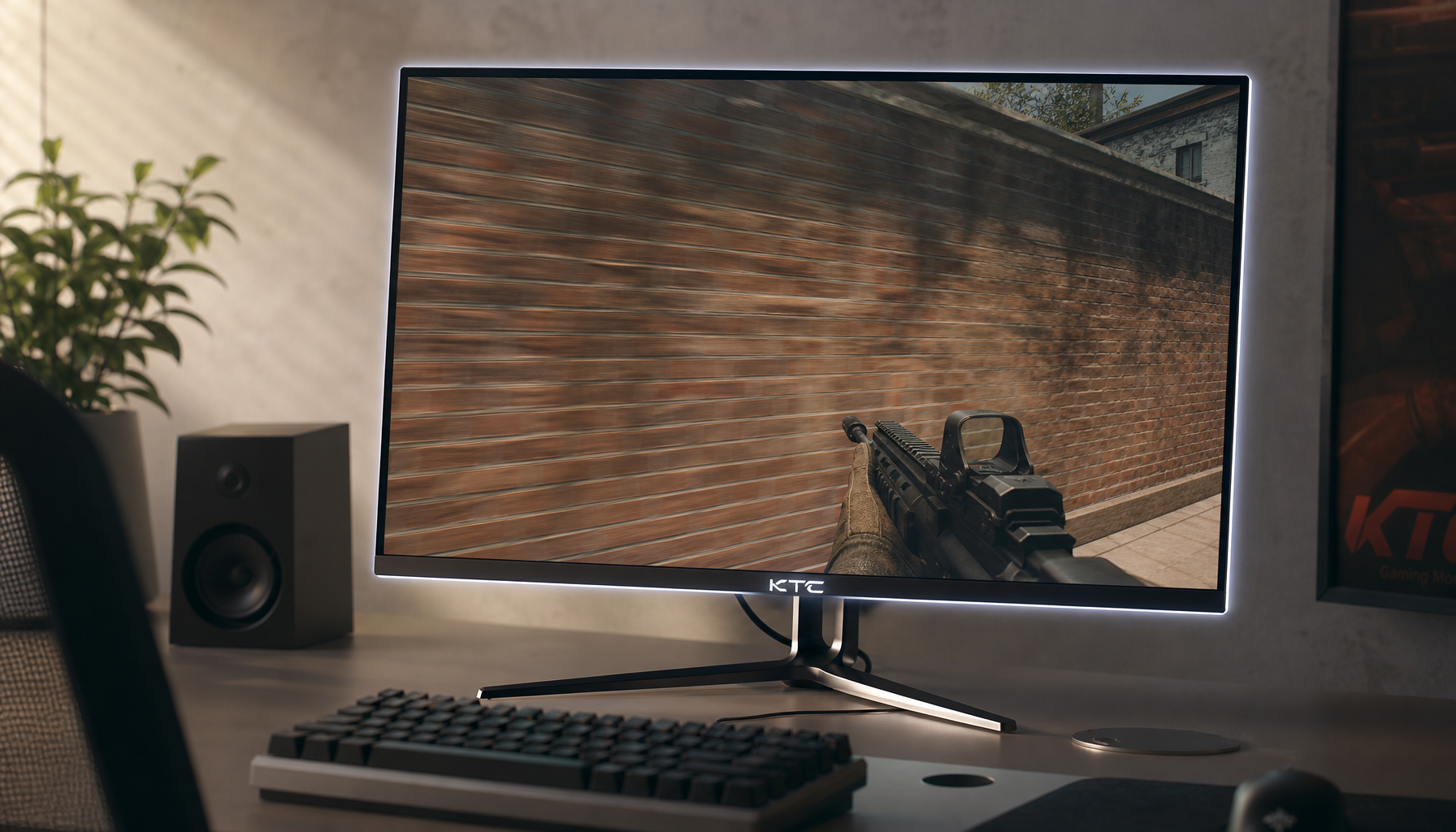
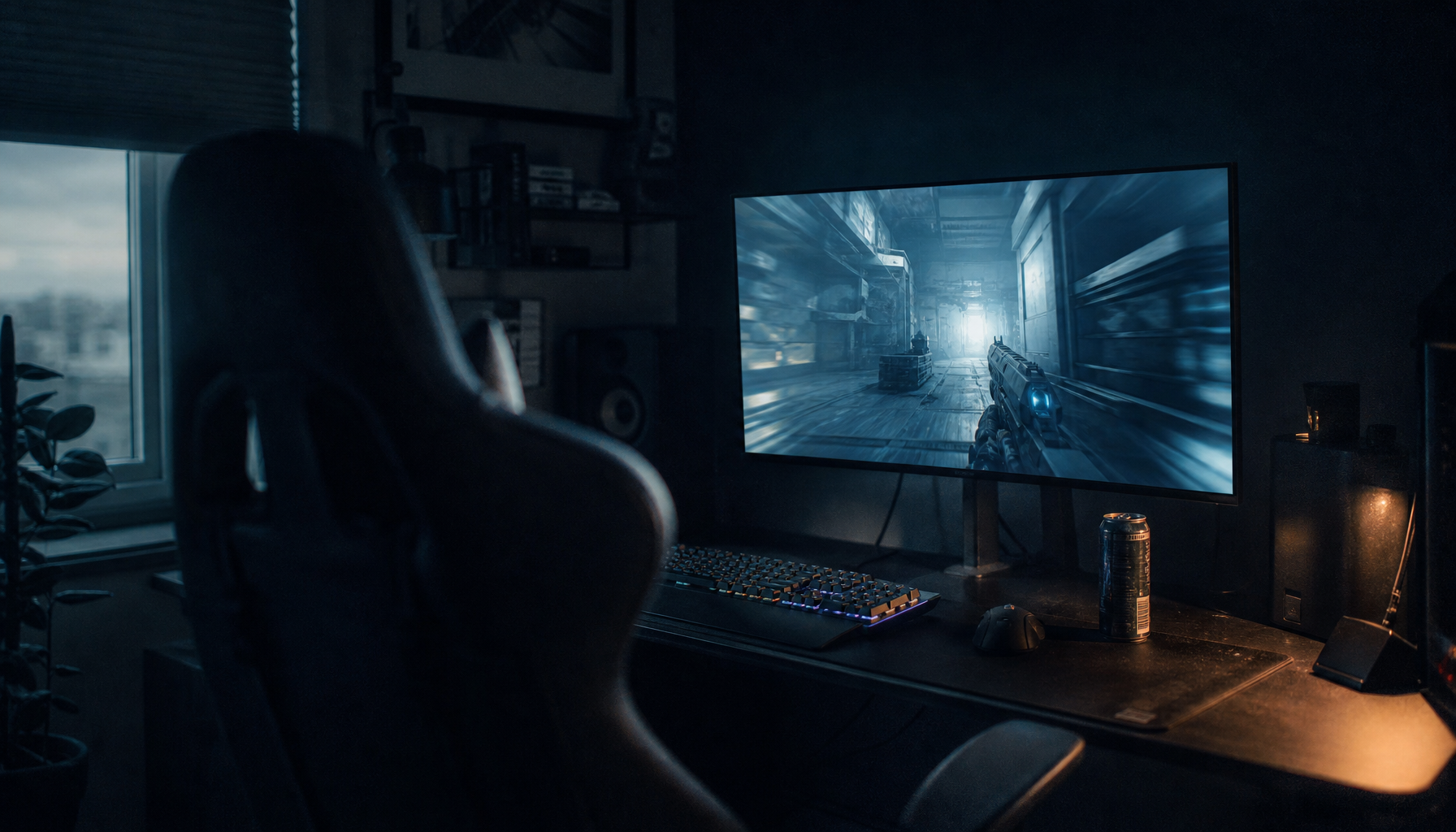
For a real-world example, imagine a 32-inch gaming monitor showing a dark hallway with a bright HUD element. If the backlight zones around the HUD brighten and dim at a rate or depth your eyes can detect, the image may look like it is breathing. The panel may still be refreshing at 144 Hz or 240 Hz, but the zone behavior is creating a second temporal signal layered on top of the image.

Why Flicker Sensitivity Is Not One Fixed Number
Flicker sensitivity is the visual system’s ability to detect changes in light over time. The classic idea is critical flicker fusion frequency, the point where flicker looks steady to an average observer. But “average” is the key word. Sensitivity changes with brightness, contrast, viewing angle, fatigue, retinal position, room lighting, and the size of the flickering area.
Vision research has long shown that flicker sensitivity depends on frequency, target area, and noise conditions, not just one refresh-rate value. This is why a small cursor shimmer may bother one person less than a large full-screen brightness pulse, even if both are technically flicker. Larger zones, stronger brightness swings, and dark-room viewing all increase the chance that the eye catches the update pattern.
A simple office example makes this concrete. A spreadsheet on a bright white background may hide mild luminance changes because the scene is already bright and stable. Switch to dark mode, lower brightness to 30%, and place a white document window over a black desktop; now zone transitions become easier to notice because contrast is higher and the surrounding field is darker.

How Lower Zone Update Frequency Increases Flicker Risk
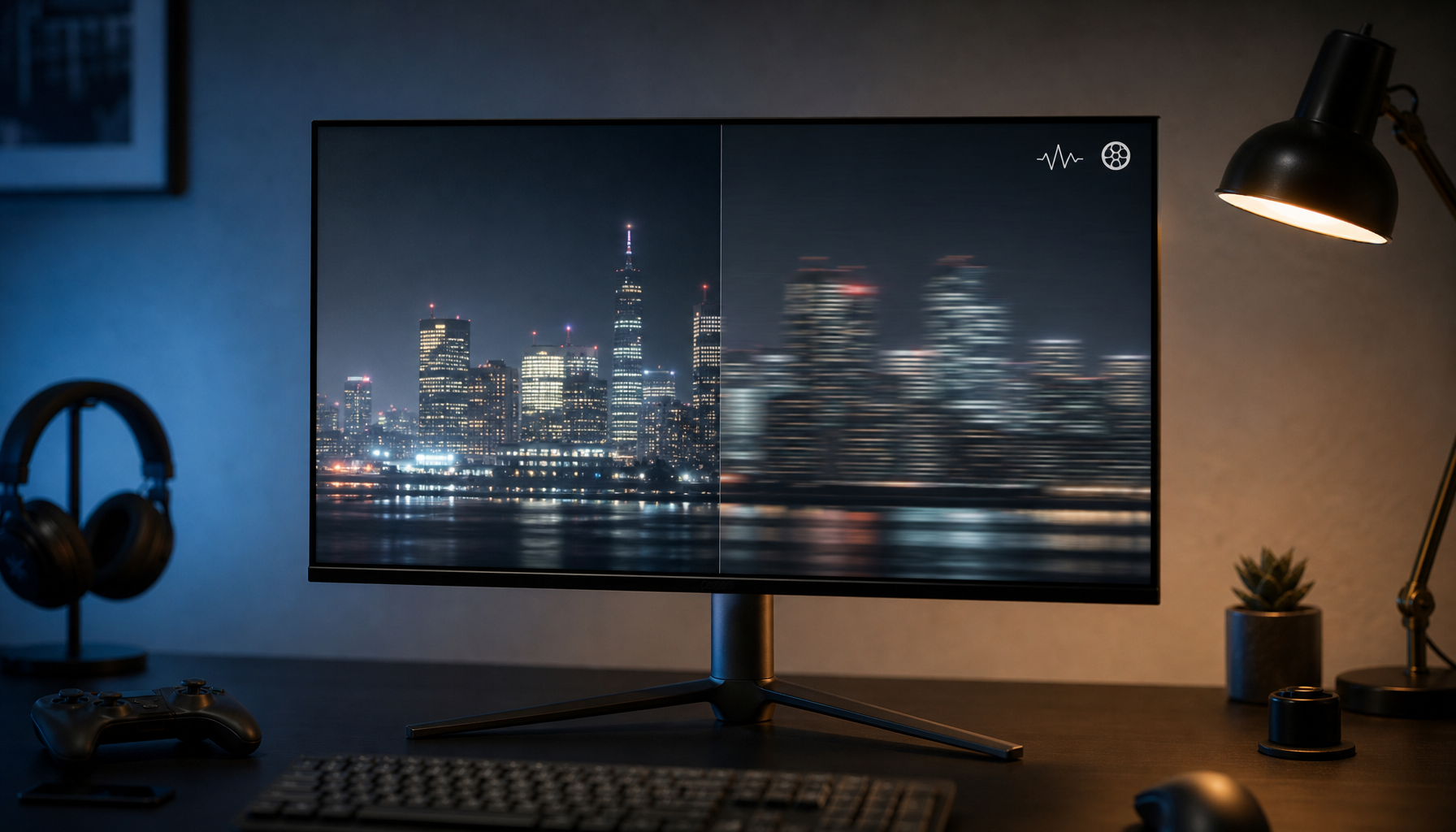
Lower zone update frequency increases flicker risk because each brightness state lasts longer. If a zone brightens, holds, then darkens slowly enough, the eye can resolve that change as pulsing rather than as a smooth adjustment. The effect becomes stronger when modulation depth is high, meaning the zone is changing sharply between bright and dim states.
Display comfort is not only about whether flicker is visible straight ahead. The phantom-array effect can make high-frequency temporal artifacts visible during natural eye movements, especially around high-contrast edges. That matters for gaming monitors and productivity displays because users constantly scan across text, minimaps, timelines, code editors, and HUD elements.
In practice, a low zone update frequency is most noticeable in dark scenes with bright highlights, moving high-contrast edges, rapid window resizing, and VRR gameplay with unstable frame pacing. If the display updates zones out of sync with frame delivery, you may see brightness pumping even when the game itself is not dropping frames severely.

Zone Frequency, PWM, VRR, and Temporal Dithering Are Different Problems
The most common mistake is treating all flicker as one defect. Zone update frequency is about how often brightness regions change. PWM is brightness control through rapid on-off cycling. VRR flicker is usually tied to refresh-rate-driven brightness or gamma instability. Temporal dithering rapidly alternates pixel colors to simulate smoother gradients or added bit depth.
Cause |
What Changes Over Time |
Typical Trigger |
What You Notice |
Low zone update frequency |
Local brightness zones |
Mini-LED dimming, high-contrast scenes |
Pulsing or halo shimmer |
PWM dimming |
Backlight or pixel light output |
Lower brightness settings |
Bands, eye strain, visible flicker |
VRR flicker |
Gamma or brightness response |
Unstable frame rates, loading screens |
Dark-scene flashing |
Temporal dithering |
Pixel color values |
OS or GPU color output |
Fine shimmer or discomfort |
Independent testing found that OLED VRR flicker is often worse in dark grays than in brighter patches, with one 480 Hz WOLED example showing much larger RGB shifts in near-black tones during an extreme refresh swing. That does not prove every OLED will bother every user, but it does show that a high headline refresh rate does not erase temporal brightness instability.
Some computer users may run into a different pathway. A support-forum user report links external-monitor discomfort to temporal dithering, where pixel values vary over time to simulate smoother output. That kind of shimmer can feel like flicker to sensitive users even when the monitor’s own backlight system is not the root cause.
The Pros and Cons of Faster Zone Updates
Faster zone updates usually help because the display can adjust brightness zones more often, reducing the chance that each step is visible. For competitive gaming, this can preserve immersion in dark scenes where slow local dimming would otherwise lag behind muzzle flashes, UI overlays, or fast camera movement. For productivity, faster updates can make scrolling text and moving windows feel calmer.
The tradeoff is that faster is not automatically better if the brightness algorithm overreacts. A zone system that updates quickly but makes large luminance jumps may still flicker. A slower system with smoother transitions can feel more comfortable in office work, especially if the user is sensitive to abrupt light changes. The target is not maximum activity; it is stable light with low visible modulation.
This is why “flicker-free” marketing should be read carefully. The flicker-free label historically referred to refresh or display behavior that reduces visible flicker, but modern LCD and OLED monitors can still introduce flicker through dimming methods, strobing modes, temporal dithering, or other processing choices.
Practical Settings That Reduce Flicker Sensitivity
Start with brightness. If flicker appears only at low brightness, PWM or dimming behavior may be involved. Raise brightness moderately, then reduce room lighting contrast with a soft desk lamp or bias light behind the monitor. The goal is not to blast the panel; it is to keep your pupils from constantly adapting between a bright screen and a dark room.

Next, test VRR. A motion-artifact discussion notes that low frame rates and uneven motion can appear as edge vibration or flicker, while higher frame rates make those artifacts less obvious on many setups. In gaming, VRR behavior can be cleaner when frame rate is stable rather than swinging widely across the monitor’s range.
For a practical gaming monitor setup, cap the frame rate slightly below the panel’s maximum refresh rate, reduce graphics settings that cause heavy frame-time spikes, and compare the same dark scene with VRR on and off. If flicker improves when VRR is off, the zone system may not be the only culprit. If flicker remains in static desktop use, investigate dimming, cable integrity, color output, or OS-level dithering.
How to Evaluate a Monitor Before You Commit
Test the exact conditions you use most. A creator editing bright documents all day should test scrolling text, browser tabs, and window movement at normal desk brightness. A competitive player should test high-FPS motion with VRR enabled. A cinematic gamer should test dark games, menus, loading screens, and HDR scenes where local dimming or OLED near-black behavior becomes obvious.
Use a cell phone camera only as a rough screening tool. Camera banding can reveal some PWM or scanning behavior, but recordings can exaggerate or miss what your eyes perceive. The better test is repeatable use: same brightness, same refresh rate, same scene, same room lighting, then change one setting at a time.
For buying decisions, prioritize monitors with stable frame pacing support, well-reviewed dimming behavior, accessible VRR controls, and a return policy that lets you test sensitivity at home. For sensitive users, the best spec sheet is not the one with the largest refresh number; it is the one that stays visually quiet during your actual work and games.
FAQ
Does a Higher Refresh Rate Always Reduce Flicker?
No. Higher refresh can reduce some motion-related flicker, especially on older impulsed displays and low-frame-rate content, but modern displays can still flicker from PWM dimming, local dimming zones, VRR gamma shifts, or temporal dithering.
Is Mini-LED Worse Than OLED for Flicker Sensitivity?
Not automatically. Mini-LED can show zone-related brightness pumping, while OLED can show VRR flicker or near-black instability. The specific monitor model, brightness setting, frame-rate stability, and your sensitivity matter more than the technology label alone.
What Is the Safest First Setting to Change?
Disable aggressive local dimming or switch it to a lower setting, then test VRR on and off in the same dark scene. If the flicker changes immediately, you have narrowed the cause without replacing hardware.
Final Word
Zone update frequency affects flicker sensitivity because your eyes are excellent timing instruments, especially in dark, high-contrast scenes. Choose displays and settings that keep brightness changes small, synchronized, and stable; that is the path to sharper play, calmer work, and a screen that feels powerful without fighting your vision.