No desk does not mean no real workstation. The best setup uses a stable surface, a raised screen, compact input gear, and a connection plan that is fast to set up and easy to clear.
Start With the Surface You Actually Have
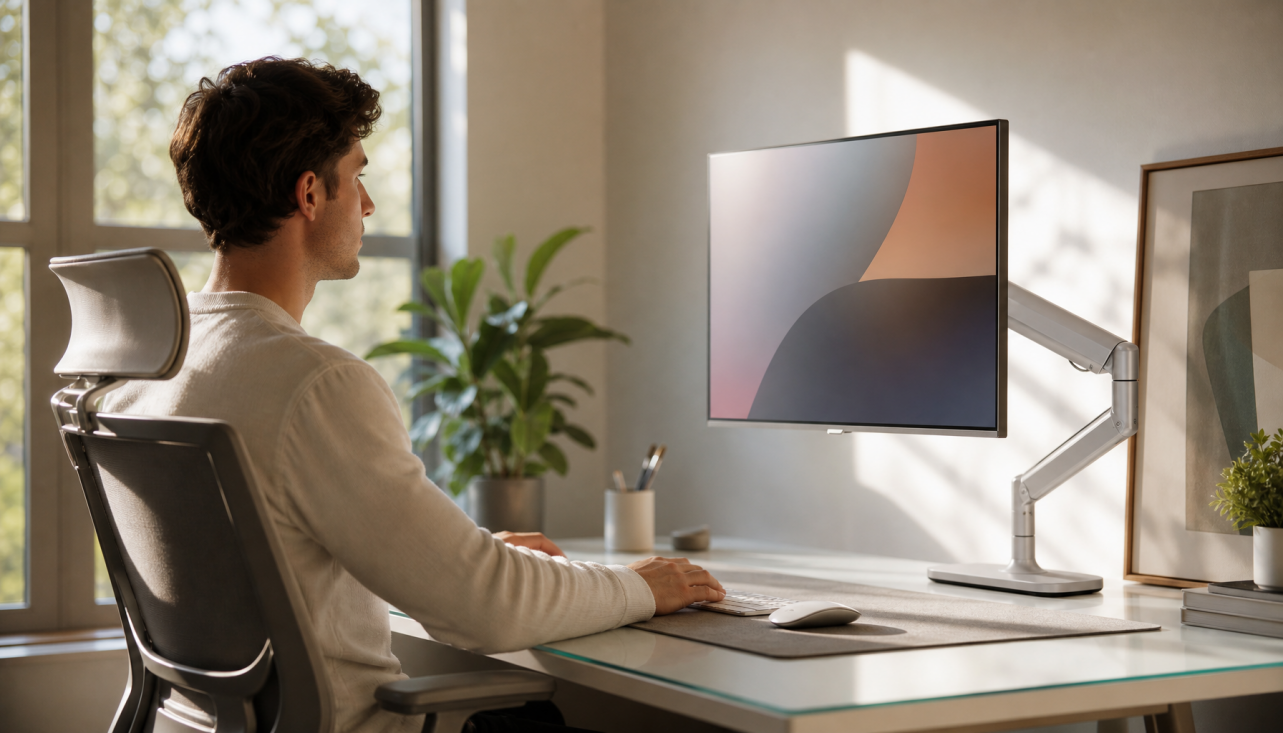
A dining table, kitchen island, console table, or folding table can work if it gives you enough depth, stability, and cable reach. For comfort, your monitor should sit straight ahead, with the top of the screen at or slightly below eye level and the display about an arm’s length away; the recommended viewing distance is roughly 20 to 40 inches.
If the surface is too low, raise the monitor with a stand, sturdy shelf, or riser. If the seat is too high, use a footrest so your feet are supported instead of dangling.

Keep the work zone minimal: screen, keyboard, mouse, laptop, and maybe a lamp. Everything else should move to a nearby basket, drawer, or rolling cart so your temporary setup does not become permanent clutter.
Pick the Right Monitor for a Deskless Setup
For most people, a portable monitor is the cleanest answer. A 14- to 16-inch screen fits beside a laptop, stores flat, and works well for documents, dashboards, chat, and reference windows.

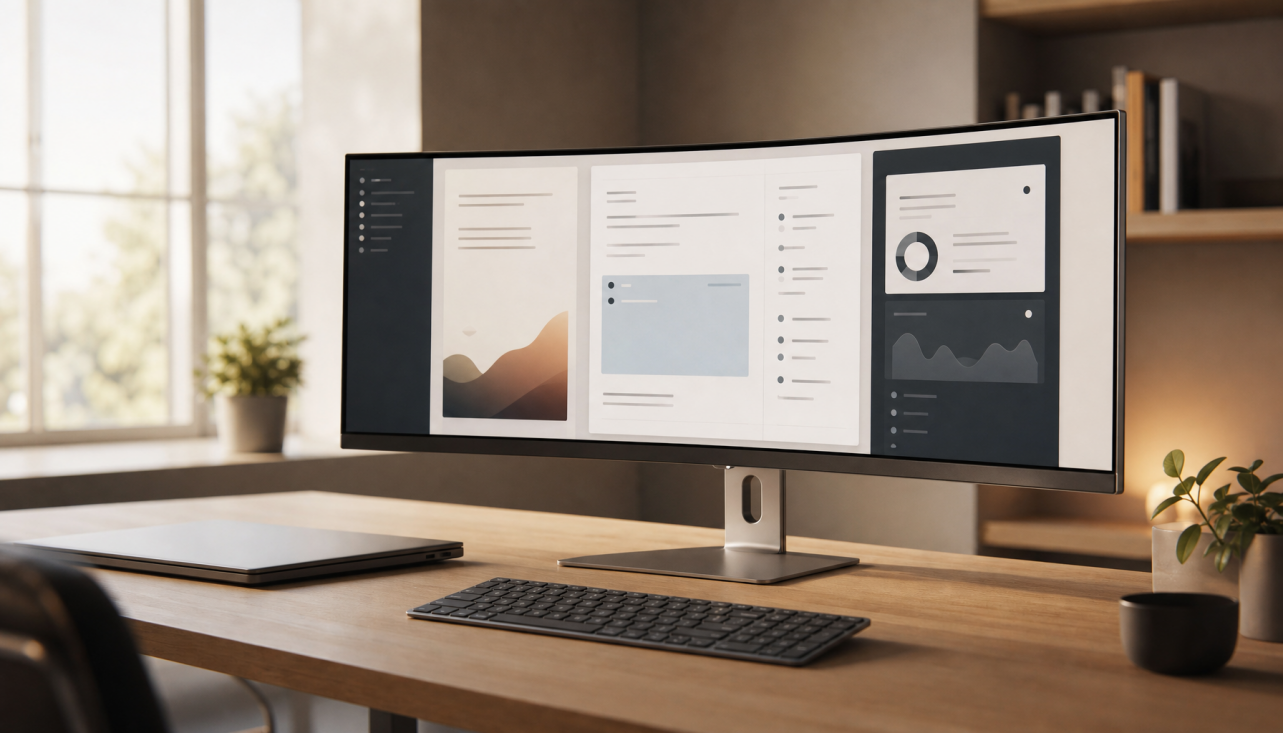
If you want more immersion, a 24- to 27-inch desktop monitor can still work on a shared table, but only if you have a repeatable storage spot and a safe way to move it. A lightweight portable screen is usually better for apartments, guest rooms, and multipurpose spaces.
Match the monitor to the work. For productivity, 1080p or 2K resolution, an IPS panel, and 60Hz are usually enough. For gaming, look for 120Hz or higher, low response time, and adaptive sync. Creative work benefits from strong color coverage, higher brightness, and accurate calibration. For travel or couch use, prioritize a built-in stand, USB-C, and a protective case.
Portable monitors are designed to add usable screen space without carrying a full desktop display, which is exactly the advantage when your “desk” changes by the hour.
Build a Fast One-Cable Workflow
The best deskless monitor setup uses USB-C with DisplayPort Alt Mode, because one cable can often carry video and power. That means fewer adapters, faster setup, and less visual clutter.

HDMI is reliable, but it usually carries video only, so your monitor may still need USB power. Before buying or rearranging gear, confirm that your laptop, handheld, tablet, or phone supports the connection your display expects; USB-C video support is the detail that makes or breaks a clean setup.
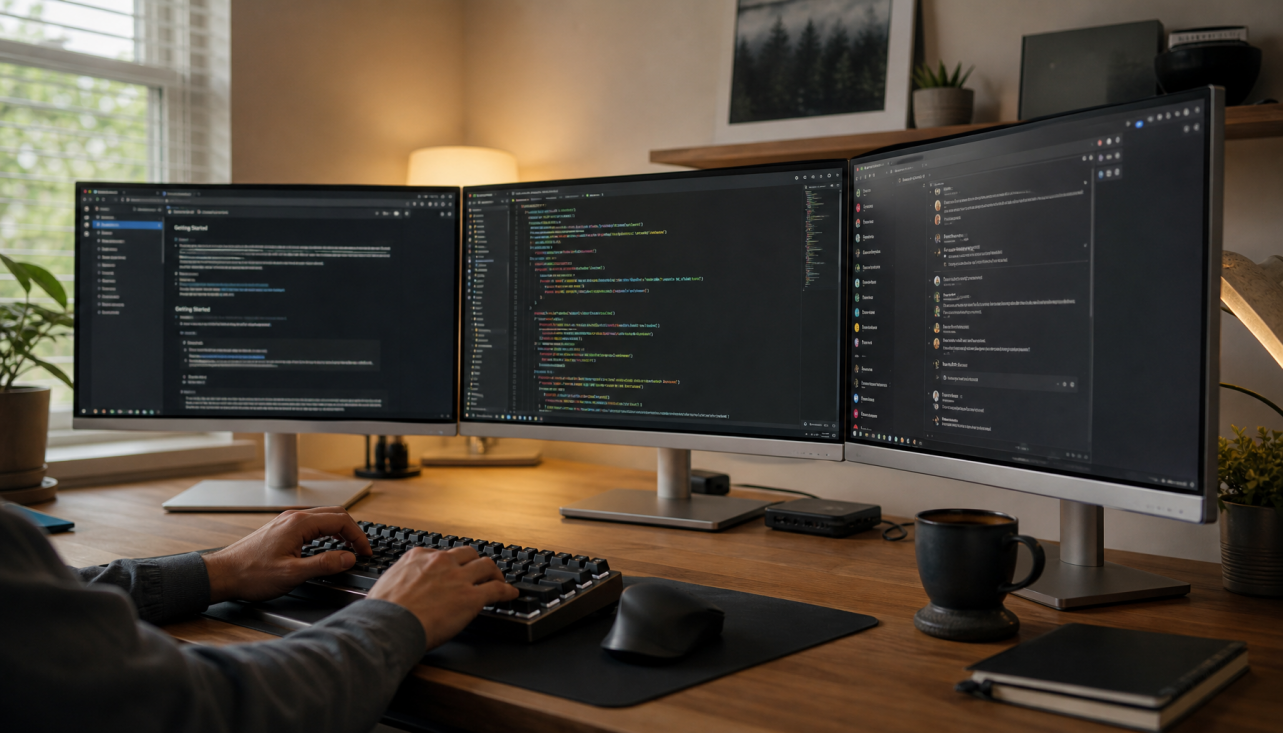
Use Extend mode, not Mirror mode, for productivity. Put your main task on the larger or sharper screen, then use the laptop or portable screen for notes, chat, research, or controls.
Quick setup flow:
- Connect the monitor and power.
- Open display settings.
- Choose Extend.
- Arrange screens to match their real positions.
- Set the best screen as primary.
Make It Ergonomic Without Furniture
A no-desk setup still needs posture discipline. Raise the laptop or monitor, then use a separate keyboard and mouse at elbow height. This prevents the classic laptop hunch: screen too low, shoulders forward, wrists compressed.
A folding laptop stand, compact wireless keyboard, and small mouse can turn almost any table into a usable workstation. A desk pad also helps define the work zone and gives your mouse a consistent surface.

Lighting matters more in temporary spaces because glare changes throughout the day. Face the screen away from bright windows when possible, and use an adjustable lamp or monitor light bar if the room is dim.
Larger displays feel more immersive, but if you cannot keep them stable, powered, and properly positioned, a smaller portable monitor will be more reliable every day.
Store It Like a Kit
Treat your setup like a portable workstation. Keep the monitor, USB-C cable, charger, keyboard, mouse, and stand together in one sleeve, drawer, or tote.

That makes the setup repeatable: open, plug in, work, pack down. The goal is not to recreate a full office everywhere; it is to preserve screen space, comfort, and focus wherever you can claim a few square feet.