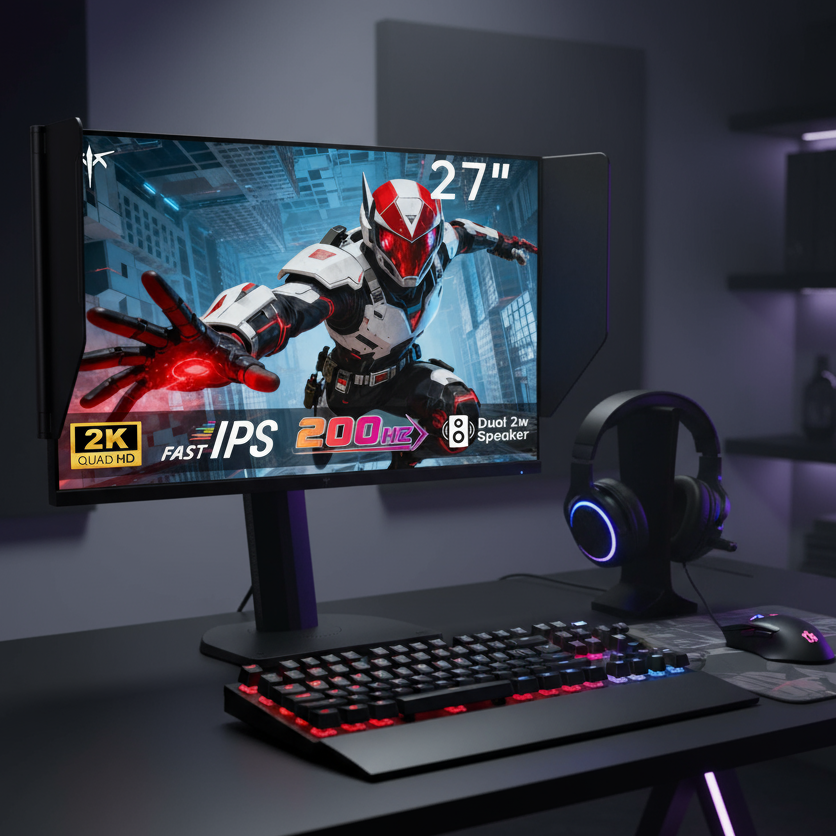


Mismatched dual monitor resolutions can slow your workflow by making cursor travel, window sizing, text scale, and visual focus feel inconsistent. The fix is not always buying two identical screens, but building a setup where resolution, scaling, and physical alignment behave predictably.
Why Resolution Mismatch Slows You Down
A dual-screen workspace should reduce friction: one display for the main task, the other for reference, chat, dashboards, or creative tools. When the monitors have different pixel grids, that advantage can leak away through tiny interruptions.
The first cost is pointer mismatch. If a 4K laptop sits beside a 1080p monitor, the operating system maps movement by pixels, not by the physical size of each panel. That can create dead edges, vertical jumps, or missed drags when crossing screens unless the display arrangement matches the real desk layout.

The second cost is window reshaping. A document that feels roomy on a 1440p screen may feel cramped on 1080p, while a browser dragged from a high-DPI laptop to a lower-DPI display can look oversized, blurry, or oddly scaled.

The Time Tax
The damage is rarely dramatic. It shows up as repeated micro-pauses: finding the cursor, resizing a window, re-snapping apps, or rereading text because one screen feels sharper than the other.
If mismatched scaling costs just 6 seconds per screen transition and you cross displays 120 times per workday, that is 12 minutes lost daily. Over a 5-day week, that is an hour of focus spent managing the setup instead of using it.
That matters because dual monitors are supposed to reduce task switching. Research on larger displays found that more screen space can improve task performance by reducing navigation and context switching, especially when people can keep more information visible in one large display workspace.
Where Mismatched Screens Hurt Most
Office productivity suffers when spreadsheet columns, browser zoom, and document text do not feel consistent across screens. Your eyes keep recalibrating instead of scanning.
Gaming and streaming setups can suffer differently. A high-refresh gaming monitor paired with a basic secondary screen is fine for chat or monitoring tools, but it becomes frustrating if you constantly drag control panels between displays with different scale and sharpness.
Creative work is even less forgiving. When color, brightness, resolution, and physical size do not match, comparing edits across screens becomes unreliable. A dual monitor mount can help by bringing panels to eye level and reducing alignment problems, especially when you need a cleaner dual monitor setup.

How to Fix It Without Overspending
Start with software before replacing hardware. In display settings, use Extend mode, identify each display, drag the monitor icons to match your physical layout, then apply native resolution on each screen.

- Match scaling percentages as closely as readability allows.
- Align the top edges or centerlines in display settings.
- Keep the sharper or larger screen as the primary display.
- Use the same browser zoom and app zoom across both screens.
- Save window positions with a utility if your system keeps forgetting them.
If you are buying, the most reliable upgrade is two monitors with the same size and resolution. For value, a pair of 27-inch 1440p displays is a strong productivity baseline: sharper than 1080p, easier to drive than 4K, and spacious enough for documents, code, dashboards, and creative panels.
A mixed setup can still work when roles are clear: premium main display in front, secondary screen off to the side for reference, messaging, notes, or monitoring. The mistake is expecting two very different panels to feel like one seamless canvas.
The Better Productivity Standard
The goal is not maximum pixels. It is minimum friction.
A productive dual monitor setup should make your cursor predictable, text comfortable, windows stable, and attention easy to steer. When resolutions fight each other, the setup becomes another task. When they are matched or carefully tuned, the screens disappear into the workflow.