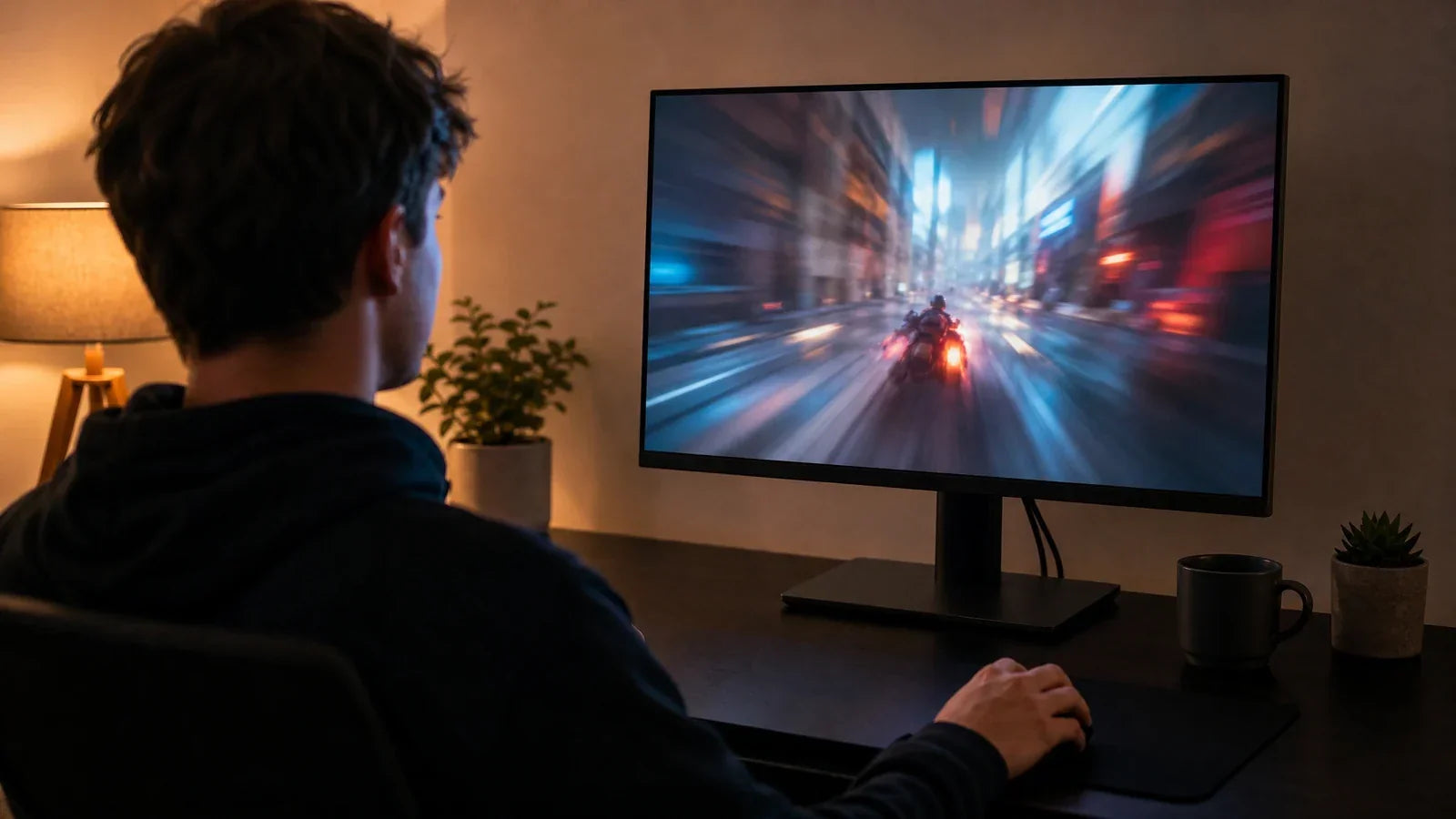
A high refresh rate monitor makes chart scrolling, cursor movement, and window switching feel smoother during busy trading sessions. It is only one part of a useful trading display. Panel type, contrast, grayscale separation, color accuracy, and input lag determine how clearly candlesticks, thin wicks, gridlines, volume bars, and order controls appear.
Resolution, text size, port support, and workspace layout then determine how much information remains readable at once. Most active traders will find 100Hz to 144Hz sufficient when these practical specifications are also handled well. Traders who also play competitive games may want a faster panel, but trading alone rarely calls for an extreme refresh rate.

What Refresh Rate Is Enough for Day Trading
Refresh rate tells you how often the display updates each second. At higher rates, crosshairs follow the mouse more smoothly, chart zooming feels cleaner, and fast scrolling creates less visible judder.
Those changes are easy to notice during active sessions with several charts and watchlists open. They affect how the interface feels, though they do not change the speed of the market data itself.
| Refresh Rate | Trading Experience | Suitable Use |
| 60Hz | Works well for static charts and basic order entry | Investing, research, and light office work |
| 75Hz to 100Hz | Smoother scrolling and cursor movement | Budget trading setups |
| 120Hz to 144Hz | Fluid desktop movement without heavy hardware demands | Active trading and mixed work-and-gaming setups |
| 165Hz and above | Smaller gains in trading, clearer motion in fast games | Competitive gaming on the same computer |
A 240Hz monitor has a clearer advantage in games such as Counter-Strike 2 or Valorant, where fast camera movement and target tracking matter. The PC also needs to produce enough frames for that refresh rate to feel worthwhile.
Trading software works differently. Quotes, candles, and order books refresh according to the broker, market feed, platform, network connection, and data plan. A high refresh rate monitor can show those changes more smoothly, but it cannot turn delayed quotes into real-time data.
Pixel response time and input lag should be considered separately. Response time describes how quickly pixels change, which affects trails or smearing when a chart is dragged or scrolled. Input lag describes the delay between a mouse or keyboard action and the visible response. A monitor can advertise a “1 ms” response time without having 1 ms input lag, so independent latency measurements are more useful than the headline specification.
For a trading-focused setup, 100Hz to 144Hz and low input lag offer a strong balance. Faster rates become more appealing when the same monitor also handles competitive gaming, while Adaptive Sync remains mainly a gaming feature.

Check Panel Type and Image Quality for K-Line Charts
K-line charts rely on fine edges, small labels, neutral gridlines, and clear differences between candle bodies, wicks, indicators, and the background. A panel that looks impressive in a store can still be tiring to read if it crushes dark gray detail, shifts color off-axis, or smears dark transitions.
| Display Technology | Strengths for Chart Reading | Main Trade-Offs | Best Fit |
| IPS | Consistent color and grayscale across the screen; wide viewing angles; usually responsive | Lower native contrast than VA; dark rooms may reveal IPS glow | Balanced single- or dual-monitor trading setups |
| VA | Higher native contrast; deeper blacks; strong separation on dark chart themes | Some models smear dark transitions or shift tone when viewed off-axis | Curved ultrawides and traders who prefer dark interfaces |
| Mini-LED | Local dimming can increase contrast and brightness; useful for mixed HDR and media work | Higher cost; blooming or brightness changes can appear around small bright chart elements | Premium mixed-use setups rather than a trading requirement |
Mini-LED is a backlight system rather than a separate LCD panel family, so a Mini-LED monitor may still use IPS or VA. For charting, prioritize stable SDR behavior and the ability to reduce or disable local dimming. Otherwise, tiny labels and candle edges may show halos or visible brightness changes.
Contrast and Grayscale Separation
Contrast affects how easily thin wicks, gridlines, and dark-background elements remain distinct. A higher quoted contrast ratio can help, but it does not reveal black crush, gamma errors, or uneven local dimming. Check whether near-black steps remain separate instead of merging into one dark block.
Grayscale quality matters more than a wide HDR claim for most trading platforms. A well-tuned 8-bit panel is sufficient for ordinary charts, while 8-bit+FRC or 10-bit support can make gradients smoother. Consistent gamma and visible near-black detail are more important than the bit-depth label alone.
Color Accuracy for Candle and Indicator Recognition
Candle colors should stay recognizable across the entire screen, especially on ultrawide or multi-monitor layouts. A usable sRGB mode, close to full sRGB coverage, and sensible factory calibration are more relevant than an oversized wide-gamut figure.
When measured results are available, an average Delta E below 2 is a helpful target, although professional color-grading accuracy is not necessary for trading.
Wide-gamut modes can oversaturate red and green in software that is not color-managed. For daily use, choose the monitor’s sRGB or standard mode and adjust brightness before changing individual color channels.
Input Lag and Motion Handling
Low input lag keeps cursor placement, chart dragging, and order-entry feedback immediate. A measured display lag below about 10 ms is already responsive for trading. Network, broker, platform, and data-feed delays usually have a larger effect on order timing.
Also check dark-transition performance, especially on VA monitors. Slow dark pixels can leave trails behind candles, gridlines, or text during rapid scrolling. Reviews with measured response-time charts are more useful than a single best-case “1 ms” claim.
Match Resolution and Screen Size to Your Chart Layout
Resolution controls how much information fits on the screen and how sharp small text appears. Screen size affects how large that information looks from a normal desk distance. Both specifications need to work together.
| Screen Format | Typical Resolution | Practical Chart Layout |
| 27-inch 16:9 | 2560 × 1440 | Main chart, watchlist, and order panel |
| 32-inch 16:9 | 3840 × 2160 | Four chart areas or several research windows |
| 34-inch 21:9 | 3440 × 1440 | Three vertical work zones without a center bezel |
| 49-inch 32:9 | 5120 × 1440 | A wide dashboard similar to two 27-inch 1440p screens |
A 27-inch 1440p monitor suits traders who want clear text and enough space for a chart, watchlist, and execution panel. It also places less pressure on the graphics hardware than a 4K display running at the same refresh rate.
A 32-inch 4K panel can show smaller chart details and fit several windows on one screen. Many people still use 125% or 150% scaling because text can look too small at the default setting. Higher scaling keeps labels readable, though it also reduces usable desktop space.
A 27-inch 4K monitor looks very sharp, but its interface can feel cramped at 100% scaling. Increasing the scale solves the readability problem, yet some of the extra workspace disappears. A 1440p high refresh rate monitor may feel more balanced for traders who want clear charts, smooth movement, and moderate hardware demands.
Think about the actual layout you use each day. A trader following one market may only need a primary chart, order ticket, and watchlist. Someone tracking several assets, time frames, and news feeds will benefit from a wider or higher-resolution workspace.

Ultrawide or Dual Monitors for Trading
Ultrawide and dual-monitor setups organize information in different ways. One creates a continuous canvas, while the other separates tasks across individual screens.
| Setup | Main Strength | Limitation | Suitable User |
| 34-inch ultrawide | Flexible three-zone layout with no center bezel | Less physical separation between tasks | Traders using one main platform |
| Dual 27-inch monitors | Clear split between execution and research | More cables and a gap between screens | Traders with fixed screen roles |
| 49-inch ultrawide | Large continuous dashboard | Needs a wide, deep desk | Users monitoring many panels at once |
A 34-inch ultrawide can place a main chart in the center, a watchlist on one side, and an order panel on the other. The same layout also works for office tasks such as spreadsheets, browser windows, and messaging apps.
Dual monitors provide clearer separation. One screen can hold charts, orders, and open positions. The second can show news, scanners, research, or chat. This setup also leaves one display available if the other has a connection problem.
Mixed monitor sizes or resolutions can cause uneven text sizes and cursor movement. Matching the resolution, scale, and refresh rate across both screens usually creates a more consistent experience.
A 49-inch ultrawide offers roughly the horizontal space of two 27-inch 1440p monitors without a center bezel. It needs enough desk depth to keep the outer edges within a comfortable viewing angle. Poor window placement can leave important information too far from the center.
Extra screen space has value only when each area serves a clear purpose. Opening more windows without a stable layout can make the workstation harder to scan.

Check GPU, Ports, and Cables Before Adding Screens
Every part of the display connection needs to support the target resolution and refresh rate. The graphics processor, laptop output, docking station, adapter, cable, and monitor input all affect the settings available on screen.
Review these four points:
-
Check how many external displays the computer supports.
-
Confirm the maximum resolution and refresh rate from each video output.
-
Review the video bandwidth available through a USB-C or Thunderbolt dock.
-
Use cables and adapters rated for the selected display mode.
Some laptops can run one 4K monitor at a high refresh rate but offer lower settings after a second display is connected. Many docks divide available bandwidth across multiple outputs. HDMI and DisplayPort inputs on the same monitor may also support different maximum modes.
A 4K high refresh rate monitor asks more from the connection than a 1440p model. Running two or three high-resolution screens increases the total bandwidth requirement even further.
Once the screens are connected, select Extend mode and check each display separately in the operating system. If a 144Hz or 165Hz monitor remains at 60Hz, review the cable specification, selected input, graphics driver, dock limit, monitor menu, and active resolution.
Duplicating the same image across two displays can force both screens to share a compatible setting. Extend mode gives each display its own workspace and usually provides more control over resolution and refresh rate.
Gaming adds extra GPU load. Displaying charts at 4K is relatively easy for a modern computer, while rendering a demanding game at 4K and a high frame rate requires much more graphics power. Lower game settings or resolution scaling may be needed even when desktop software runs smoothly.

Set Up Screens for Efficient and Comfortable Trading
Keep the information that needs a quick response close to the center of your vision. Primary charts, order controls, open positions, and risk figures should stay visible without frequent head movement.
One workable layout looks like this:
-
Center: Primary chart and order entry
-
Left: Watchlist, scanner, and alerts
-
Right: Secondary chart, news, and open positions
-
Lower area: Trade log or communication tools
With two monitors, place the main display directly in front of you and angle the second one inward. Two equally important screens can sit in a shallow curve. A large ultrawide also feels better from a centered seating position.
The top of the active display should sit at or slightly below eye level. Many desktop setups feel comfortable at a viewing distance between 20 and 40 inches. Larger screens usually need a little more distance.
Text should stay readable without leaning forward. If labels or order controls look too small, raise the operating system scale or increase the platform’s font size. Adding another monitor will not solve a readability problem caused by poor scaling.
Screen brightness should match the room. A bright display in a dark office can feel harsh during a long session, while a dim screen under strong daylight can make small chart details harder to see. Reflections, uneven lighting, and tiny text often cause more discomfort than the refresh rate.
Regular visual breaks also matter during eight-hour sessions. Looking away from the screen for short periods gives the eyes a chance to refocus at a different distance.
Choose a Complete Trading Monitor Setup by Budget
Set the budget after ranking the specifications. For a trading-first system, spend on readable chart space and stable image quality before paying for extreme refresh rates, HDR, or decorative features.
Use this parameter order when comparing complete setups:
-
Resolution, screen size, and scaling: Keep text, prices, and thin chart lines readable at the normal viewing distance.
-
Panel type, contrast, and grayscale: Avoid black crush, off-axis color shifts, and dark-transition smearing.
-
Color accuracy: Prioritize a usable sRGB mode and consistent red, green, and neutral tones across the screen.
-
Input lag and refresh rate: Target low measured latency and roughly 100Hz to 144Hz before considering faster gaming-focused options.
-
Ports and ergonomics: Confirm GPU outputs, dock bandwidth, cable support, VESA mounting, and a stand or arm that holds the screens at the correct height.
| Budget Level | Complete Setup | Target Specifications | Why It Works |
| Lower Budget | One 27-inch QHD monitor with an adjustable stand or basic VESA arm | IPS; 2560 × 1440; 100–144Hz; usable sRGB mode; low-lag setting; DisplayPort or HDMI | Prioritizes readable charts, consistent color, and smooth interaction before adding more screens |
| Mid-Range | Two matching 27-inch QHD monitors plus a dual arm; add a USB-C dock only when the laptop requires it | IPS; 120–165Hz; matched sRGB settings; identical scaling and refresh; sufficient GPU outputs and bandwidth | Separates execution from research while avoiding mismatched text size and cursor behavior |
| Upper-Mid | One 34-inch 3440 × 1440 ultrawide with a sturdy monitor arm | IPS or fast VA; 120–144Hz; strong grayscale; measured low input lag; good dark-transition performance | Creates a continuous three-zone workspace without a center bezel |
| Premium | One 32-inch 4K 120–144Hz Mini-LED main display plus a 27-inch QHD IPS secondary and verified arm, dock, and cables | Stable SDR mode; adjustable or disableable local dimming; clear near-black detail; accurate sRGB; low input lag | Maximizes detail and workspace while keeping news, research, or communication tools separate |
A lower-cost setup should not sacrifice resolution, readable scaling, or panel consistency to reach 240Hz. The mid-range dual-QHD package offers the strongest balance for most active traders.
An ultrawide improves workflow when one continuous canvas is preferred, while Mini-LED belongs in the premium tier for users who also value HDR or media work. In every tier, verify ports, cable bandwidth, VESA support, grayscale behavior, and measured latency before buying.
FAQs About Trading Monitors
Q1. Can Two Monitors Use Different Refresh Rates?
Yes. Modern operating systems can run connected displays at different refresh rates when the GPU and ports support them. Cursor movement may feel slightly different when one screen runs at 60Hz and another runs at 144Hz.
Q2. Is a Curved Monitor Good for Day Trading?
Yes, especially on a wide ultrawide display. A moderate curve brings the outer edges closer to the viewer and can make a broad dashboard easier to scan. Curvature offers less benefit on smaller 16:9 screens.
Q3. Can Integrated Graphics Run a Trading Monitor Setup?
Yes. Many integrated GPUs can support two or more monitors for trading. Charts, news feeds, and order-entry platforms usually place a light load on graphics hardware.
The exact display count, resolution, and refresh rate still vary by processor, laptop design, available ports, and dock bandwidth, so check the computer’s display specifications.
Q4. Should Trading Monitors Be Mounted on Arms?
Yes. Monitor arms are worth considering if you need better control over screen height, distance, or angle. They can also free up desk space and make multi-monitor alignment easier.
Check the monitor’s VESA mounting pattern, weight, and screen size against the arm’s limits. Large ultrawide monitors may need a heavy-duty arm.
Q5. Can One Monitor Handle Trading and Gaming?
Yes. A 1440p IPS or fast VA monitor at 120Hz to 165Hz can handle charting, office work, and fast games on many systems.
For trading, check grayscale, sRGB mode, and input lag. For gaming, add response-time performance and Adaptive Sync. A 4K Mini-LED model offers sharper text and stronger HDR, though high-frame-rate gaming at 4K requires a stronger graphics card.
Q6. Is Mini-LED Worth It for Day Trading?
Not by itself. Mini-LED can improve contrast and brightness, but ordinary charting does not require HDR or local dimming.
It is most useful in a premium mixed-use setup, and the monitor should allow local dimming to be reduced or disabled for stable SDR charts.