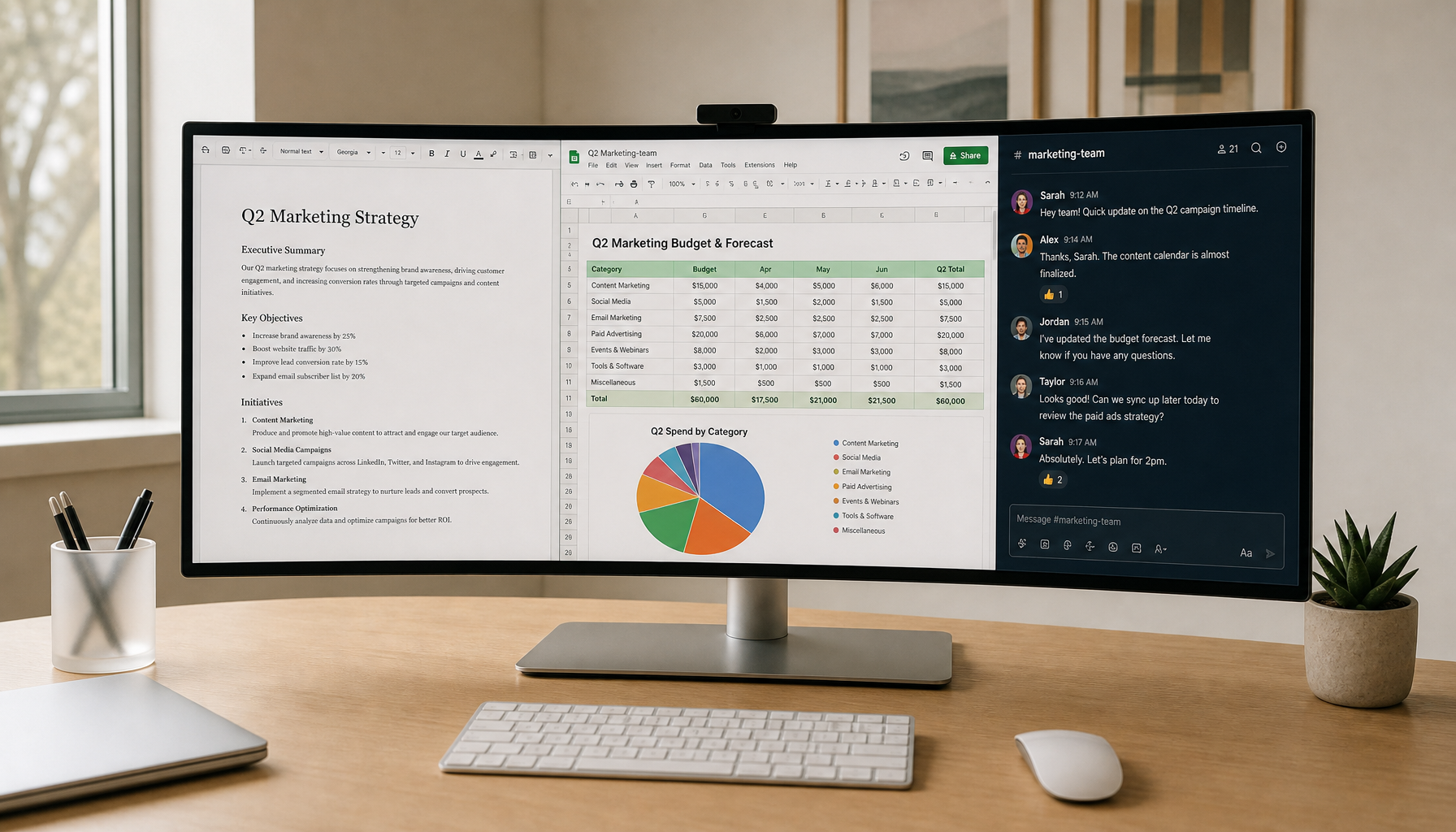
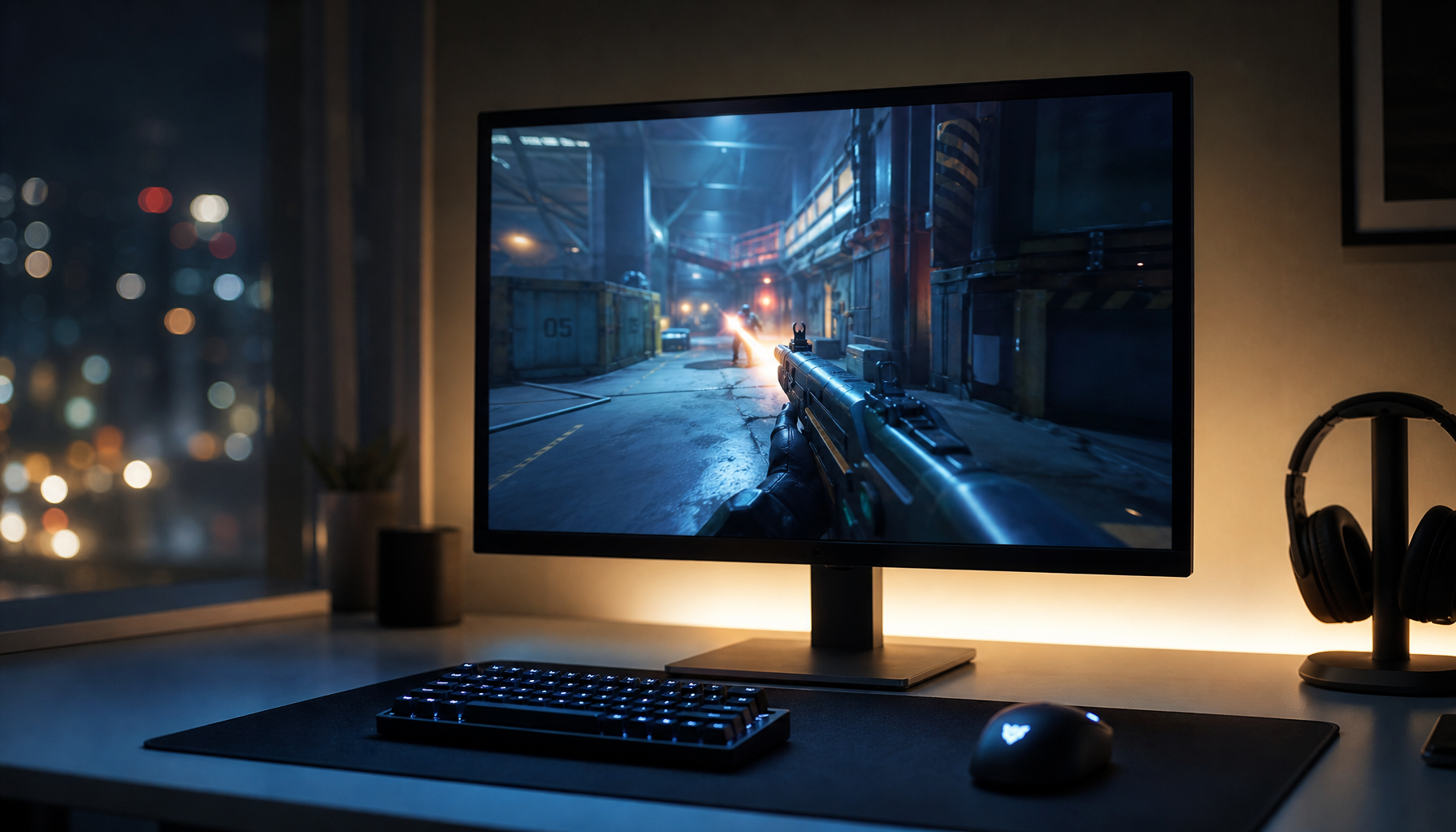
A 10-bit monitor is not automatically wasted, but most games will not show true 10-bit gradation if your GPU sends only an 8-bit SDR signal. The upgrade matters most when the full chain supports it: the game, HDR mode, GPU setting, cable bandwidth, and monitor processing.
Are you seeing sky gradients break into stripes, shadow ramps look blocky, or HDR games feel less cinematic than the monitor box promised? A quick driver check can tell you whether your screen is receiving 8-bit or 10-bit, and that single setting often explains why an expensive panel looks ordinary. You’ll know when 10-bit is worth chasing, when 8-bit is perfectly fine, and which settings protect both color depth and gaming performance.
The Short Answer: 10-Bit Needs a Complete Signal Chain
Color depth is the number of tonal steps available in each red, green, and blue channel. In plain gaming terms, 8-bit gives 256 steps per channel, while 10-bit gives 1,024 steps per channel. That jump helps smooth gradients in skies, smoke, fog, shadows, and HDR highlights. Monitor guidance explains that 8-bit is standard for most SDR content, while HDR10 is built around 10-bit output.
If your GPU output is locked to 8-bit, a 10-bit monitor cannot magically receive missing 10-bit shade data from the GPU. It may still look excellent because the panel, contrast, calibration, gamut, local dimming, OLED black levels, and dithering all influence the image, but the display is not being fed a true 10-bit signal.
That is why the right question is not “Is 10-bit wasted?” The better question is “Where is my pipeline dropping to 8-bit?” A gaming PC can lose 10-bit at the game engine, desktop mode, GPU control panel, HDMI or DisplayPort bandwidth, chroma setting, refresh-rate target, or monitor firmware behavior.
8-Bit vs. 10-Bit: What Actually Changes on Screen?
An 8-bit signal can represent about 16.7 million RGB color combinations. A 10-bit signal can represent about 1.07 billion. That sounds like a massive difference, but you do not see “more colors” everywhere at once. You see the benefit in transitions, especially where a game is trying to move smoothly from one shade to the next.
A sunset sky is the clearest example. On 8-bit, the gradient from orange to purple may reveal visible bands because the display has fewer intermediate steps. On 10-bit, those transitions have more tonal precision, so the ramp can look smoother if the content, operating system, GPU, and monitor preserve the signal. The same applies to a foggy racing game at dusk, a horror game with near-black rooms, or a sci-fi title with glowing HDR highlights.

This is also where bit depth gets confused with color gamut. Higher bit depth means finer shade precision, while wider gamut means the screen can reach more saturated colors. Color-critical monitor guidance separates bit depth from gamut, which matters because a wide-gamut monitor can still show banding if the signal or processing is limited.
Setting |
Tonal Steps Per RGB Channel |
Typical Use |
Main Gaming Benefit |
8-bit |
256 |
SDR games, desktop use, most competitive play |
Strong compatibility and bandwidth efficiency |
Simulated intermediate shades |
Value gaming monitors, some high-refresh modes |
Can reduce visible banding without full native 10-bit |
|
10-bit |
1,024 |
HDR10 games, creator workflows, premium panels |
Smoother gradients and better HDR tone transitions |
12-bit output |
4,096 |
Niche output modes, some TVs or processing paths |
Rarely useful for gaming unless the display handles it well |
When 10-Bit Is Not Wasted
10-bit color earns its keep when you play HDR games, use an OLED or high-quality mini-LED monitor, watch HDR video, edit photos or video, or care about cinematic single-player immersion. In those cases, color depth supports the parts of the image that make premium screens feel premium: smoother highlight roll-off, cleaner shadows, richer skies, and less distracting banding.
For an HDR-focused setup, a 27-inch 4K 160Hz Mini LED display such as the KTC Mini LED 27” 4K 160Hz HDR1400 Gaming Monitor is the kind of monitor where checking GPU output depth is especially relevant, because the benefit depends on the HDR game, operating system mode, cable bandwidth, and driver settings all preserving the signal.

Modern gaming monitor buying advice reflects this split. Competitive monitor guidance says that competitive players should prioritize speed, while immersive and single-player gamers can put more weight on image quality. That distinction is crucial. A tactical shooter player chasing 360Hz or 500Hz may benefit more from refresh rate and motion clarity than 10-bit output. A cinematic RPG, horror game, racing game, or flight-sim player on an HDR OLED has a much stronger reason to enable 10-bit.
The same logic appears in current monitor recommendations. Gaming monitor recommendations separate displays by resolution and refresh-rate class, with 1080p favoring speed, 1440p acting as the mainstream sweet spot, and 4K emphasizing detail and image quality. Premium OLED and QD-OLED picks lean heavily on strong HDR and color performance. That does not mean every gamer needs 10-bit, but it confirms that premium image quality is a system-level outcome, not a single spec.
When 10-Bit Is Mostly Wasted
10-bit is mostly wasted when you play SDR games, keep HDR off, run the desktop in 8-bit, or must sacrifice resolution, refresh rate, or chroma quality to enable it. Most SDR game content is still fine at 8-bit, especially when the monitor has good factory tuning and the game art is not full of delicate gradients.
A practical example makes the tradeoff clear. If your monitor can run 1440p at 240Hz in 8-bit RGB but drops to 144Hz when you select 10-bit, competitive shooters should usually stay at the faster setting. The improvement from 240Hz motion clarity and lower perceived latency is likely more noticeable than smoother gradients during a fast match. Enthusiast forum guidance reaches a similar practical takeaway: prioritize refresh rate and resolution for competitive play, and favor 10-bit HDR when visual fidelity is the goal.

There is also a bandwidth reality. 10-bit RGB at 1080p is not demanding by modern standards, but 4K, high refresh, HDR, and full RGB together can push the limits of older ports or cables. If enabling 10-bit forces the GPU into YCbCr subsampling or reduces refresh rate, decide which compromise hurts your actual games less.
Why Your GPU May Output 8-Bit on a 10-Bit Monitor
The most common reason is simple: operating systems and GPU drivers often default to 8-bit for SDR and switch to 10-bit when HDR is enabled. Monitor guidance notes that this default behavior already matches most real-world content, so manually forcing higher bit depth in SDR usually brings little visible gain.
Another common cause is bandwidth. High resolution, high refresh rate, RGB output, HDR, and 10-bit color all consume link capacity. When the cable or port cannot carry everything, the driver may reduce bit depth, switch chroma format, or limit refresh rate. High-end monitor buying advice often frames the whole setup around GPU capability, panel type, screen size, aspect ratio, and port selection, and coverage of 480Hz and 500Hz displays warns that extreme refresh rates need extreme hardware.
The third cause is the software path. A 10-bit sample image in a browser is not proof that your system is showing 10-bit. The file, app, browser, OS compositor, driver, cable, and monitor must all preserve the path. This is why a random gradient image from the web is a weak test. It may be 8-bit, compressed, color-managed incorrectly, or displayed through an 8-bit application path.
The Best GPU Output Setting for PC Gaming
For PC gaming, Full Range RGB is usually the cleanest default. Monitor output guidance recommends Full Range RGB rather than YCbCr444 for PC use because YCbCr444 is typically handled well by modern monitors but may reduce subtle shade variety in some cases. If your display and GPU can carry 10-bit RGB at your target refresh rate, that is the best image-quality setting for HDR.
If you cannot have everything, preserve full RGB or 4:4:4 chroma for desktop clarity first, especially if you also use the screen for office work. Text fringing and reduced chroma clarity are more annoying across a workday than a small gain in color depth that only appears in certain scenes. For a 27-inch productivity-and-gaming setup, monitor size guidance notes that 27-inch monitors provide more screen space, which makes desktop clarity and text rendering even more important if the display doubles as a work screen.
A good rule is to set SDR gaming to native resolution, maximum useful refresh rate, RGB full range, and 8-bit if that is what the driver chooses. For HDR gaming, enable HDR in the operating system and the game, then select 10-bit RGB if bandwidth allows. If 10-bit forces a major refresh-rate drop, test the games you actually play rather than treating the setting as universally better.
10-Bit vs. Refresh Rate: Which Should You Choose?
The deciding factor is game type. Fast esports titles reward refresh rate, response time, low input lag, and motion clarity. Cinematic games reward contrast, HDR, color volume, resolution, and smooth tonal transitions. That is why a 24.5-inch 1080p 360Hz esports display and a 34-inch ultrawide QD-OLED can both be right, even though they optimize for different experiences.
Ultrawide monitor guidance organizes choices around resolution, sync support, curvature, and refresh rate, showing that intended use comes first. A 3440 × 1440 ultrawide at 144Hz or higher may give more immersion for racing, RPGs, and productivity than a smaller esports panel, but it also asks more from the GPU. In that scenario, 10-bit HDR is valuable only if frame rate remains stable enough to keep the experience smooth.
Here is the performance-minded decision: if enabling 10-bit costs you a refresh-rate tier you can feel, choose speed for competitive play. If enabling 10-bit costs nothing because your GPU, cable, and monitor have enough bandwidth, leave it on for HDR and enjoy the cleaner gradients.
Panel Quality Still Matters More Than the Bit-Depth Number
A mediocre 10-bit monitor can look worse than a well-tuned 8-bit display. Bit depth improves shade precision, but it does not fix poor contrast, bad gamma, weak HDR brightness, black crush, overshoot, or inaccurate color temperature. Monitor education often emphasizes contrast and black level as core picture-quality factors, and the same real-world principle appears across gaming monitor reviews: the full panel implementation matters.
Contrast is especially important because dark scenes expose weaknesses quickly. A monitor with weak black levels may show grayish shadows, while an OLED can make the same cave look deeper and cleaner. Contrast guidance frames contrast needs as application-dependent, which applies directly to gaming: a bright office screen and an HDR horror-game screen do not need the same visual priorities.
Calibration also matters. Enthusiast color discussions repeatedly recommend buying well-reviewed displays and using reviewer settings or a calibration device. One contributor reported using a colorimeter reliably for more than five years across multiple monitors before moving to a newer meter with little difference in final calibration results. That kind of hands-on pattern supports a practical point: accurate settings often improve everyday color more than chasing a higher bit-depth label.
How to Check and Set 10-Bit Correctly
In a major GPU control panel, open the display resolution section, select your monitor, choose the driver’s color settings, and check output color depth, output color format, and output dynamic range. For a gaming monitor on PC, aim for RGB, Full, and 10 bpc when HDR is active and the refresh rate stays where you want it.
In another common GPU driver suite, open the display section and look for color depth or pixel format options. Choose RGB 4:4:4 full range when available, then test 10-bit at your target refresh rate. If the option disappears, the limitation is likely the port, cable, resolution, refresh rate, or monitor mode.
In the operating system, check Advanced Display settings to confirm the active bit depth. Then launch an HDR-capable game, enable HDR in both the operating system and the game if required, and compare a real scene with smooth sky, fog, or subtle lighting. Do not judge 10-bit using a random browser image. Use actual HDR game content or a trusted test pattern shown in an app path that preserves high bit depth.
Practical Settings for Different Gaming Setups
Setup Type |
Recommended Priority |
Sensible Color Setting |
1080p competitive esports |
Highest stable refresh rate and low latency |
8-bit RGB full range is usually fine |
1440p mixed gaming |
Balance refresh rate, VRR, and image quality |
8-bit SDR, 10-bit HDR if bandwidth allows |
4K cinematic gaming |
HDR, contrast, resolution, and smooth gradients |
10-bit RGB or 10-bit 4:4:4 when possible |
OLED or QD-OLED gaming |
HDR tone detail and near-black performance |
10-bit HDR strongly preferred |
Gaming plus office work |
Text clarity, full chroma, accurate color |
RGB full range before chasing 10-bit |
Portable gaming screen |
Native resolution, brightness, battery or USB-C limits |
8-bit often acceptable unless HDR is strong |
Gaming settings guidance highlights using the highest supported refresh rate, native resolution, sensible brightness, adaptive sync, and HDR only when both the monitor and game support it; those priorities align with practical gaming setup rather than spec-chasing. If 10-bit fits inside that performance envelope, use it. If it breaks that envelope, it becomes a luxury setting.
Pros and Cons of Enabling 10-Bit for Gaming
Pros |
Cons |
Smoother gradients in HDR scenes |
May reduce max refresh rate on some setups |
Less visible banding in skies, fog, and shadows |
Requires full support from game, OS, GPU, cable, and monitor |
Better match for HDR10 content |
SDR games often show little or no visible improvement |
Stronger fit for OLED, QD-OLED, and creator displays |
Can be confused with gamut, contrast, or calibration issues |
Useful for gaming plus media or creative work |
Poor monitor processing can reduce the expected benefit |
The biggest advantage is not “more vivid color.” It is cleaner tonal control. The biggest downside is not latency in normal cases; it is the opportunity cost if your setup must give up refresh rate, resolution, or RGB clarity.
FAQ
Does a 10-Bit Monitor Help If the Game Is SDR?
Usually not much. SDR games are commonly mastered and displayed well at 8-bit, and monitor guidance notes that default SDR behavior commonly uses 8-bit. A 10-bit panel may still look better because it is a better monitor overall, but the bit-depth setting alone is unlikely to transform SDR gameplay.
Is 8-Bit + FRC the Same as True 10-Bit?
No, but it can be good enough. FRC rapidly alternates shades to simulate intermediate tones, which can reduce banding at a lower cost. For gaming, a strong 8-bit + FRC panel with great contrast, response time, and calibration can be more satisfying than a weak true 10-bit panel.
Should I Use 12-Bit If My GPU Offers It?
Only if it does not cost you anything important and your display handles it properly. Monitor forum discussion suggests selecting a higher bit depth than content uses is generally harmless in many cases, but other enthusiast discussions warn that display processing and firmware can behave differently. For gaming, 10-bit HDR is the practical target; 12-bit is rarely the upgrade that changes the experience.
Why Does HDR Look Worse After I Enable It?
HDR can look worse if operating system HDR, game HDR, monitor tone mapping, brightness, black level, or color range are misconfigured. Try the monitor’s HDR mode, confirm 10-bit output, keep RGB full range when possible, calibrate HDR in the operating system or the game, and compare with a known HDR title instead of judging from the desktop.
Final Verdict
10-bit color is not wasted on gaming, but it is wasted as a checkbox if your GPU is only outputting 8-bit SDR and the game is not using HDR. Treat it as part of a performance stack: keep RGB full range, protect refresh rate where speed matters, enable 10-bit for HDR when bandwidth allows, and let your actual games decide the final setting.