“60 fps” only tells you how many frames arrive per second, not how evenly they arrive, how quickly your display transitions pixels, or how much input delay sits between your controller and the screen. A PC at the same frame rate can feel cleaner when frame pacing, VRR behavior, latency settings, and monitor response are better tuned.
Frame Rate Is Not the Same as Frame Pacing
A console performance mode may target 60 fps, but that does not guarantee every frame lands at a perfect 16.7 ms interval. If frames arrive unevenly, motion can feel choppy even while the fps counter looks stable.
On PC, players often have more control over frame caps, graphics settings, VRR ranges, latency modes, and refresh-rate behavior. That flexibility matters because higher refresh rates only feel their best when the whole pipeline stays consistent.
A quick example: 60 fps with uneven frame delivery can feel worse than 58 fps with excellent pacing. Your eyes notice rhythm, not just averages.

Consoles Often Trade Smoothness for Visual Stability
Performance mode usually lowers resolution, ray tracing, shadows, or crowd density to push higher fps. But many console games still use dynamic resolution, internal scaling, reconstruction, or aggressive V-sync to avoid tearing.
Those techniques can protect image quality, but they may add small shifts in sharpness or latency. On a living-room TV, that compromise often looks acceptable. On a close-range gaming monitor, the inconsistencies are easier to spot.

Resolution also changes the workload dramatically: 4K pushes about 8.3 million pixels per frame, while 1440p pushes about 3.7 million, making 4K harder to drive at a locked cadence. That is why some PC players prefer 1440p for smoother motion even when they own a 4K-capable display.
Your Display May Be Exposing the Difference
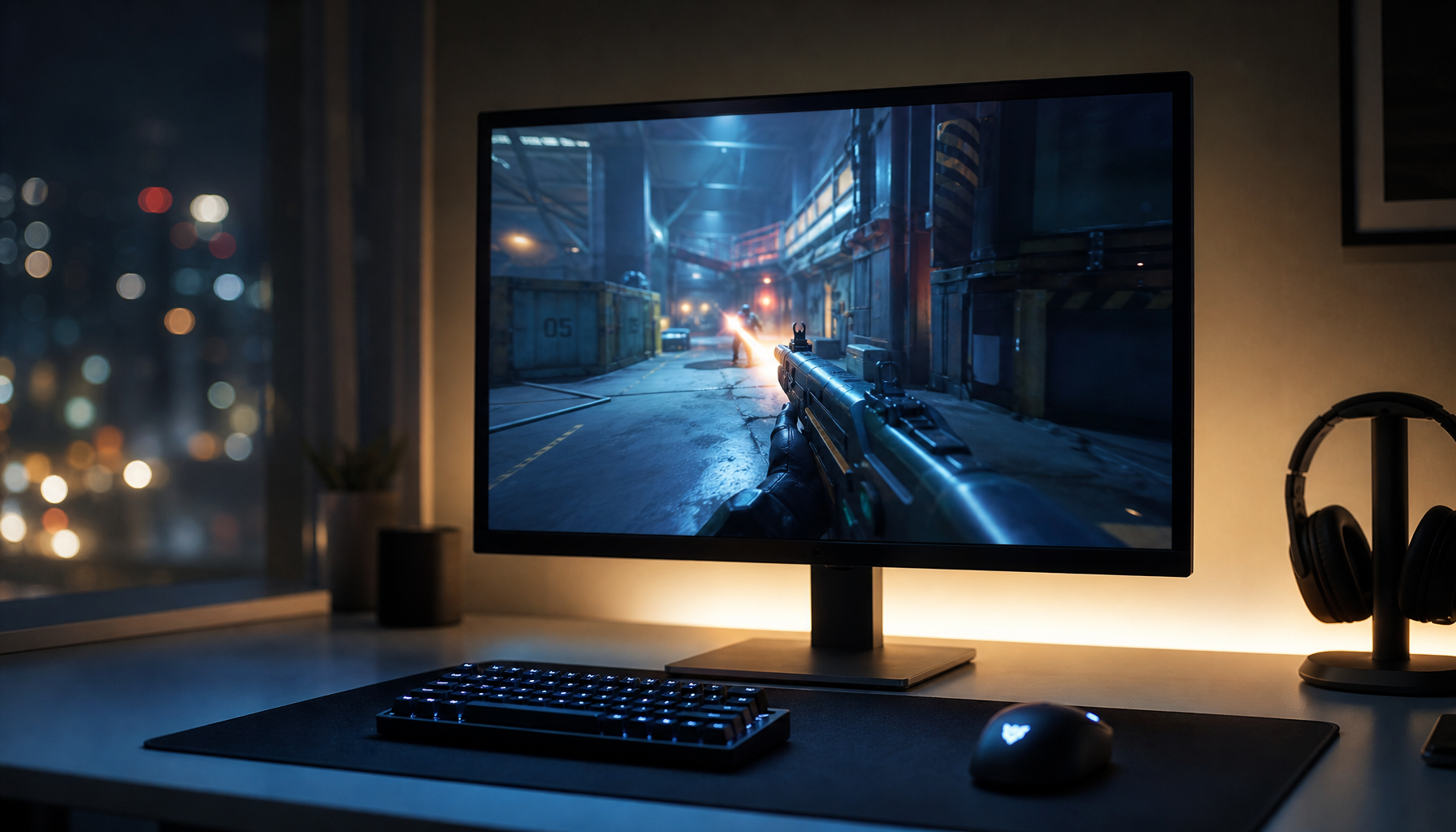
A fast PC monitor can make the same fps feel more responsive than a TV or slower office display. Response time, overdrive tuning, input lag, refresh rate, and VRR support all affect perceived smoothness.
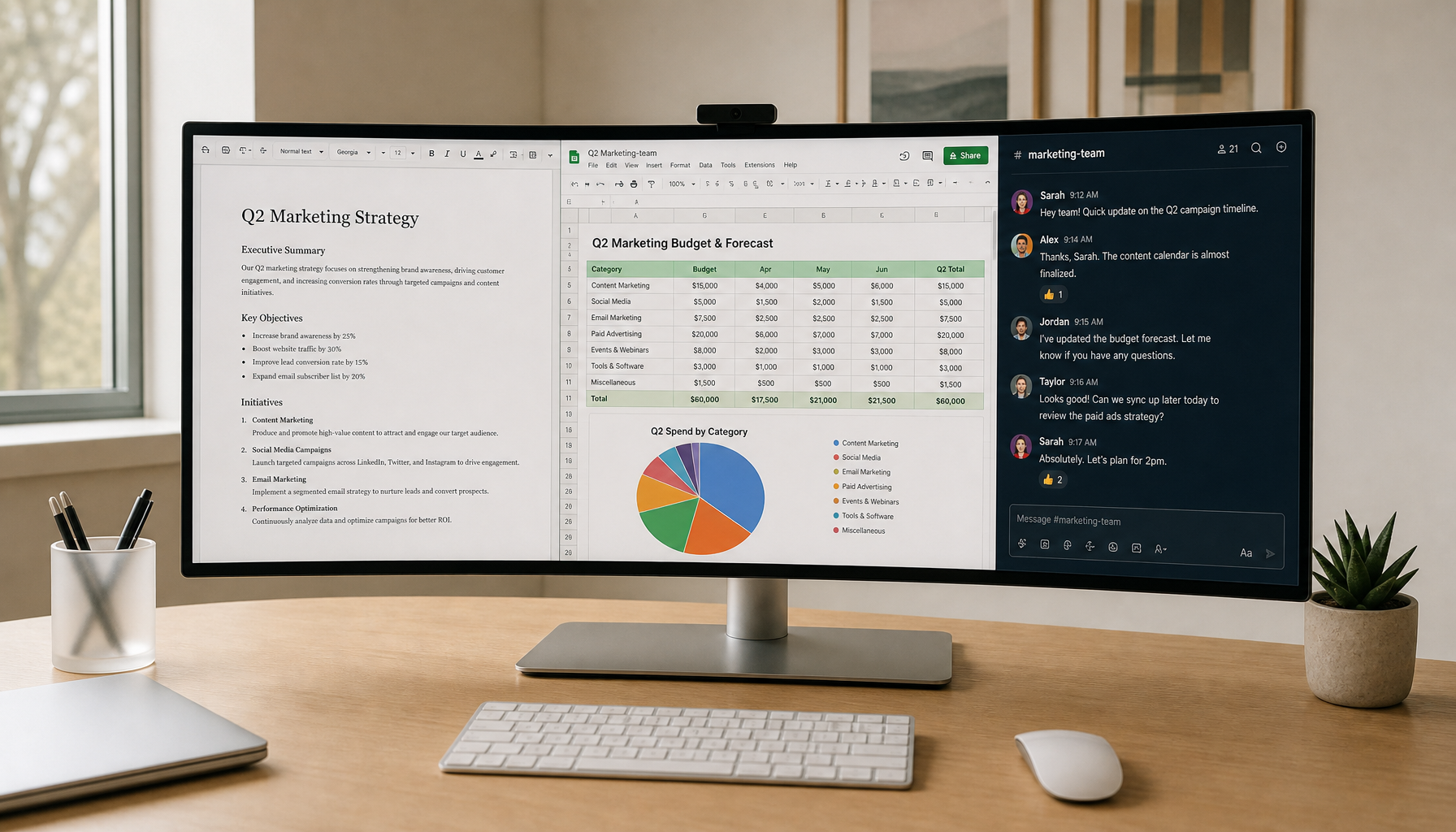
Gaming-focused monitors are built around response time and refresh rate, while office displays often prioritize text clarity, ergonomics, USB-C, and color coverage. A 75Hz productivity monitor can be excellent for work, yet still show more blur than a 144Hz or 240Hz gaming panel.
Panel behavior matters too. OLED and fast IPS displays can reduce smearing, while slower VA panels may show darker trails in motion. Even at 60 fps, pixel transitions can make camera pans feel cleaner or heavier.

Why PC Can Feel More Immediate
PC gaming often benefits from lower-latency input paths. A wired mouse, high polling rate, carefully capped or uncapped fps, reflex-style latency features, and monitor-side low-lag modes can all reduce delay.

Console controls are usually optimized for consistency, not maximum tweakability. Wireless controllers, TV processing, HDR tone mapping, and system-level frame buffering can all add milliseconds. Individually, each delay is small; together, they change the feel.
For the best console setup, keep it practical:
- Use Game Mode on your TV or monitor.
- Enable VRR if both console and display support it.
- Match HDMI port settings to 120Hz or enhanced bandwidth.
- Avoid motion smoothing and extra video processing.
- Choose a monitor with fast response and low input lag.
The Monitor Upgrade That Actually Helps
If your console supports 120Hz output, a 120Hz or higher gaming monitor can improve motion even in 60 fps games by reducing scanout delay and improving VRR handling. For mixed console and desk use, 27-inch 1440p or 4K displays are a strong balance of sharpness, speed, and value.
Competitive players should prioritize refresh rate, response time, and low input lag. Cinematic players should weigh contrast, HDR brightness, and pixel density. The best display is not the highest-spec one; it is the one whose strengths match how you actually play.