Continuous 24/7 operation usually ages a display faster than an 8-hour daily schedule because runtime, heat, brightness load, and static content exposure accumulate nonstop. Daily on-off cycles add some stress, but for most modern monitors, long idle hours at high brightness are the bigger lifespan drain.
Is your gaming monitor always glowing on a pause screen, or is your office display left running through nights and weekends “just in case”? A simple runtime comparison can turn a vague lifespan worry into a clear replacement-risk estimate before image quality starts fading. You’ll get a practical way to decide when to leave a screen on, when to use sleep, and how to protect brightness, contrast, and reliability.
The Core Difference: Runtime Aging Versus Power-Cycle Stress

Display lifespan is not only about whether the screen turns on. For most LCD and LED-backlit monitors, lifespan usually means gradual loss of brightness, weaker contrast, uneven backlighting, flicker, or component failure before the panel is completely dead. Display type, component quality, usage patterns, and environmental conditions all affect monitor lifespan, which is why two identical screens can age at different rates in a gaming room, reception desk, trading setup, or portable workstation.
Continuous 24/7 operation is mainly a runtime problem. The backlight, power board, capacitors, internal adhesives, and panel electronics stay warm and active all the time. Daily on-off cycling is mainly a transition problem. The display warms up, cools down, and experiences startup electrical load, but it also spends many hours not accumulating active wear.
The practical answer is this: if the monitor is idle for hours, sleep mode or scheduled power-down is usually better than leaving it fully lit. If the break is brief, sleep mode is often preferable to repeatedly hard-switching the display off and on.
A Simple Lifespan Calculation

LCD monitors are often described in the range of about 30,000 to 60,000 hours of use, with LED-backlit models commonly grouped into that same practical service-life conversation. At 24 hours per day, 30,000 hours is about 3.4 years and 60,000 hours is about 6.8 years. At 8 hours per day, the same range stretches to about 10.3 to 20.5 years.
Use Pattern |
Daily Runtime |
30,000-Hour Scenario |
60,000-Hour Scenario |
Practical Meaning |
Continuous operation |
24 hours |
About 3.4 years |
About 6.8 years |
Best reserved for screens with a real operational reason to stay on |
Workday use |
8 hours |
About 10.3 years |
About 20.5 years |
Much slower active wear, assuming moderate brightness and good conditions |
Heavy gaming or creator use |
10 to 12 hours |
About 6.8 to 8.2 years |
About 13.7 to 16.4 years |
Still far gentler than 24/7, but settings and heat matter more |
That table is not a warranty prediction. It is a runtime model. A monitor can become functionally outdated before it fails, especially when newer panels offer higher refresh rates, better resolution, stronger color, or improved HDR behavior.
Why Always-On Displays Age Faster

The biggest reason 24/7 operation shortens usable life is that the display never gets a thermal rest. Heat accelerates wear in electronics, and displays are no exception. Lowering brightness and using power-saving modes can reduce heat and wear on backlights and pixels, which matters more when a screen is powered for thousands of consecutive hours.
For gaming monitors, the effect shows up as reduced punch. HDR highlights feel less intense, dark-scene separation weakens, and the user keeps nudging brightness higher to compensate. For office productivity displays, the change is quieter but still costly: spreadsheets look duller, white backgrounds lose consistency, and users experience more visual fatigue during long sessions.
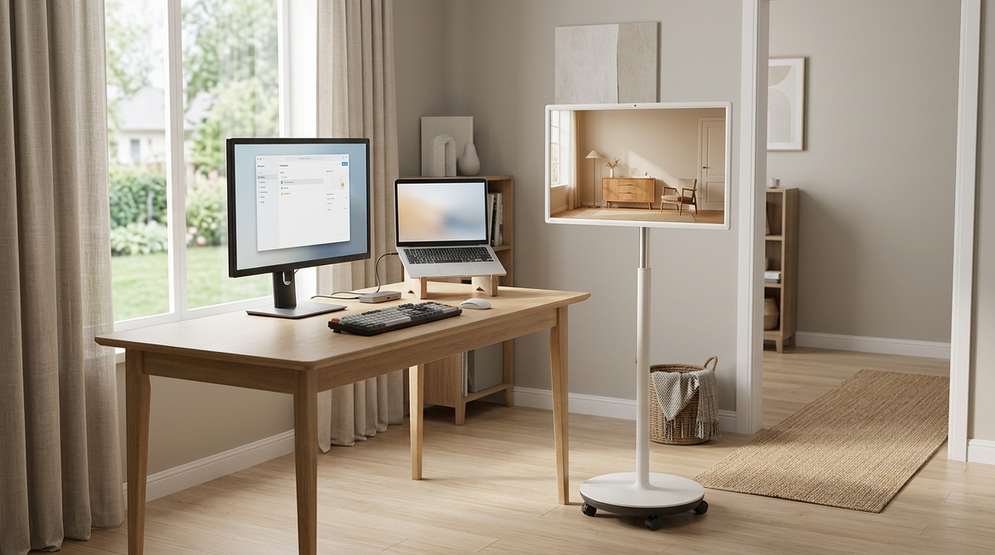
Portable smart screens face a harsher form of the same issue. Thin bodies have less room for heat dissipation, and users often raise brightness in cafes, airports, conference rooms, or near windows. A portable screen left running as a dashboard all day can age faster than expected simply because it is operating hot, bright, and enclosed.
Are Daily On-Off Cycles Bad?
Daily on-off cycles are not automatically harmful. Modern monitors are designed for normal use patterns, and one power-up in the morning plus one shutdown or sleep transition at the end of the day is reasonable. The more questionable habit is constant hard power cycling during short breaks, especially if the screen could simply enter standby.
For computer setups more broadly, sleep or rest mode is commonly recommended instead of frequent full shutdowns when optimizing performance and hardware longevity. Applied to monitors, the value is straightforward: let the display stop driving the panel and backlight during idle time without forcing needless manual switching every few minutes.
The better rule is based on idle duration. For a coffee refill, let sleep mode handle it. For lunch, a meeting, overnight downtime, or a weekend, use automatic sleep or a scheduled power-off. This gives the electronics fewer active hours without turning normal daily startup into a concern.
Static Content Changes the Risk
Continuous use becomes more damaging when the image does not change. A security dashboard, game launcher, scoreboard, productivity dock, taskbar, trading chart, or menu bar can sit in the same position for days. OLED screens are especially sensitive because each pixel emits its own light and can age unevenly. LCDs are less prone to true burn-in, but persistent image retention, uneven backlight wear, and visible panel aging can still affect the experience.
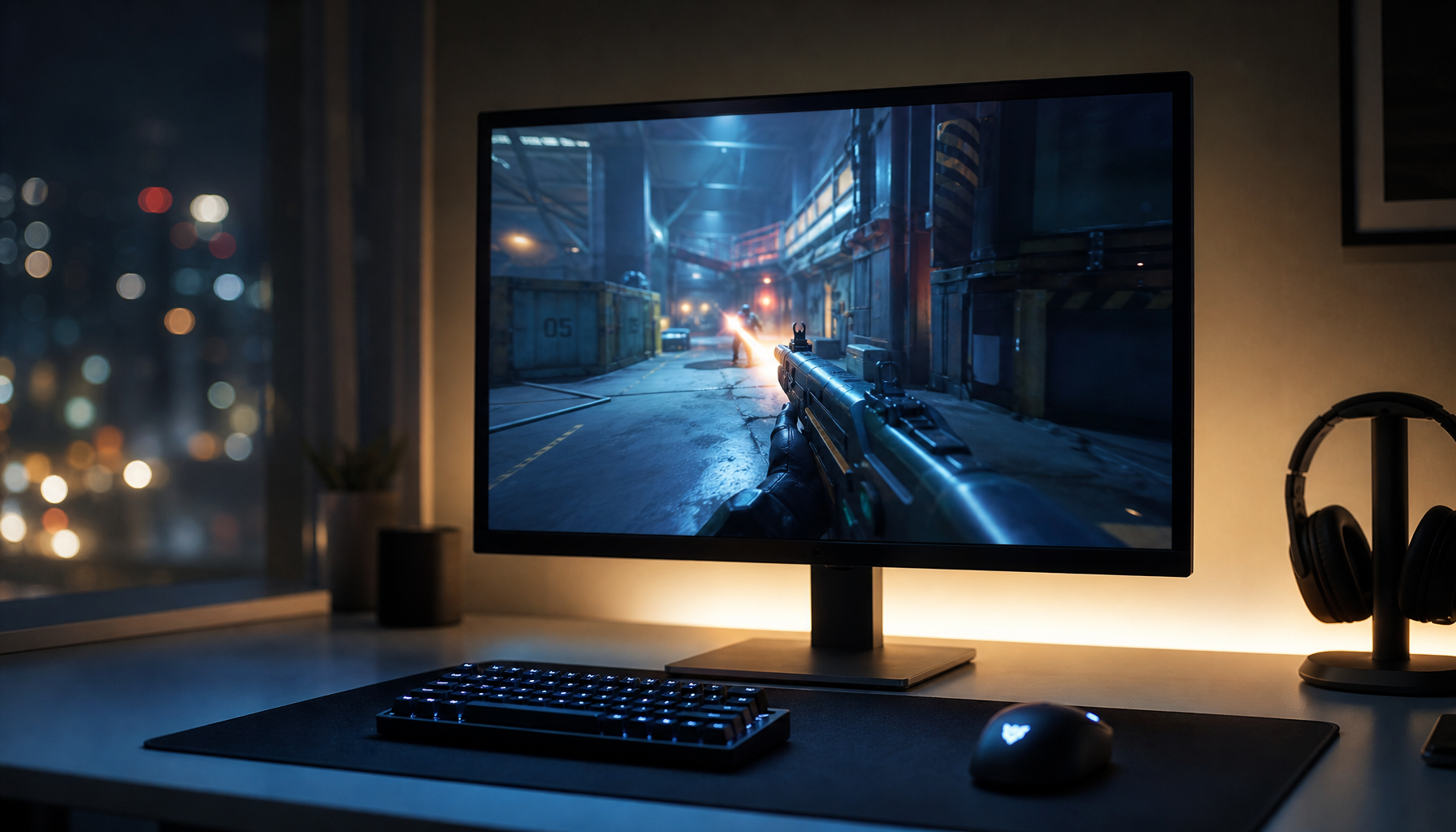
Gaming displays used for varied content usually age more evenly than monitors locked to a bright static HUD. A dual-monitor setup can make this worse if the second screen always shows chat, streaming tools, or browser panels in the same layout. Dual monitors for gaming are useful because one screen can carry guides, chats, or communication apps while the main panel stays focused on gameplay, but that supporting display should still use sleep timers and avoid static maximum-brightness layouts.
For office displays, the equivalent risk is leaving dashboards, calendars, ticket boards, or spreadsheets visible overnight. A small operations team may think the screen needs to stay ready, but a scheduled wake time at 7:30 AM often provides the same practical availability with far less accumulated wear.
Maintenance Matters More Under 24/7 Use
Always-on displays need maintenance discipline because small issues compound faster. Dust blocks vents, heat rises, and users compensate for dirty or dim screens by increasing brightness. Display maintenance includes regular cleaning, inspection, and protection to preserve picture quality, performance, and device lifespan.
In real deployments, the most reliable routine is boring and repeatable. Power the display down before cleaning. Use a microfiber cloth. Do not spray liquid directly on the screen. Check vents, edges, flicker, discoloration, dead pixels, cable fit, and power stability at least monthly for screens that run long hours. In a shared office or retail-style environment, that inspection catches problems before users start treating a fading display as normal.
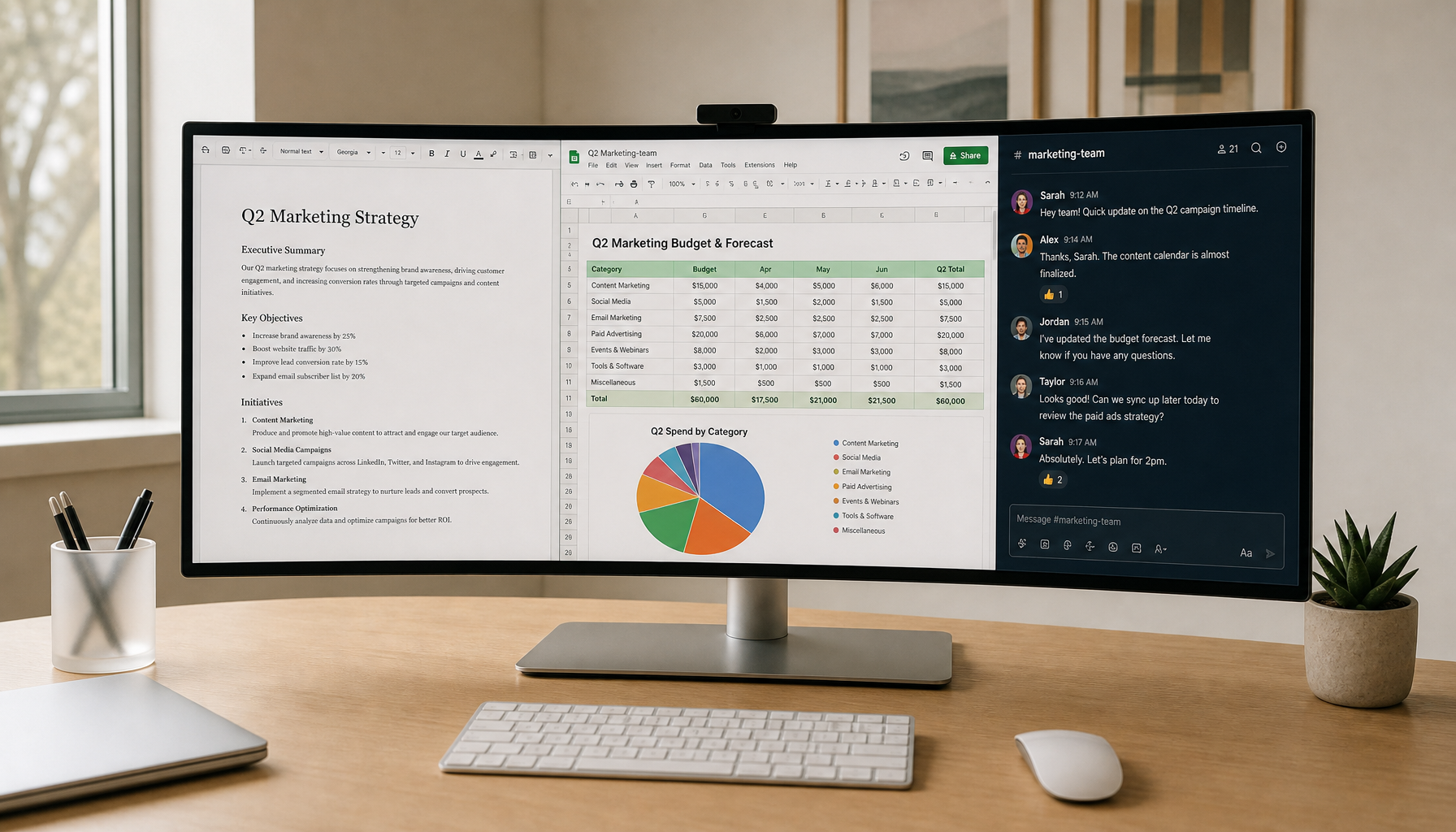
A clean workspace also helps the screen do its job. Dust, clutter, and poor lighting push users toward brighter settings and worse posture. Using a second monitor can improve productivity by keeping multiple windows visible and reducing app switching, but productivity gains are strongest when the displays are positioned, cleaned, and powered intelligently.
Monitoring Your Monitors Like Real Assets
High-value displays should be managed like assets, not disposable accessories. A performance monitor, a color-critical creator panel, a control-room screen, or a portable display used for client presentations has a business role. Inventory, objectives, thresholds, dashboards, alerts, and historical trend can shape an effective monitoring strategy, and the same logic scales down neatly to a display fleet.
For a small office, that can be as simple as recording purchase date, average daily runtime, brightness setting, location, cleaning schedule, and visible symptoms. For a gaming studio or esports room, it may include panel type, refresh rate, cable type, hours of use, firmware updates, and whether adaptive brightness or sleep timers are enabled. The goal is not bureaucracy. The goal is to know which screen is aging because it works hard, which one is aging because it is misconfigured, and which one should be rotated out before a tournament, deadline, or presentation.
Maintenance thinking from manufacturing applies here too. Monitoring, analytics, and planned interventions can prevent failures before they disrupt operations. For displays, that means replacing a failing cable before flicker ruins a session, cleaning vents before heat accelerates dimming, and changing power settings before a 24/7 dashboard burns through years of usable brightness.
Best Practice for Gaming, Office, and Portable Screens

For gaming monitors, use sleep mode for short breaks, turn off static launchers when you walk away, keep HDR brightness for actual HDR content, and avoid leaving bright HUDs paused overnight. A high-refresh display is bought for motion clarity and immersion, so preserving contrast and brightness headroom is part of protecting performance, not just saving electricity.
For office productivity displays, schedule sleep after a practical idle window and shut down after work hours unless the screen has a true operational role. Large and ultrawide monitors can dramatically reduce window switching, but they are also expensive assets. Let them work hard during the day and rest when the work is done.
For portable smart screens, be more conservative. Keep them out of direct sun, avoid running them on maximum brightness unless needed, store them in a protective sleeve, and do not leave them powered inside cramped or warm spaces. Portability is valuable, but thin thermal design gives you less margin for careless 24/7 operation.
When 24/7 Operation Is Worth It
There are valid cases for continuous operation. A network operations display, hospital-adjacent status board, security wall, factory dashboard, or customer-facing information screen may need constant availability. In those cases, the right move is choosing commercial-grade hardware, lowering brightness to the minimum useful level, using content rotation, keeping airflow clear, and planning replacement on an hours-based schedule.
The decision should be value-based. If a display prevents missed incidents, supports safety, or keeps a business workflow visible, the extra wear may be justified. If it is only left on because no one changed the settings, 24/7 operation is wasting lifespan.
Practical Verdict
Continuous 24/7 operation compresses years of display life into fewer calendar years because every hour counts. Daily on-off use is usually healthier when paired with sleep mode, moderate brightness, clean airflow, and varied content. Treat the screen like a performance component: run it hard when it creates value, let it rest when it does not, and it will stay sharper, brighter, and more reliable for far longer.