Most players can feel input lag once it reaches the “sluggish” range, while elite and highly practiced players may notice smaller changes when aim, timing, and frame pacing are already dialed in.
You click first, flick cleanly, and still feel like the screen answers a beat too late. Real latency testing shows that refresh rate, buffering, peripherals, and display processing can change how a setup feels by meaningful margins, not just spec-sheet bragging rights. Here is how to judge what you can actually feel, what to fix first, and when an upgrade is worth it.
What Input Lag Really Means
Input lag is the delay between your physical action and the visible result. In competitive play, that path starts at the mouse or keyboard, travels through USB reporting and the game engine, waits on CPU and GPU work, then finally appears through the monitor’s refresh cycle and panel behavior.

A key distinction matters: input lag is local. Ping is network round trip. A perfect fiber connection will not fix a delayed monitor mode, a saturated GPU, V-Sync buffering, or a wireless keyboard with high latency. Cloud gaming adds another layer because the game runs remotely and the device becomes mostly an input/output endpoint; cloud gaming quality depends heavily on connectivity as well as device-side responsiveness.
Response time is also different. Response time describes how quickly pixels change color, which affects blur and ghosting. Input lag describes when the new frame begins appearing. A monitor can advertise fast pixel response yet still feel delayed if image processing or buffering is in the way.
The Feel Threshold: What Most Players Notice
There is no universal “you will feel exactly 12 ms” line because sensitivity depends on skill, game type, frame consistency, and what changed. A casual player moving from 20 ms to 15 ms may not notice much. A tactical shooter, fighting game, or rhythm game player may notice the same difference if the rest of the setup is already clean.
The practical way to think about it is not one number, but tiers.
Total Feel |
Approximate Experience |
Competitive Meaning |
Excellent |
Very tight and immediate |
Suitable for serious aim and timing |
Good |
Responsive with minor delay |
Fine for most competitive players |
Noticeable |
Slightly heavy or floaty |
Aim corrections feel less connected |
Problematic |
Delayed, sluggish, inconsistent |
Hurts reaction play and confidence |
A simple example makes this real. At 30 FPS, each frame lasts about 33.3 ms. At 144 FPS, each frame lasts about 6.9 ms. Even before considering the monitor, the system at 144 FPS has far more frequent opportunities to show your input. That is why a higher-refresh panel often feels sharper even when the mouse, keyboard, and game are unchanged.
Latency measurements reinforce this point: moving one machine from 24 Hz to 165 Hz improved measured latency by about 90 ms, more than simple refresh math alone would predict, suggesting buffered frames and pipeline behavior also matter; high-refresh displays reduce both waiting time and the chance that extra queued frames hide your newest input.
Why Competitive Players Feel Small Differences
Competitive gaming is repetitive motor learning. If you have played with the same sensitivity, crosshair placement, and recoil pattern for hundreds of hours, your brain builds expectations around when the screen should respond. When input lag rises, your first correction arrives late, so the second correction becomes too large. That is the “floaty mouse” feeling many players describe.
The most sensitive moments are micro-flicks, counter-strafing, peeker’s advantage situations, parries, rhythm inputs, and tracking fast targets. In office work, 20 ms may barely register while moving a cursor across a spreadsheet. In a 240 Hz aim duel, the same extra delay can feel like the display is arguing with your hand.
Monitor age alone is not the deciding factor. In a display-testing forum discussion, an administrator notes that gaming monitors reached very low processing latency years ago, and that moving from already-low latency to literal zero would be a tiny practical improvement; monitor age is less important than verified low-lag behavior, refresh rate, and real-world feel.
The Biggest Sources of Lag You Can Control
Display Processing and Game Mode
If you play on a TV, Game Mode is often the first setting to check. TVs can add image processing for smoothing, scaling, motion interpolation, and enhancement. Those features may make movies look polished, but they can delay the frame you need right now.

On monitors, input lag is usually lower, but modes still matter. Use the highest refresh rate, disable unnecessary post-processing, and avoid monitor-side scaling when GPU scaling is more predictable. A display-latency database compares TVs and monitors by responsiveness, and its gaming guidance emphasizes low-lag displays used in Game Mode; low-lag displays are useful to compare only when you check the exact model and test condition.
Refresh Rate, FPS, and Frame Pacing
A 240 Hz monitor does not magically solve a game running at 80 FPS with uneven frame times. The cleanest feel comes from a stable GPU pipeline where frames arrive consistently. If your GPU is maxed out, new inputs may wait behind queued rendering work.
A practical setup is to lower heavy graphics settings until your frame rate is stable, then use a sensible frame cap below the point where the GPU constantly hits full load. This often feels better than chasing maximum FPS with stutter. Texture quality matters when VRAM is tight, while shadows, reflections, and post-processing are common first cuts for competitive presets.
Mouse, Keyboard, and USB Path
A 125 Hz device can wait up to about 8 ms before reporting input, while 1,000 Hz lowers the reporting interval to about 1 ms. That does not mean an 8,000 Hz keyboard automatically makes you better. It means old or office-grade peripherals can become a bottleneck, while 500 Hz or 1,000 Hz is usually enough for a strong competitive setup.

Wired USB or high-quality 2.4 GHz wireless is preferable for serious play. Bluetooth is convenient for office productivity and portable screens, but it is not the best choice for low-latency gaming. If inputs feel inconsistent, move the receiver closer, avoid crowded USB hubs, and test another port before blaming the monitor.
CPU, GPU, and the Rendering Chain
The GPU matters because it determines how fast frames are prepared and delivered, but the right GPU depends on workload. Display and GPU guidance from the University of Pennsylvania makes the basic distinction clear: integrated graphics share system resources, while discrete graphics have dedicated processing and memory for heavier visual workloads.
For esports titles, a balanced CPU and GPU can be more valuable than an extreme GPU paired with a weak processor. If frame times spike during fights, smokes, explosions, or streaming overlays, the issue may be CPU scheduling, background apps, capture software, or driver overhead rather than the panel itself.
How to Test What You Can Feel
Start with a controlled A/B change. Keep the same game, map, mouse DPI, sensitivity, and refresh rate, then change one setting at a time. Disable V-Sync, test your usual frame cap, try the monitor’s fastest usable overdrive mode, and compare Game Mode against standard picture mode. If the screen becomes clearer but overshoots badly, the overdrive setting is too aggressive even if the spec looks faster.
A high-frame-rate phone recording can help. Record your mouse click or key press and the screen response in the same shot, then step through frames. This is not lab-grade, but it can reveal large problems. Another rough method is mirroring a timer across two displays and photographing both, though output timing and camera behavior limit accuracy.
For players building or tuning games, input handling also matters. A game-development guide notes that state checks can feel low latency but may miss brief inputs, while event queues preserve discrete presses and releases; input handling choices affect how responsive a game feels even before the display enters the equation.
Should You Upgrade Your Monitor?
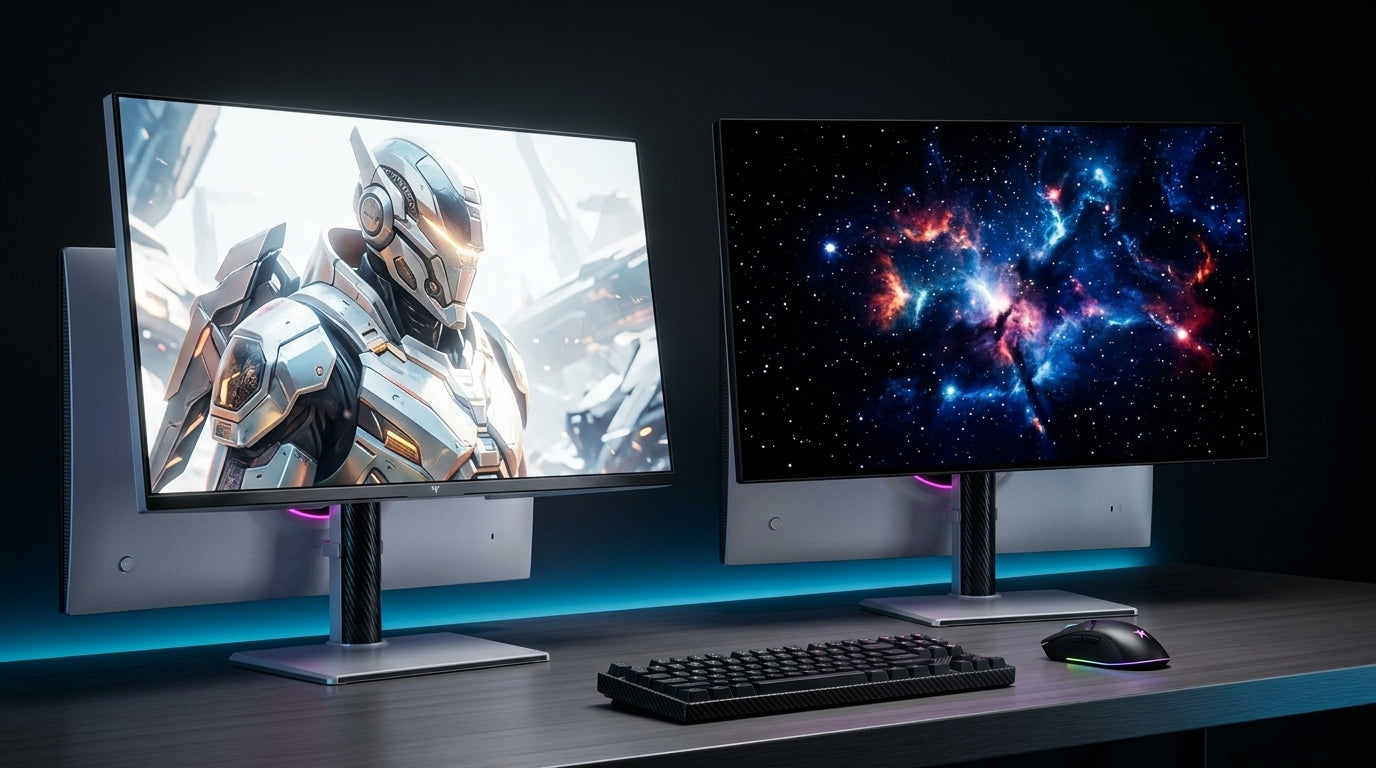
Upgrade if you are stuck at 60 Hz, playing on a TV outside Game Mode, seeing unstable frame pacing, or using a display with known high input lag. Moving from 60 Hz to 144 Hz is usually the most obvious jump. Moving from 144 Hz to 240 Hz is still useful for serious players, but the improvement is subtler. Moving from 240 Hz to 360 Hz or 540 Hz is a specialist choice for players who already have strong mechanics, high FPS, and a clean system. For example, a 24.5-inch FHD 180Hz display such as the KTC 24.5” FHD 180Hz 1ms Wall Mount Gaming Monitor is one spec point to compare against a 60 Hz or 75 Hz setup when judging refresh-rate gains.
Do not upgrade only because a monitor is old. Upgrade because your current display fails a clear need: refresh rate ceiling, poor motion clarity, high processing delay, bad overdrive behavior, weak VRR support, or size/resolution mismatch. A reliable 240 Hz panel with low processing latency can still feel excellent.
Practical Target for Competitive Play
For most competitive gamers, the goal is not “zero lag.” The goal is a consistent, low-latency chain where your hand, game, GPU, and display stay synchronized. A strong target is a wired or 2.4 GHz low-latency mouse, 500 Hz or 1,000 Hz input reporting, stable FPS near or above your monitor refresh rate, Game Mode enabled, unnecessary processing disabled, and a monitor with verified low input lag.
If the game feels delayed, fix the chain in order: display mode, refresh rate, FPS stability, V-Sync and frame cap behavior, peripheral connection, USB path, background load, then hardware. That order saves money and usually finds the problem faster.
A fast display should disappear under your hands. When the screen stops feeling like a middleman, your aim, timing, and decision-making become the limit again, which is exactly where a competitive setup should put you.